
Categories
The knowledge base, FAQs, downloads and announcements don’t have a category list each. They share one, under Content → Categories. When you create a category you tick where it can be used, so “Billing and payments” can hold knowledge base articles and FAQs while “Shipping” holds only downloads.
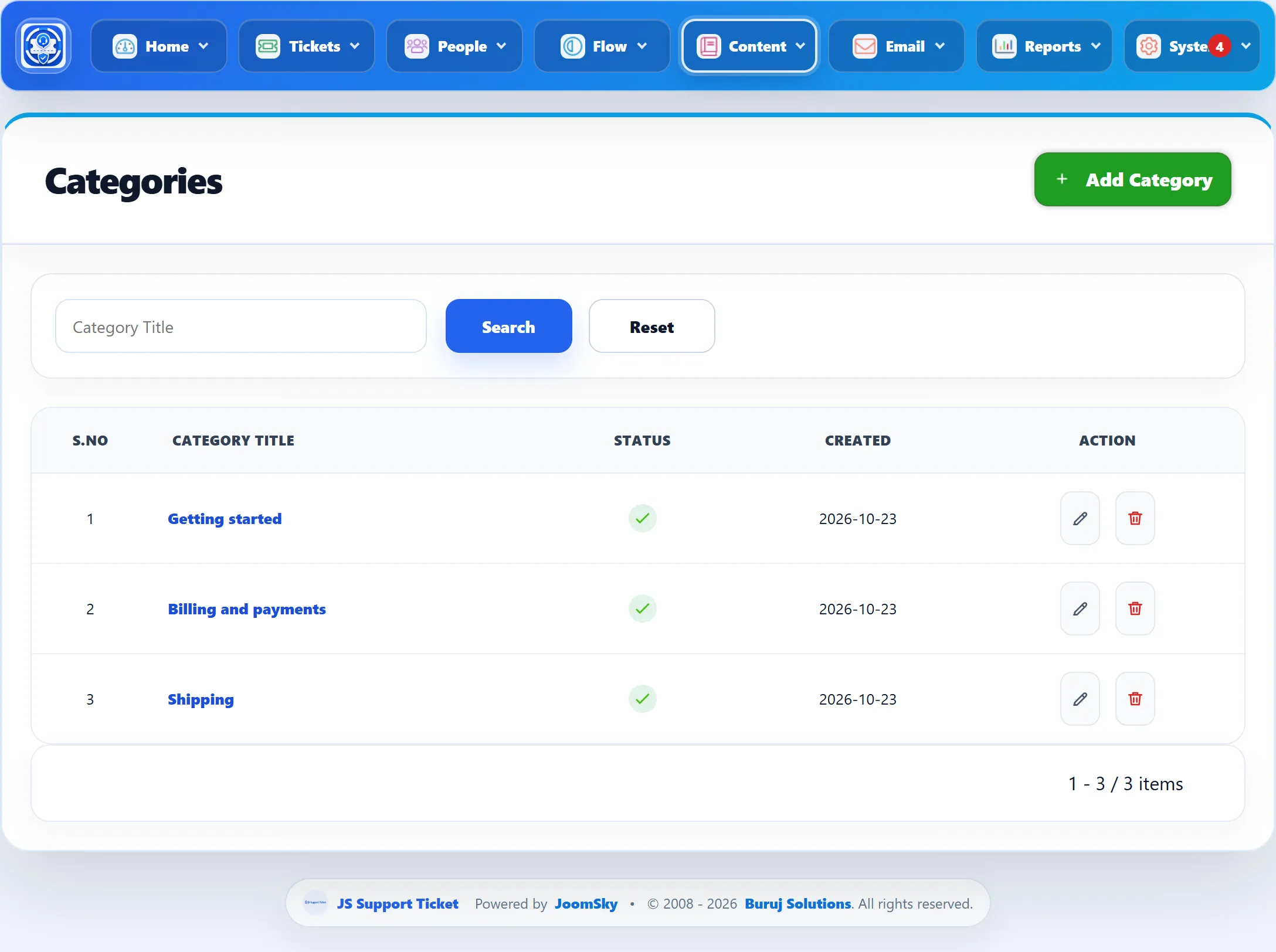
The list shows every category with its sub-categories indented beneath it
(|-- for each level). Category Title above the list filters by name;
Reset clears it. Click a category’s name, or the pencil, to edit it.
Adding a category
Section titled “Adding a category”-
Go to Content → Add Category, or click Add Category on the list.
-
Type the Category Name.
-
Optionally choose a Parent Category to make this one a sub-category.
-
Under Category for, tick each place the category should appear: Knowledge Base, Downloads, FAQs, Announcement. All four are ticked on a new category.
-
Click Save Category.
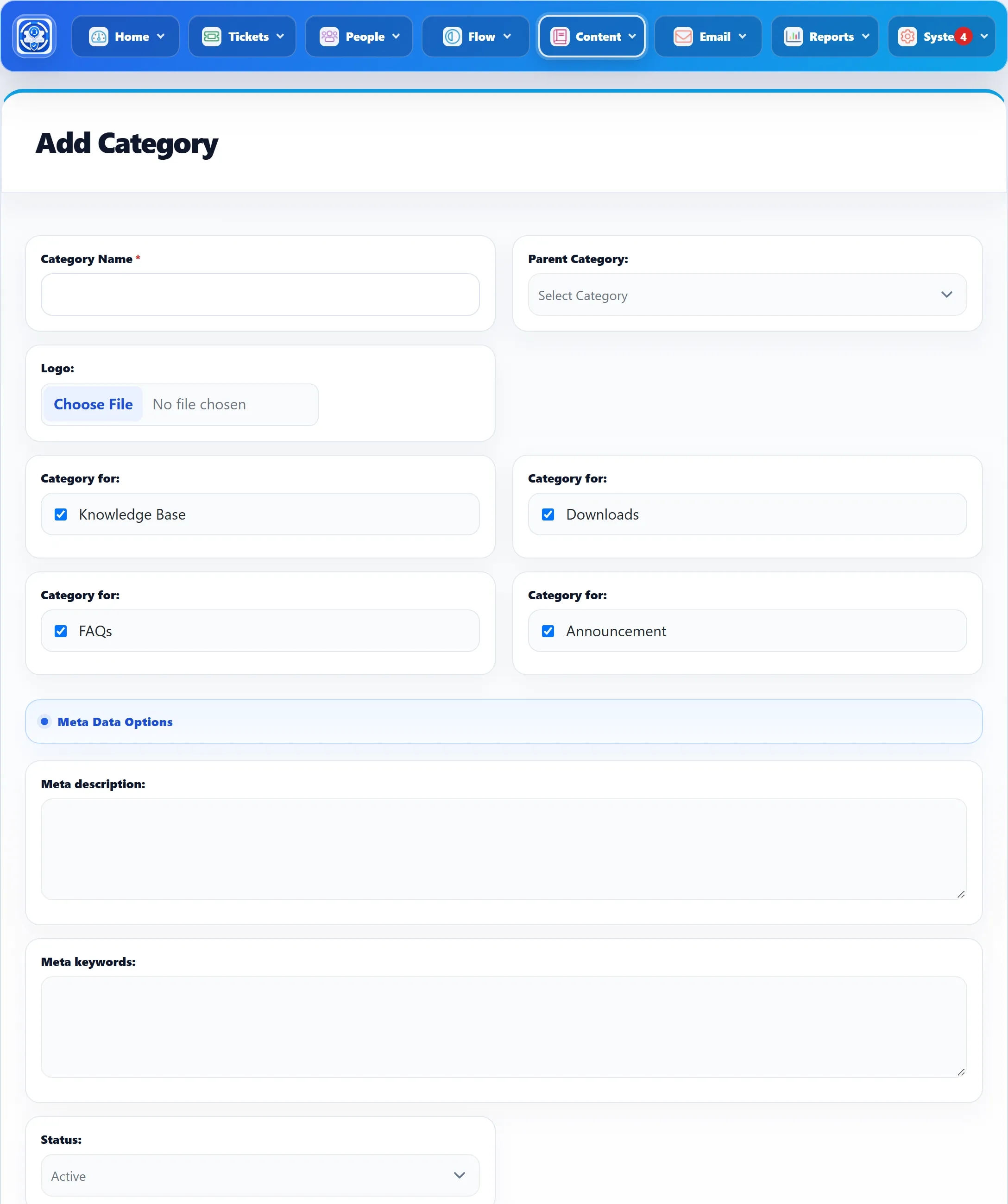
The toolbar at the top offers the same save in three forms: Save Category keeps the form open, Save & New opens an empty form, and Save & Close returns to the list.
The fields
Section titled “The fields”| Field | What it does | Default |
|---|---|---|
| Category Name | The name shown to customers and in the category menus of the content forms. Required. | – |
| Parent Category | Makes this a sub-category of the one you pick. Only active categories are offered. | Select Category (none) |
| Logo | An image for the category. When a category has one, the form shows it under the field with a Remove logo box; tick it and save to delete it. Choosing a new file replaces the old one. | None |
| Category for | Where the category can be used. A category only appears in the Category menu of an article, FAQ, download or announcement if the matching box is ticked. You must tick at least one (“Please select at least one option under “Category for”.“). | All four ticked |
| Meta description, Meta keywords | Stored with the category. | Empty |
| Status | Active or Disabled. A disabled category is left out of the category menus of the content forms and of the Parent Category menu. | Active |
Parent categories and “Category for”
Section titled “Parent categories and “Category for””When you pick a Parent Category, the Category for boxes change to match the parent’s. A sub-category is expected to be used for the same things as its parent:
- If you tick a type the parent doesn’t have, the form asks whether to add that type to the parent too, with Yes and No links. No unticks the box again.
- On a category that has sub-categories, you can’t untick a type that one of its sub-categories uses: the form shows “Child categories already use this type. You cannot unmark it” and ticks the box again.
Deleting a category
Section titled “Deleting a category”Click the bin icon and confirm. A category can only be deleted when nothing uses it: no sub-categories and no knowledge base articles, downloads, FAQs or announcements filed under it. Move or delete those first. If the category is in use, nothing is deleted.
To take a category out of use without deleting it, set its Status to Disabled.
Where the categories are used
Section titled “Where the categories are used”- Knowledge base articles
- FAQs
- Downloads
- Announcements
On the front end, customers browse each of these by category. See the guide for customers.