
Ticket fields
Tickets → Ticket Fields controls the ticket form: which fields it shows, in what order, under what names, and which ones must be filled in. It applies to the customers’ Submit Ticket form on your site and to the administrator’s form. You can also add custom fields.
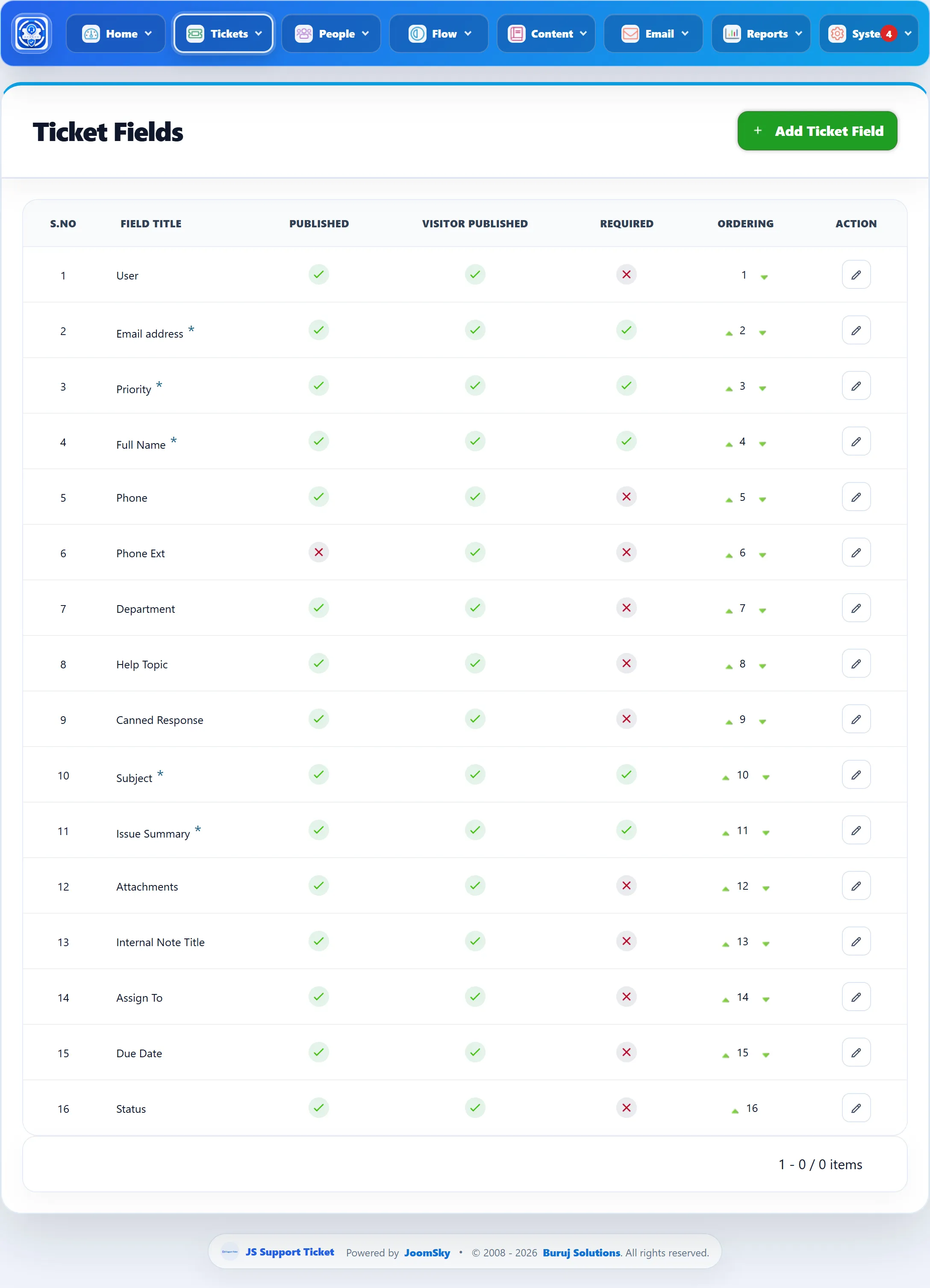
The field list
Section titled “The field list”| Column | What it does |
|---|---|
| Field Title | The name shown on the form. A star after it marks a field that can’t be unpublished. |
| Published | Shown to signed-in users: registered customers, staff, and you in the administrator. Click the icon to switch it. |
| Visitor Published | Shown to visitors who are not signed in. Click to switch. |
| Required | Must be filled in. Click to switch. |
| Ordering | The field’s position on the form. The arrows move it one place up or down. |
| Action | The pencil edits the field. Custom fields also have a delete button. |
Email address, Priority, Full Name, Subject and Issue Summary carry the star: they are always published and always required. A terms and conditions field is always required.
Unpublishing a field hides it from the form; tickets keep the values they already have.
Editing a field
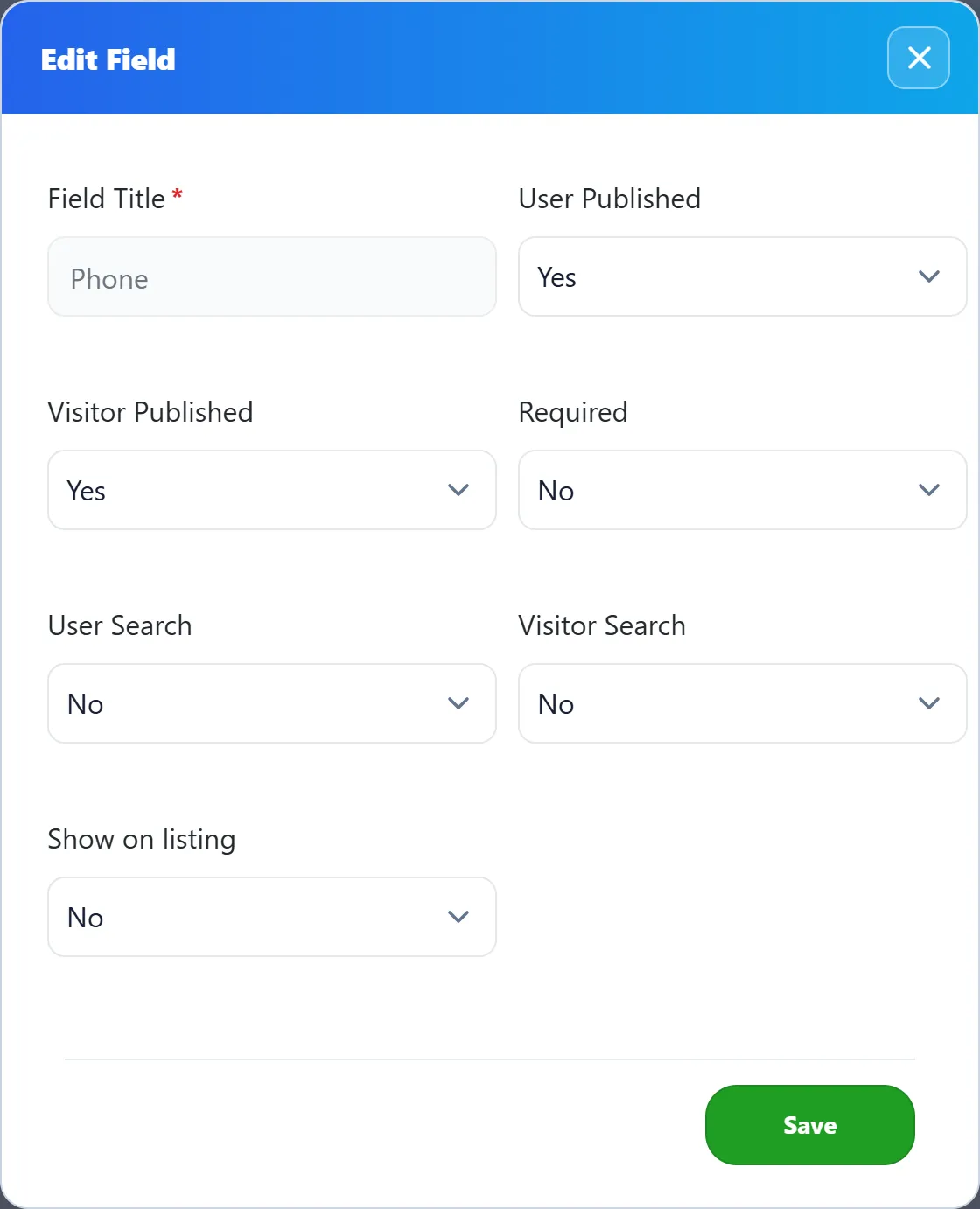
Section titled “Editing a field”Click the pencil to open Edit Field.
| Setting | What it does |
|---|---|
| Field Title | The name shown on the form. Required. |
| User Published, Visitor Published, Required | As in the list. Not shown for starred fields. |
| User Search, Visitor Search | Offer a custom field as a filter: on the ticket list under Show all filters (User Search) and to visitors (Visitor Search). |
| Show on listing | Show the field on each row of the ticket list. For Assign To this shows the assigned staff member; for a custom field it shows the value under Custom Fields. |
Click Save. For a custom field, Advanced opens its full form, below.
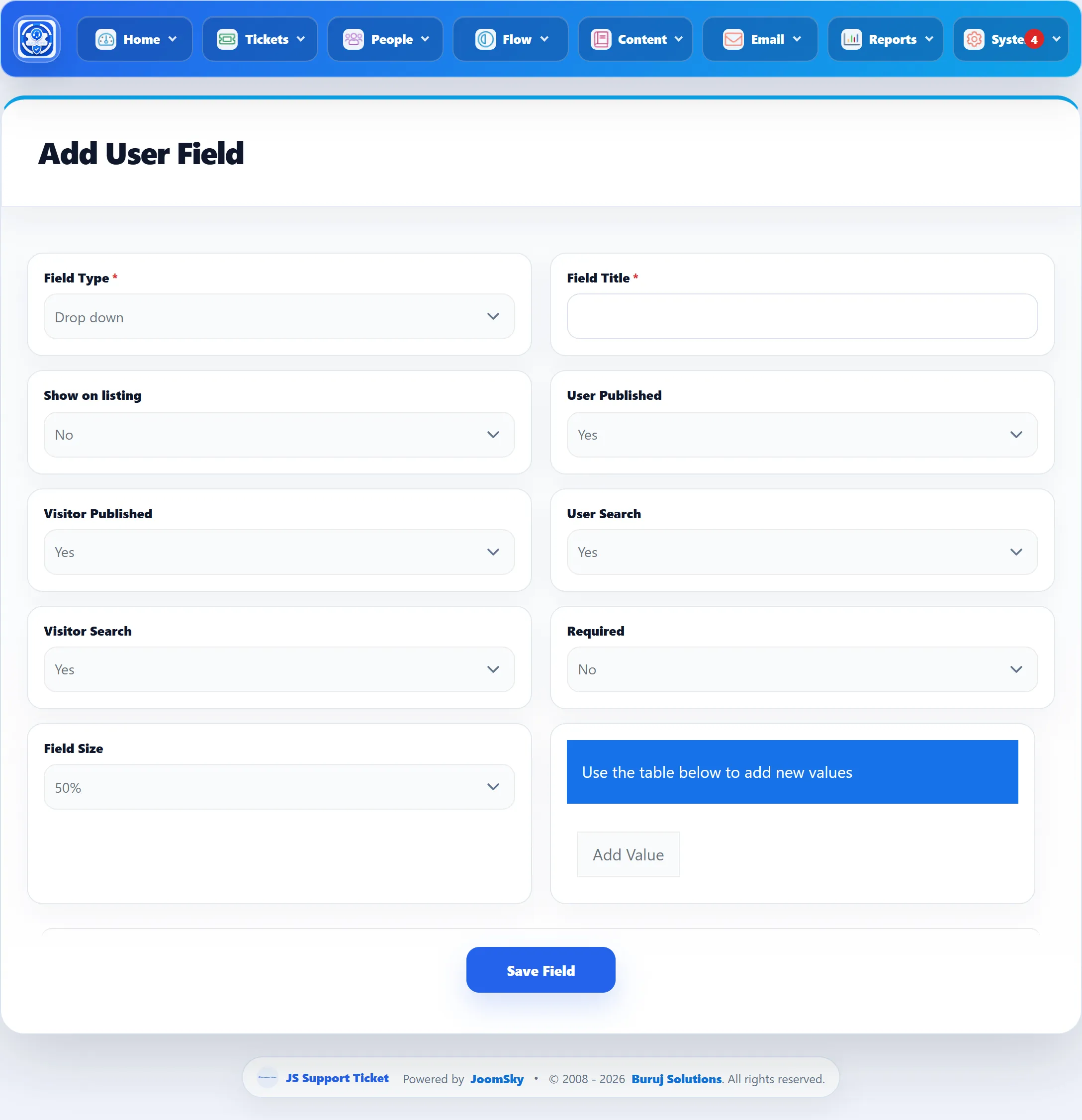
Adding a custom field
Section titled “Adding a custom field”- Click Add Ticket Field.
- Choose the Field Type and enter the Field Title.
- Set the options below. The form shows the ones that fit the type.
- Click Save Field, or Save User Field in the toolbar.
| Setting | What it does | New field |
|---|---|---|
| Show on listing | Show the value on the ticket list. | No |
| User Published | Shown to signed-in users and in the administrator. | Yes |
| Visitor Published | Shown to visitors. | Yes |
| User Search | Offered as a filter on the ticket list. | Yes |
| Visitor Search | Offered as a filter to visitors. | Yes |
| Required | Must be filled in. | No |
| Field Size | Width on the form: 50% or 100%. | 50% |
| Max Length | For text and email fields: the longest value allowed. | |
| Columns, Rows | For text areas: the box’s size. |
Field types
Section titled “Field types”| Type | Gives the customer |
|---|---|
| Text field | A one-line box. |
| Text area | A box for longer text. |
| Email address | A box for an email address. |
| Date | A date picker. |
| Drop down | A list to pick one value from. |
| Multi select | A list to pick several values from. |
| Radio button | Buttons to pick one value. |
| Check box | Boxes to tick one or more values. |
| Depandent field | A list whose options depend on what was picked in another list. |
| Upload file | A file upload, within the attachment size and type limits. |
| Terms and Conditions | A box the customer must tick to agree. |
For Drop down, Multi select, Radio button and Check box, enter the choices in the table under “Use the table below to add new values”; Add Value adds a row.
For a Depandent field, pick the Parent Field, then fill in the options to offer for each of the parent’s values. Add More adds an option.
For Terms and Conditions, enter the Terms and Conditions Text, for
example “I have read and agree to the [link]Terms and Conditions[/link].”, then
choose the Terms and Conditions Link Type: Direct Link with a URL in
Terms and Conditions Link, or Joomla Article Page with an article in
Terms and Conditions Page. The words between [link] and [/link] become
the link.
Where custom fields show
Section titled “Where custom fields show”- On the ticket forms, in the order set here.
- In the ticket’s details on the ticket screen.
- On the ticket list, with Show on listing, and as filters with User Search.
- In the ticket export.
Deleting a custom field
Section titled “Deleting a custom field”Click the delete button on its row and confirm. A field that any ticket has a value for can’t be deleted: “This custom field is in use and cannot be deleted.” Unpublish it instead. The built-in fields can’t be deleted.