
Employer settings
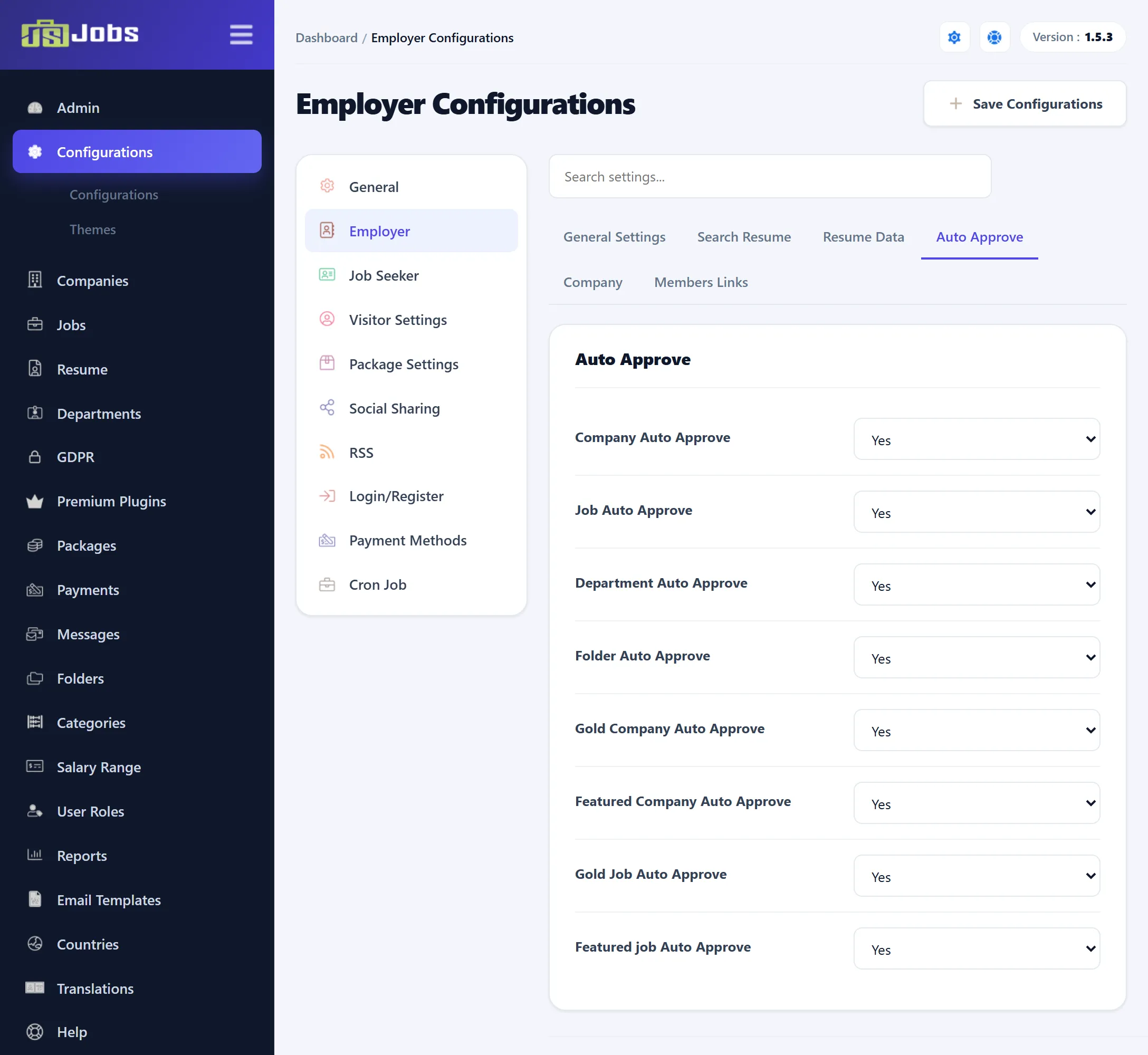
Open Components → JS Jobs → Configurations and click Employer in the list on the left. The page is headed Employer Configurations and saves on its own: click Save Configurations before you move to another section.
Settings marked (Pro) belong to features of JS Jobs Pro.
General Settings
Section titled “General Settings”| Setting | Default | What it does |
|---|---|---|
| Employer Can View Job Seeker Area | Yes | Yes lets logged-in employers open the job seeker pages, such as the jobs list, job search, job categories and the job seeker control panel. No shows them a “not allowed” message there instead. |
| Show Add To Gold Company Button (Pro) | Show | Shows the button that lets an employer make a company gold from My Companies. |
| Show Add To Featured Company Button (Pro) | Show | The same for featured companies. |
| Gold company Expire In Days (Pro) | 30 | How long a company stays gold. It is used while packages aren’t required; when they are, the employer’s package sets the number of days. |
| Featured company Expire In Days (Pro) | 30 | The same for featured companies. |
| Show Add To Gold Job Button (Pro) | Show | Shows the button that lets an employer make a job gold from My Jobs. |
| Show Add To Featured Job Button (Pro) | Show | The same for featured jobs. |
Whether packages are required is set under Package Settings; see Packages, social sharing and RSS.
Search Resume
Section titled “Search Resume”| Setting | Default | What it does |
|---|---|---|
| Allow Save Search | Yes | Shows a button on the resume search results that lets an employer save the search and run it again later from Resume Save Searches. |
Resume Data
Section titled “Resume Data”| Setting | Default | What it does |
|---|---|---|
| What Include In Email | All Fields | When a job is set to e-mail the employer the applicant’s resume, this chooses what the resume part of the e-mail holds: All Fields or Only Filled Fields. |
Auto Approve
Section titled “Auto Approve”Each switch decides whether something an employer adds goes live at once (Yes) or waits in an approval queue for you (No).
| Setting | Default | What it does |
|---|---|---|
| Company Auto Approve | Yes | New companies. With No they wait in Companies → Approval Queue. |
| Job Auto Approve | Yes | New jobs. With No they wait in Jobs → Approval Queue. |
| Department Auto Approve | Yes | New departments. With No they wait in Departments → Approval Queue. |
| Folder Auto Approve (Pro) | Yes | New resume folders. With No they wait in Folders → Approval Queue. |
| Gold Company Auto Approve (Pro) | Yes | A request to make a company gold. With No the employer sees that it is waiting for approval. |
| Featured Company Auto Approve (Pro) | Yes | The same for featured companies. |
| Gold Job Auto Approve (Pro) | Yes | The same for gold jobs. |
| Featured job Auto Approve (Pro) | Yes | The same for featured jobs. |
Company
Section titled “Company”These switches show or hide parts of a company’s details on the front end: in the companies list, on the company’s page, on job pages and on the printable job.
| Setting | Default | What it does |
|---|---|---|
| Company Name | Show | The company’s name. |
| Company Email Address | Show | The company’s contact e-mail address. |
| City | Show | The company’s city. |
| Company Url | Show | The company’s website address. |
| Zip Code | Show | The zip code. Hide also removes the box from the company form. |
Members Links
Section titled “Members Links”Employer Top Menu Links are the links in the bar across the top of the component’s pages, as a logged-in employer sees them. Each is Show by default.
| Setting | The link |
|---|---|
| Control Panel | The employer control panel. |
| New Job | The form for a new job. |
| My Jobs | The employer’s jobs. |
| My Companies | The employer’s companies. |
| Resume Search | The resume search form. |
Employer Control Panel Links choose what the employer control panel shows. All are Show (or Yes) by default.
| Setting | What it shows |
|---|---|
| My Jobs Counts, Applied Resume Counts, My Companies Counts, Resume Save Searches Counts | The number boxes at the top of the control panel. |
| Jobs Graph, Resume Graph | The charts. |
| Newest Resume Box, Applied Resume Box | The lists of newest resumes and of resumes that applied to the employer’s jobs. |
| My Stuff Area, My Stats Area | The two groups of links. |
| My Companies, New Company, My Departments, New Department | Links to those pages. |
| Folders (Pro), New Folder (Pro) | Links to the employer’s resume folders and the new-folder form. |
| Resume Save Searches | The employer’s saved resume searches. |
| Resume By Categories | Resumes listed by category. |
| Expire Package Message | A message on the control panel when the employer’s package has expired. |
| Employer Profile | The link to the employer’s profile. |
| Packages, Purchase History | The packages on sale and the employer’s purchases. |
| Messages (Pro) | The employer’s messages. |
| My Stats | The employer’s statistics page. |
| Resume RSS (Pro) | The resume RSS feed. |
| Show Login/logout Button | A Login or Logout button on the control panel. |
| User data request | The User Data link, where an employer asks for their data to be erased. See GDPR. |
What a visitor (someone not logged in) sees on the employer control panel is set separately, under Visitor settings.