
Lookup lists
The drop-down lists on the job form, the resume form and the search forms come from eight short lists you manage under Components → JS Jobs → Admin: Job Types, Job Status, Shifts, Highest Education, Ages, Career Levels, Experience and Currencies. All eight work the same way; Currencies has two extra fields.
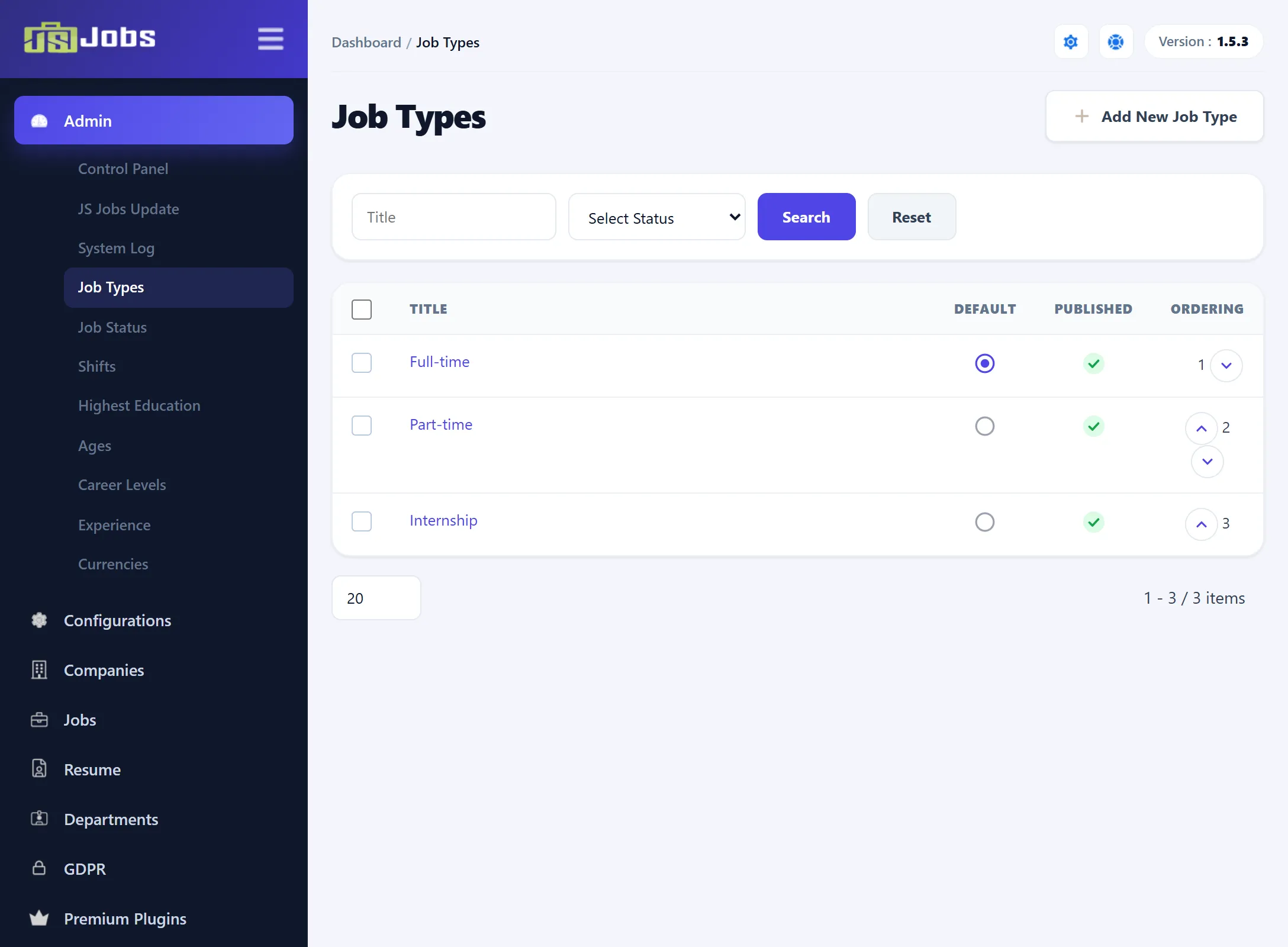
The list screen
Section titled “The list screen”Each list shows its entries in their Ordering, with a Title box and a Select Status filter above. The columns:
| Column | What it does |
|---|---|
| Title | Click it to edit the entry. |
| Default | The filled circle marks the default entry. Click an empty circle to make that entry the default instead. Only a published entry can become the default. |
| Published | Click the tick or cross to unpublish or publish the entry. Unpublished entries stay on existing jobs and resumes but are no longer offered in the drop-downs. The default entry can’t be unpublished. |
| Ordering | The arrows move the entry one place up or down. The drop-downs on the site list the entries in this order. |
The toolbar has New, Edit and Delete; the page’s own Add New … button (for example Add New Job Type) also opens an empty form.
What the default does
Section titled “What the default does”When an employer opens the form for a new job, each drop-down starts on the list’s default entry: job type, job status, shift, education, age, career level, experience and currency. The resume form does the same for job type, highest education and currency. If no entry is marked as default, the form starts on the entry that was created first.
Adding or editing an entry
Section titled “Adding or editing an entry”-
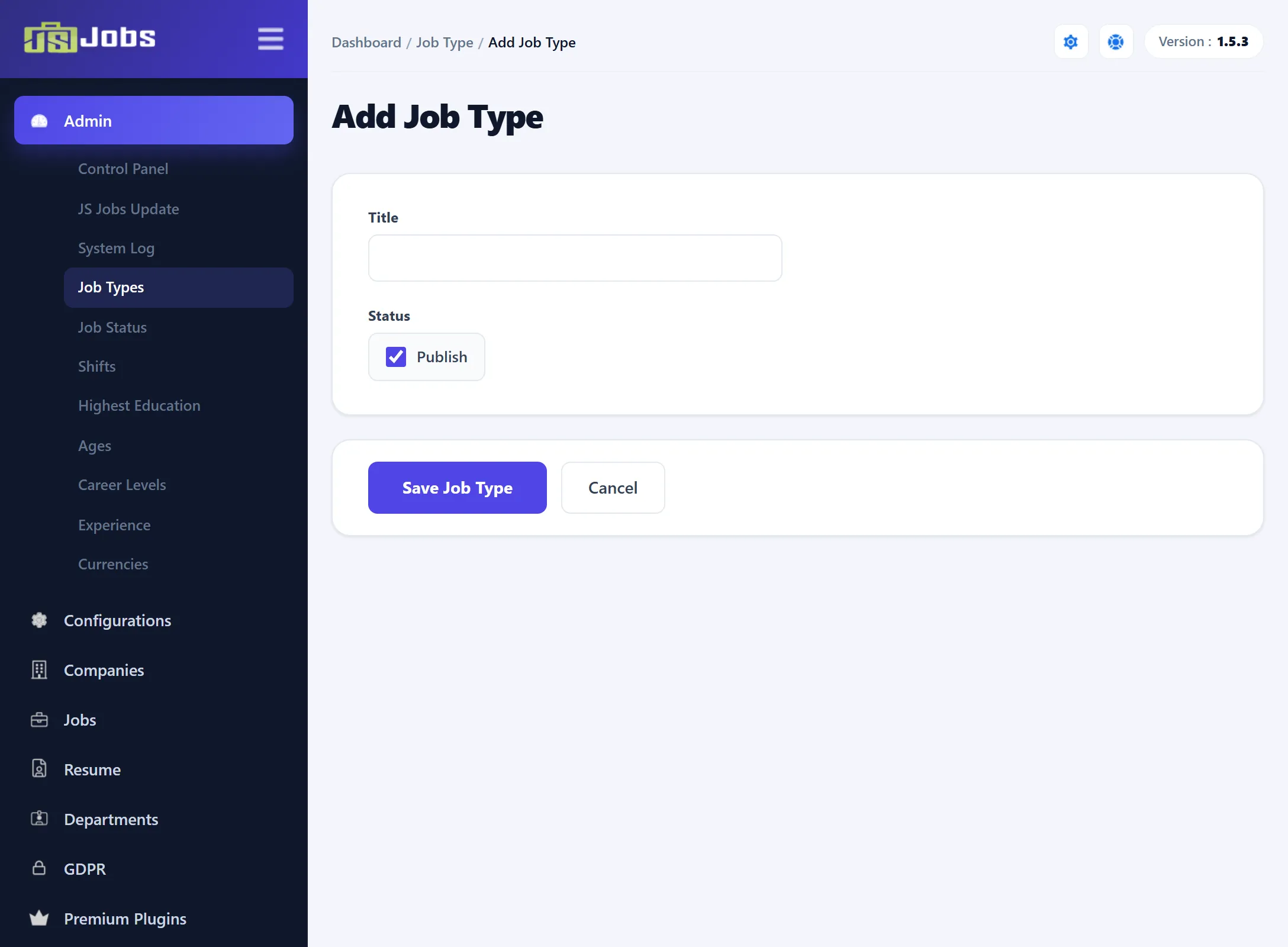
Open the list and click Add New …, or click an entry’s title.
-
Fill in the form:
Field What it does Title The text shown in the drop-downs. Required. Status Tick Publish to offer the entry on the site. New entries start ticked. -
Click the save button (for example Save Job Type), or use the toolbar: Save keeps the form open, Save & New opens an empty one, and Save & Close goes back to the list.
A new entry goes to the bottom of the list. Two entries with the same title aren’t allowed: saving a new entry whose title already exists stops with an “already exists” message. If you untick Publish on the default entry and save, it stays published.
Where each list is used
Section titled “Where each list is used”| List | Used on |
|---|---|
| Job Types | Job form, resume form, job search and resume search. |
| Job Status | Job form and job search. |
| Shifts | Job form and job search. |
| Highest Education | Job form (the education field and its minimum/maximum range), resume form, job search and resume search. |
| Ages | Job form, as the age range (From and To). |
| Career Levels | Job form and job search. |
| Experience | Job form (the experience field and its minimum/maximum range), job search and resume search. |
| Currencies | Salaries on jobs and resumes (current and desired salary), searches, and package prices. |
Which of these fields the forms show, and whether they are required, is set in each form’s Fields screen (for example Jobs → Fields).
Deleting entries
Section titled “Deleting entries”Tick the entries and click Delete in the toolbar. An entry is only deleted when nothing uses it. The default entry is never deleted. Entries that are in use are skipped and you see an error message; the others are deleted.
| List | An entry can’t be deleted while it is… |
|---|---|
| Job Types | on a job or a resume. |
| Job Status | on a job. |
| Shifts | on a job. |
| Highest Education | on a job (as its education or range) or as a resume’s highest education. |
| Ages | a job’s From or To age. |
| Career Levels | on a job. |
| Experience | on a job (as its experience or range). |
| Currencies | on a job, on a resume (current or desired salary), or on an employer or job seeker package. |
To take an entry off the forms without touching the jobs that use it, unpublish it instead.
Currencies
Section titled “Currencies”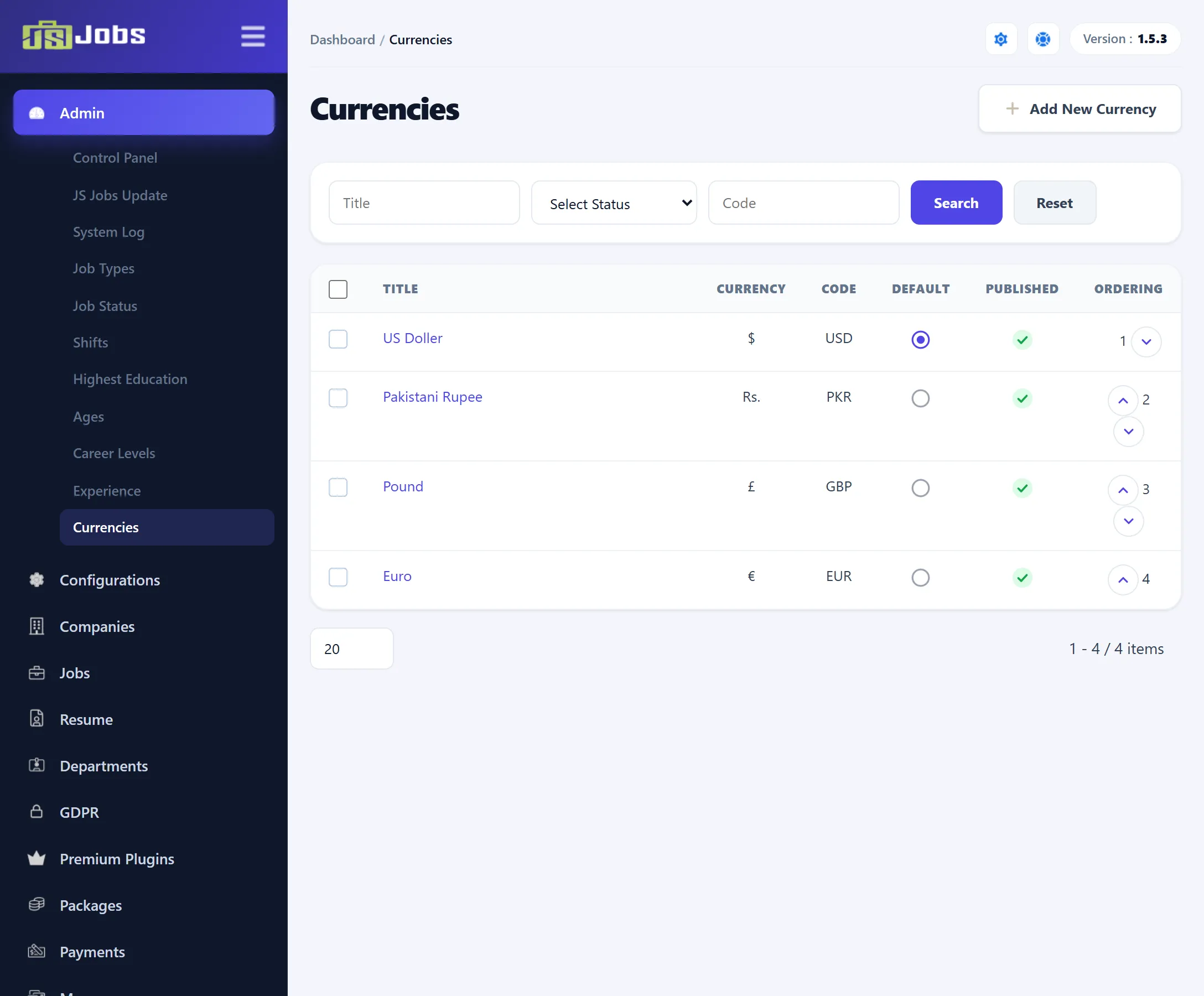
The Currencies list adds a Code filter, and its form has two more fields:
| Field | What it does |
|---|---|
| Currency Symbol | What the site shows in front of or after an amount, such as $ or Rs.. The currency drop-downs on the job and resume forms list the symbols, not the titles. Required. |
| Code | The currency’s three-letter code, such as USD. When a package is paid for, the payment method is sent this code. Required. |
A salary is shown as the symbol, the amount range and the salary type, for
example $ 1000 - 1500 Per Month. Whether the symbol comes before or after the
amount is the Currency Symbol Position setting in
Configurations. The amounts themselves come from
Salary ranges.
What a new install contains
Section titled “What a new install contains”| List | Entries (default in bold) |
|---|---|
| Job Types | Full-Time, Part-Time, Internship |
| Job Status | Interviewing, Sourcing, Closed to New Applicants, Hold, Finalists Identified, Pending Approval |
| Shifts | Morning, Evening, 8 PM to 4 AM |
| Highest Education | University, College, High School, No School |
| Ages | 10 Years to 55 Years in steps of five; 25 Years |
| Career Levels | Student (Undergraduate), Student (Graduate), Entry Level, Experienced (Non-Manager), Manager, Executive (Department Head, SVP, VP etc), Senior Executive (President, CEO, etc) |
| Experience | Fresh, Less then 1 Year, 1 Year to 25 Year; 3 Year |
| Currencies | US Doller ($, USD), Pakistani Rupee (Rs., PKR), Pound (£, GBP), Euro (€, EUR) |
Rename them freely: jobs and resumes store the entry, not its title, so a new title shows everywhere at once.