
Browsing jobs and companies
You don’t need an account to look at jobs. The pages on this page are open to visitors as well as to logged-in job seekers, unless the site owner has closed them to visitors.
The job list
Section titled “The job list”Click Jobs in the site’s menu, or Newest Jobs in the JS Jobs menu bar. The list shows the open jobs, newest first, with the number of jobs at the top right (Total Jobs).
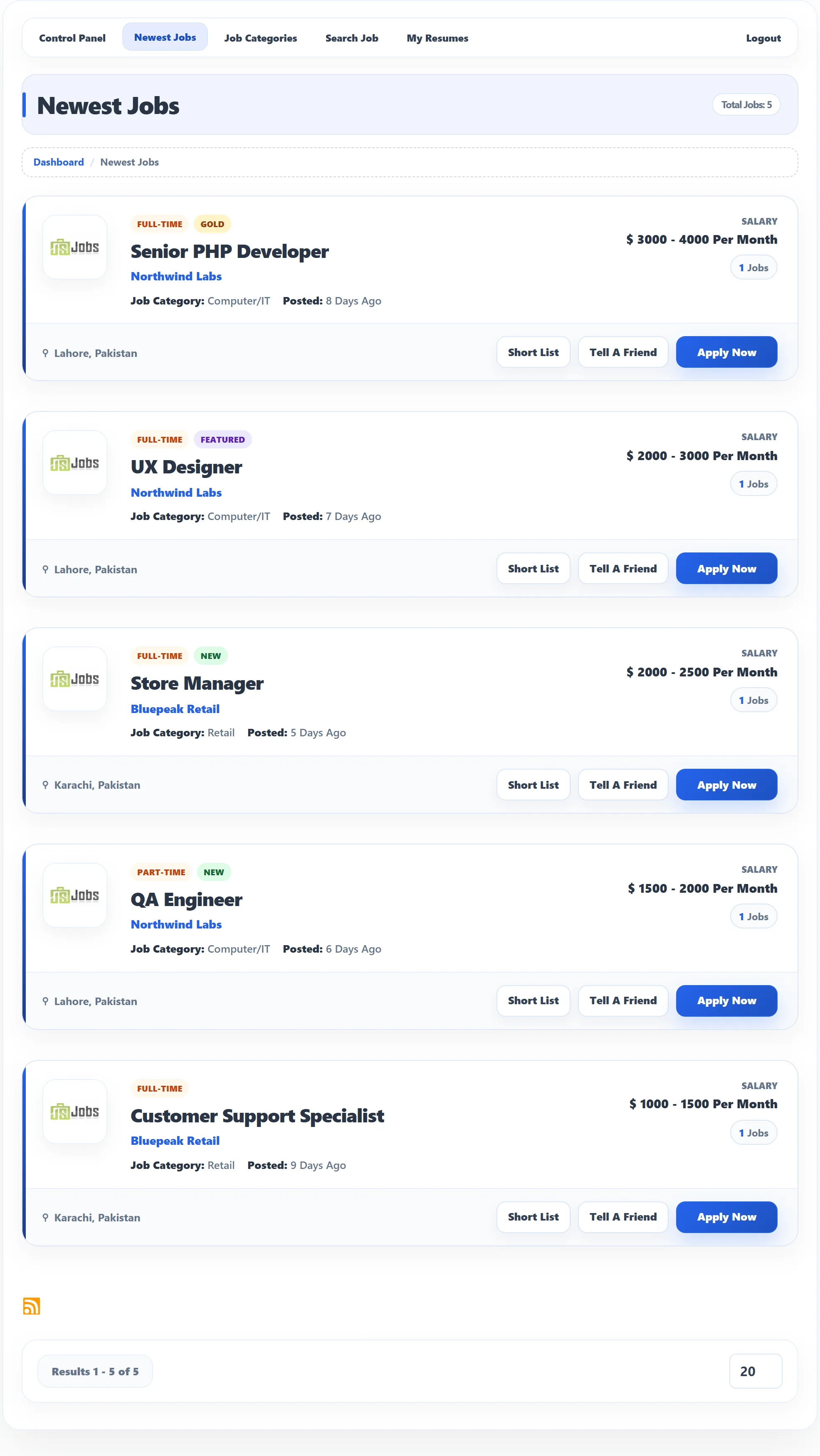
Each job shows:
| Detail | Meaning |
|---|---|
| Type badge | The job type, such as Full-time or Part-time. |
| New | The job was posted in the last few days. The site owner sets how many. |
| Gold / Featured | The job has been promoted as a gold or featured job. |
| Title and company | Click the title to open the job, or the company name to open the company page. |
| Job Category and Posted | The job’s category and how long ago it was posted (Today, or a number of days). |
| Salary | The salary range, unless the employer hid it. |
| Jobs | How many people the employer wants to hire. |
| Location | The city or cities, at the bottom left. |
The buttons at the bottom right:
| Button | What it does |
|---|---|
| Short List (Pro) | Saves the job to your shortlist with a note and a rating. See Shortlisted jobs. |
| Tell A Friend (Pro) | Sends the job to up to five friends by e-mail. See Viewing a job. |
| Apply Now | Applies for the job. See Applying for a job. |
The site owner chooses which details and buttons appear, so your site may show fewer. Use the number box at the bottom right to show more jobs per page.
To narrow the list down, use the Search tab at the right edge of the window. See Searching for jobs.
The orange RSS icon under the list (Pro) opens a feed of the newest jobs, which you can add to a feed reader.
Jobs by category
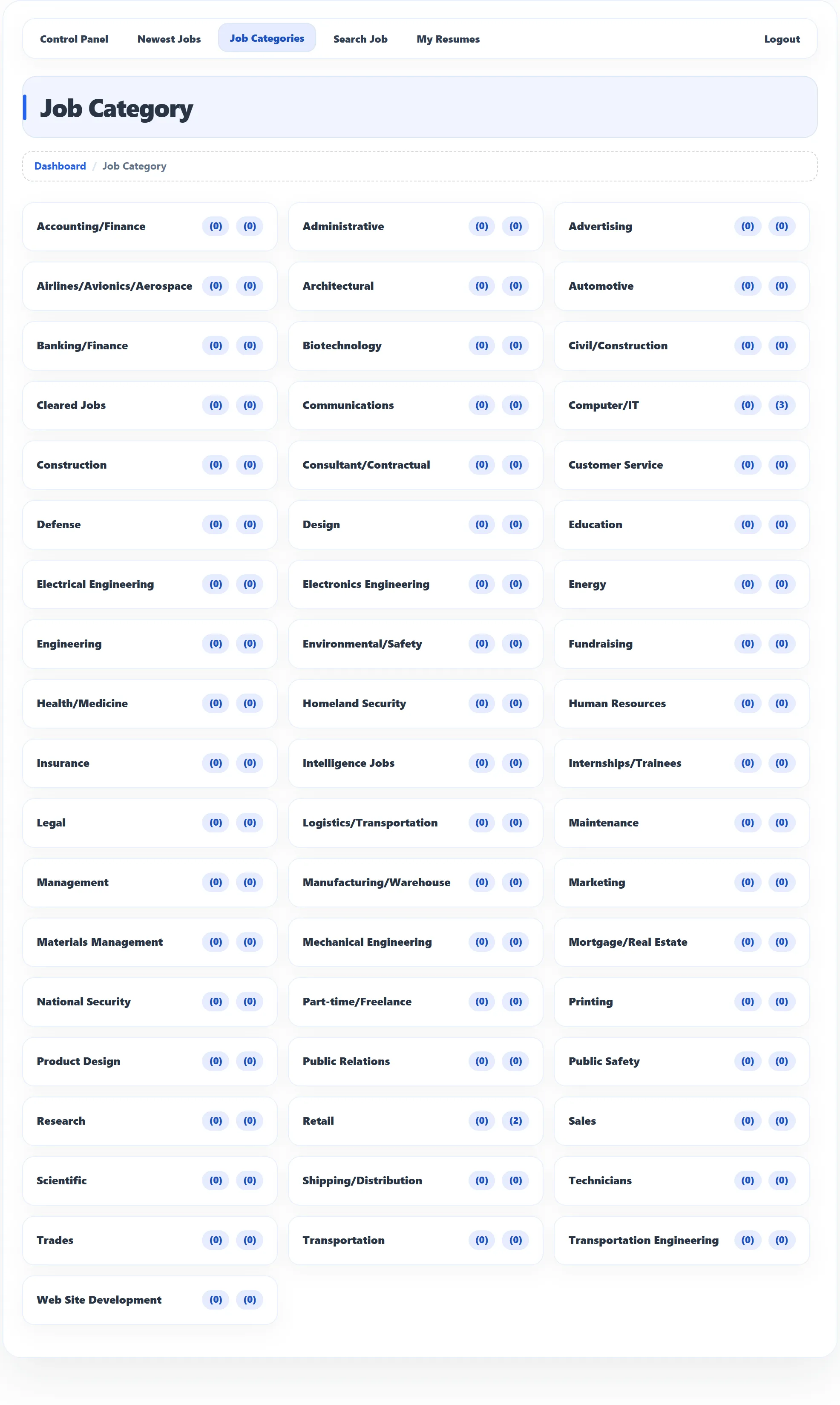
Section titled “Jobs by category”Click Job Categories in the menu. Each category shows two numbers:
- the first is the number of open jobs in the category’s sub categories,
- the second is the number of open jobs in the category itself.
Click a category to list its jobs. Rest the mouse on a category to see its sub categories, if it has any, and click one to list only its jobs.
Jobs by type (Pro)
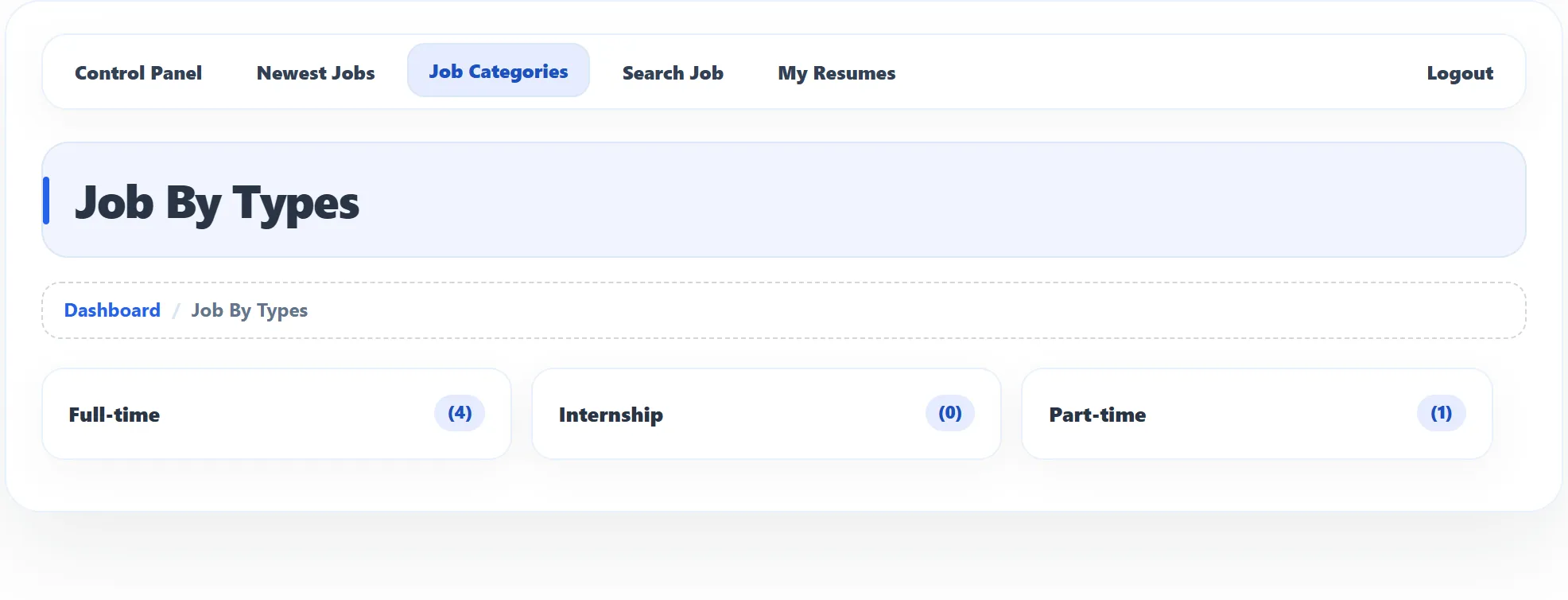
Section titled “Jobs by type (Pro)”Job By Types in the Job Seeker Control Panel lists the job types, such as Full-time, Internship and Part-time, each with its number of open jobs. Click a type to list its jobs.
Companies (Pro)
Section titled “Companies (Pro)”Click Companies in the site’s menu, or All Companies in the Job Seeker Control Panel.
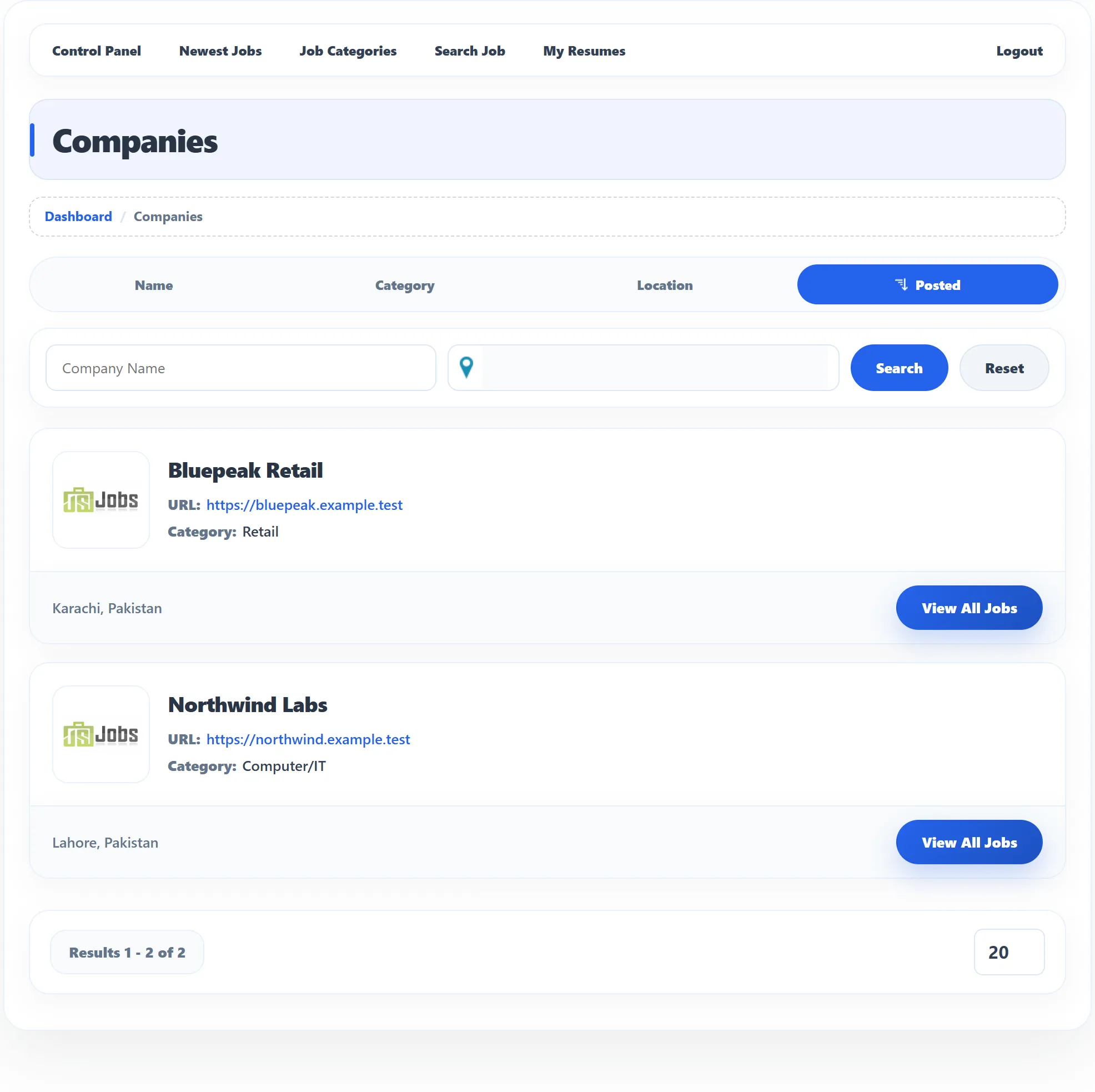
- Click Name, Category, Location or Posted to sort the list. Click the same button again to reverse the order.
- To search, type part of the name in Company name, or start typing a city in the box with the map pin and pick it from the list. Click Search. Reset clears the search.
- View All Jobs lists the company’s open jobs.
A company’s page
Section titled “A company’s page”Click a company’s name anywhere on the site to open its page. It shows the logo, category, city and e-mail address at the top, a Website button, the Company Description, and Company Information: contact name, phone and e-mail, website, Since, Company Size, city and address. The employer and the site owner decide which of these appear.
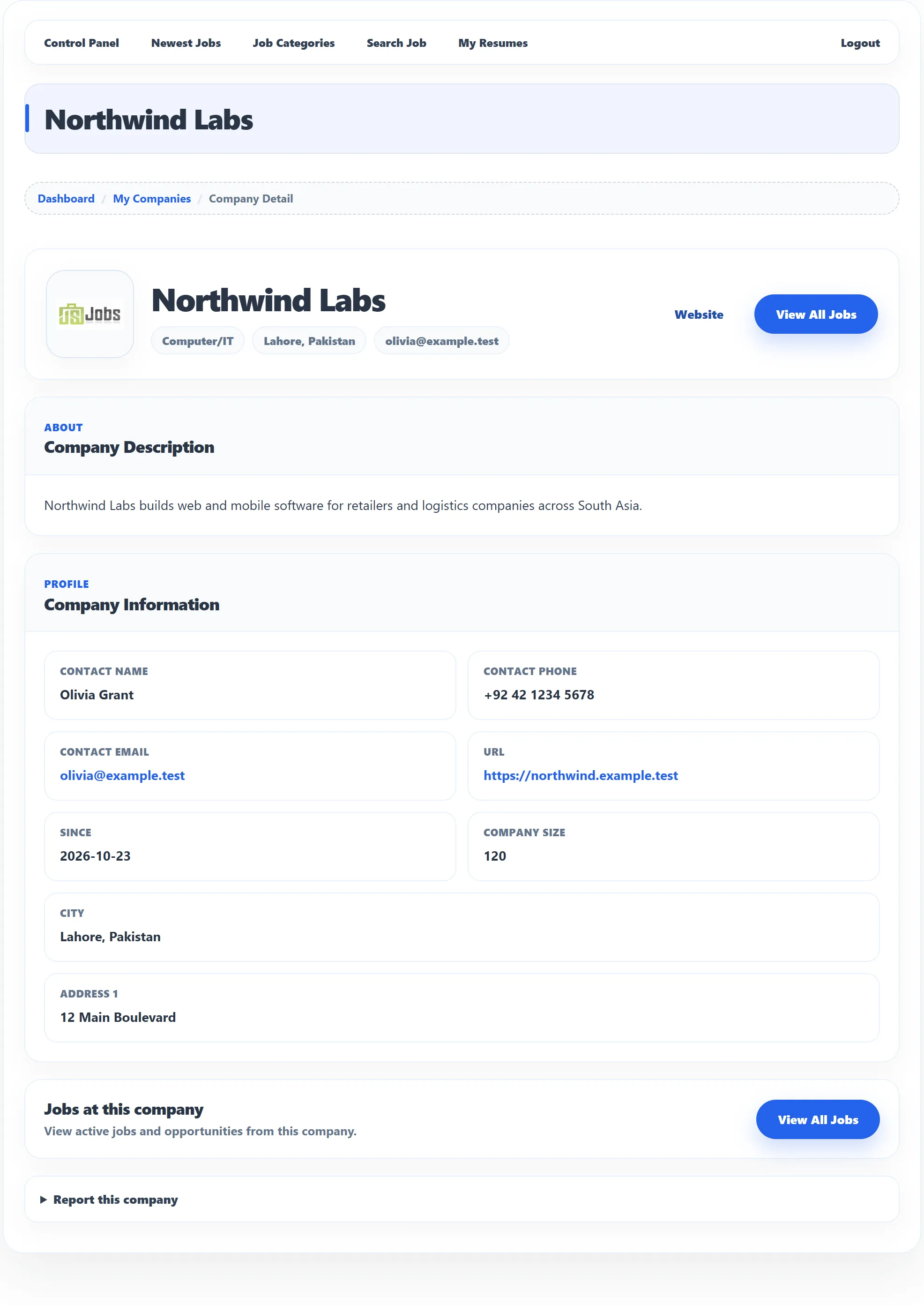
Jobs at this company has a View All Jobs button when you open the page from a company name in a job list or in your dashboard. Opened from the company list or from My Applied Jobs, the page has no such button: use View All Jobs in the company list instead.
Report a company (Pro)
Section titled “Report a company (Pro)”If a company looks fake or wrong, open Report this company at the bottom of its page. Pick a Reason (Scam or fake company, Wrong information, Offensive content, Duplicate or Other), add details, your name and e-mail if you like, and click Submit Report. The site’s administrator reviews the report. If you report the same company again within a day, while your first report is still new, you see This item has already been reported recently.