Viewing a job
Click a job’s title anywhere on the site to open its page. The page title is the job’s title.
The header
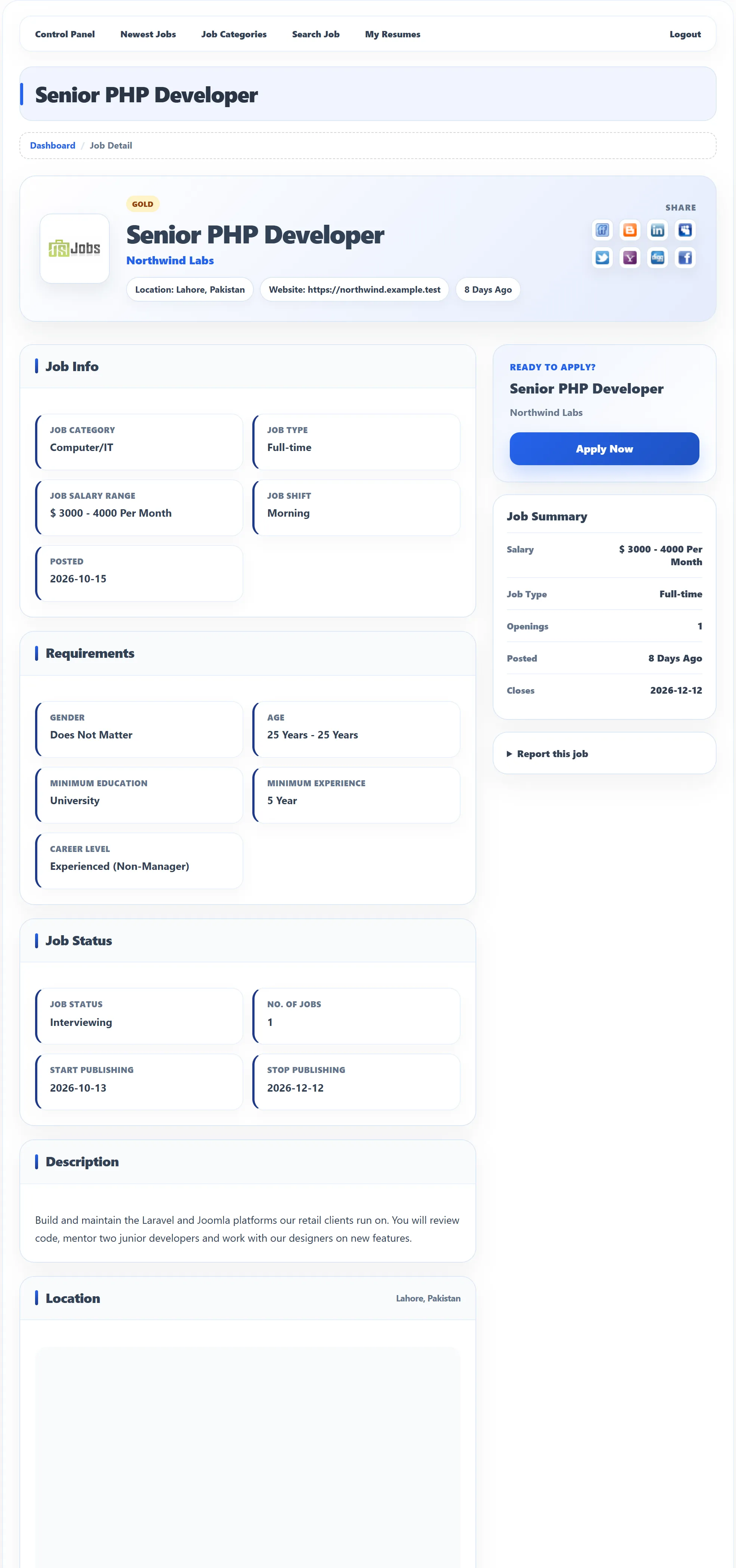
Section titled “The header”The header shows the company logo and name, the Location, the company’s Website, and how long ago the job was posted. Badges show if the job is New, Gold or Featured. Click the company name to open the company’s page.
Share (Pro)
Section titled “Share (Pro)”The Share icons on the right post a link to the job on social sites and bookmarking services such as LinkedIn, Twitter and Facebook. The site owner chooses which icons appear, and may add a Facebook Like button.
The sections
Section titled “The sections”The employer fills in the job, and the site owner decides which details are shown, so not every job has every section.
| Section | What it shows |
|---|---|
| Job Info | Job Category, Sub Category, Job Type, Duration, Job Salary Range, Job Shift, any extra fields the site added, and the date it was Posted. |
| Requirements | The education asked for (as a minimum, a maximum or a range) and Degree Title, the experience asked for, Age, Work Permit, Career Level, Gender and Required Travel. |
| Job Status | The stage the employer has given the job (for example Interviewing), No. of Jobs (how many people they want), and the Start Publishing and Stop Publishing dates. |
| Description | The employer’s description of the job. |
| Location | The job’s city and, if the employer marked it, a map. |
| Agreement, qualifications, preferred skills | Extra text the employer added, each in its own section. |
| Video | A video about the job, if the employer added one. |
The right-hand column
Section titled “The right-hand column”Ready to apply? repeats the job title and company with an Apply Now button. See Applying for a job. If the employer takes applications on their own website, Apply Now opens that website in a new tab instead.
Job Summary gives the essentials at a glance: Salary, Job Type, Openings, when it was Posted and when it Closes (the last day it is published).
Report this job (Pro)
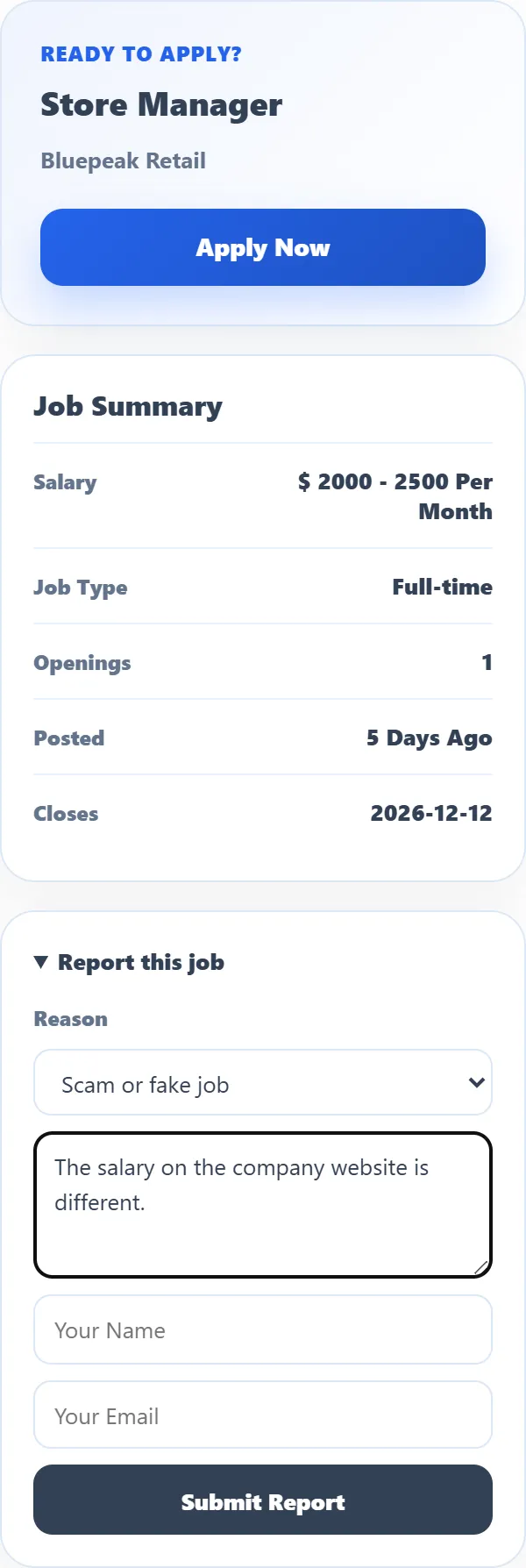
Section titled “Report this job (Pro)”If a job looks like a scam or is wrong, open Report this job:
- Pick a Reason: Scam or fake job, Wrong information, Expired job, Offensive content, Duplicate or Other.
- Add details for the administrator, and your name and e-mail if you want an answer.
- Click Submit Report.
You see Thank you. Your report has been submitted for review. The report goes to the site’s administrator, not to the employer. If you report the same job again within a day while your first report is still new, you see This item has already been reported recently.
Facebook comments (Pro)
Section titled “Facebook comments (Pro)”If the site owner has turned them on, a Facebook Comments box at the bottom of the page lets you comment with your Facebook account.
Tell A Friend (Pro)
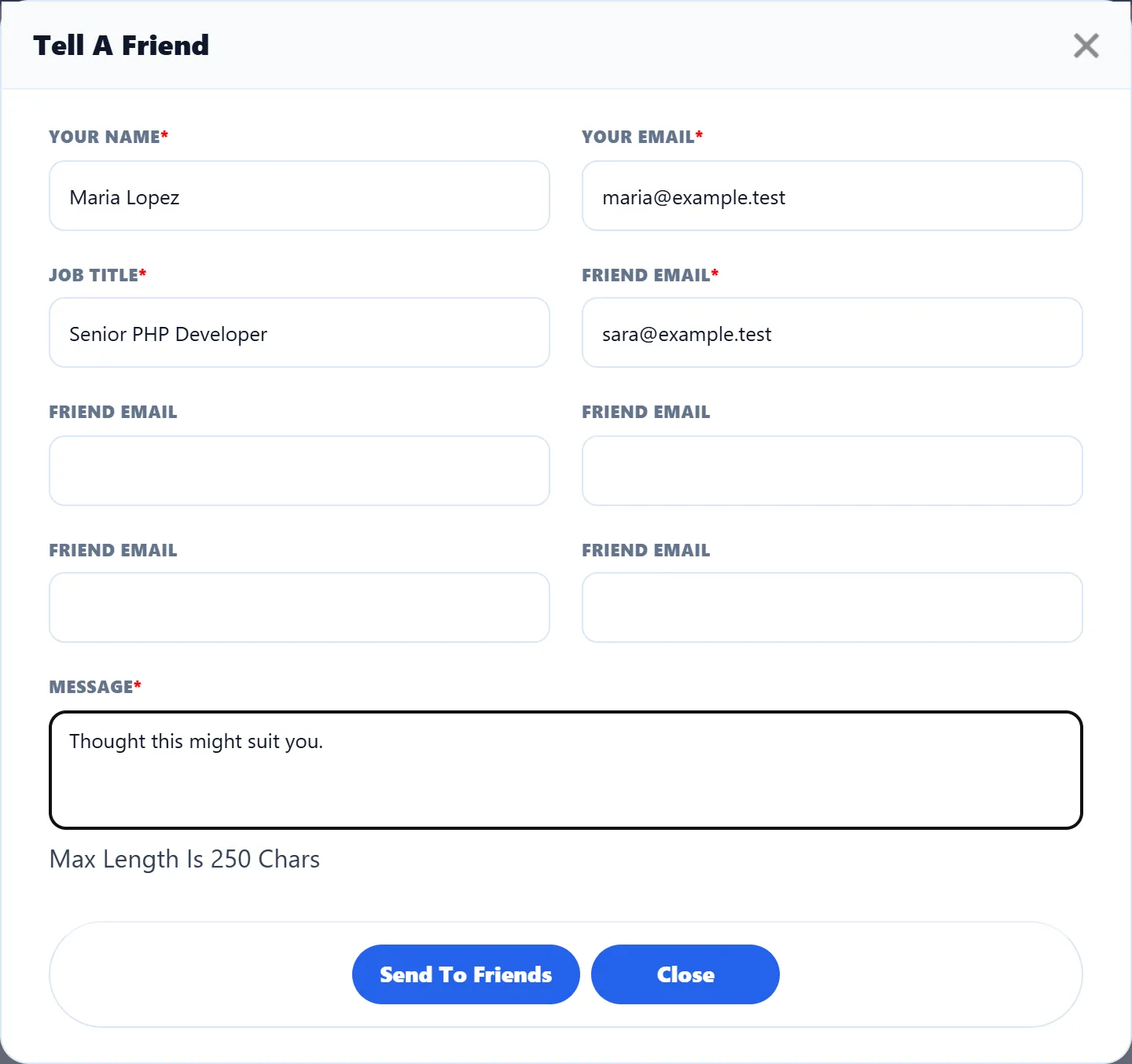
Section titled “Tell A Friend (Pro)”Tell A Friend on the job list sends a job to friends by e-mail. Anyone can use it, logged in or not.
- Click Tell A Friend on the job.
- Enter Your Name and Your Email. The Job Title is filled in for you.
- Enter at least one Friend Email, and up to five.
- Write a Message (up to 250 characters).
- Click Send To Friends.
You see Job successfully sent to friends. Close closes the box.