
Job alerts
A job alert e-mails you the new jobs that match what you are looking for, so you don’t have to search again. You can have one alert per e-mail address.
Set up an alert
Section titled “Set up an alert”-
Click Job Alert in the Job Seeker Control Panel. The page is headed Job Alert Info.
-
Fill in the form. Name, Categories, Contact Email and Alert Type are required.
-
Click Save.
You see Job Alert has been saved successfully.
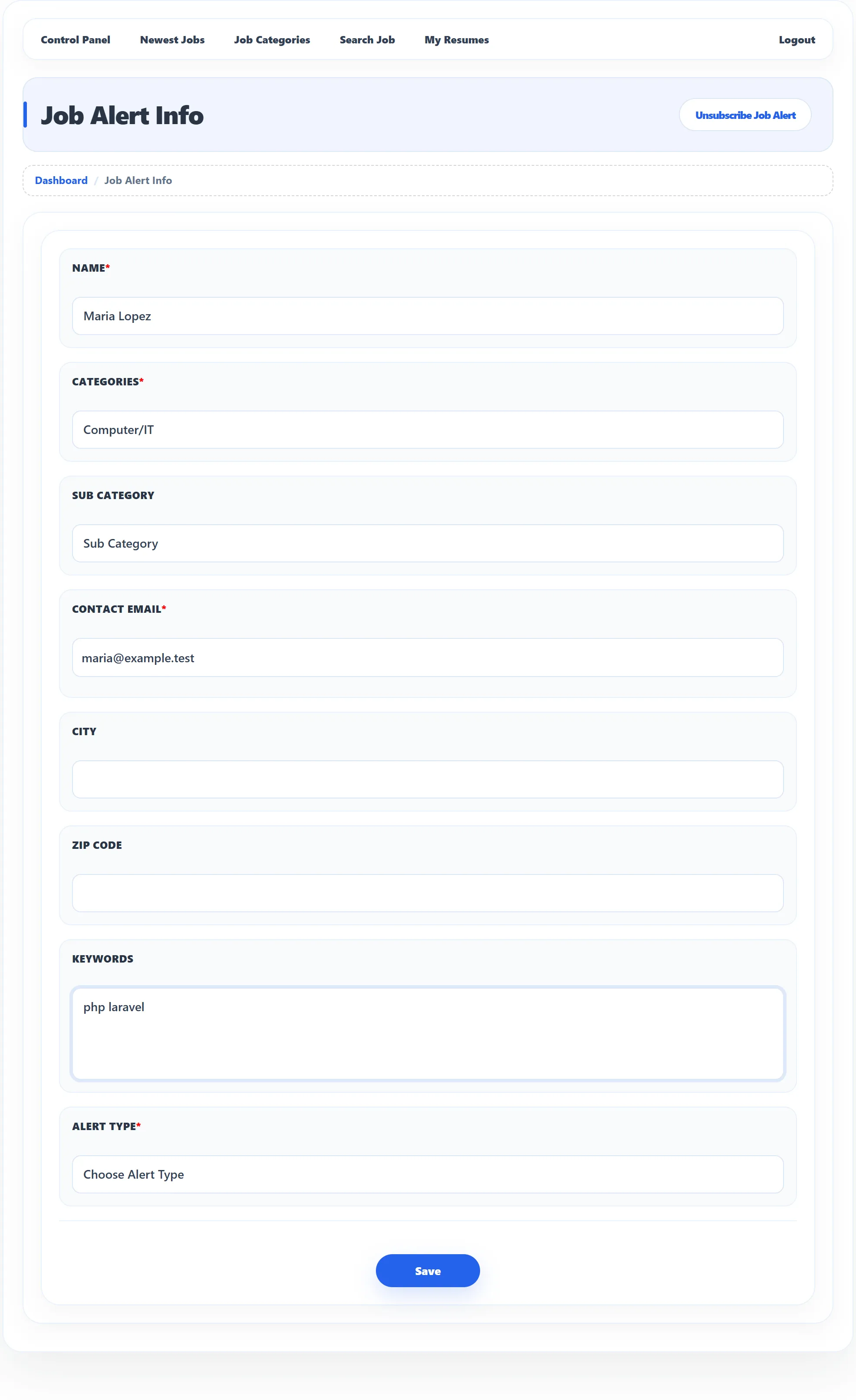
| Field | What it does |
|---|---|
| Name | Your name. |
| Categories | The job category to watch. Only jobs in this category are sent. |
| Sub Category | Narrows the alert to one sub category. Leave it empty for the whole category. |
| Contact Email | Where the alerts go. Each address can have only one alert: an address that already has one gives Email already exists. |
| City | Start typing and pick one or more cities. Only jobs in those cities are sent. Leave it empty for all cities. |
| Zip Code | A postcode for the alert. |
| Keywords | Words separated by spaces; only the first five count. A job is sent if one of the words appears in the keywords the employer gave the job, or if the employer gave it no keywords at all. |
| Alert Type | How often you get the e-mail: Daily, Weekly or Monthly. |
| Captcha | Visitors setting up an alert without logging in may be asked a spam-check question. |
What you receive
Section titled “What you receive”The site sends alerts on a schedule set by the site owner. Each e-mail lists the jobs in your category (and sub category, cities and keywords, if you set them) that were published since your last alert. A new alert counts from the moment you save it, so the first e-mail only contains jobs posted after that.
Pause, change or delete an alert
Section titled “Pause, change or delete an alert”Once you have an alert, the top of the page shows its Alert Status (Active, Paused, Rejected or Waiting for approval), its Frequency and when it was Last Sent (Not sent yet for a new alert).
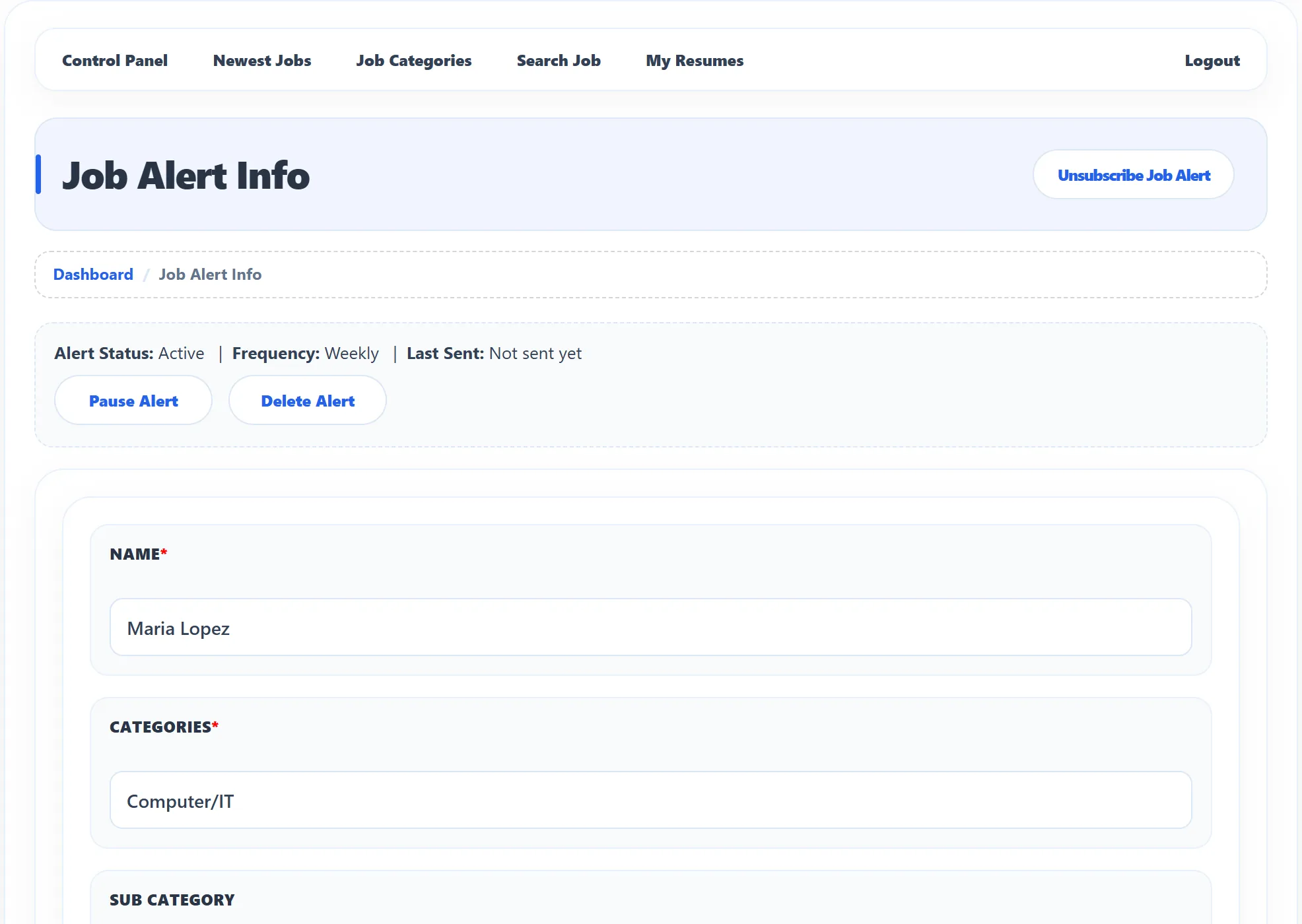
| Button | What it does |
|---|---|
| Pause Alert | Stops the e-mails without losing your settings. You see Job alert paused. |
| Resume Alert | Starts a paused alert again. |
| Delete Alert | Deletes the alert, after you confirm. |
To change the alert, edit the form under the status and click Save.
If the site owner checks alerts before they start, the form is replaced by Waiting for approval until they approve it. A rejected alert shows Rejected.
Unsubscribe
Section titled “Unsubscribe”To stop all alerts to an address, for example from a link you followed in an alert e-mail:
- Click Unsubscribe Job Alert at the top right of the Job Alert Info page.
- Enter the Contact Email the alerts go to.
- Click Unsubscribe.
You see Job alert successfully unsubscribed, and the alert for that address is deleted. An address with no alert gives Incorrect email address.