
The jobs list
Jobs → Jobs lists the approved and rejected jobs of every company. Jobs that are still waiting for approval are not here: they are in Jobs → Approval Queue (see Approval queues). Click a job’s title to edit it, or Add New Job to post one yourself (see Adding and editing a job).
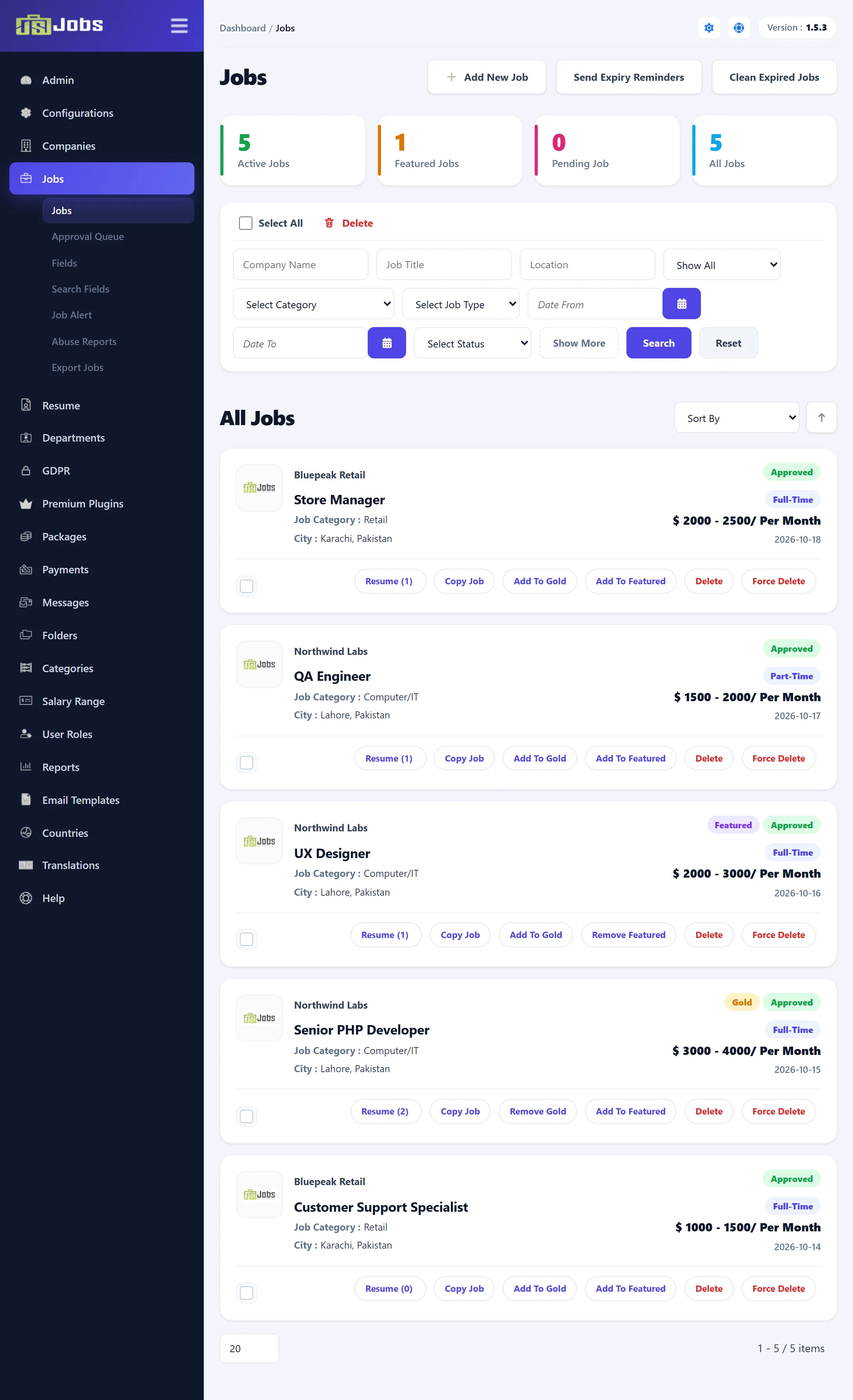
Buttons at the top
Section titled “Buttons at the top”| Button | What it does |
|---|---|
| Add New Job | Opens an empty job form. Joomla’s New button in the toolbar does the same. |
| Send Expiry Reminders (Pro) | E-mails the owner of every approved job whose Stop Publishing date is between today and seven days from now. See Expiry reminders. |
| Clean Expired Jobs (Pro) | After you confirm, sets every approved job whose Stop Publishing date has passed back to waiting. See Cleaning expired jobs. |
Joomla’s toolbar also has Edit and Delete, which act on the jobs you tick, and Cancel.
The counters
Section titled “The counters”| Counter | Counts | Click it to |
|---|---|---|
| Active Jobs | Approved jobs whose publishing dates include today. | List the approved jobs. |
| Featured Jobs (Pro) | Active jobs that are featured. | List the featured jobs. |
| Pending Job | Every job that is not approved, rejected ones included. | Open the jobs approval queue. |
| All Jobs | Every job. | List all jobs. |
The counters always count the whole site, not your search. The lists behind Active Jobs and Featured Jobs also include jobs whose dates have passed.
When approved jobs expire within the next seven days, or have already expired, a Job Expiry Summary line under the counters shows how many of each: Expiring Soon and Expired Active Jobs (Pro).
Searching
Section titled “Searching”| Filter | What it matches |
|---|---|
| Company Name | Part of the company’s name. |
| Job Title | Part of the job’s title. |
| Location | Part of the job’s city name. |
| Gold and featured list (Pro) | Show All, Gold, Featured, Gold & Featured, or Expired for jobs whose Stop Publishing date has passed. |
| Select Category, Select Job Type | The job’s category or type. |
| Date From, Date To | The date the job was created. |
| Select Status | Approved or Rejected. |
Show More and Show Less show and hide the second row of filters. Click Search to apply, or Reset to clear every filter. The list remembers your filters until you reset them.
Sorting
Section titled “Sorting”Sort By orders the list by Job Title, Job Type, Company Name, Category, Location, Status, Created or Viewed (the number of times the job was viewed). The arrow beside it swaps between ascending and descending once you have chosen a sort. Until you choose, the newest jobs come first.
What each row shows
Section titled “What each row shows”Each job shows the company’s logo and name, the job title, the category and city, the job type, the salary range and the date it was created. Click the logo to edit the company.
The labels at the top right of a row:
- Gold and Featured (Pro) when the job has them. See Gold and featured.
- Expired when the Stop Publishing date has passed. An expired job shows no other status.
- Expires Soon (Pro) when it expires within seven days.
- Approved or Rejected.
Row actions
Section titled “Row actions”| Action | What it does |
|---|---|
| Resume (n) | Opens the resumes that applied to this job; the number is how many applied. |
| Copy Job (Pro) | Makes a copy and reloads the list after a few seconds. See Copying a job. |
| Add To Gold / Remove Gold (Pro) | Makes the job gold at once, or takes it away. |
| Add To Featured / Remove Featured (Pro) | Makes the job featured at once, or takes it away. |
| Delete | Deletes the job if nothing depends on it. See Deleting jobs. |
| Force Delete | Deletes the job together with its applications. |
| Suggested Resumes (Pro) | Opens the resume list matched to this job. Shown only while Admin Suggested Resumes Button is turned on in Configurations. |
Copying a job (Pro)
Section titled “Copying a job (Pro)”Copy Job saves a new job with the same details. The copy:
- is titled with the original title followed by “Copy”;
- waits for approval, so it appears in Jobs → Approval Queue, not in this list;
- starts publishing now and keeps the original’s Stop Publishing date;
- is neither gold nor featured.
Edit the copy to change its title and dates, and approve it from the queue.
Deleting jobs
Section titled “Deleting jobs”Both delete links ask you to confirm first.
- Delete removes a job only if no one has applied to it and it is neither gold nor featured. Otherwise the job stays and you see an error. The toolbar’s Delete and the Delete link next to Select All work the same way on every ticked job; if any of them cannot be deleted, you see the error even though the others were removed.
- Force Delete removes the job, every application to it and its cities, even when it is gold or featured. This cannot be undone.
Both send the Job Delete e-mail (see Email Templates).
Expiry reminders (Pro)
Section titled “Expiry reminders (Pro)”Send Expiry Reminders looks at approved jobs that stop publishing today or in the next seven days, up to 100 at a time, soonest first. It e-mails the Joomla account that owns each job a short message with the job title, company and expiry date, asking them to renew or update the job. The message at the top then reads “Job expiry reminders sent”, followed by how many were sent out of how many were checked.
Each job gets one reminder only. A job that already had a reminder is skipped on later clicks, even if you change its dates.
Cleaning expired jobs (Pro)
Section titled “Cleaning expired jobs (Pro)”Clean Expired Jobs takes every approved job whose Stop Publishing date has passed and sets it back to waiting for approval. The message says how many jobs were changed. These jobs then leave this list and appear in Jobs → Approval Queue, and the Pending Job counter includes them. Nothing is deleted.