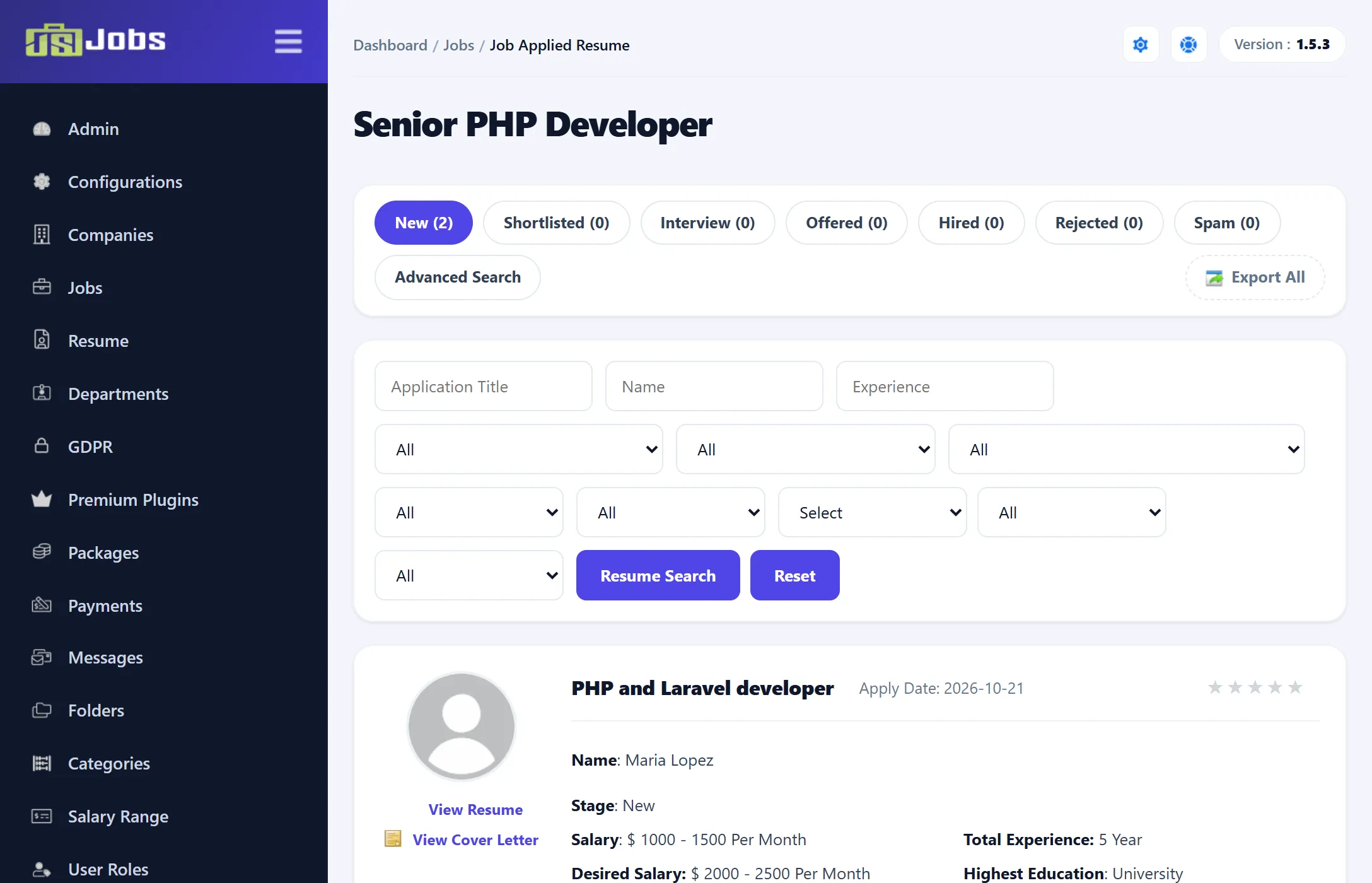
Applications for a job
Every job in the Jobs list has a Resume button with the number of applications in brackets, for example Resume (2). Click it to open the applications for that job. The page heading is the job’s title.
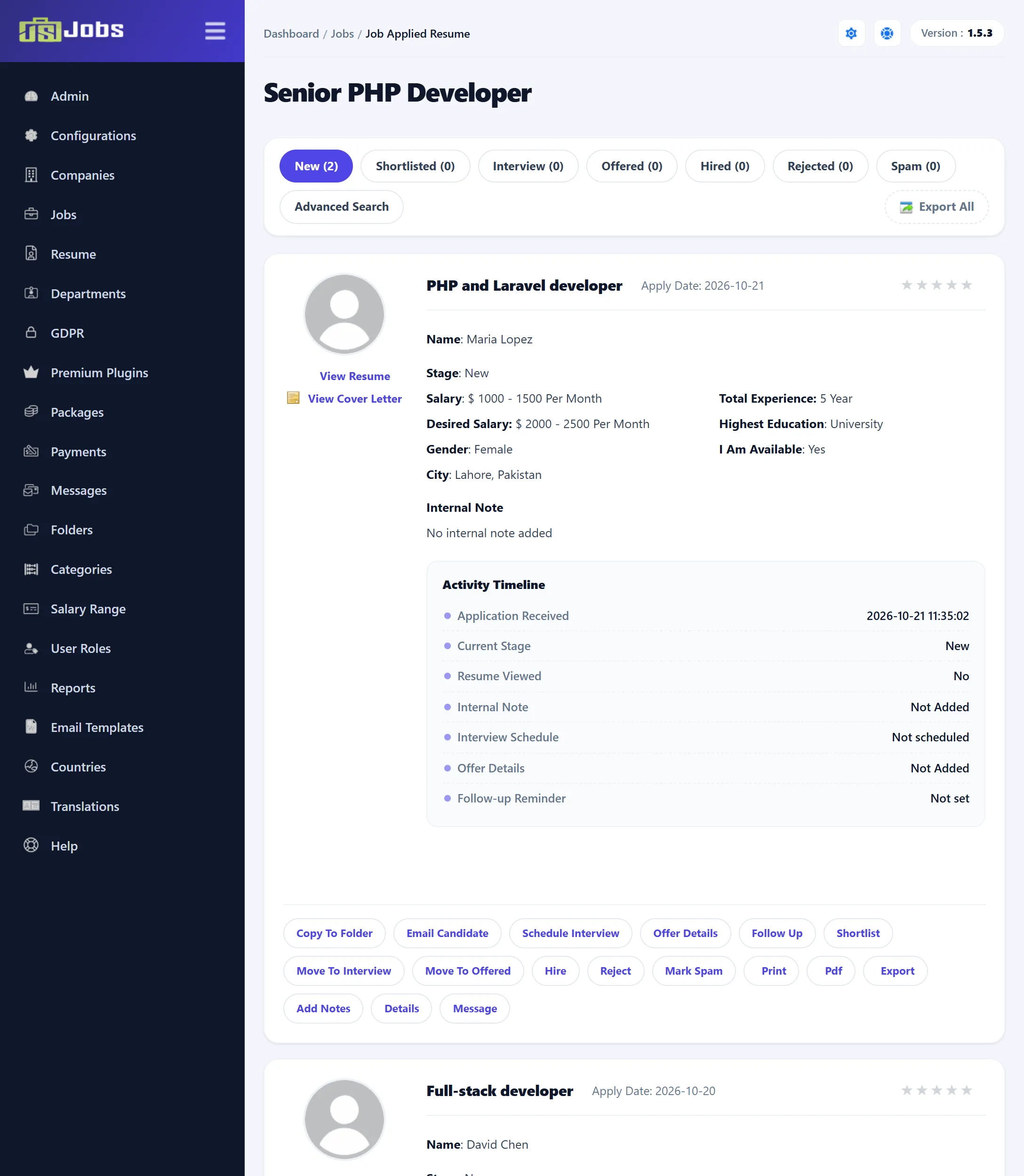
In the Free edition this screen lists the applications with View Resume, View Cover Letter and Details only. The stages, search, rating and every other action below are part of JS Jobs Pro.
Stages (Pro)
Section titled “Stages (Pro)”Each application is at one stage. The tabs across the top list the applications at each stage, with a count; the screen opens on New.
| Stage | Move it there with | Meaning |
|---|---|---|
| New | Move To New | Just received. Every application starts here. |
| Shortlisted | Shortlist | On your shortlist. |
| Interview | Move To Interview, or Schedule Interview | Invited to interview. |
| Offered | Move To Offered, or Offer Details | Offered the job. |
| Hired | Hire | Hired. |
| Rejected | Reject | Turned down. |
| Spam | Mark Spam | Not a real application. |
Each application shows a button for every stage except its current one. Click one to move it; a message confirms the change and the page reloads.
When Applied Resume Status Change is switched on for job seekers under Email Templates → Options, every move sends the job seeker an e-mail with the new stage and a link to My Applied Jobs on the site.
What each application shows
Section titled “What each application shows”| Part | Shows |
|---|---|
| View Resume | Opens the full resume form (see Editing a resume). |
| View Cover Letter | Opens the cover letter sent with the application, or “No Cover Letter Found.” |
| Title and Apply Date | The resume’s application title and the date the job seeker applied. |
| Stars (Pro) | Your rating, from Very Poor to Very Good. Click a star to rate; it is saved at once. |
| Details | Name, Stage, salary, total experience, desired salary, highest education, gender, availability and city, labelled with the titles from Resume fields. |
| Internal Note (Pro) | Your note, or “No internal note added”. |
| Follow-up Reminder, Interview Schedule, Offer Details (Pro) | Shown once you have filled them in. Under the offer, Candidate Response shows Accepted, Declined or Awaiting response, as the job seeker answered on the site. |
| Activity Timeline (Pro) | A summary: when the application arrived, its stage, whether the resume was viewed, and whether a note, interview, offer and follow-up have been added. |
In 1.5.3 the gender shows Female whenever the job seeker left Gender empty.
Actions (Pro)
Section titled “Actions (Pro)”The buttons under each application:
| Button | What it does |
|---|---|
| Copy To Folder | Adds the resume to one of the job owner’s approved folders. Pick a folder and click Add. If the employer has none, “You do not have folders” is shown. |
| Email Candidate | Writes an e-mail to the job seeker. See below. |
| Schedule Interview | Records the interview. See below. |
| Offer Details | Records the offer. See below. |
| Follow Up | Sets a private reminder. See below. |
| Opens a printable copy of the resume in a new tab. | |
| Opens the resume as a PDF. | |
| Export | Downloads this application’s resume as a spreadsheet. Export All at the top downloads every application for the job. |
| Add Notes | Opens Internal Note. Type a note and click Save Note. The note is for you and the employer and is not shown to the candidate. Up to 1000 characters. |
| Details | Opens a short panel with more of the resume, and marks the resume as viewed. In 1.5.3 it shows only the study area and current salary. |
| Message | Opens a new message to the job seeker about this job. |
Scheduling an interview
Section titled “Scheduling an interview”Schedule Interview opens a form with Interview Date and Time, Interview Location and Interview Note. Click Save Interview. The schedule is shown to the candidate on My Applied Jobs.
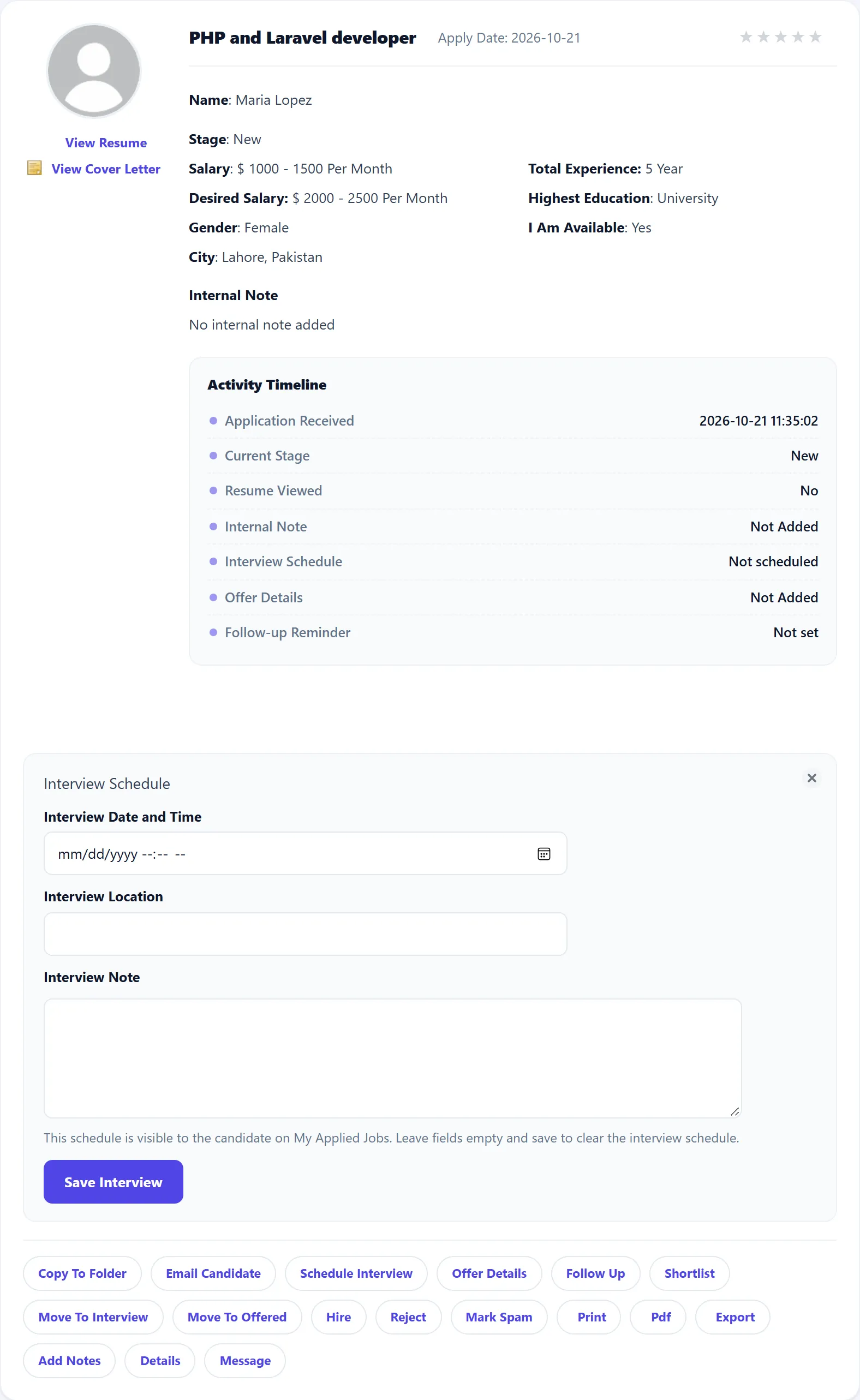
Saving any of these moves the application to Interview and, when the e-mail above is on, tells the job seeker. To remove the schedule, empty all three boxes and save; the stage stays as it is.
Recording an offer
Section titled “Recording an offer”Offer Details works the same way, with Offer Start Date, Offer Salary and Offer Note, and Save Offer. The offer is shown to the candidate on My Applied Jobs, where they can accept or decline it. Saving moves the application to Offered.
Follow-up reminders
Section titled “Follow-up reminders”Follow Up opens Follow-up Reminder with Follow-up Date and Time, Follow-up Note and Mark follow-up as completed. Click Save Follow-up. The reminder is internal: the candidate does not see it, no e-mail is sent and the stage does not change. Empty the fields and save to clear it.
E-mailing a candidate
Section titled “E-mailing a candidate”Email Candidate shows the job seeker’s address (Job Seeker, read-only), Subject Line, Email Sender and a message box. Email Sender is required: it is the address the e-mail is sent from, so enter an address the candidate can reply to. Click Send. The e-mail is sent through Joomla’s mail settings; nothing is stored in JS Jobs.
Advanced Search (Pro)
Section titled “Advanced Search (Pro)”Advanced Search opens filters: Application Title, Name, Experience, nationality, category, sub category, gender, job type, salary and highest education. Click Resume Search to list matching applications at every stage, or Reset to clear the filters. Name matches the first name only.