
Messages
Messages are conversations between you and a job seeker who applied to one of your jobs. Each conversation belongs to one job and one applicant, and stays on the site, so you and the candidate see the whole history in one place.
You can only message people who applied to your job.
Send a message
Section titled “Send a message”-
Open the job’s applications from My Jobs.
-
On the application, click Message (under Primary).
-
Enter a Subject and your Message. Both are required.
-
Click Send Message.
The top of the Send Message page shows the candidate’s resume title (click it to open the resume), the job, and the company. Below the form, Message History lists the conversation so far, each message marked You sent or Job seeker sent. Before the first message it reads No message history yet.
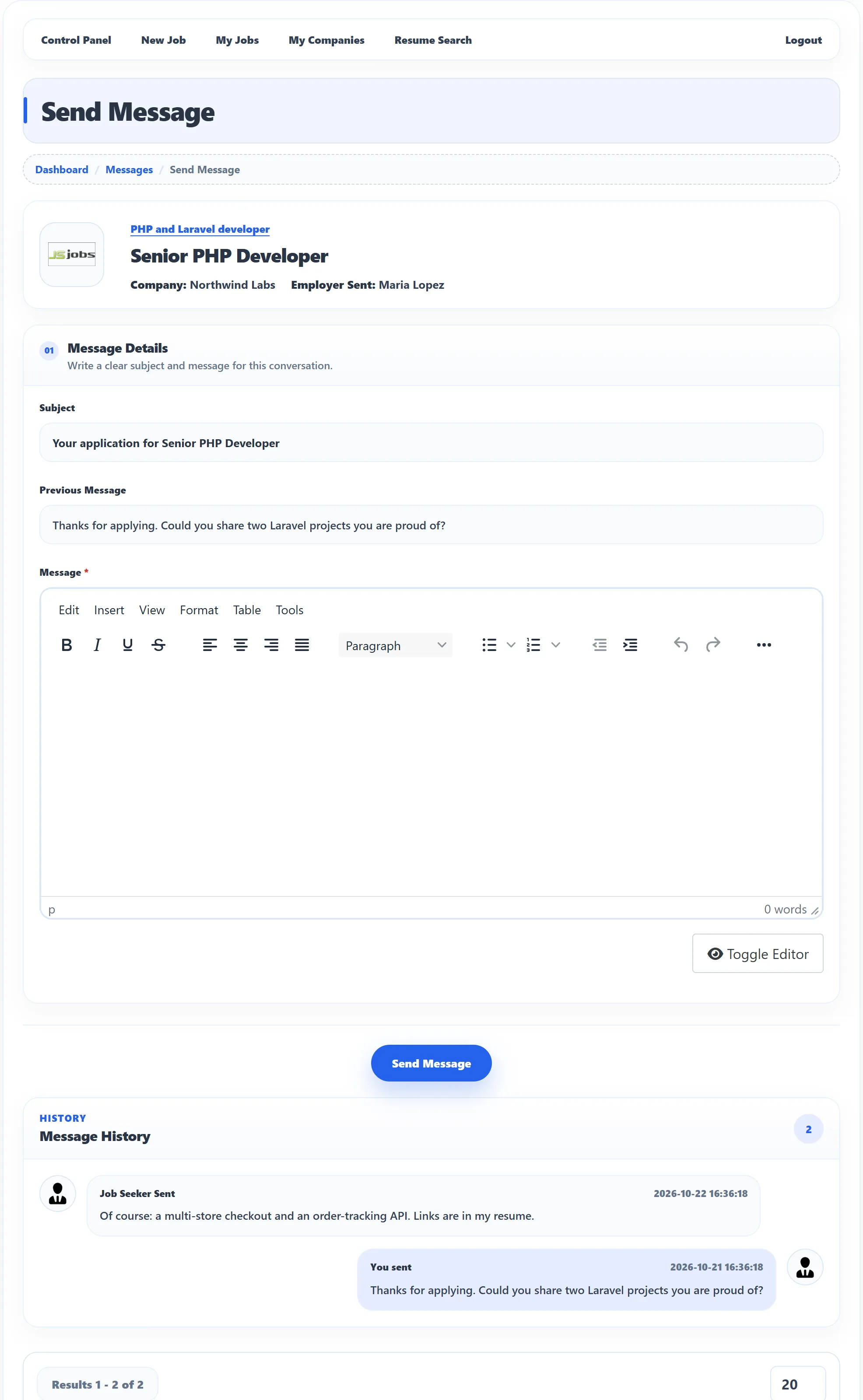
After sending you stay on the page and see one of these messages:
| Message | Meaning |
|---|---|
| Message has been saved successfully | The message was sent and an e-mail went out about it. |
| Message saved and waiting for approval | The site checks messages before the candidate sees them. See below. |
| Unable to send mail | The message was saved, but the notification e-mail failed. |
Reading your messages
Section titled “Reading your messages”Click Messages on the dashboard. The page lists every job that has a conversation (Job conversation), with its company, date and the number of unread messages. Open Messages shows that job’s conversations, one per candidate (Candidate conversation). Open Conversation opens the Send Message page, where you read the history and reply. Opening a conversation marks the candidate’s messages as read.
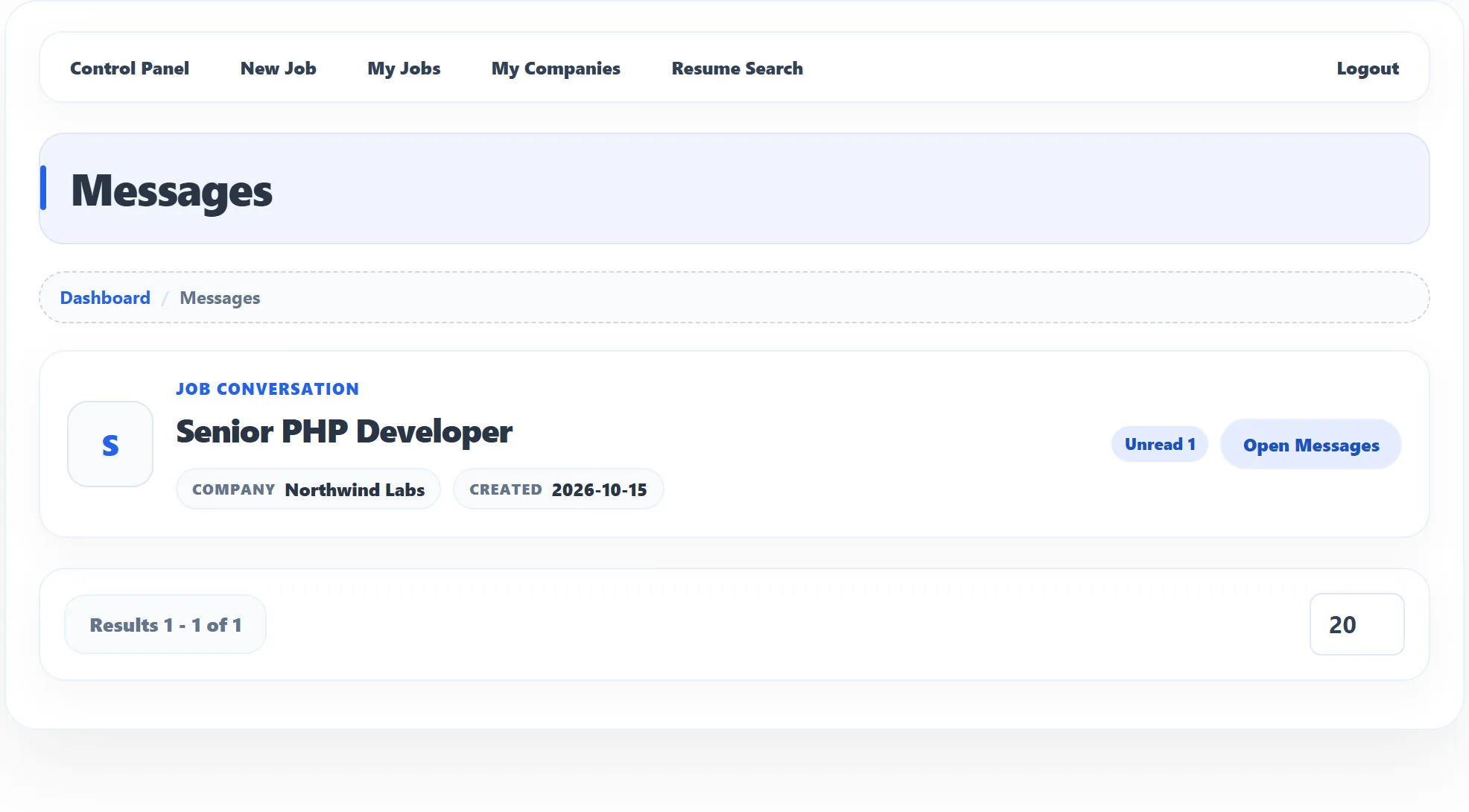
With no conversations yet the page reads No messages yet.
Messages that wait for approval
Section titled “Messages that wait for approval”The site owner can have messages checked before they reach the other person. There are two cases:
- all messages wait for approval, or
- only messages that seem to contain contact details wait: an e-mail address, a web address or a phone number. This keeps candidates and employers from moving the conversation off the site.
Package limits
Section titled “Package limits”If the site requires packages, you need a package with Messages Allow to start a conversation. Otherwise the page shows You do not have this feature. A conversation that already has messages stays open. See Packages and credits.