
Editing a resume
Click a job seeker’s name or photo in Resume → Resume or in the approval queue to open the resume. View Resume on the applications screen opens the same form. It is the form job seekers use on the site, with a Status field added for you.
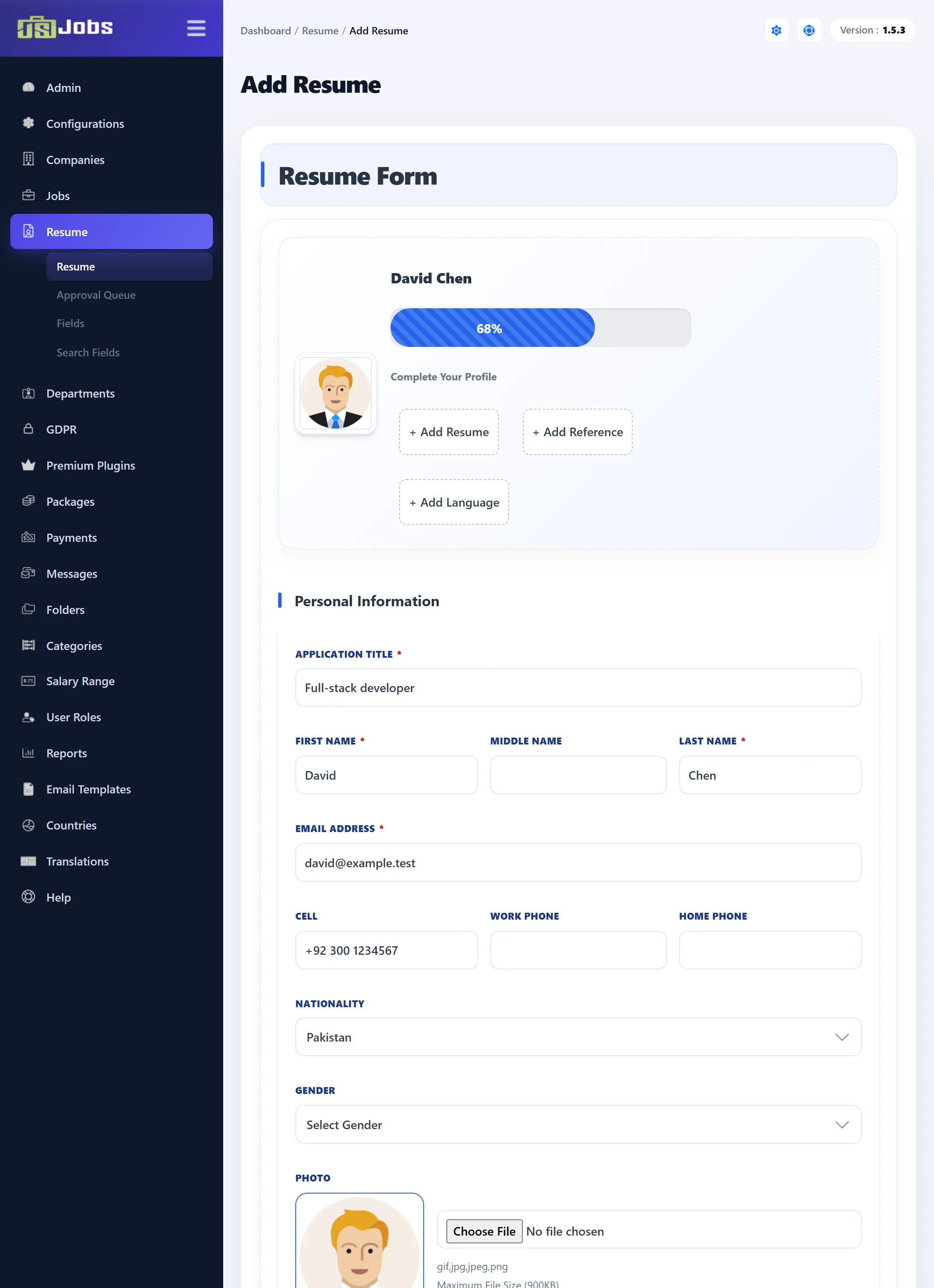
The page heading reads Add Resume even when you are editing an existing resume.
Complete Your Profile
Section titled “Complete Your Profile”The box at the top shows the job seeker’s name, photo and how complete the resume is as a percentage. Below it is an + Add button for each section that is still empty; click one to jump to that section.
Sections
Section titled “Sections”The form shows the sections in the order set in Resume fields, and only the fields published there. Fields marked with a red star are required. Custom fields you added to a section appear inside it.
Personal Information
Section titled “Personal Information”| Field | What it holds |
|---|---|
| Application Title | The resume’s title, shown in lists, e.g. “Full-stack developer”. Required. |
| First Name, Middle Name, Last Name | The job seeker’s name. First and last name are required. |
| Email Address | Where JS Jobs sends this job seeker’s e-mails, such as status changes. Required. |
| Cell, Work Phone, Home Phone | Phone numbers. |
| Nationality, Gender | Chosen from lists. |
| Photo | A picture of the job seeker. The allowed file types and the maximum size are shown under the box. Tick Delete Logo File to remove the current photo. |
| File Upload | Resume documents, such as a CV in PDF. Choose Files opens a window where you add files; the allowed types, size and number of files are shown below. |
| Category, Sub Category, Job Type | The kind of work the job seeker wants. |
| Salary, Desire Salary | Current and desired salary: currency, range and period. |
| Highest Education, Total Experience | Chosen from the lists you keep under Admin. |
| Date of Birth, Date you can start | Dates. |
| Driving License, License No., License Country | Licence details. |
| Video | A link to a video. |
| Keywords | Words that help employers find the resume. |
| Searchable, I am Available | Tick boxes. I am Available tells employers the job seeker can start now. |
| Status | Admin only: Approved, Pending or Reject. Only approved resumes are shown on the site. |
In 1.5.3 the list of files already uploaded is not shown correctly in the administrator: the space under File Upload shows a “Requested page not found” page from the site instead. To see a job seeker’s files, open the resume on the site.
Address
Section titled “Address”One block per address: Address, Zip Code, City and Location. Type the first letters of the city and pick it from the suggestions. For Location, enter a latitude and longitude, or click Map and click the spot on the map. Click + Add New Address for another one, up to Number Of Addresses Allowed under Configurations.
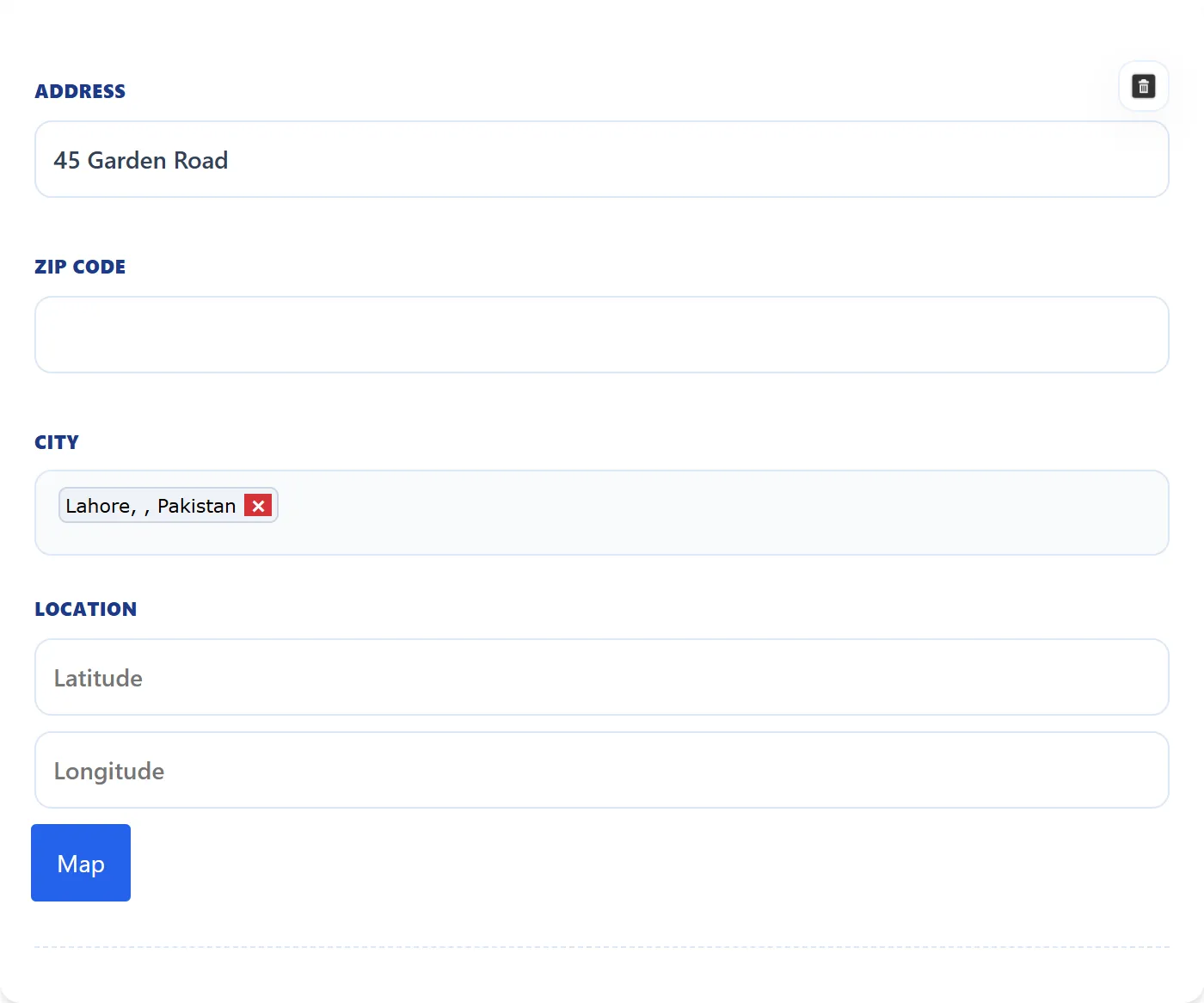
The city of the address added last is the one shown in the resume lists.
Education
Section titled “Education”One block per school: Institute, Institute city, Address, Certificate Name and Study Area. + Add New Institute adds another, up to Number Of Institute Allowed.
Employer
Section titled “Employer”One block per past or current job: Employer, Position, Responsibilities, Pay Upon Leaving, Supervisor, From Date, To Date, Leave Reason, City, Zip Code, Phone and Address. + Add New Employer adds another, up to Number Of Employers Allowed.
Skills
Section titled “Skills”A single Skills box for the job seeker’s skills, in free text.
Resume Editor
Section titled “Resume Editor”A rich-text editor (Joomla’s editor) for a full resume written out, as an alternative to uploading a file.
Reference
Section titled “Reference”One block per referee: Reference, Reference Name, Reference City, Reference Zipcode, Reference Address, Reference Phone, Reference Relation and Reference Years (how long they have known the job seeker). + Add New Reference adds another, up to Number Of References Allowed.
Language
Section titled “Language”One block per language: Language, Language Reading, Language Writing, Language Understanding and Language Where Learned. + Add New Language adds another, up to Number Of Languages Allowed.
Resume Privacy
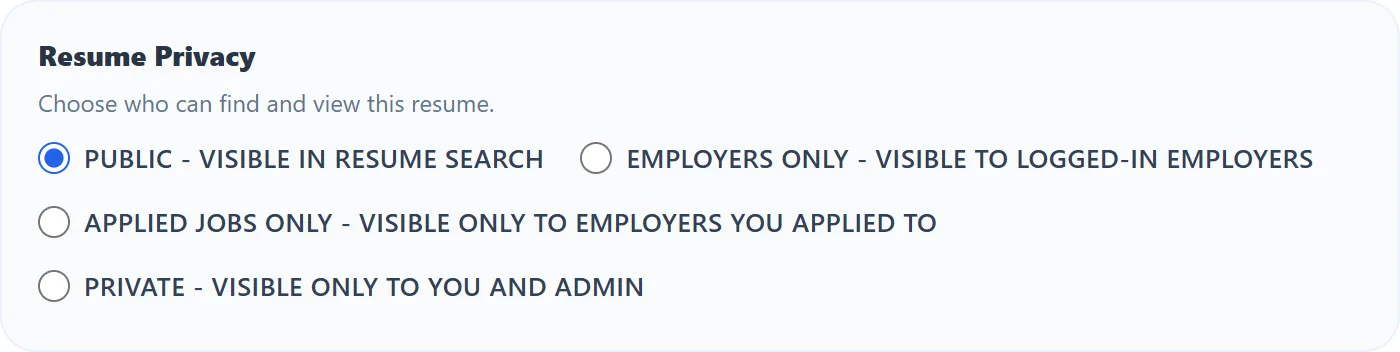
Section titled “Resume Privacy”Below the sections, choose who can find and view the resume:
| Option | Who sees the resume |
|---|---|
| Public - visible in resume search | Anyone allowed to search resumes. |
| Employers only - visible to logged-in employers | Logged-in employers. |
| Applied jobs only - visible only to employers you applied to | Only employers whose jobs the job seeker applied to. The resume is left out of resume search. |
| Private - visible only to you and admin | Only the job seeker and the administrator. The resume is left out of resume search. |
Saving
Section titled “Saving”- Save stores the resume and keeps the form open.
- Save and Close stores it and returns to the resume list.
- Cancel returns to the resume list without saving.
Changing Status here does not send the approval or rejection e-mail; the Approve and Reject buttons in the approval queue do.