
Payment methods
When an employer or job seeker buys a package that isn’t free, the package’s Buy Now page lists the payment methods you have enabled. Each method is set up here.
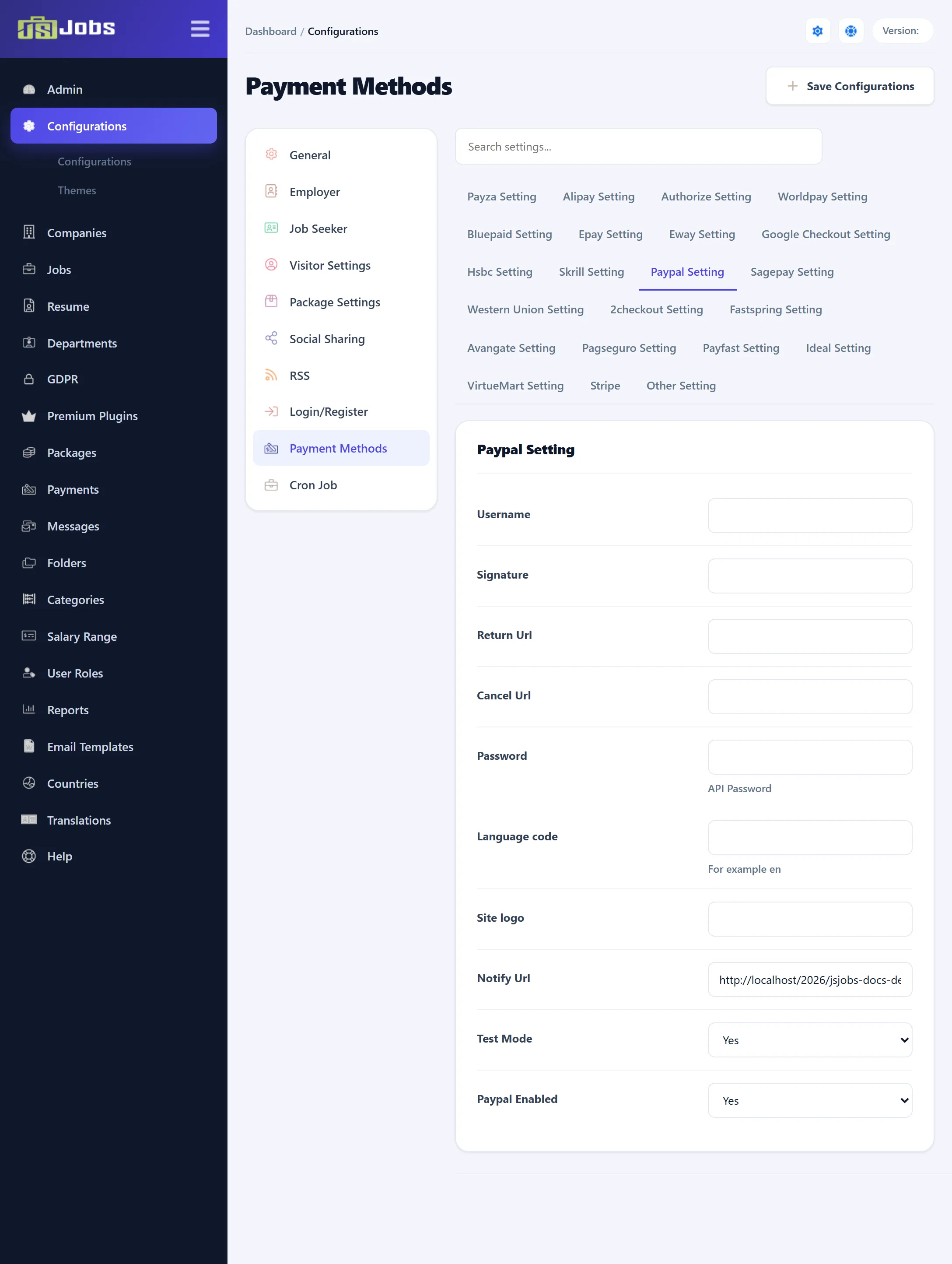
Open Components → JS Jobs → Configurations and click Payment Methods in the list on the left. The screen has one tab per gateway. Click Save Configurations to save every tab at once.
Settings most gateways share
Section titled “Settings most gateways share”| Setting | What it does |
|---|---|
| Gateway Enabled | Yes offers the gateway on the Buy Now page. |
| Test Mode | Yes sends payments to the gateway’s test (sandbox) system, so no real money moves. Turn it off when you go live. |
| Return Url | The page buyers come back to after paying. |
| Cancel Url | The page buyers come back to if they cancel. |
| Notify Url | Read-only. The address the gateway calls to tell your site that a payment went through. Copy it into the gateway’s notification (IPN) settings, where it has one. |
When the gateway’s notification arrives, JS Jobs marks the payment verified and sends the purchase e-mails.
The gateways
Section titled “The gateways”The tabs, in the order the screen shows them, with the settings each adds:
| Tab | Its own settings (defaults) |
|---|---|
| Payza Setting | Merchant Email, Ipn Security Code. Test Mode Yes. |
| Alipay Setting | Merchant Email, Security Code, Payment Mode (Partner or Direct; Direct), Partner Id, Accepted Currency (CNY), Transport (Http or Https). |
| Authorize Setting | Login Id, Transaction Key, Test Mode Enabled (No). The screen notes it supports only Authorize.Net’s SIM method. |
| Worldpay Setting | Payment Url (Worldpay’s test address on a new install), Installation Id, Test Mode Enabled (No). |
| Bluepaid Setting | Payment Url, Bluepaid Id, Currency Code (EUR), Language (EN). |
| Epay Setting | Merchant Number, Window State (Popup or Same Window; Same Window), Md5 Mode (To And From Epay), Auth Sms, Auth Mail, Group, Instant Capture, Split Payment and Add Fee (all Yes). |
| Eway Setting | Customer Id, Username, Country, Language (EN). The currency follows the country. Its return address is fixed; the screen says not to change it. |
| Google Checkout Setting | Merchant Id, Merchant Key, Currency Code (USD). |
| Hsbc Setting | Merchant Number, Cpi Store, Currency Code, Instant Capture (Yes). Test Mode Yes. |
| Skrill Setting | Payment Url, Merchant Email, Merchant Id, Merchant Secret Word, Currency Code (CHF), Language (EN). |
| Paypal Setting | Username, Signature, Password (the API password), Language Code (for example en), Site logo. Test Mode Yes. |
| Sagepay Setting | Vendor Name, Password, Mode (Live, Test or Simu). |
| Western Union Setting | See below. |
| 2Checkout Setting | Seller Id, Currency Code (USD), Language, Demo (Yes). |
| Fastspring Setting | Private Key. Paste the notify address into Fastspring’s notification settings. |
| Avangate Setting | Private Key. Paste the notify address into Avangate’s notification settings. |
| Pagseguro Setting | Email Address, Token. Paste the notify address into Pagseguro. |
| Payfast Setting | Username, Merchant Id, Merchant Key, Pdt Key. Test Mode Yes. |
| Ideal Setting | Partner Id. Test Mode Yes. |
| VirtueMart Setting | VirtueMart Enabled (No): sell packages through VirtueMart. It needs the VirtueMart component and the JS Jobs VirtueMart plugin, sold separately (see Premium Plugins). |
| Stripe | Stripe Enabled (No), Secret Key, Publishable Key. |
| Other Setting | Title (Other Payment), Other Enabled. See below. |
Link-based methods
Section titled “Link-based methods”Fastspring, Avangate and Other work through a product link. On each package’s form, enter the link to the matching product at that service. A buyer who picks the method is sent to that link.
With Other, use any payment page you like; Title is the name buyers see. The screen warns that for Other “Package Notification Will Not Work”: your site isn’t told when the buyer has paid, so check the payment yourself and approve it under Payments.
Western Union
Section titled “Western Union”Western Union is paid outside the site. After choosing it, the buyer sees the amount to transfer, your order number and the details you choose to show.
| Setting | Default | What it does |
|---|---|---|
| Western Union Enabled | Yes | Offers Western Union on the Buy Now page. |
| Email Address | Empty | The address buyers send the transfer’s MTCN number to. |
| Name | Empty | The receiver’s name. Tick the box beside it to show it. |
| Country Name | Empty | The receiver’s country. Tick the box to show it. |
| City Name | Empty | The receiver’s city. |
| Account Information | Empty | Further details, such as account numbers. Tick the box to show them. |
Going live
Section titled “Going live”-
Set Enabled to No on every gateway you won’t use.
-
Fill in your account details for each gateway you keep, and copy its Notify Url into the gateway’s own settings where it asks for one.
-
Make a test purchase with Test Mode on, and check that it shows up as paid under Payments.
-
Set Test Mode to No and save.