
Themes
JS Jobs draws its front-end pages in three colours that you choose. Open Components → JS Jobs → Configurations → Themes. The screen is headed Colors.
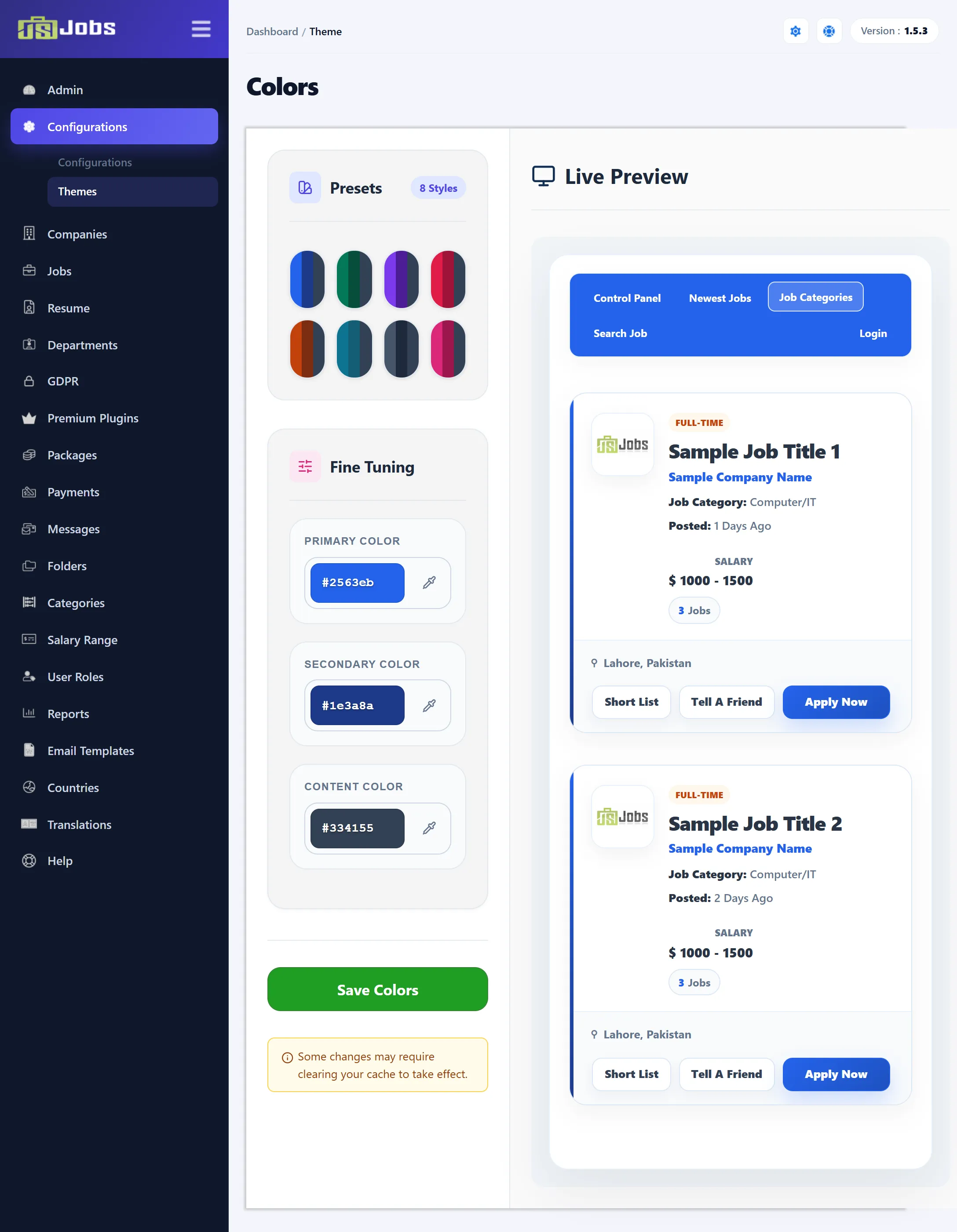
The three colours
Section titled “The three colours”| Colour | Used for | Shipped value |
|---|---|---|
| Primary Color | Your main colour: buttons, links and highlights. Lighter and darker shades for hover effects and backgrounds are worked out from it. | #2563eb |
| Secondary Color | The accent colour. | #1e3a8a |
| Content Color | The colour of the text. | #334155 |
The shipped colours are the Ocean Blue preset.
Changing the colours
Section titled “Changing the colours”-
Click a preset under Presets to load its three colours: Ocean Blue, Emerald, Royal Violet, Rose Red, Sunset Orange, Teal Cyan, Slate Pro or Fuchsia Pink.
-
Adjust any colour under Fine Tuning. Type a hex code such as
#0e7490in the box, or click the pipette beside it to pick a colour. -
Check the Live Preview on the right. It shows a sample jobs list with the top menu bar, two job cards and their buttons in the colours you chose.
-
Click Save Colors.
Each colour must be a six-digit hex code with its #, such as #2563eb. If any box
holds something else (a short code like #fff, or a colour name), nothing is saved and
an error message is shown.
The colours apply to the JS Jobs pages of your site. In Pro they also apply to the JS Jobs modules and content plugins, which are shown outside the component.
Where the colours are kept
Section titled “Where the colours are kept”Saving writes the three colours to the file
components/com_jsjobs/css/jsjobs_variables.css on your site, and the screen reads them
back from that file. The web server must be allowed to write to it. If the file can’t be
written, the screen shows an error and the colours stay as they were.