
Job and company fields
Jobs → Fields and Companies → Fields open the same screen, Field Ordering, for the job form and the company form. It decides which fields appear, what they are called, whether they are required and in which order they come, both on the site and on the administrator’s forms. Custom fields you add here appear on the forms with the built-in ones.
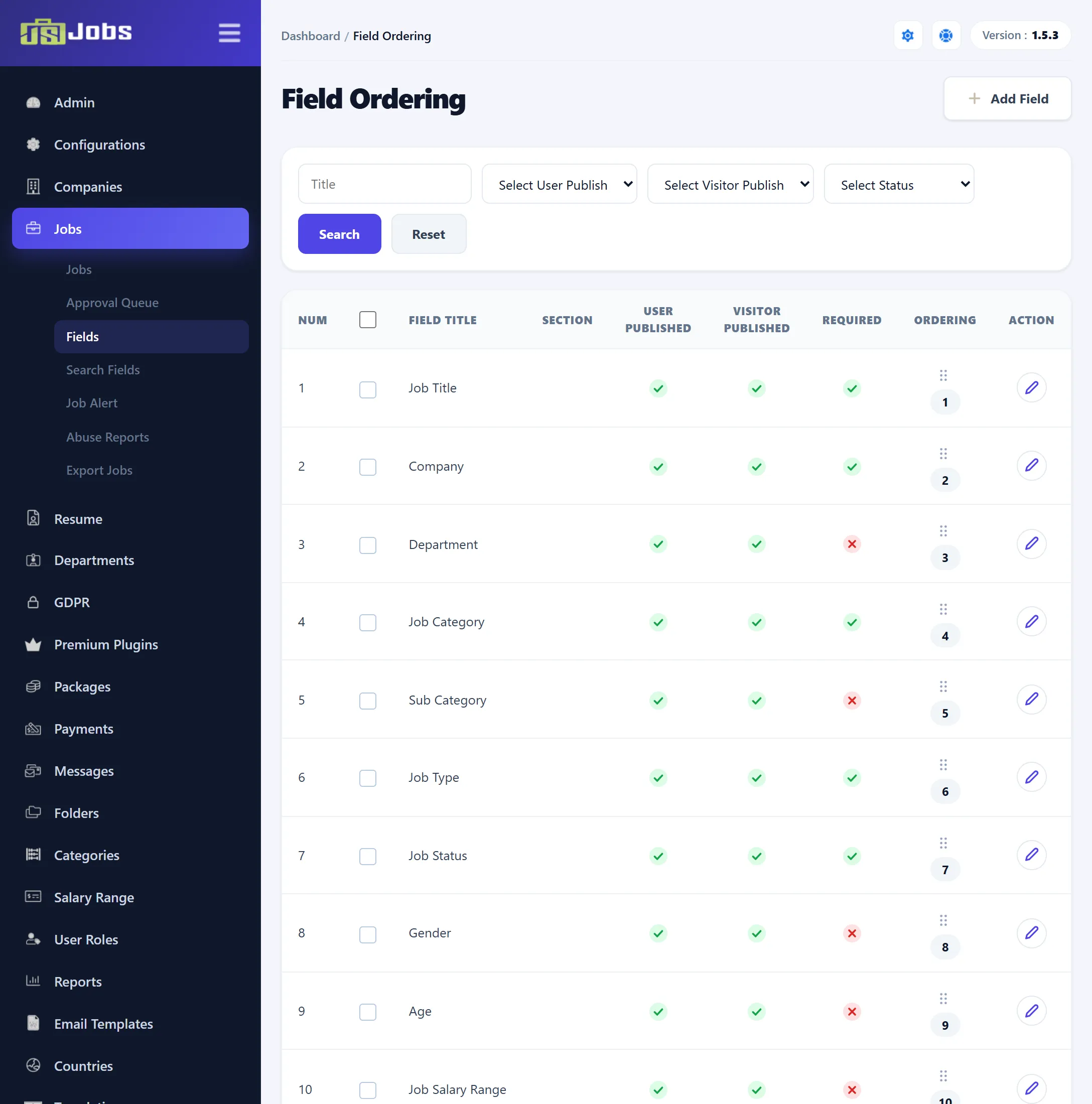
The columns
Section titled “The columns”| Column | Meaning |
|---|---|
| Field Title | The label shown on forms and pages. |
| Section | Used only for resume fields; empty here. |
| User Published | The field is used for logged-in users. Unpublished fields are also left off the administrator’s forms. |
| Visitor Published | The field is used for visitors who are not logged in. |
| Required | The field must be filled in on the form. |
| Ordering | The field’s position. Drag the handle to move a field up or down. |
| Action | The edit icon, and for custom fields a delete icon. |
Click a tick or cross to switch it. Some built-in fields can’t be switched: Job Title, Company, Job Category, Job Type, Start Publishing, Stop Publishing and Description on the job form, and Name on the company form, are always published and required. Contact Name and Contact Email on the company form are always published. Icons that can’t be switched are not links.
To change several fields at once, tick them and use Joomla’s toolbar: Publish, Unpublish, Visitor Publish, Visitor Unpublish, Required and Not Required.
The filters at the top find fields by Title, user publishing, visitor publishing and required status.
Editing a field
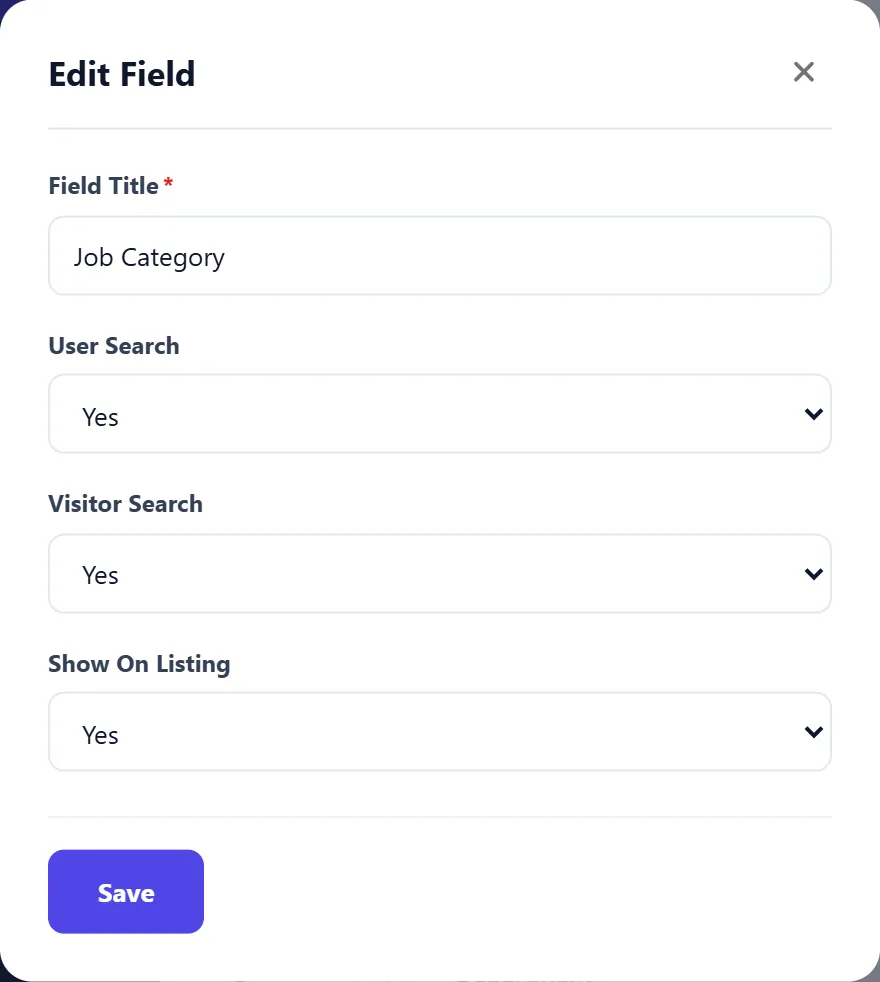
Section titled “Editing a field”Click the edit icon on a row to open Edit Field:
| Setting | What it does |
|---|---|
| Field Title | Renames the field. Required. |
| User Published, Visitor published | As in the list. Not shown for fields that can’t be unpublished. |
| Required | As in the list. Not shown for check boxes and terms-and-conditions fields. |
| User Search, Visitor Search | Whether the field is offered in the job search form to logged-in users and to visitors. Not shown for fields that can’t be searched. See Search fields. |
| Show On Listing | Whether the field’s value is shown in job or company listings. Not shown for fields that can’t be listed. |
Click Save. For a custom field, Advanced opens the full custom field form instead.
The fields as installed
Section titled “The fields as installed”On the job form, every field is published except Job Apply Link. Job Title, Company, Job Category, Job Type, Job Status, Start Publishing, Stop Publishing and Description are required. Filter and Email Setting are the Filters and Email setting groups at the bottom of the job form.
On the company form, every field is published except Income, and Name and Category are required.
Adding a custom field
Section titled “Adding a custom field”- Open Jobs → Fields or Companies → Fields, depending on which form the field is for.
- Click Add Field.
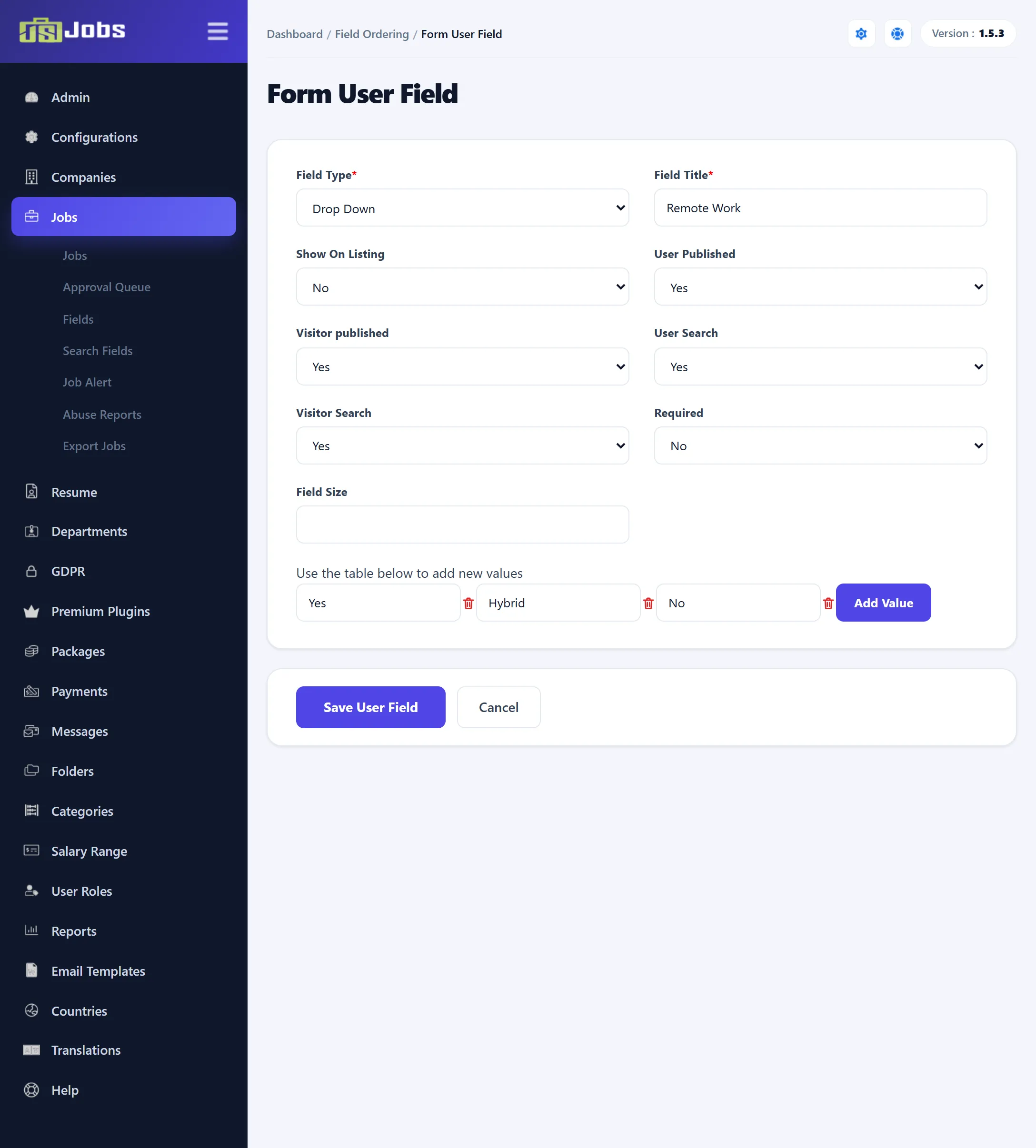
- Choose the Field Type and enter the Field Title.
- Set the options below, add the values for a list, and click Save user field.
The new field goes to the end of the list; drag it to where you want it.
Field types
Section titled “Field types”| Field Type | What the user gets | Extra settings |
|---|---|---|
| Text Field | A one-line box. | Max Length |
| Email Address | A box for an e-mail address. | Max Length |
| Text Area | A box for several lines. | Columns, Rows |
| Editor Text Area | Joomla’s editor. Can’t be used in searches. | |
| Date | A date picker. | |
| Check Box | One tick box per value. Can’t be required. | Values |
| Radio Button | One choice from the values. | Values |
| Drop Down | A list to pick one value from. | Values |
| Multi Select | A list to pick several values from. | Values |
| Depandent Field | A list whose choices depend on another list field. | Parent Field and values for each of its options |
| Upload File | A file upload. The allowed file types and size come from Configurations. | |
| Terms and Conditions | A tick box the user must tick, with a link. Always required. | See below |
For a list type, type each value in a box and click Add Value for another; the cross beside a box removes it.
For a Depandent Field, pick the Parent Field: a Drop Down or Radio Button custom field on the same form. A box appears for each of the parent’s values; enter the choices to offer when that value is picked, with Add More for another.
Common settings
Section titled “Common settings”| Setting | What it does | Default for a new field |
|---|---|---|
| Show on listing | Shows the value in listings. | No |
| User Published, Visitor Published | As in the list. | Yes |
| User Search, Visitor Search | Offers the field in the search form. Not available for company fields. | Yes for job fields |
| Required | The field must be filled in. | No |
| Field Size | The size of the box. |
Terms and conditions
Section titled “Terms and conditions”A Terms and Conditions field asks for:
- Terms and Conditions Link Type: Direct Link or Joomla Article.
- Terms and Conditions Text: the sentence next to the tick box. The text
between
[link]and[/link]becomes the link, for example “I have read and agree to the [link]Terms and Conditions[/link]”. - Terms and Conditions Link for a direct link, or Terms and Conditions Page to pick the Joomla article.
Deleting a custom field
Section titled “Deleting a custom field”Click the delete icon on the field’s row and confirm. A custom field that any job (or company) has a value in is not deleted; you see an error. Unpublish it instead. Only custom fields can be deleted; built-in fields can only be unpublished.