
Assign a package
You can give a package to any employer or job seeker yourself, for example when they paid you outside the site, or to try out a paid package. The package is added to their purchases as if they had taken it.
Assigning a package
Section titled “Assigning a package”-
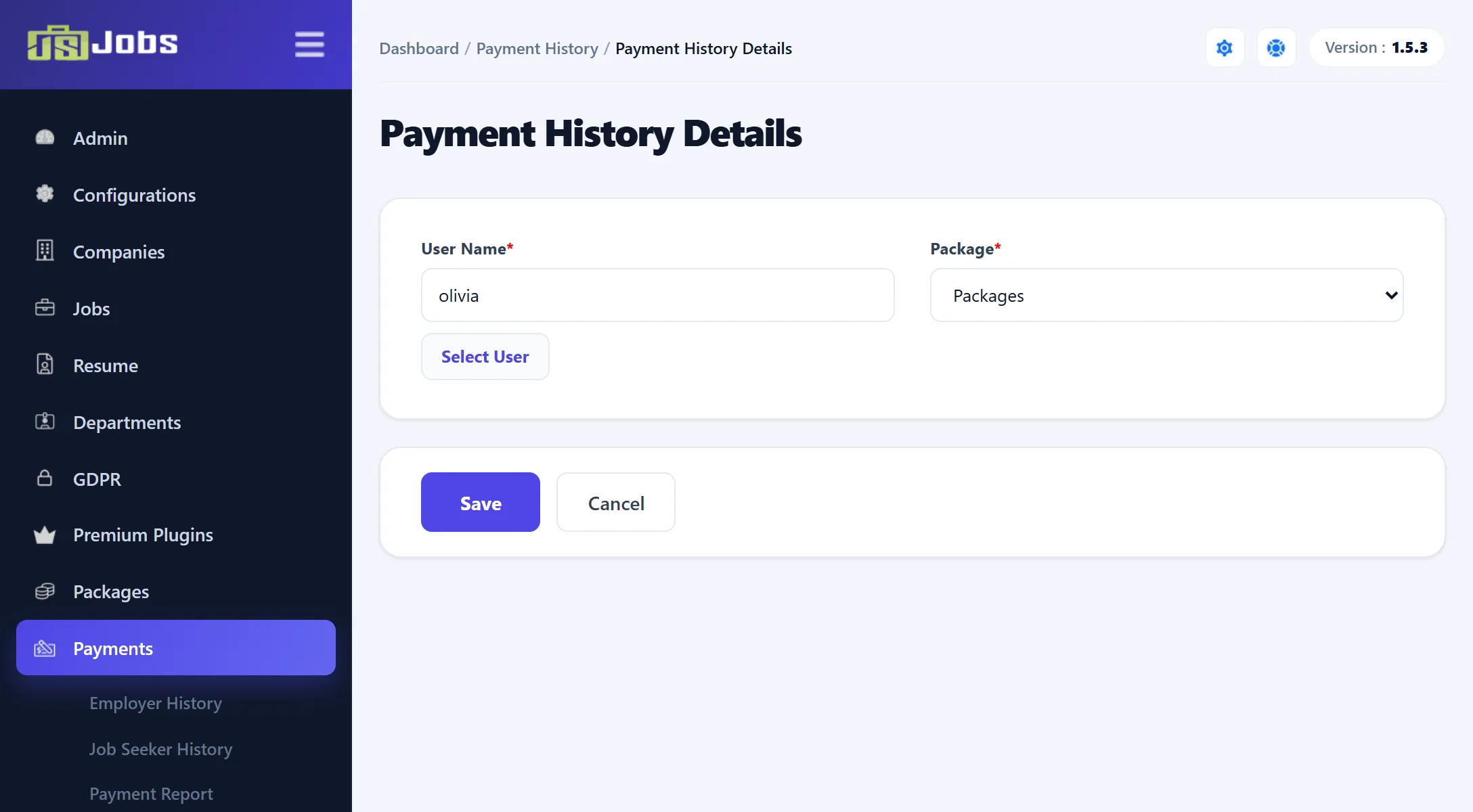
Go to Payments → Employer History or Payments → Job Seeker History and click Add New Payment History. The form is headed Payment History Details.
-
Click Select User. In the popup, search by Name or User Name, then click the user.
-
The Package list fills with the packages for that user’s role: employer packages for an employer, job seeker packages for a job seeker. Pick one.
-
Click Save.
The message “Package assigned to user” confirms it, and you return to the employer or job seeker history.
The user must already have a JS Jobs role. If they don’t, choosing them shows a message asking you to give them a role first, under User Roles → Users. The Package list shows every package for the role, including unpublished ones.
What gets recorded
Section titled “What gets recorded”| Package | Payment Status | Purchase Status |
|---|---|---|
| Paid (price above 0) | Not Verified | Verified |
| Free (price 0) | Verified | Verified, or Not Verified if free packages are not auto approved |
A paid package you assign doesn’t count yet: its payment is not verified. To let the user use it, find it in the history list and click the tick in Verify Payment. See Payment history.
If the package’s discount period includes today, the discount is applied, as for a purchase. The site’s default currency is recorded with the purchase. No e-mail is sent to the user or to you.
Free packages
Section titled “Free packages”If Employer Get Free Package Once (or Job Seeker Get Free Package Once) is Yes under Configurations → Package Settings and the user has had a free package before, the package is not added and you see “Cannot assign free package more than once”.