
Setup wizard
Right after the install, Joomla opens the wizard, headed JS Jobs Configurations. It sets the most important options and can create menu items and sample data. Everything it sets can be changed later under Configurations.
To open it again, go to
administrator/index.php?option=com_jsjobs&c=postinstallation&view=postinstallation&layout=stepone.
The × at the top right leaves the wizard for the dashboard at any point.
The step list across the top (General Settings, Employer Settings, Job Seeker Settings, Sample Data, Settings Complete) links to each step, so you can go straight to any of them. Next saves the step and moves on; Back goes to the previous step without saving.
Step 1: General Settings
Section titled “Step 1: General Settings”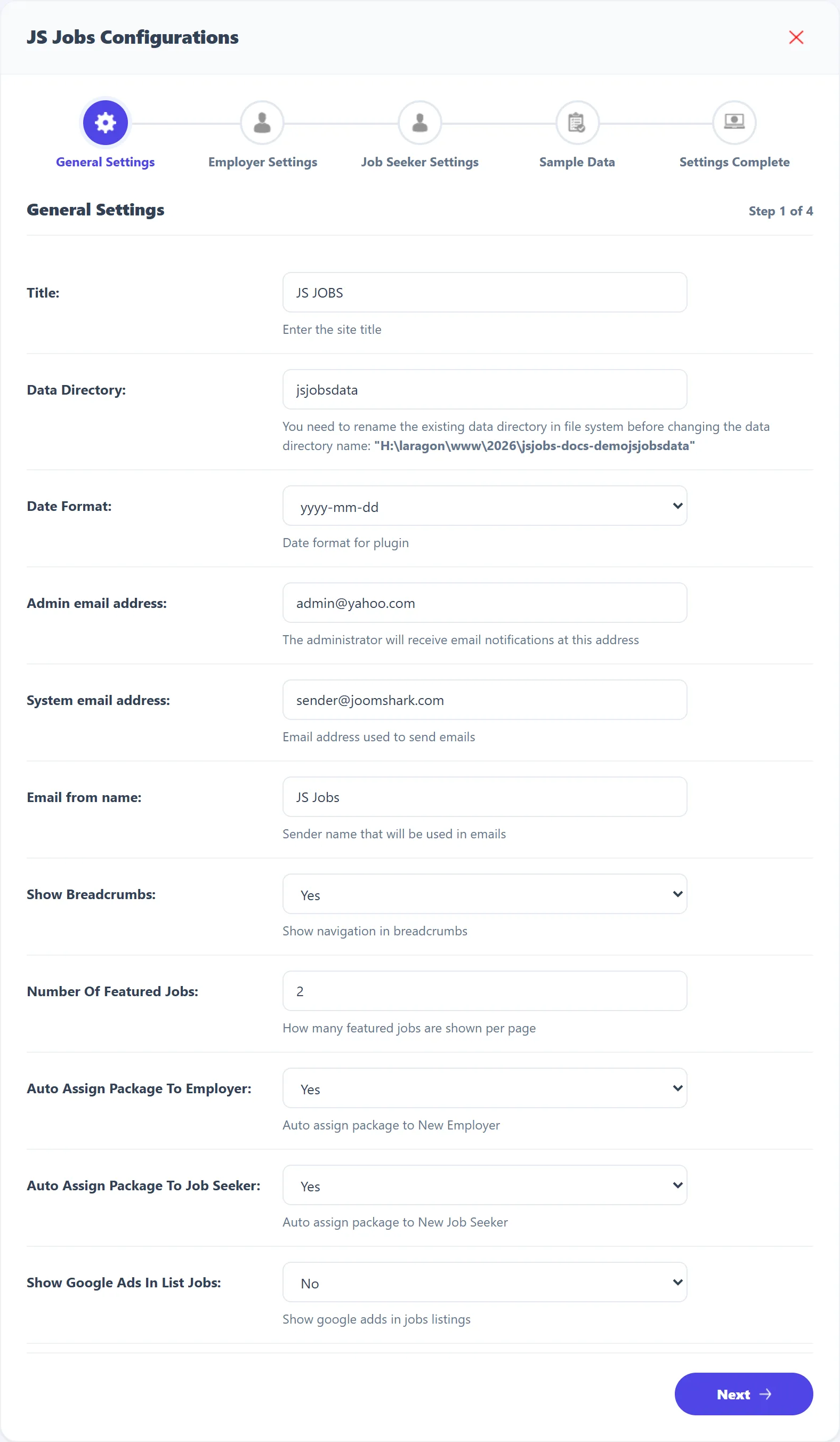
| Setting | What it does | Default |
|---|---|---|
| Title | Your job board’s name. It appears, for example, on the welcome page where new users pick their role. | JS JOBS |
| Data Directory | The folder in your site’s root where uploaded logos, photos and resume files are kept. If uploads already exist, rename the folder on the server first, then change it here. | jsjobsdata |
| Date Format | How dates are shown: DD-MM-YYYY, MM-DD-YYYY or YYYY-MM-DD. | YYYY-MM-DD |
| Admin email address | Where notifications for the administrator are sent. | [email protected] |
| System email address | The address JS Jobs sends its e-mail from. | [email protected] |
| Email from name | The sender name on JS Jobs e-mail. | JS Jobs |
| Show breadcrumbs | Shows the “Dashboard / page” trail at the top of JS Jobs pages. | Yes |
| Number Of Featured Jobs (Pro) | How many featured jobs are shown with each page of the job list as it scrolls. | 2 |
| Auto Assign Package To Employer | Gives each new employer a package when they register. | Yes |
| Auto Assign Package To Job Seeker | Gives each new job seeker a package when they register. | Yes |
| Show Google Ads In List Jobs | Shows Google AdSense blocks in the job list. The AdSense details are set under Configurations. | No |
In 1.5.3 the two Auto Assign Package settings store a package number, not a yes or no: Yes gives new users package number 1, which is the install’s Free Package, and No gives none. To give a different package, choose it under Configurations instead.
Step 2: Employer Settings
Section titled “Step 2: Employer Settings”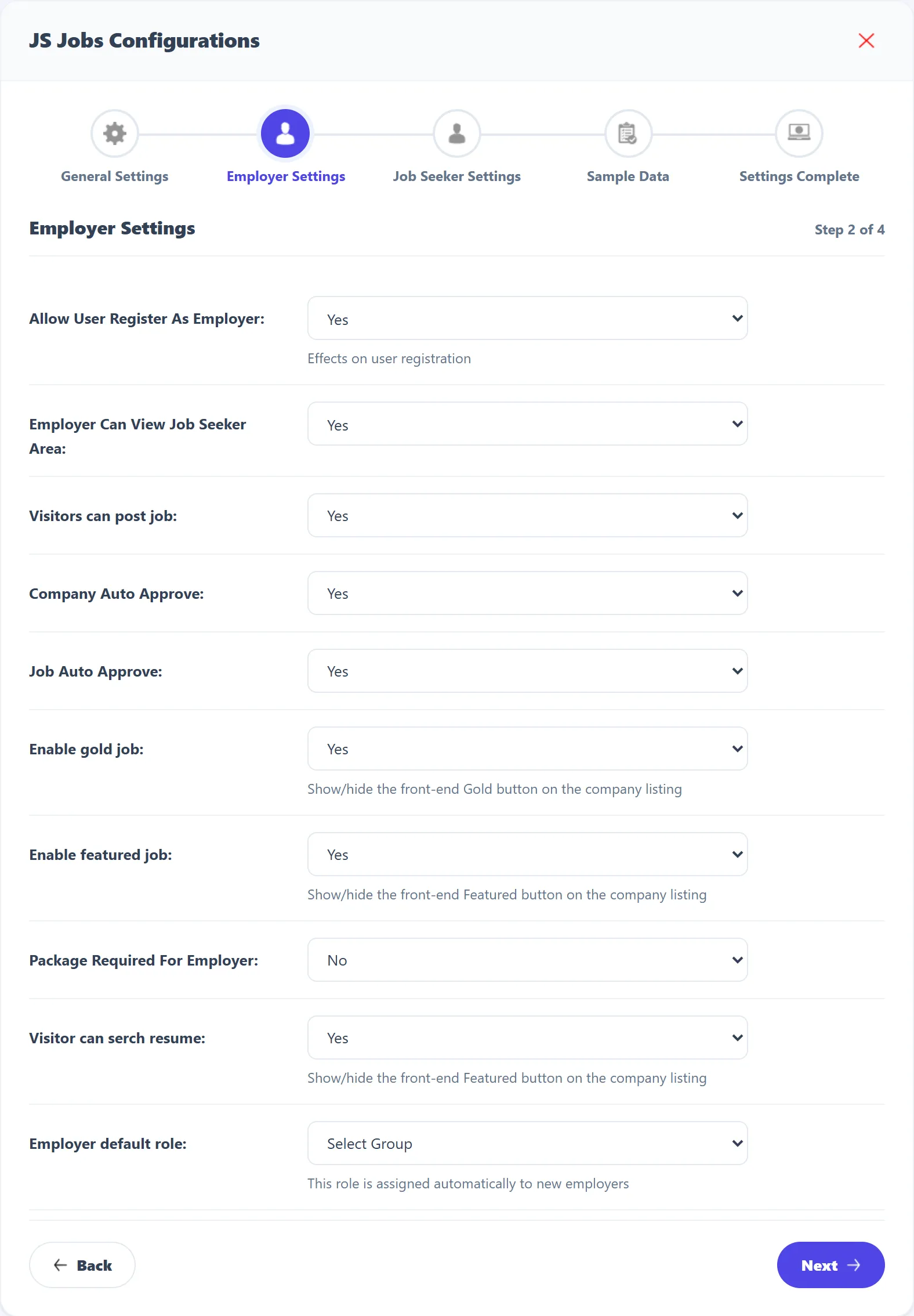
| Setting | What it does | Default |
|---|---|---|
| Allow User Register As Employer | No makes every new user a job seeker: the employer choice disappears from registration. | Yes |
| Employer Can View Job Seeker Area | Lets employers open job seeker pages. | Yes |
| Visitors can post job (Pro) | Lets people post a job without an account. | Yes |
| Company Auto Approve | Yes publishes new companies at once. No sends them to Companies → Approval Queue. | Yes |
| Job Auto Approve | The same for jobs and Jobs → Approval Queue. | Yes |
| Enable gold job (Pro) | Shows the gold button on the employer’s company list. | Yes |
| Enable featured job (Pro) | Shows the featured button on the employer’s company list. | Yes |
| Package Required For Employer | Yes means an employer needs a valid package, and stays within its limits, to add companies, jobs and the other things packages count. No means no limits. | No |
| Visitor can serch resume | Lets visitors use the resume search. | Yes |
| Employer default role | A Joomla user group that new employers are added to, as well as their usual groups. Select Group adds none. | Select Group |
Despite their names, Enable gold job and Enable featured job control the gold and featured buttons for companies, not jobs; the job buttons have their own settings under Configurations.
Step 3: Job Seeker Settings
Section titled “Step 3: Job Seeker Settings”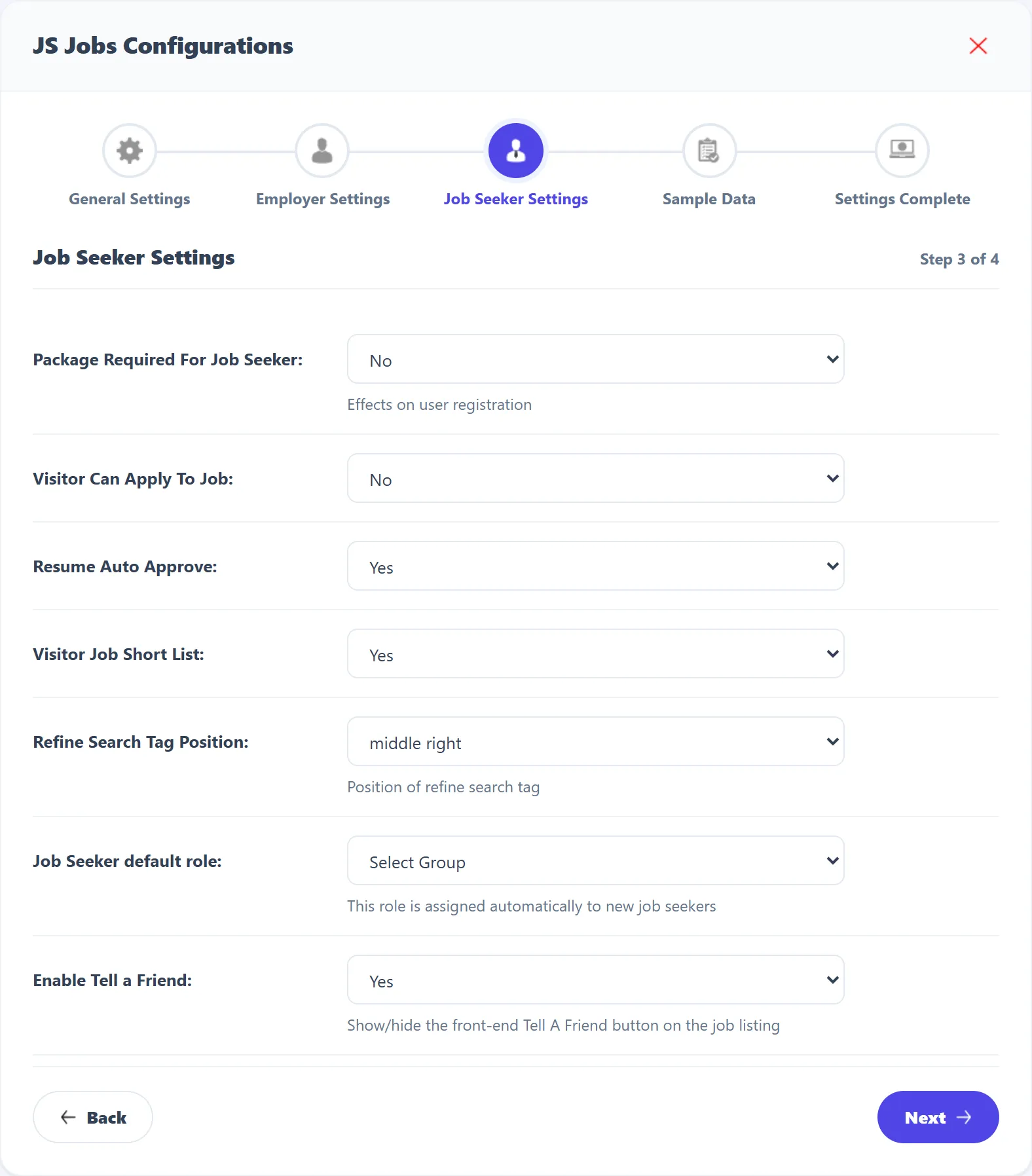
| Setting | What it does | Default |
|---|---|---|
| Package Required For Job Seeker | Yes means a job seeker needs a valid package, and stays within its limits, to add resumes, apply and search. No means no limits. | No |
| Visitor Can Apply To Job (Pro) | Lets people apply without an account. | No |
| Resume Auto Approve | Yes publishes new resumes at once. No sends them to Resume → Approval Queue. | Yes |
| Visitor Job Short List (Pro) | Shows the shortlist button in the job list to visitors. | Yes |
| Refine Search Tag Position | Where the refine-search tab sits on the job list: Top left, Top right, middle left, middle right, bottom left, bottom right or None. | middle right |
| Job Seeker default role | A Joomla user group that new job seekers are added to. | Select Group |
| Enable Tell a Friend (Pro) | Shows the tell-a-friend button on jobs. | Yes |
Step 4: Sample Data
Section titled “Step 4: Sample Data”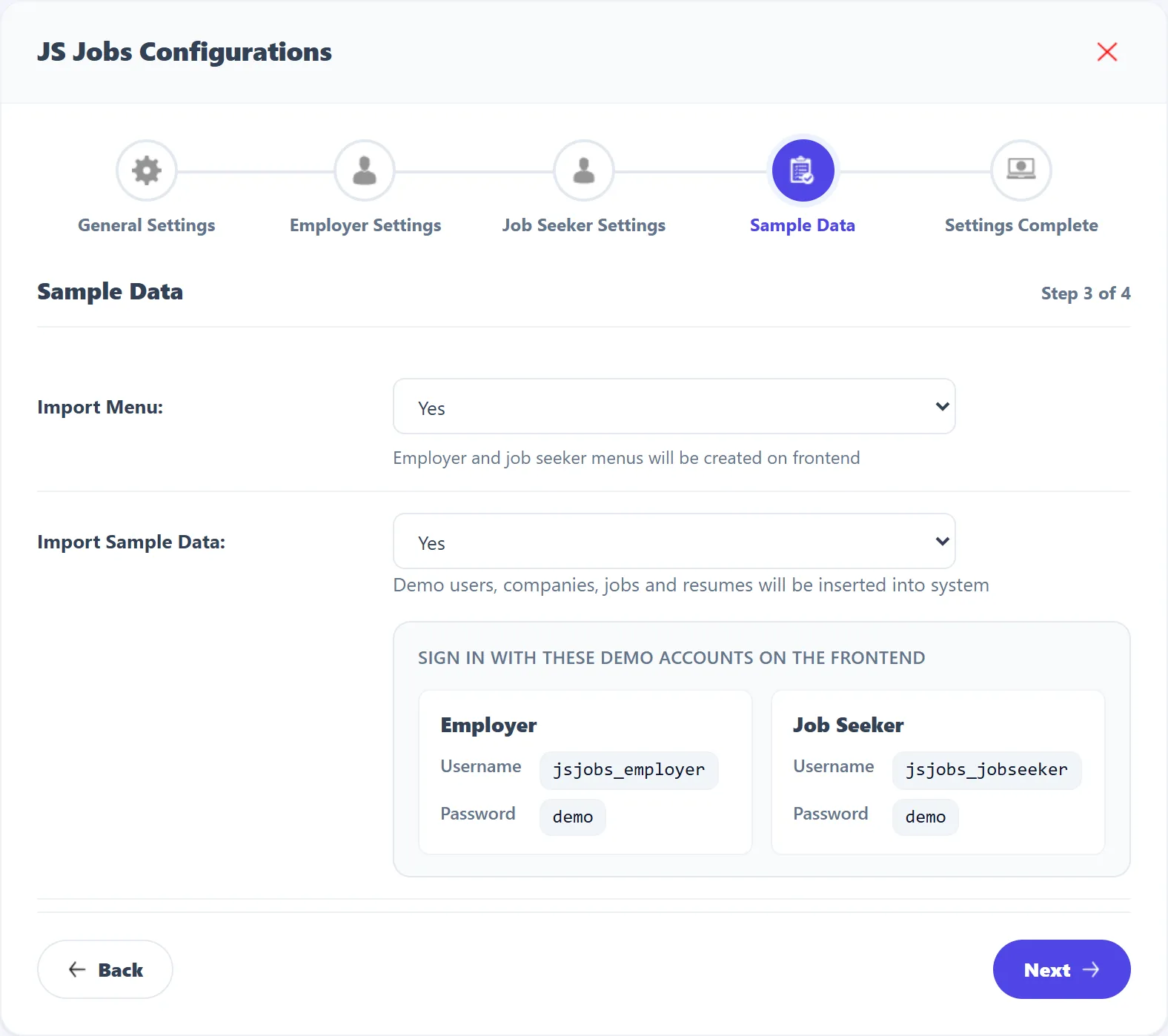
| Setting | What it does | Default |
|---|---|---|
| Import Menu | Adds Employer Control Panel and Job Seeker Control Panel to your site’s Main Menu. An item that already exists with the same title is not added twice. | Yes |
| Import Sample Data | Adds demo users, a company, jobs, a resume and applications (below). | Yes |
Next creates what you chose and opens Settings Complete.
The sample data is:
- two Joomla users in the Registered group, jsjobs_employer (an
employer) and jsjobs_jobseeker (a job seeker), both with the password
demo, and each with the Free Package; - a company, Buruj Solution, in Gujranwala;
- five published jobs for it: PHP Developer, Android Developer, Accountant, Senior Software Engineer and Web Designer, each open for ten years;
- a resume called “sample data” for the job seeker, with an address, school, employer, language and reference;
- applications from that resume to four of the jobs.
Settings Complete
Section titled “Settings Complete”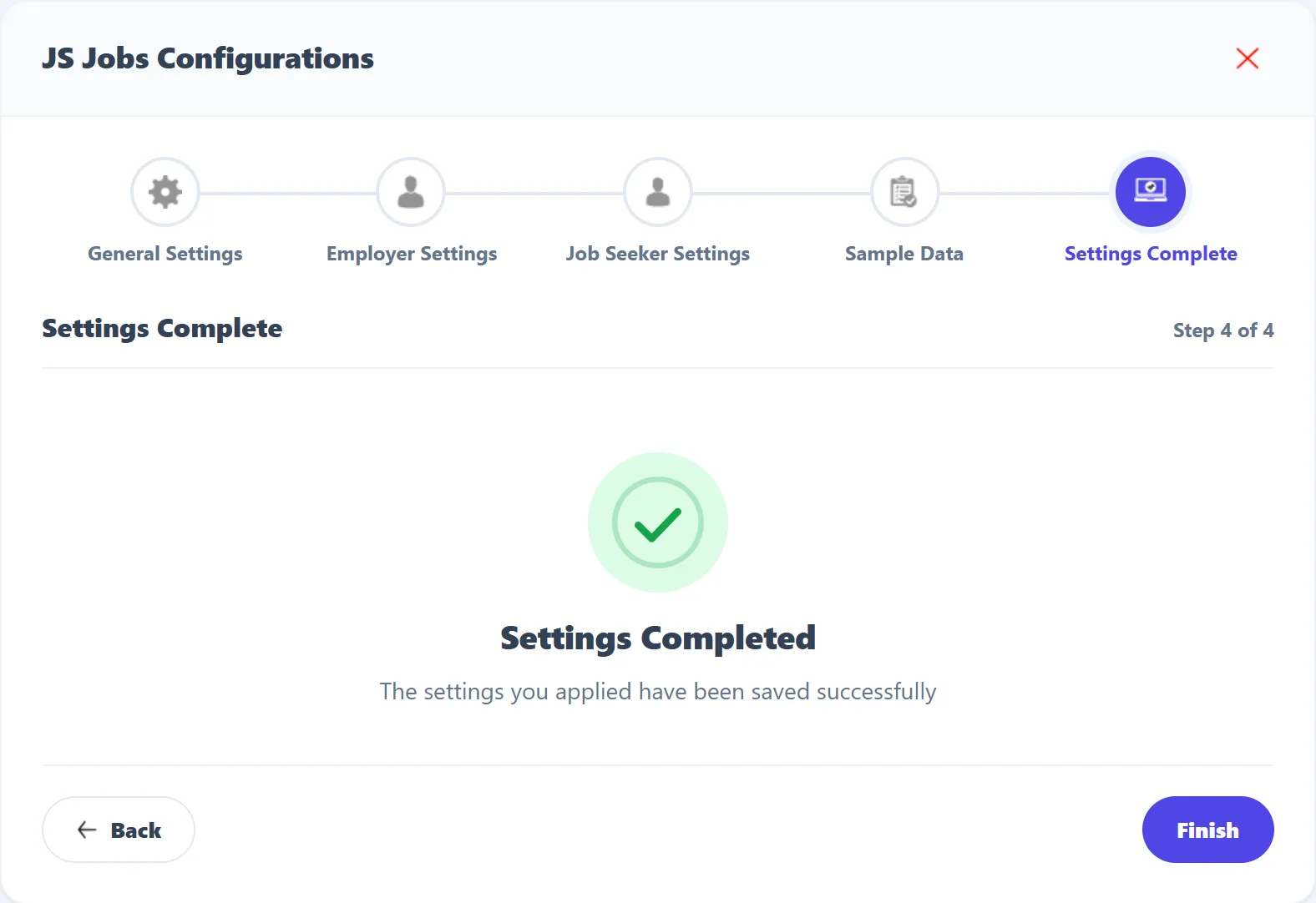
“Settings Completed” confirms the wizard is done. Finish opens the dashboard. Next, set up the front-end menus and registration.