
Your first job
This page follows one vacancy through the board, using the demo site’s people: Olivia Grant, who hires for Northwind Labs, and Maria Lopez, a PHP developer. It assumes the setup wizard has been run with its defaults and that the site has the Employer Control Panel, Job Seeker Control Panel and Jobs menu items (see Front-end menus and registration).
With the defaults, companies, jobs and resumes go live as soon as they are saved and no package is needed. If you changed Company Auto Approve, Job Auto Approve or Resume Auto Approve to No, each one waits in its Approval Queue under Components → JS Jobs until you approve it.
1. The employer registers
Section titled “1. The employer registers”-
Olivia opens the registration page, fills in her details, picks Employer under User Role and clicks Register.
-
She logs in and opens Employer Control Panel.
If she registered through Joomla’s own form instead, JS Jobs asks her to pick a role the first time she opens one of its pages.
2. The employer adds a company
Section titled “2. The employer adds a company”An employer needs a company before posting a job.
-
In the short links, Olivia clicks New Company.
-
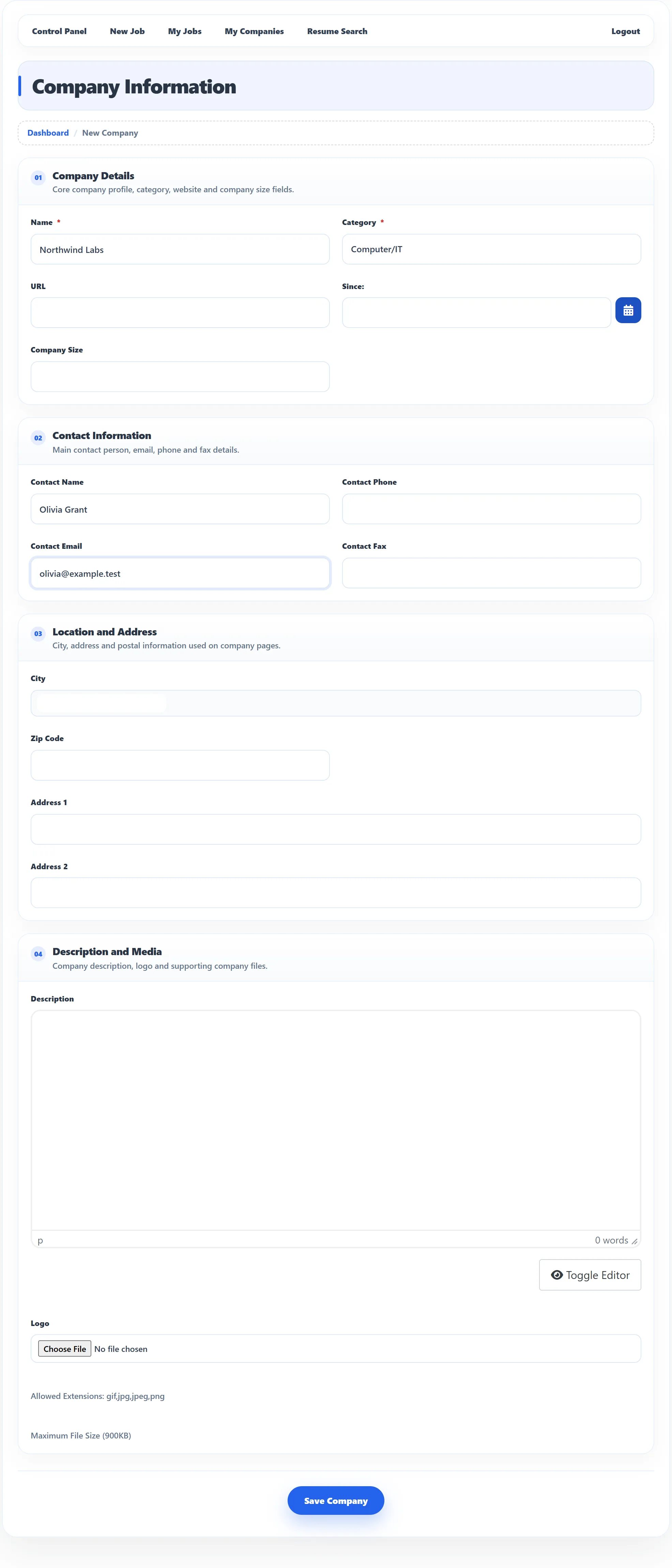
She fills in the company form: the name, category, contact details, location and, if she likes, a logo and a description.
-
She clicks Save Company. Northwind Labs now shows under My Companies.
3. The employer posts a job
Section titled “3. The employer posts a job”-
In the links along the top, Olivia clicks New Job.
-
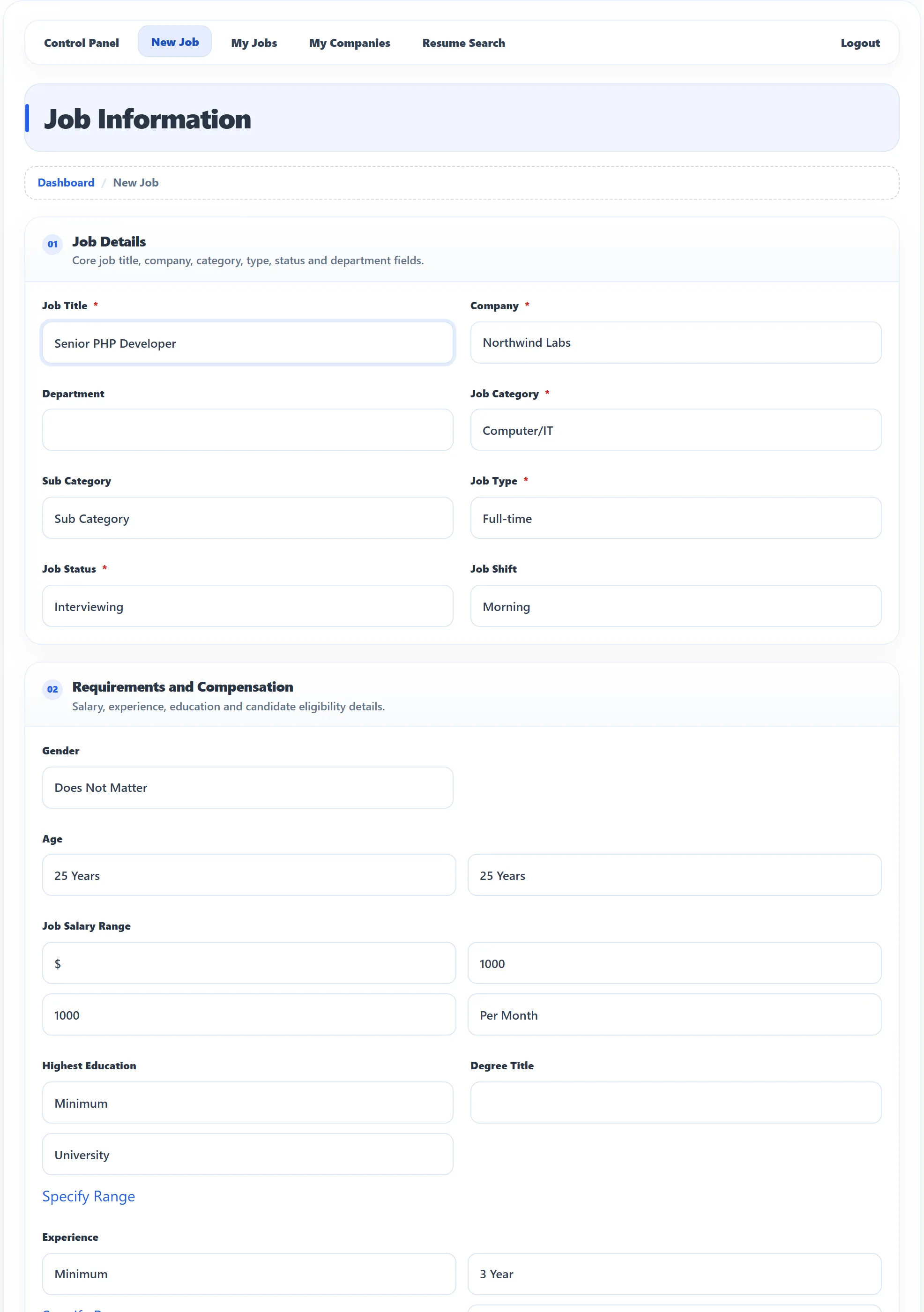
She picks Northwind Labs as the company and fills in the job: title, category, job type, location, salary range, description and the publishing dates.
-
She clicks Save Job. The job appears under My Jobs and, once it is approved and its publishing period has started, in the public Jobs list.
If the employer has no company yet, the form says “Company is required for add a job” with a link to add one. If a package is required and the employer has none, or it has run out, a message says so and links to the packages.
4. The job seeker adds a resume
Section titled “4. The job seeker adds a resume”-
Maria registers with the Job Seeker role, logs in and opens Job Seeker Control Panel.
-
In the short links she clicks Add Resume.
-
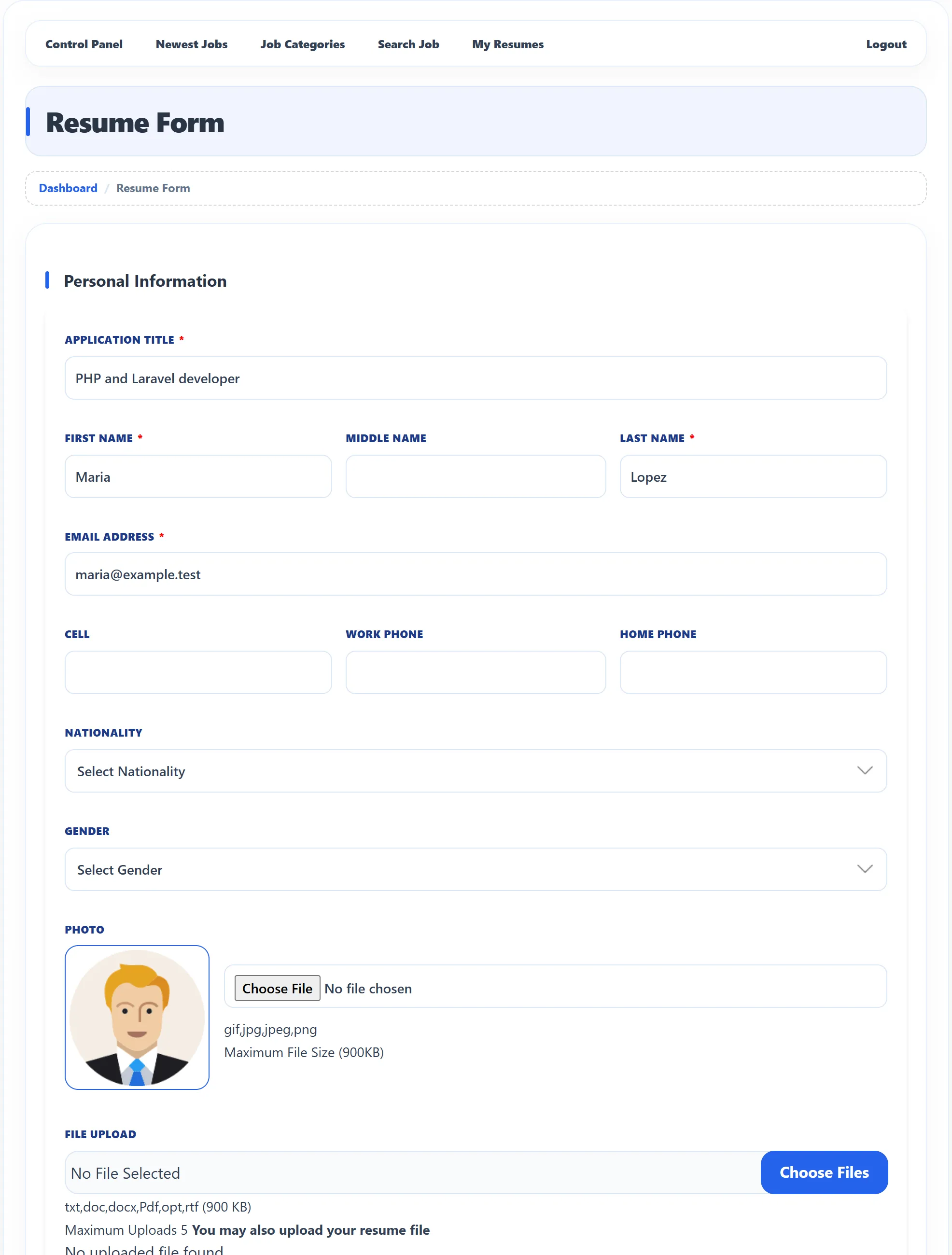
She fills in the resume: her personal details first, then her address, education, past employers, skills, references and languages, and files if she has them.
-
She clicks Save and Close. (Save keeps the form open.)
Only an approved resume can be used to apply. If resumes need approval, Maria waits until the administrator approves hers in Resume → Approval Queue.
5. The job seeker applies
Section titled “5. The job seeker applies”-
Maria opens Jobs, finds the Senior PHP Developer job and opens it.
-
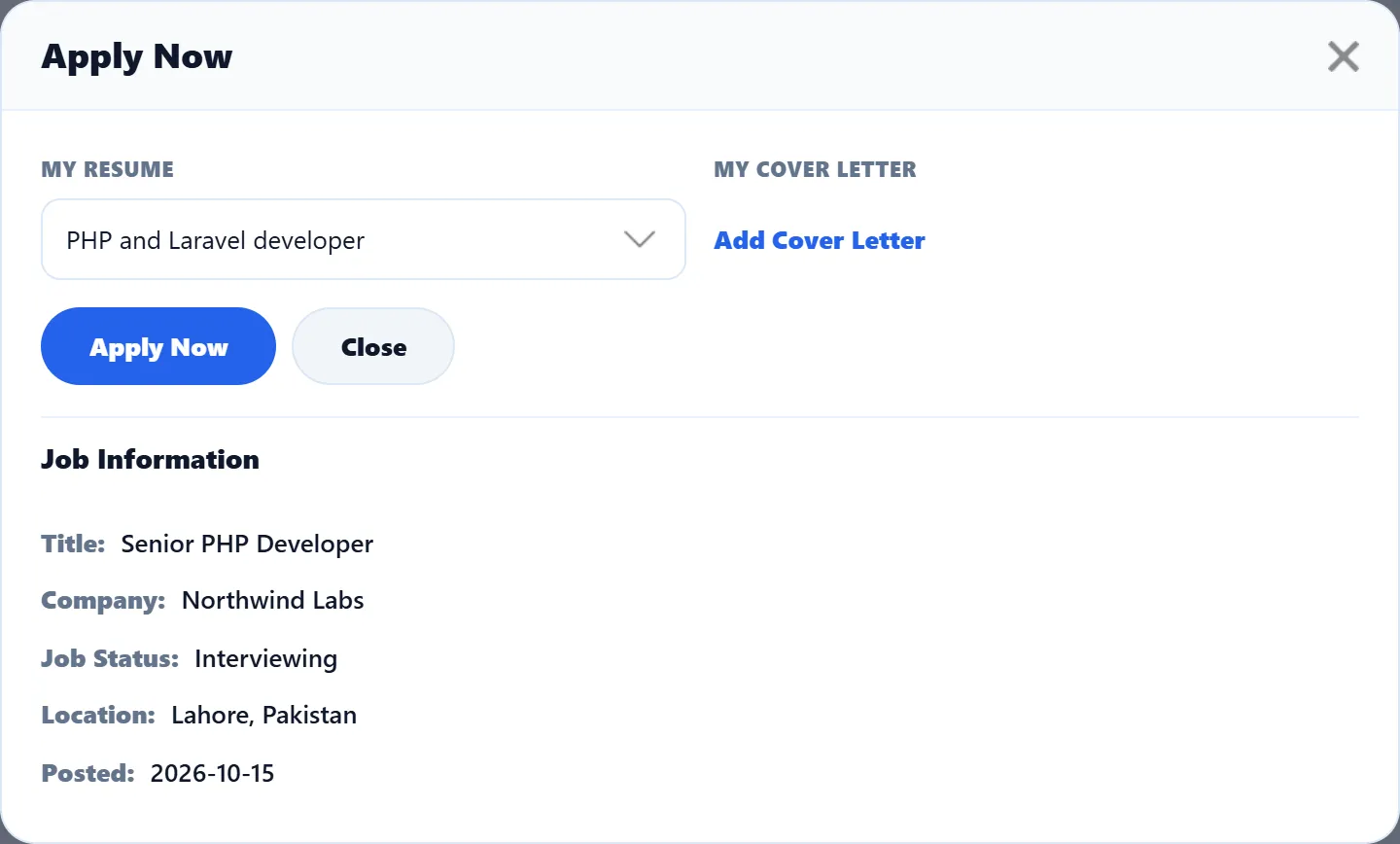
She clicks Apply Now. A window opens with My Resume and My Cover Letter, and the job’s title, company, status, location and posting date.
-
She picks her resume, and a cover letter if she has one, and clicks Apply Now.
A job seeker without an approved resume sees “You do not have a resume” with an Add Resume link instead. The application then shows on Maria’s Job Seeker Control Panel under Applied Resume and on her My Applied Jobs page.
6. The employer reviews the application
Section titled “6. The employer reviews the application”-
Olivia opens My Jobs. Each job shows Applications with the number of people who applied.
-
She clicks Applications on Senior PHP Developer to see the applicants, with their resume details and the date they applied.
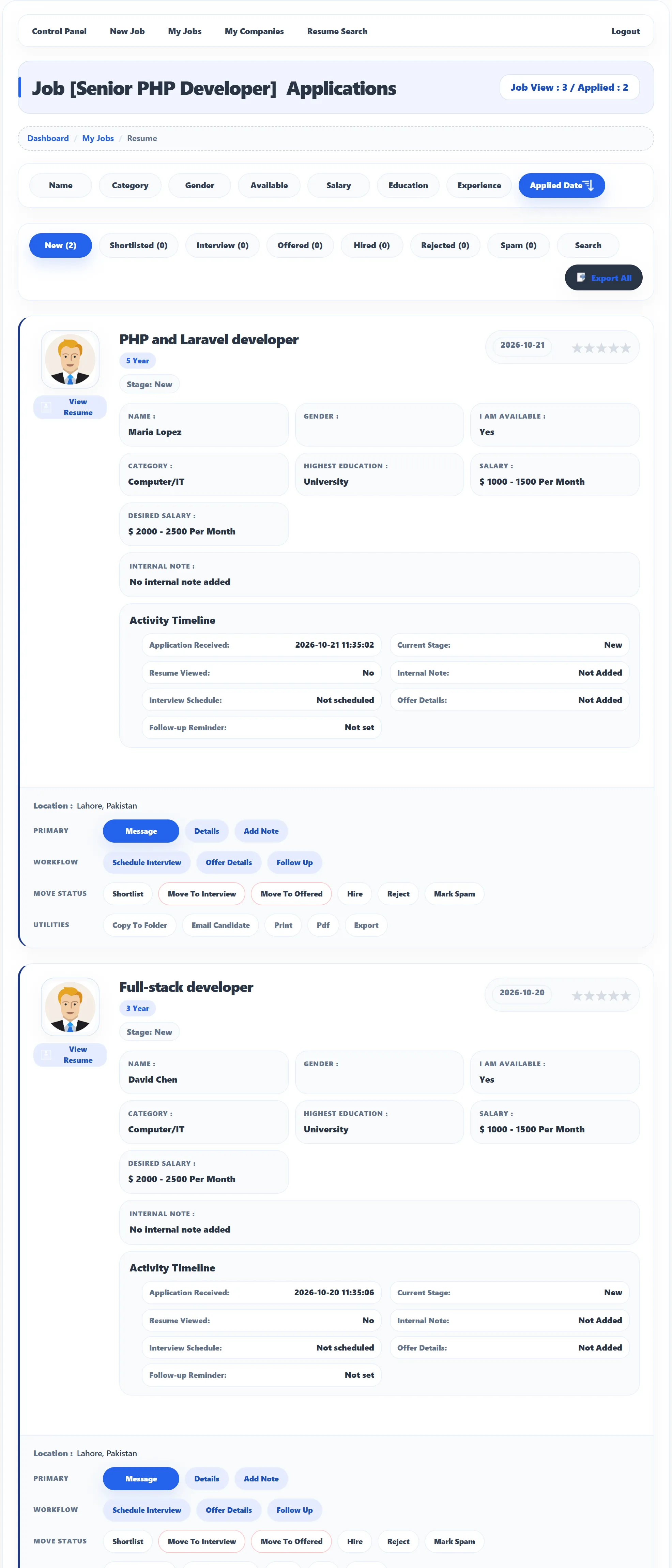
The newest applications also appear under Applied Resume on her control panel. In Pro she can shortlist candidates, rate them, add comments and record interviews, offers and follow-ups from here.
What the administrator sees
Section titled “What the administrator sees”Back in Joomla’s administrator, the dashboard counts the new job, company, resume and application, and the job appears under Newest Jobs. Jobs, Companies and Resume in the left menu list everything the users added.