
Countries, states and cities
Locations in JS Jobs are not typed freely. When an employer gives a job or a company its city, or a job seeker fills in an address, they start typing a city name and pick it from a list of matching cities. That list comes from three tables you manage under Components → JS Jobs → Countries: countries, their states, and their cities.
A city only appears in that list when both the city and its country are published. How many matches the box shows, and how many cities one job may have, are set in Configurations.
A new install has 214 countries, all published, with states for the United States, Canada, the United Kingdom and Pakistan. Its cities are Pakistani cities only. To work with other countries, add the cities you need, or load them with Load Address Data.
Countries
Section titled “Countries”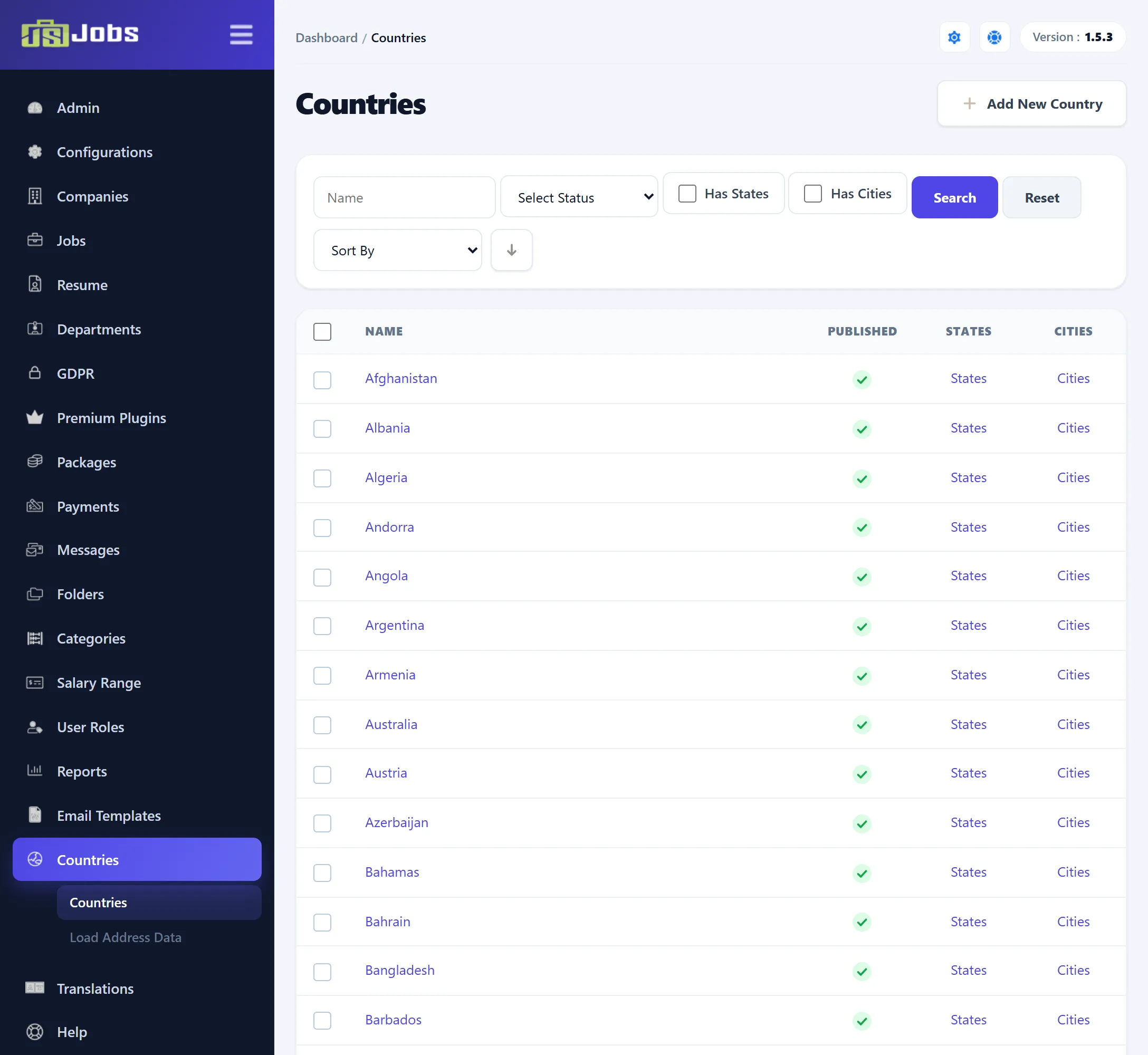
The list shows each country’s Name, its Published state, and links to its States and Cities. Above it:
- Name and Select Status filter the list.
- Has States and Has Cities show only the countries that have states, or cities, in the database.
- Sort By sorts by Country Name or Status; the arrow beside it switches the direction.
Click the tick or cross in Published to publish or unpublish a country, or tick several and use Publish or Unpublish in the toolbar. An unpublished country, and all its cities, disappear from the site’s location boxes; jobs and resumes that already use them keep them.
To add a country, click Add New Country, enter its Title (the country name) and tick Publish, then click Save Country. A country name that already exists can’t be added again.
Delete removes a country only when it has no states and no cities and no resume gives it as nationality. Since a new install’s countries come with their states and cities, in practice you unpublish countries rather than delete them.
States
Section titled “States”Click States on a country’s row. The list works like the countries list, with a Has Cities filter and a Cities link on each state.
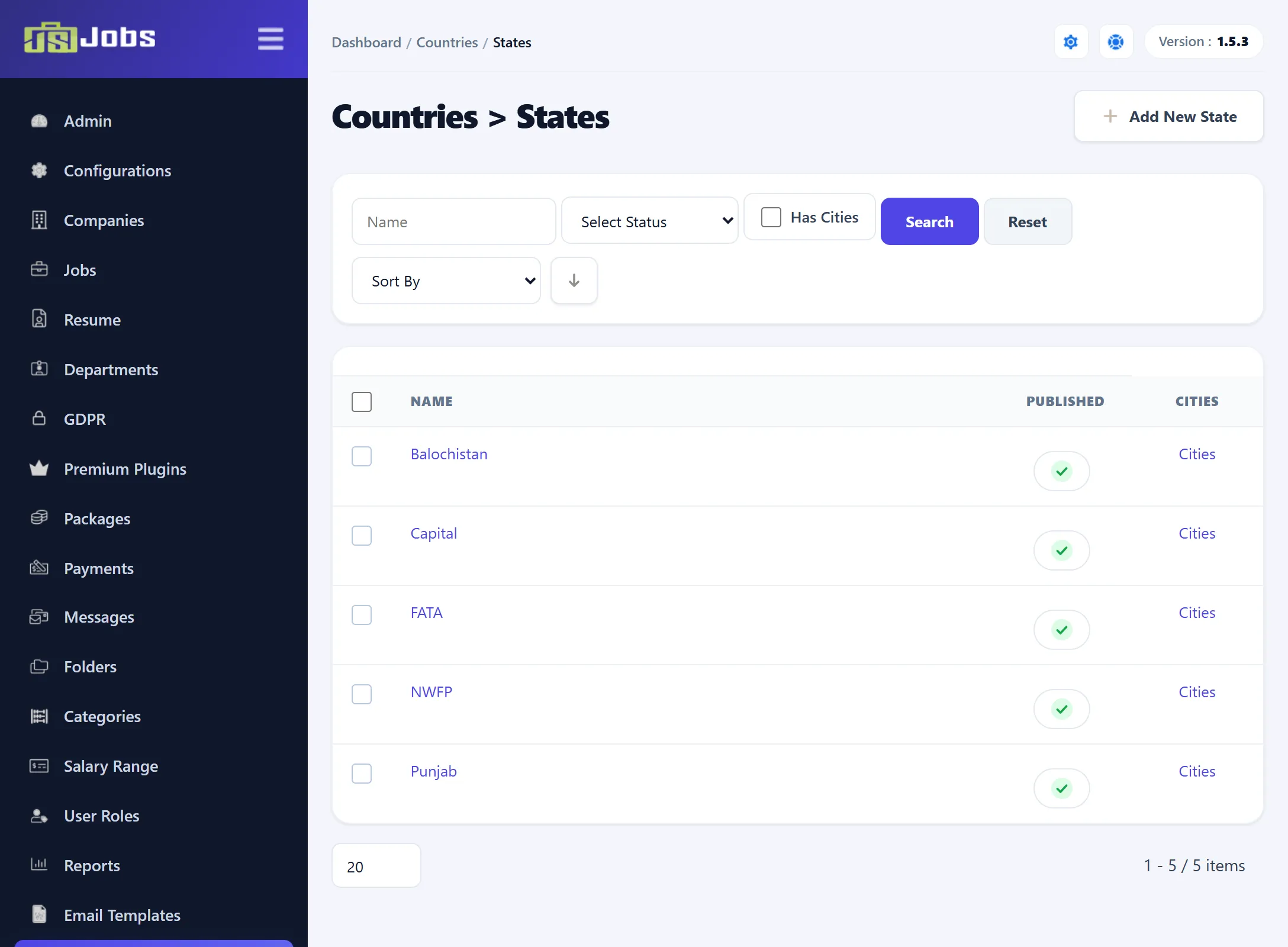
To add a state, click Add New State, enter its Title, tick Publish and click Save State. The state belongs to the country whose list you came from. A country can’t have two states with the same name.
A state can’t be deleted while any of its cities is used by a job, a company, or a resume’s address, institute, employer or reference. Deleting a state doesn’t delete its cities: they stay in the country’s city list.
Cities
Section titled “Cities”There are two ways in:
- Cities on a country’s row lists all of that country’s cities.
- Cities on a state’s row lists that state’s cities only.
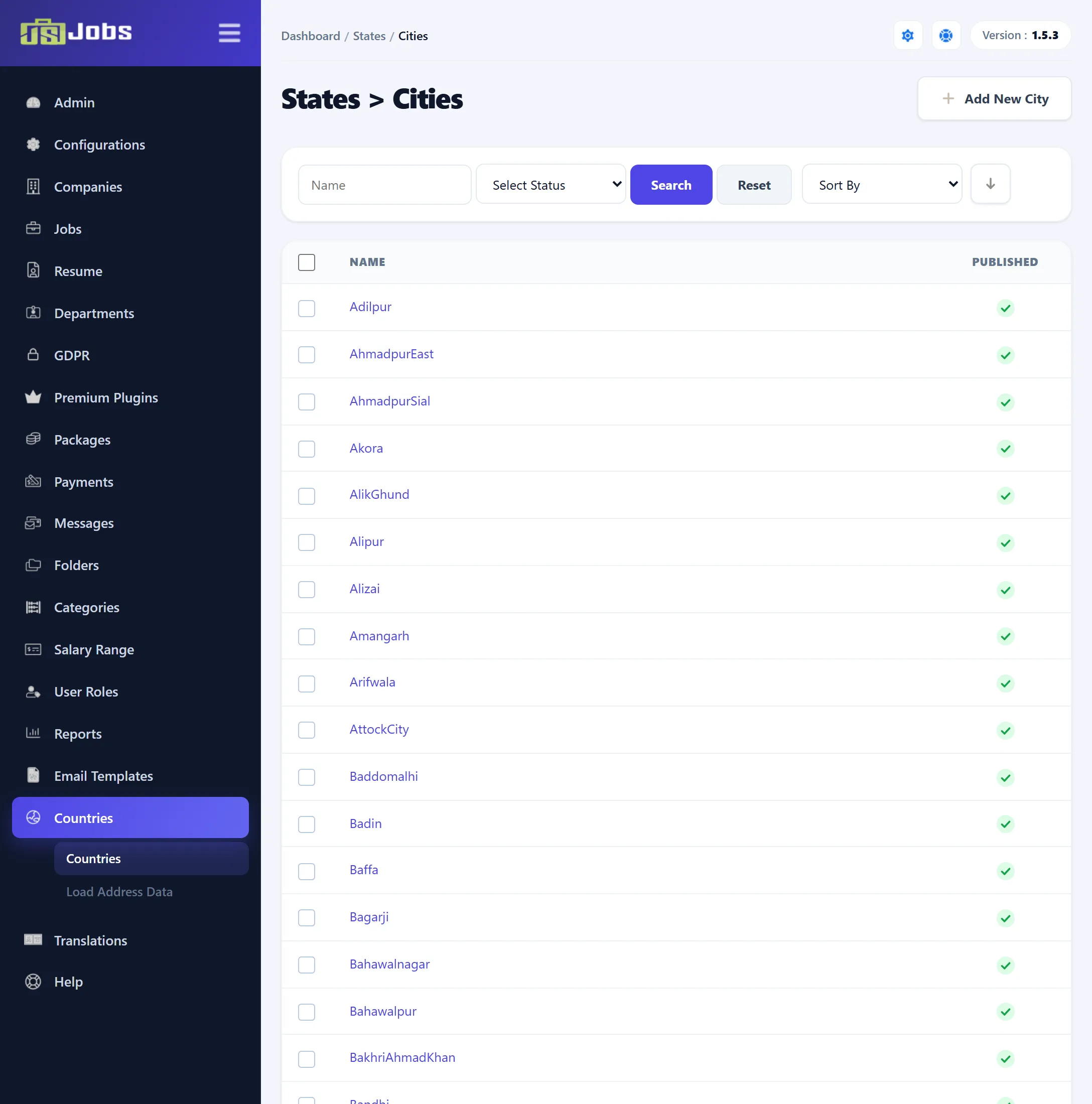
Publish, unpublish and delete work as for countries. A city can’t be deleted while a job, a company, or a resume’s address, institute, employer or reference uses it.
-
Open the cities of the state (or country) the city belongs to.
-
Click Add New City.
-
Fill in the form and click Save City.
| Field | What it does |
|---|---|
| Name | The city’s name, as it appears in the location boxes. Required. The same name can’t be added twice to one state of one country. |
| Latitude, Longitude | The city’s position, used by the map features. Click Show Map to find the city on a Google map; this needs the Google Map API key in Configurations. |
| Status | Tick Publish to offer the city on the site. |
The city is saved in the state whose list you opened. Added from a country’s list, it belongs to the country with no state.
Load Address Data
Section titled “Load Address Data”Countries → Load Address Data imports states and cities in bulk from a
.sql file, or a .zip file that contains one.
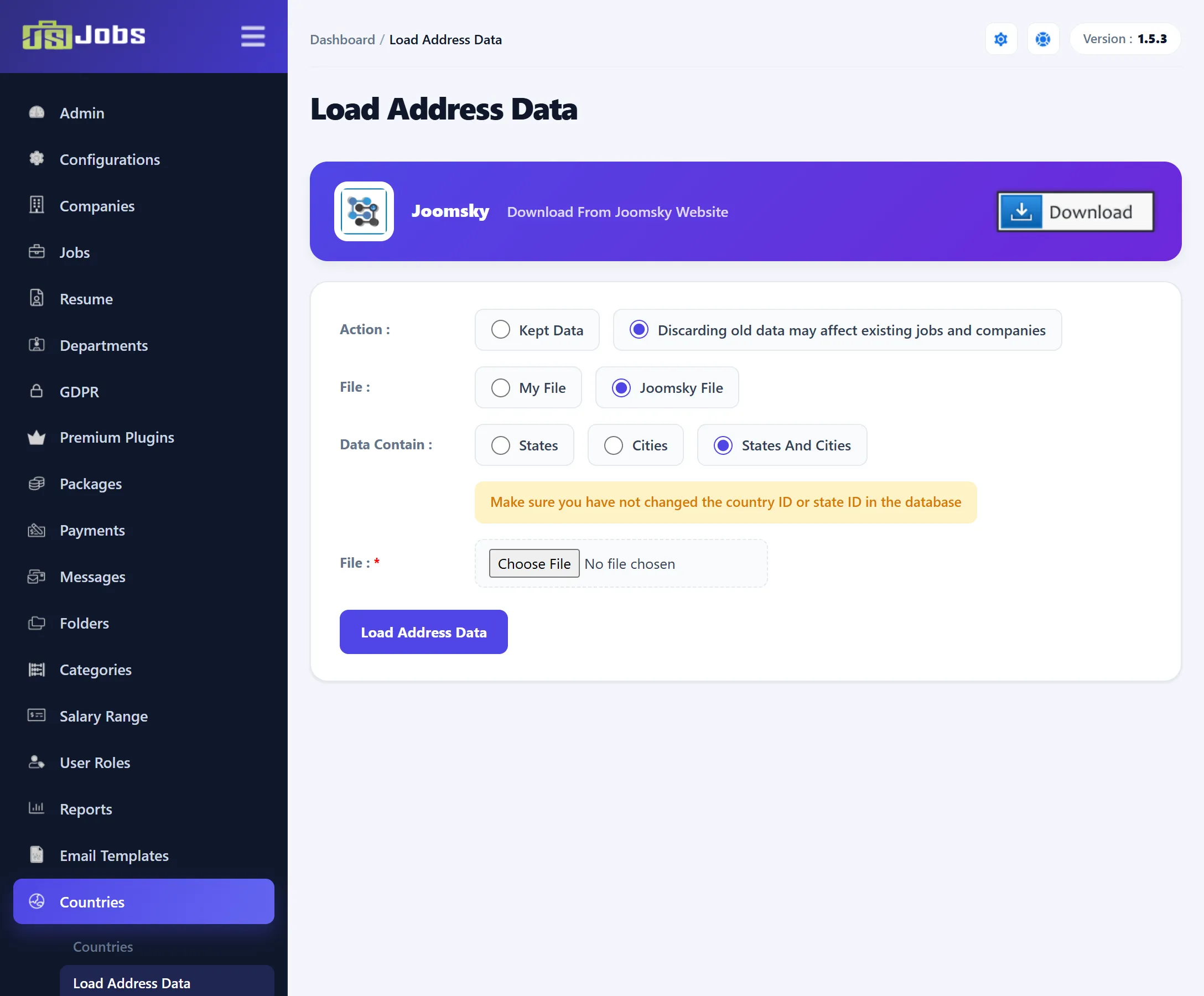
The blue bar’s Download From Joomsky Website button opens a page on joomsky.com, where address data files are offered. JS Jobs doesn’t download anything itself: you download the file there and upload it here.
| Choice | Options |
|---|---|
| Action | Kept Data: keep the states and cities you have. Discarding old data may affect existing jobs and companies (the default): empty the states and/or cities tables before importing. |
| File | My File: a file you made yourself. Joomsky File (the default): a file downloaded from Joomsky. |
| Data Contain | States, Cities, or States And Cities (the default). Used with a Joomsky file to decide which tables are emptied or kept. |
| File | The .sql or .zip file to upload. Required. |
The hint under the choices changes with them, for example “Make sure you have not changed the country ID or state ID in the database”.
Click Load Address Data. A progress bar shows while the statements in the file run.