
Your employer dashboard
The Employer Control Panel is your home on the job site. From here you reach your companies, jobs, applicants and resume searches. Open it from the site menu (on the demo site it is the Employer Control Panel menu item). The page is headed My Stuff.
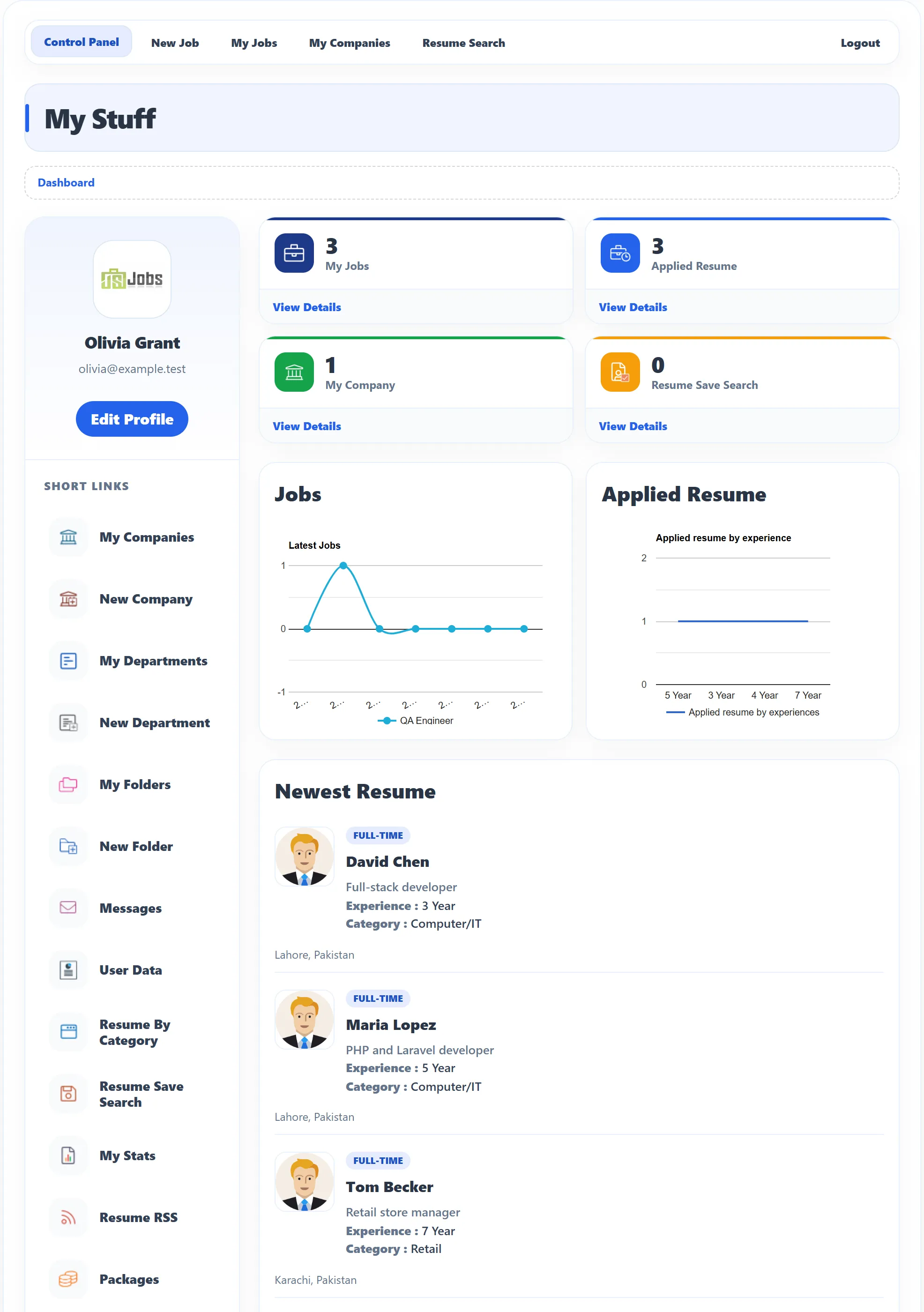
The dashboard is for employer accounts. A job seeker who opens it sees You are not allowed. The site owner decides which links, boxes and charts appear, so your dashboard may show fewer items than described here.
The menu bar
Section titled “The menu bar”The bar at the top of every employer page holds Control Panel, New Job, My Jobs, My Companies and Resume Search, with Logout on the right. The page you are on is highlighted.
Your profile card
Section titled “Your profile card”On the left you see the logo of your newest approved company, your name and your e-mail address. Edit Profile opens your Joomla user profile, where you change your name, e-mail address or password.
Short links
Section titled “Short links”Under Short Links you find every employer page:
| Link | Opens |
|---|---|
| My Companies / New Company | Your companies, or a blank company form. See Your company profile. |
| My Departments / New Department | Your departments, or a blank department form. See Departments. |
| My Folders / New Folder (Pro) | Folders for keeping resumes. See Resume folders. |
| Messages (Pro) | Your conversations with applicants. See Messages. |
| User Data | Export your data or ask for it to be erased. See Your data. |
| Resume By Category | Resumes grouped by category. See Finding resumes. |
| Resume Save Search | Your saved resume searches. |
| My Stats | Your totals and limits (below). |
| Resume RSS (Pro) | A feed of the newest resumes for a feed reader. Shown only when the site has resume feeds turned on. |
| Packages / Purchase History (Pro for Purchase History) | See Packages and credits. |
| Profile | Your Joomla user profile. |
| Logout | Logs you out and brings you back to the control panel. |
Counters
Section titled “Counters”Four boxes give quick totals. View Details under each opens the related page.
| Box | Counts | View Details opens |
|---|---|---|
| My Jobs | All your jobs, whatever their status. | My Jobs |
| Applied Resume | Recent applications to your jobs. | My Jobs |
| My Company | All your companies. | My Companies |
| Resume Save Search | Your saved resume searches. | Resume Save Search |
Charts
Section titled “Charts”- Jobs shows, day by day for the last seven days, how many applications each of your newest jobs received. Only jobs you created in the last seven days that are approved and currently published are drawn (at most five). Otherwise the chart reads No data.
- Applied Resume groups applicants by their experience.
Resume lists
Section titled “Resume lists”- Newest Resume shows the three newest approved, searchable resumes on the site, with job type, title, experience, category and location. Click a name or photo to open the resume. Show More opens the resume list with all of them.
- Applied Resume shows the three latest applications to your jobs, with the job each one is for. Show More opens My Jobs.
- AI Suggested Resumes (Pro) appears only when the site has it turned on. It lists up to five resumes that match your currently published jobs.
If your package has expired, a red line near the bottom says Your Package “…” Has Expired … Days Ago, with a link to Employer Packages.
My Stats
Section titled “My Stats”My Stats (page title Stats) sums up what you have and what you may still add.
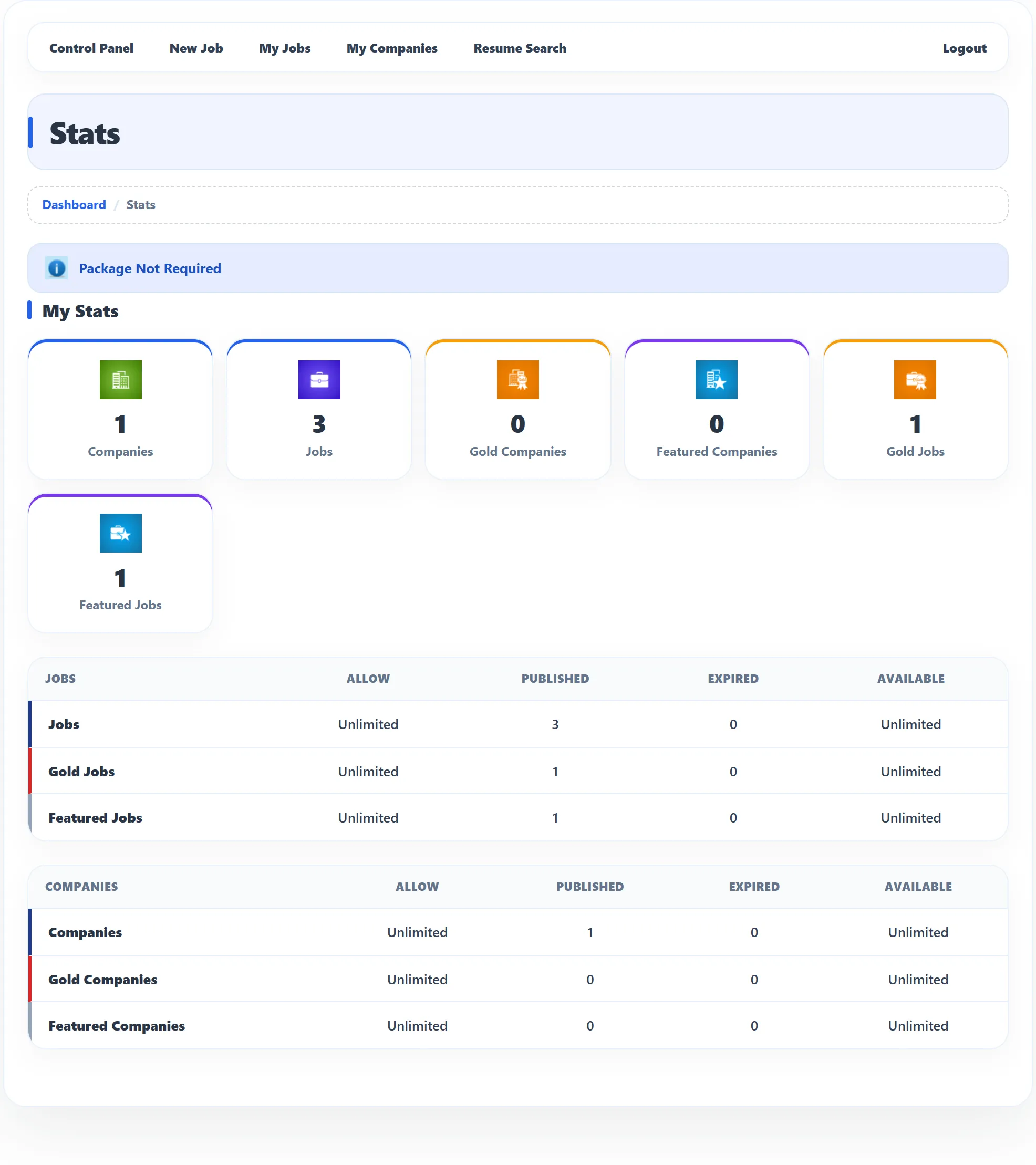
The boxes at the top count your Companies, Jobs, Gold Companies, Featured Companies, Gold Jobs and Featured Jobs. The two tables below show, for jobs and for companies (plain, gold and featured):
| Column | Meaning |
|---|---|
| Allow | How many your packages allow. |
| Published | How many you have published. |
| Expired | How many have expired. |
| Available | How many more you can add. |
If the site doesn’t require packages, a Package Not Required notice appears and Allow and Available read Unlimited. See Packages and credits.