
System log and Information
System Log
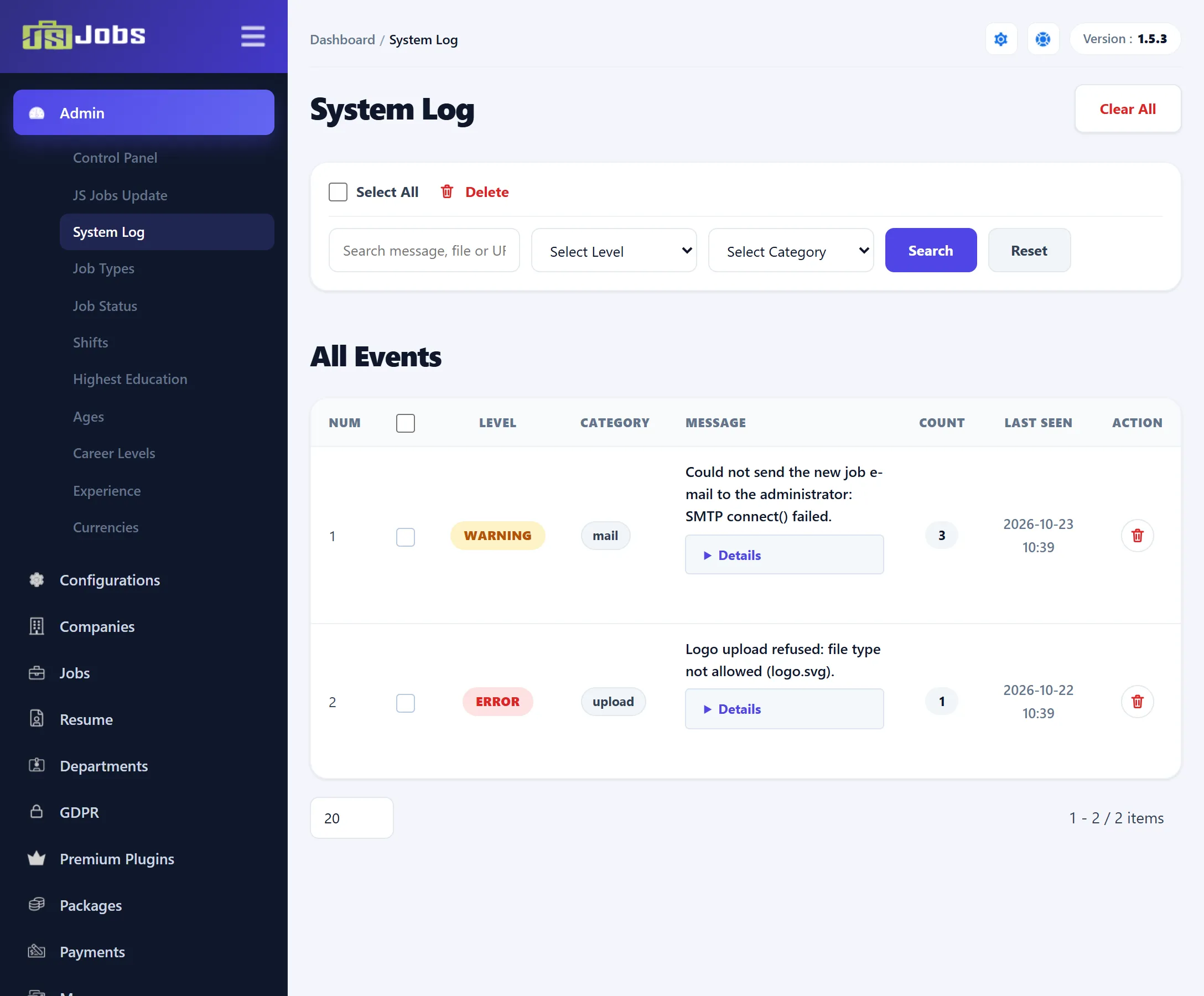
Section titled “System Log”Components → JS Jobs → Admin → System Log lists the errors JS Jobs has run into, so you can see what went wrong without turning on Joomla’s debug mode or reading the server’s error log. Nothing needs to be set up: entries are written automatically.
What is recorded
Section titled “What is recorded”| Category | What it is |
|---|---|
site |
An error that stopped a JS Jobs page on the front end. The visitor still gets Joomla’s normal error page. |
admin |
The same, for a JS Jobs screen in the administrator. |
php-fatal |
A fatal PHP error in a JS Jobs file. |
modules |
An error in a JS Jobs module. |
updater |
A failed JS Jobs Update, with the last steps of the update log. |
licence |
Messages from the Pro licence check. |
PHP warnings and notices are not recorded; only errors that stop a page, and the update and licence messages above.
Each entry has a Level: Critical, Error, Warning or Notice. Errors that stop a page are Critical.
The same error is not listed twice. If it happens again (same level, category, message, file and line), its Count goes up and Last Seen moves to the latest time. The log keeps the 1,000 most recently seen entries and deletes older ones.
When there are Critical or Error entries, the Control Panel shows how many as System errors, with a link to this screen.
Reading an entry
Section titled “Reading an entry”The list is sorted by Last Seen, newest first. Click Details under a message to see:
- File and line where the error happened,
- URL of the page that was open,
- User, the Joomla user ID of whoever was logged in (shown only when someone was),
- First Seen, when the error first happened,
- extra technical details, such as the call trace.
Narrow the list with the search box (it searches the message, file and URL), Level and Category, then click Search. Reset clears the filters.
Clearing the log
Section titled “Clearing the log”- To delete some entries, tick them and click Delete in the toolbar, or click the delete icon at the end of a row.
- To empty the whole log, click Clear All and confirm.
Deleting entries doesn’t fix anything; an error that happens again is simply recorded again. When you send a problem to support, the Details of the entry are usually what they need.
Information
Section titled “Information”The Information page shows the component’s name, author and company, a
short text about Joomsky, and links to Joomsky’s other products. It is no longer
in the JS Jobs menu, and no screen links to it. It still opens if you go to
administrator/index.php?option=com_jsjobs&c=jsjobs&view=jsjobs&layout=info.