
Resume fields
Resume → Fields controls the resume form: which fields are shown to logged-in job seekers and to visitors, which must be filled in, and the order of fields within each section. You can also add your own fields to any of the eight resume sections.
The sections
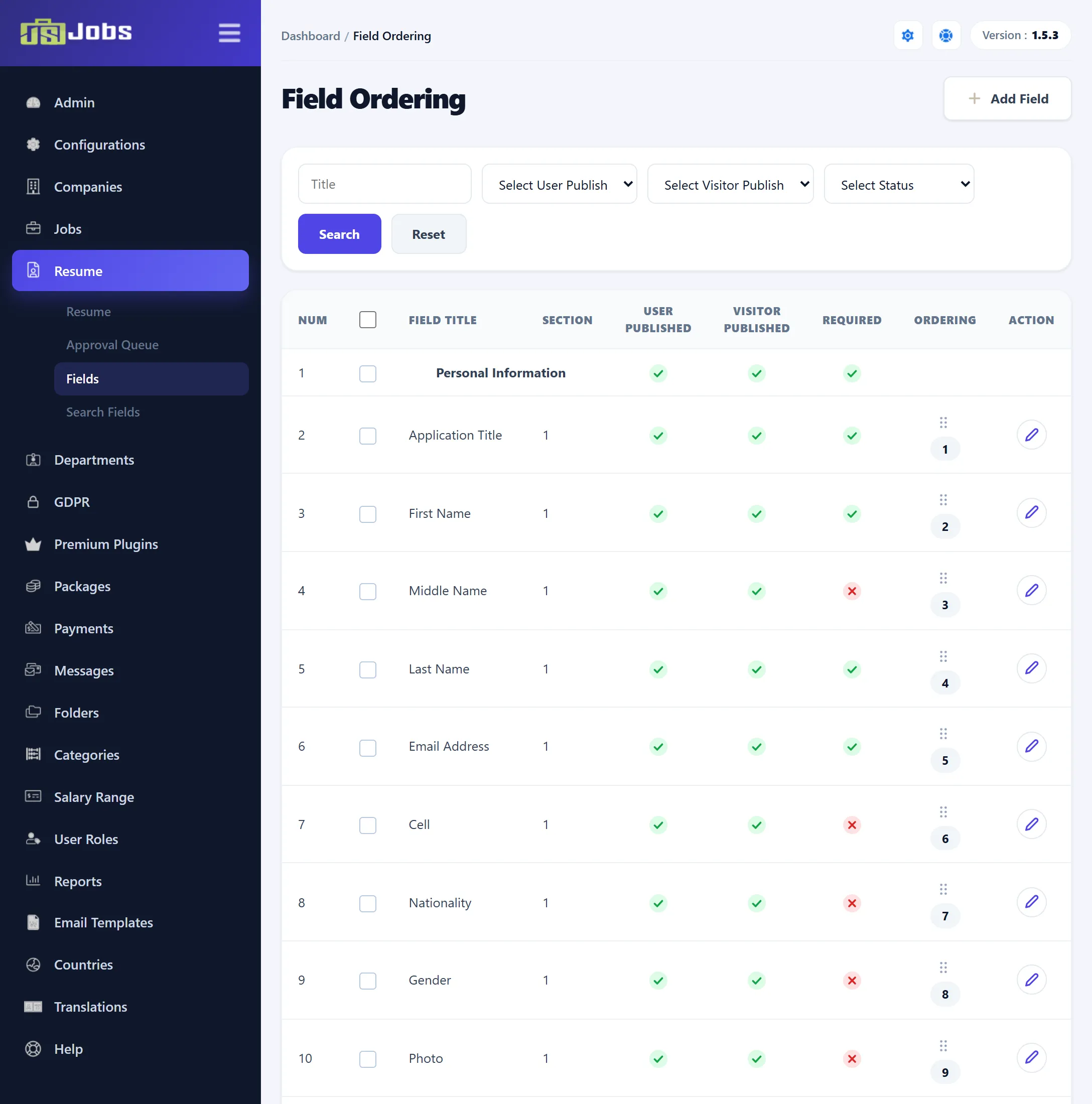
Section titled “The sections”The table lists every field grouped by section. Each group starts with a bold heading row for the section; the Section column shows the section number.
| Section | Heading in the table | On the resume form |
|---|---|---|
| 1 | Personal Information | Personal Information |
| 2 | Add Address | Address |
| 3 | Education | Education |
| 4 | Employer | Employer |
| 5 | Skills | Skills |
| 6 | Resume Editor | Resume editor |
| 7 | Add References | Reference |
| 8 | Add Language | Language |
Sections always appear on the form in this order. Unpublish a section’s heading row to hide the whole section. Personal Information cannot be unpublished.
The columns
Section titled “The columns”| Column | What it does |
|---|---|
| Field Title | The label shown on the form and in resume lists. |
| User Published | Shown to logged-in users (job seekers, and you in the administrator). Click the tick or cross to switch it. |
| Visitor published | Shown to visitors who apply without an account. |
| Required | The form cannot be saved without it. Click to switch. |
| Ordering | Drag a row by its handle to move it within its section. The arrows do the same one step at a time. |
| Action | The pencil opens the field’s settings. Your own fields also have a delete button. |
Fields with a fixed tick, and no link, cannot be changed: Application Title, First Name, Last Name and Email Address are always shown and always required. Category is always shown, but you can choose whether it is required. Social Published appears as an extra column when JomSocial integration is enabled.
Narrow the table with Title, Select User Publish, Select Visitor Publish and Select Status (Required or Not Required), then click Search. Joomla’s toolbar above the screen has Publish, Unpublish, Visitor Publish, Visitor Unpublish, Required and Not Required for the rows you tick.
Editing a field
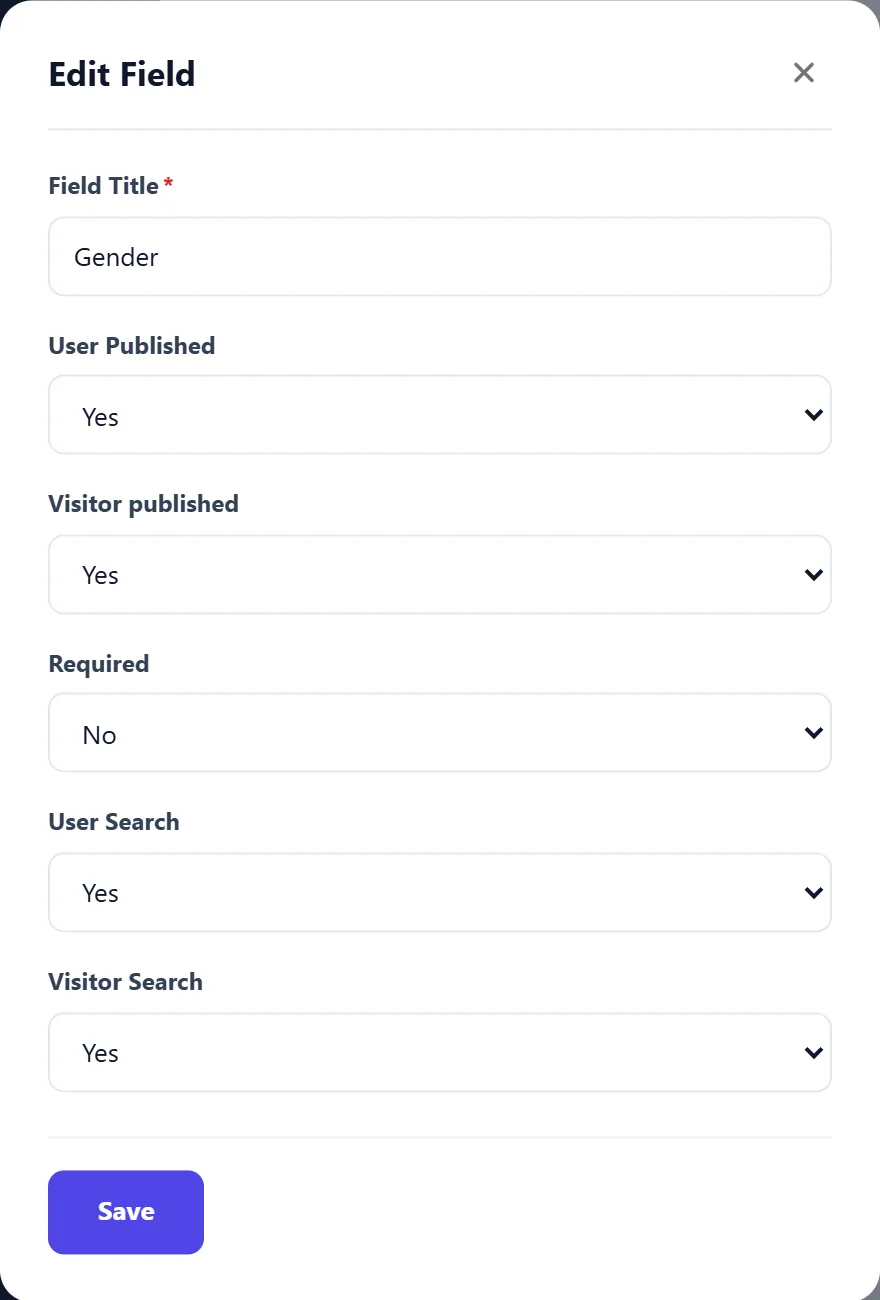
Section titled “Editing a field”Click the pencil on a row. A window opens with the settings that apply to that field:
| Setting | What it does |
|---|---|
| Field Title | Rename the field. Required. |
| User Published, Visitor published, Required | As the columns above. Not offered for fields that cannot be unpublished. |
| User Search, Visitor Search | Offer the field as a filter in the resume search on the site, to logged-in users and to visitors. See Resume search fields. |
| Show On Listing | Show the field’s value in resume lists on the site, such as My Resumes and resume search results. Only for Personal Information fields. |
Click Save. For your own fields, Advanced opens the full field form below.
Adding your own field
Section titled “Adding your own field”-
Click Add Field (or New in Joomla’s toolbar).
-
Choose the Field Type:
Type What the job seeker gets Text Field, Email Address A one-line box. Text Area, Editor Text Area A multi-line box, plain or with Joomla’s editor. Date A date picker. Drop Down, Radio Button, Check Box, Multi Select A choice from the values you enter. Depandent Field A list whose values depend on the choice in another drop-down (Select Parent Field). Upload File A file upload. Terms and Conditions A tick box the job seeker must tick, with text that links to a page. -
Enter the Field Title and choose the Resume Section the field belongs to. The section cannot be changed later.
-
Set User Published, Visitor published, Required and, for Personal Information fields, User Search, Visitor Search and Show On Listing.
-
For list types, add the choices under Use the table below to add new values (Add Value adds a row). For text areas, set Columns and Rows; for text fields, Field Size and Max Length.
-
Click Save User Field.
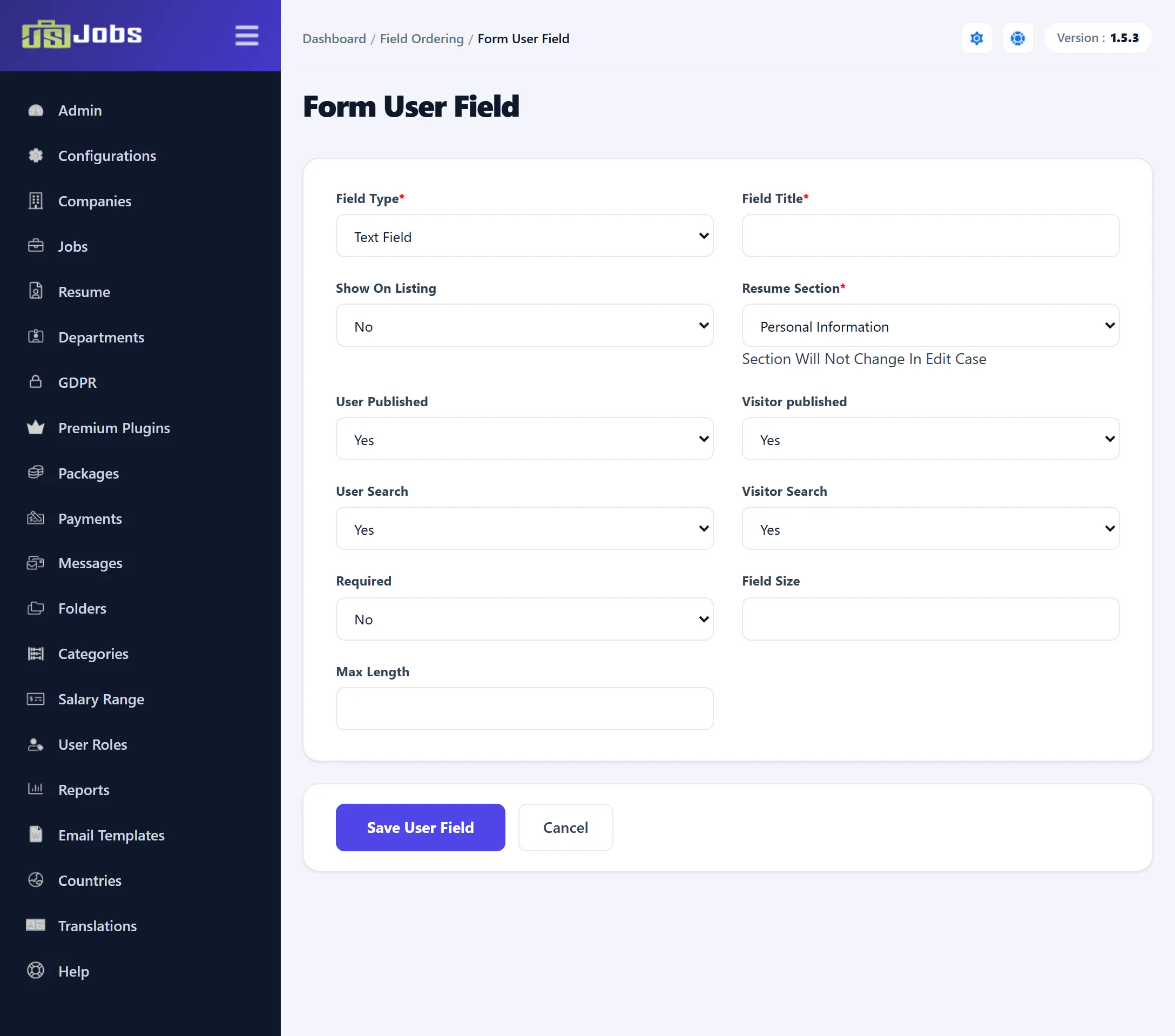
Search and listing options are only offered for fields in the Personal Information section; fields in the other sections cannot be searched or listed. A Check Box field cannot be required, and a Terms and Conditions field always is.
Deleting your own field
Section titled “Deleting your own field”Click the delete button on its row and confirm. A field that already holds data in any resume’s Personal Information section cannot be deleted.
In 1.5.3 the check only looks at the Personal Information section. A field in another section (Address, Education and so on) is deleted even if job seekers have filled it in.