
Creating a resume
Your resume is what employers see when you apply, and what they find when they search for candidates. You can have more than one, for example one for developer jobs and one for team-lead jobs, and choose which to send with each application.
Add a resume
Section titled “Add a resume”-
In the Job Seeker Control Panel, click Add Resume, or click + Add Resume on My Resumes.
-
Fill in Personal Information. Fields marked with a red star are required.
-
Add the other sections you want: address, education, employers and so on.
-
Choose the Resume Privacy.
-
Click Save and Close to go back to your resumes, or Save to stay on the form and keep working.
You see Resume has been saved successfully. Depending on the site, a new resume may be published at once or show Waiting for approval in My Resumes until the site owner approves it. You may get an e-mail confirming that your resume was received.
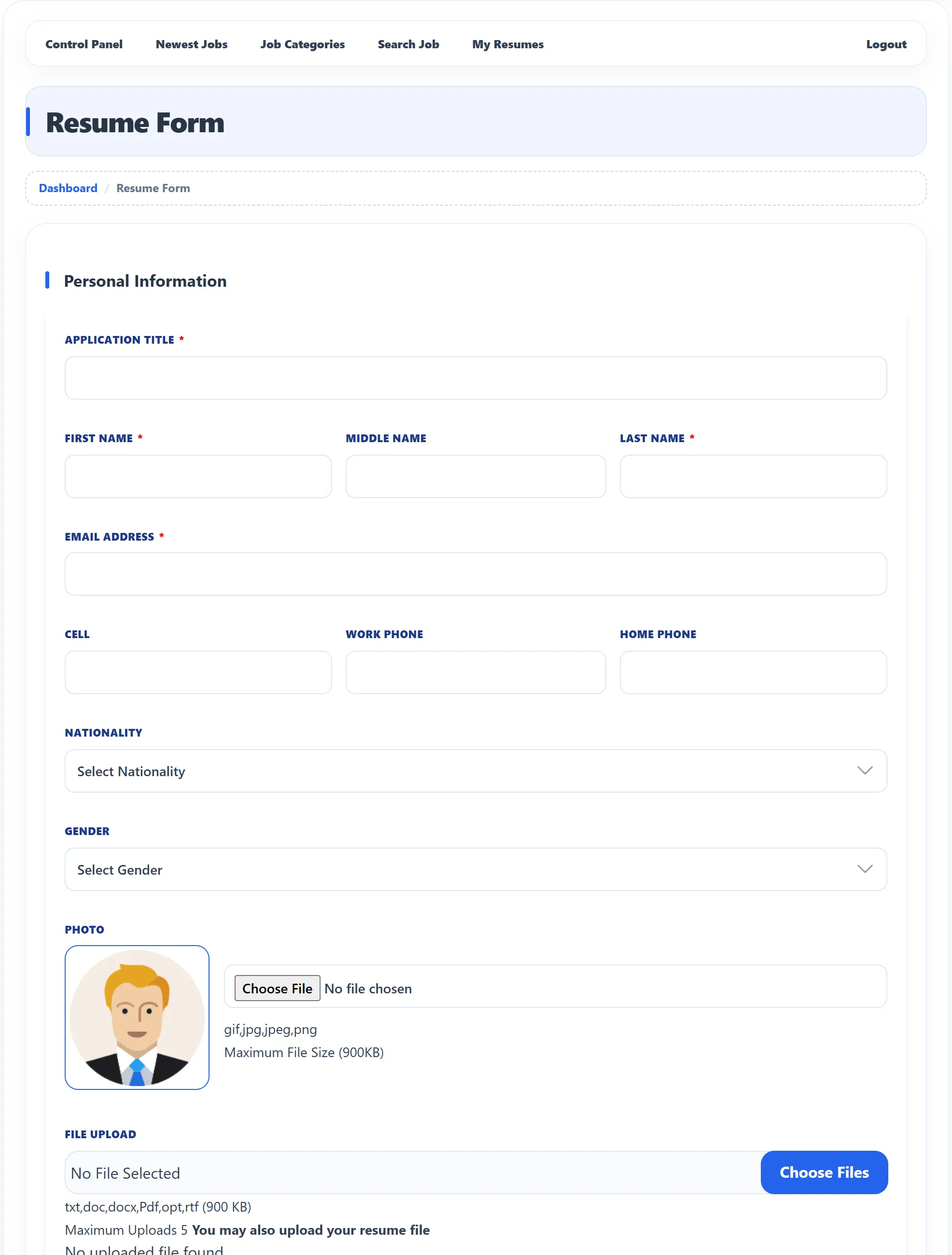
The site owner decides which fields and sections appear, which are required, and in what order, and may add questions of their own. Your form may therefore look different from the one described here.
Personal Information
Section titled “Personal Information”| Field | What to enter |
|---|---|
| Application Title | A headline for the resume, such as “PHP and Laravel developer”. It is the name you pick the resume by when you apply. |
| First Name, Middle Name, Last Name | Your name as employers should see it. |
| Email Address | Where employers can reach you. |
| Cell, Work Phone, Home Phone | Your phone numbers. |
| Nationality | Your nationality. |
| Gender | Your gender. Some employers filter applications by gender (see Applying for a job). |
| Photo | A photo of you. The allowed image types and the largest size are shown under the box. To remove a photo when editing, tick Delete Logo File. |
| File Upload | Your resume as a document, for example a PDF or Word file. Click Choose Files; the box shows the allowed file types, the largest size and how many files you may upload. |
| Category / Sub Category | The field you work in. The sub categories depend on the category, so choose the category first. |
| Job Type | The kind of job you want, such as Full-time. |
| Salary | Your current salary: currency, range and period (for example per month). |
| Desired Salary | The salary you are looking for, in the same way. |
| Highest Education | Your highest finished education. |
| Total Experience | Your years of experience. |
| Date of Birth / Date you can start | Pick the dates with the calendar buttons. |
| Driving License, License No., License Country | Whether you have a driving licence, its number and the country that issued it. |
| Video | A link to a YouTube video about you. It is shown on your resume. |
| Keywords | Words employers might search for, such as “PHP, Laravel, MySQL”. |
| Searchable | See the note under Resume Privacy. |
| I Am Available | Tick it to show employers you can start soon. |
Your suggested jobs on the dashboard use the category, sub category and job type of your newest resume, so it is worth filling them in.
The other sections
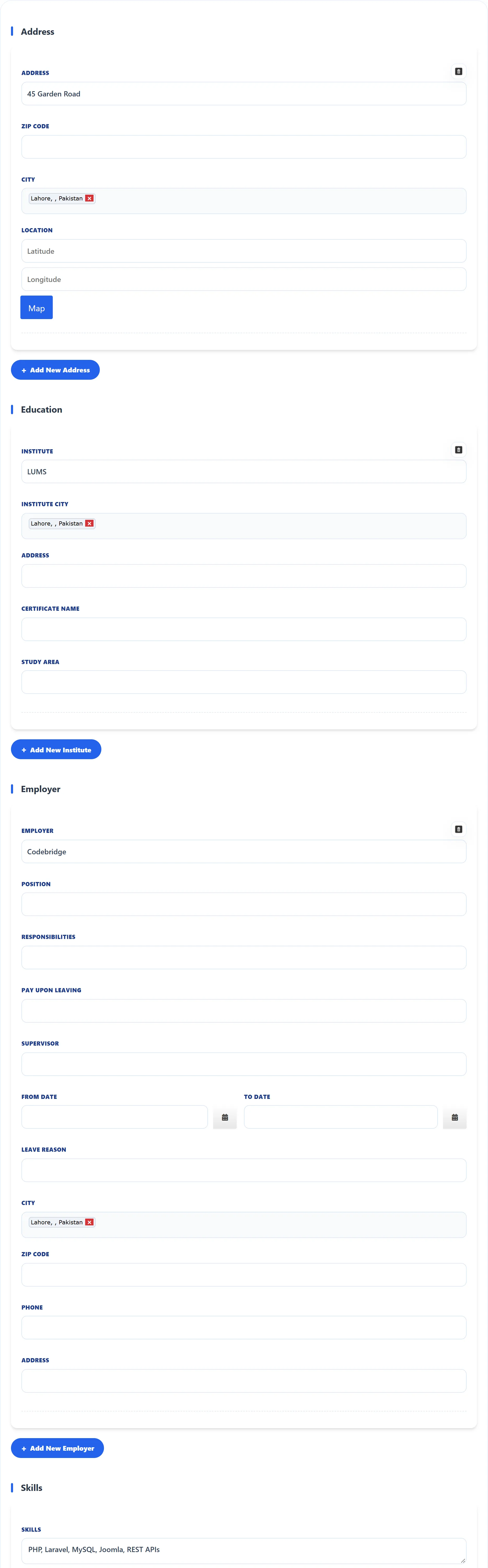
Section titled “The other sections”Each of these sections starts empty. Click its button to add an entry; a cross at the top right of an entry removes it. You can add several entries, up to a limit the site owner sets (for example five addresses).
| Section | Button | Fields |
|---|---|---|
| Address | Add New Address | Address, Zip Code, City, and Location: click Map and then the map to fill in Latitude and Longitude. |
| Education | Add New Institute | Institute, Institute city, Address, Certificate Name, Study Area. |
| Employer | Add New Employer | Employer, Position, Responsibilities, Pay Upon Leaving, Supervisor, From Date, To Date, Leave Reason, City, Zip Code, Phone, Address. |
| Skills | Add Skills | Skills: a free list, such as “PHP, Laravel, MySQL, REST APIs”. One per resume. |
| Resume Editor | Add Resume | A text editor where you can write or paste your whole resume, with formatting. One per resume. |
| Reference | Add New Reference | Reference, Reference Name, Reference City, Reference Zipcode, Reference Address, Reference Phone, Reference Relation, Reference Years. |
| Language | Add New Language | Language, and how well you read, write and understand it (Language Reading, Language Writing, Language Understanding), and Language Where Learned. |
For the city boxes, start typing the city and pick it from the list that appears. The list shows the city with its country, for example “Lahore, Pakistan”.
Resume Privacy (Pro)
Section titled “Resume Privacy (Pro)”At the bottom of the form, choose who can find and view the resume:
| Option | Who sees the resume |
|---|---|
| Public - visible in resume search | Anyone who may search resumes on the site. |
| Employers only - visible to logged-in employers | Logged-in employers. Visitors can’t see it. |
| Applied jobs only - visible only to employers you applied to | Only employers who posted a job you applied for with this resume. It doesn’t appear in resume search. |
| Private - visible only to you and admin | Only you and the site’s administrator. |
The choice shows next to the resume’s title in My Resumes, for example Public.
Profile completeness
Section titled “Profile completeness”Once a resume is saved, the top of its form shows your photo and name with a bar showing how complete the resume is, for example 68%. Under Complete Your Profile there is a link for each empty section (+ Add Resume, + Add Reference, + Add Language…) that jumps to it. The same percentage appears as Profile Status in My Resumes.
When you can’t add a resume
Section titled “When you can’t add a resume”Instead of the form, you may see a message:
| Message | Why |
|---|---|
| You do not have the package | The site sells job seeker packages and you need one to add a resume. Follow the link to the packages. See Packages. |
| Resume limit exceeds | Your package allows no more resumes. Get another package, or edit or delete an existing resume. |
| Employer not allowed | You are logged in as an employer. Job seeker pages are for job seeker accounts. |
| You are not logged in | Log in first. Visitors can only fill in a resume while applying for a job, if the site allows it. See Applying for a job. |