
Visitor settings
A visitor is anyone using your site without logging in. Open Components → JS Jobs → Configurations and click Visitor Settings in the list on the left. This section is part of the same page as General, so Save Configurations saves both.
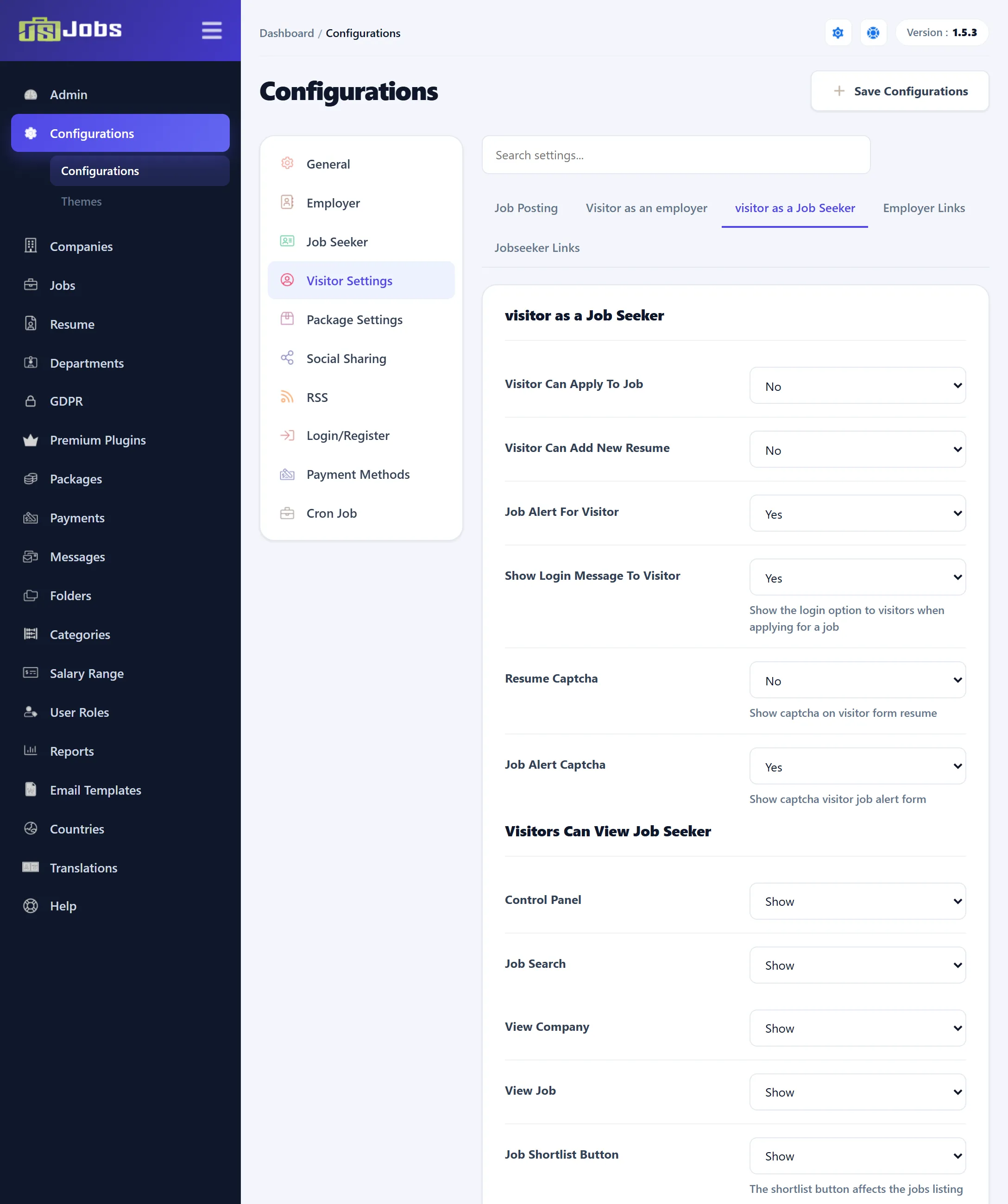
Settings marked (Pro) belong to features of JS Jobs Pro.
Job Posting
Section titled “Job Posting”| Setting | Default | What it does |
|---|---|---|
| Visitor Post Job (Pro) | Yes | Lets visitors post a job without an account. A visitor who opens the new-job form gets the visitor version, which also asks for the company’s details. |
| Edit Job Posting (Pro) | Yes | Lets a visitor come back and edit the job they posted. The link to do so is put in the e-mail they receive (the {JOB_LINK} placeholder of the visitor job e-mail; see Email templates). |
| Form Captcha (Pro) | Yes | Shows a captcha on the visitor’s job form. The kind of captcha is set by Set Default Captcha on General settings. |
Visitor as an employer
Section titled “Visitor as an employer”Visitors Can View Employer Area. Each switch opens an employer page to visitors. With Hide, a visitor who opens the page is asked to log in. All are Show by default.
| Setting | The page |
|---|---|
| Control Panel | The employer control panel. |
| Packages | The list of employer packages. |
| Resume Search | The resume search form. |
| Resume Search Results | The results of a resume search. |
| Package Detail | A package’s details. |
| View Resume | A resume’s page. |
Visitor As A Job Seeker
Section titled “Visitor As A Job Seeker”| Setting | Default | What it does |
|---|---|---|
| Visitor Can Apply To Job (Pro) | No | Lets visitors apply for a job without an account. Apply Now takes them to the apply page, where they fill in a resume and send it. |
| Visitor Can Add New Resume (Pro) | No | Lets visitors open the resume form. |
| Job Alert For Visitor (Pro) | Yes | Shows the job alert form to visitors. It also lets every logged-in job seeker set an alert; with No, a job seeker needs a package that includes job alerts (when packages are required). |
| Show Login Message To Visitor (Pro) | Yes | When a visitor clicks Apply Now, first offers them the choice to log in. With No, they go straight to the resume form. |
| Resume Captcha (Pro) | No | The captcha on the visitor’s resume form: No, Own Captcha (JS Jobs’ own) or Google reCaptcha. With Google reCaptcha, Joomla’s reCAPTCHA plugin is used when Set Default Captcha is Joomla Default Recaptcha; otherwise JS Jobs’ own captcha is shown. |
| Job Alert Captcha (Pro) | Yes | Shows a captcha on the job alert form for visitors. |
Visitors Can View Job Seeker. With Hide, a visitor who opens the page is asked to log in.
| Setting | Default | The page |
|---|---|---|
| Control Panel | Show | The job seeker control panel. |
| Job Search | Show | The job search form. |
| View Company | Show | A company’s page. |
| View Job | Show | A job’s page. |
| Job Shortlist Button (Pro) | Show | The shortlist button on the jobs list, for visitors. |
Employer Links
Section titled “Employer Links”Employer Top Menu Links are the links in the bar across the top of the component’s pages, as a visitor sees them on the employer side: Control Panel, New Job, My Jobs, My Companies and Resume Search. Each is Show by default.
Employer Dashboard Links for visitor choose what a visitor sees on the employer control panel. They are the same items as the logged-in employer’s control panel links: the count boxes, the graphs, the newest and applied resume boxes, the My Stuff and My Stats areas, and the links to companies, departments, folders (Pro), saved searches, purchase history, messages (Pro), statistics, the resume RSS feed (Pro), resumes by category and packages. Two extra rows are Show Login/logout Button and Employer Registration, the link to register as an employer.
All are Show (or Yes) by default, except New Folder and User data request, which are Hide.
Jobseeker Links
Section titled “Jobseeker Links”Job Seeker Top Menu Links are the top-bar links a visitor sees on the job seeker side: Control Panel, Newest Jobs, Job Categories, Search Jobs and My Resumes. Each is Show by default.
Job Seeker Dashboard Links for visitor choose what a visitor sees on the job seeker control panel. They match the logged-in job seeker’s control panel links, plus Register, the link to register as a job seeker. All are Show (or Yes) by default, except User data request, which is Hide.