
Messages
Employers and job seekers can message each other about a job application. Each conversation belongs to one job and one resume. Messages in the left menu lets you read every conversation, hold back messages that need checking, and remove messages.
Which messages need approval
Section titled “Which messages need approval”Two settings under Configurations decide whether a new message goes out at once or waits in Messages → Approval Queue:
| Setting | What it does |
|---|---|
| Message Auto Approve | Yes: ordinary messages are approved as soon as they are sent. No: every message waits for you. |
| Conflict Message Auto Approve | Yes: conflicted messages are approved at once too. No: conflicted messages wait for you. |
A message is conflicted when its subject or text appears to contain an e-mail address, a web address or a phone number: a sign that the two sides may be trying to move the conversation off your site.
In 1.5.3 the web address check also matches ordinary text that contains a full stop, so most messages with a sentence in them are marked conflicted. If Conflict Message Auto Approve is No, expect most messages to wait in the queue.
The messages list
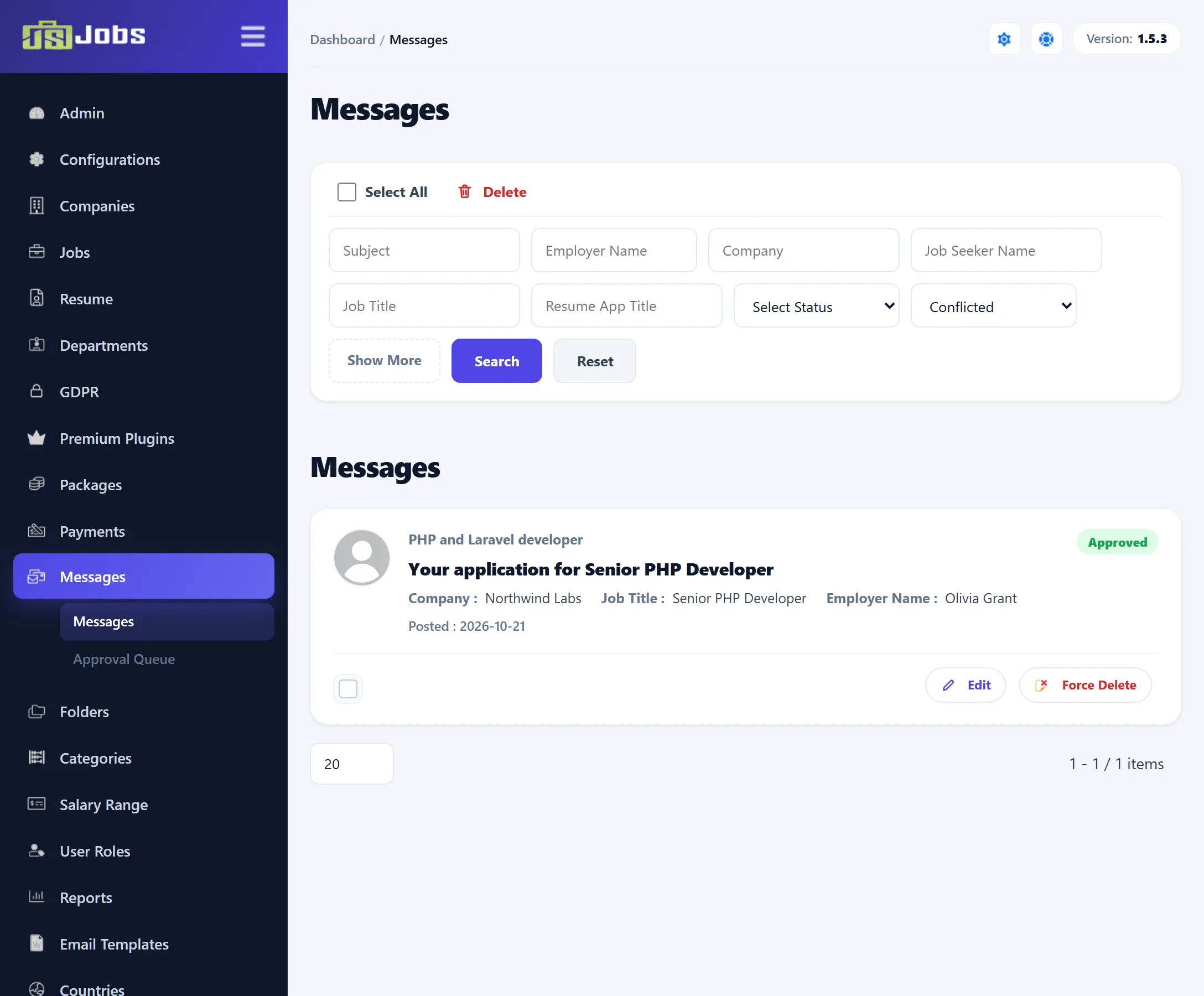
Section titled “The messages list”Messages → Messages shows the first message of each conversation that has been approved or rejected. Replies are not listed separately; open the conversation to see them.
| Part | Shows |
|---|---|
| Resume title | The application title of the resume the conversation is about. |
| Subject | Click it to open the conversation. |
| Company, Job Title | The job the conversation is about. |
| Employer Name | The name of the person who sent the message. |
| Status | Approved in green, or Rejected in red. |
| Posted | The date the message was sent. |
Filter by Subject, Employer Name, Company, Job Seeker Name, Job Title and Resume App Title, by Select Status, and by Conflicted (Yes or No); Show More shows the rest of the filters. Click Search, or Reset to clear them.
In 1.5.3 Employer Name and Job Seeker Name both match the name of the sender, and Select Status offers Publish and Unpublish: Publish finds approved messages, and Unpublish finds nothing, because pending messages are only in the queue.
Reading a conversation
Section titled “Reading a conversation”Click a subject, or Edit under it, to open Message History: every approved message between the employer and the job seeker about that job and resume, newest first. Each is marked Employer Sent or Job Seeker Sent, with its subject, date and text. Click Edit on a message to change it.
Editing a message
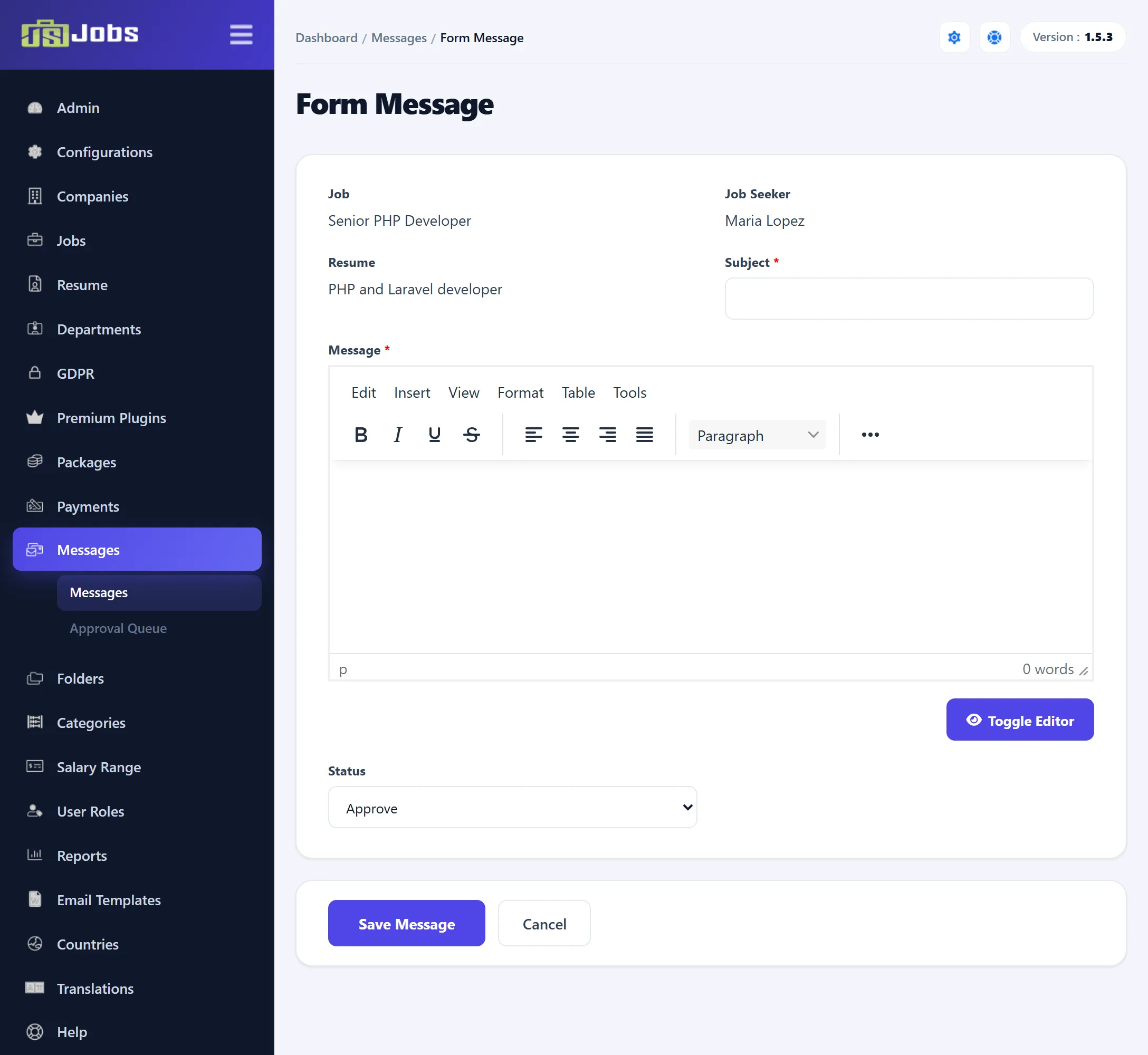
Section titled “Editing a message”The form has Subject (not shown for replies), Message and Status (Pending, Approve or Reject). Click Save Message.
Saving sends the message e-mail again to the other side, with the edited text.
Approval queue
Section titled “Approval queue”Messages → Approval Queue lists every message waiting for you, including replies, with the same details and filters. For each one:
- Approve shows it in the conversation on the site.
- Rejected rejects it. It stays hidden on the site and appears in the messages list as Rejected.
Neither sends an e-mail.
Sending a message yourself
Section titled “Sending a message yourself”On the applications screen for a job, click Message under an application. The form shows the Job, the Job Seeker and the Resume; enter a Subject and Message, choose a Status and click Save Message. The job seeker is e-mailed the message, and you return to the applications.
Deleting messages
Section titled “Deleting messages”- Tick messages (or Select All) and click Delete. A message that has replies is not deleted.
- Force Delete under a message deletes it even if it has replies. Its replies are not deleted.