
Payment report
Payments → Payment Report lists employer and job seeker purchases together for a period, so you can see what was bought and who paid. It’s a list, not a total: add up the Paid Amount column yourself if you need a sum.
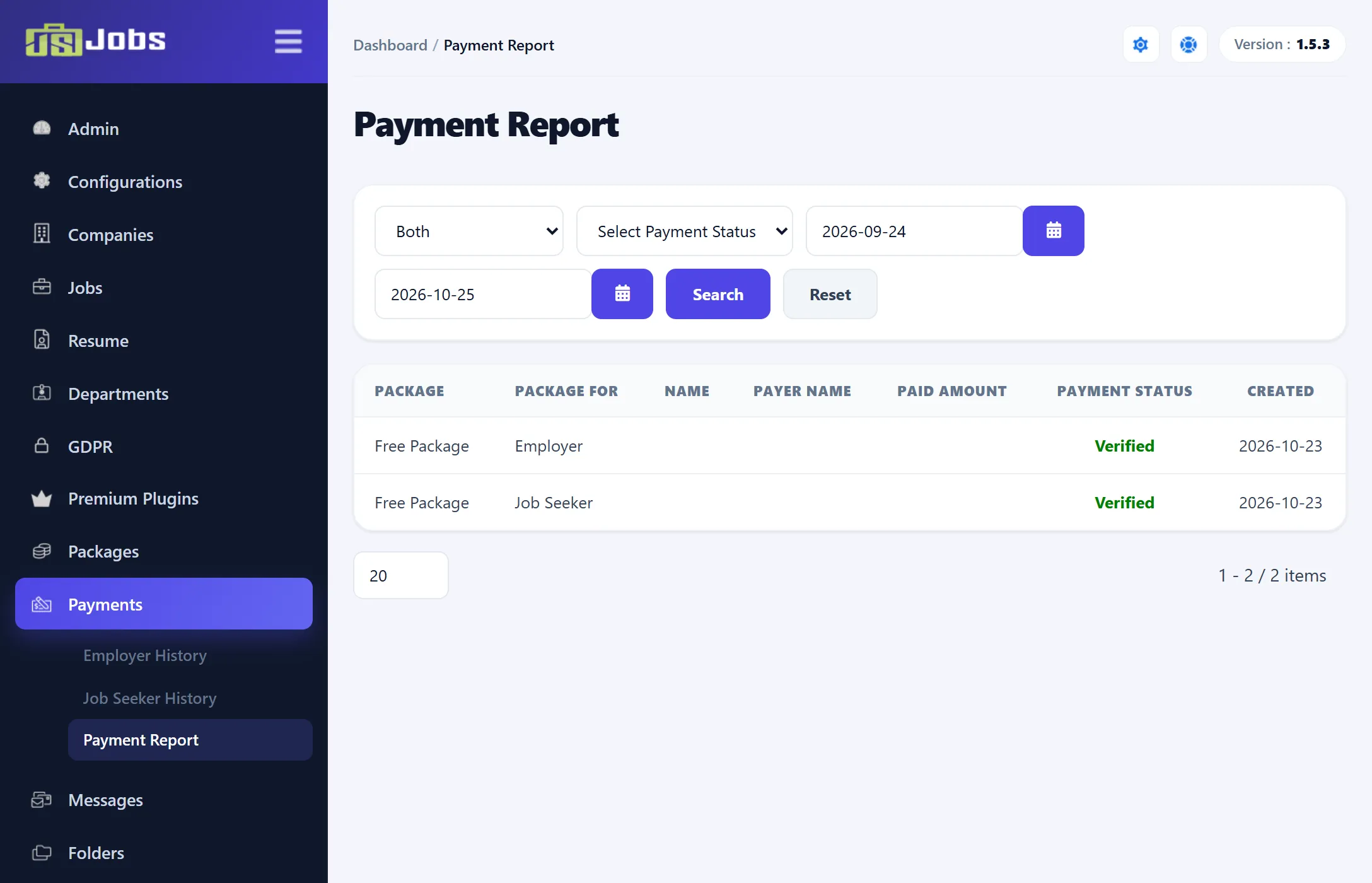
Filters
Section titled “Filters”| Filter | What it does |
|---|---|
| Package for | Both (the default), Employer or Job Seeker. |
| Payment status | Select Payment Status shows all; Verified shows payments that are confirmed; Not Verified shows payments still waiting. |
| Date From, Date To | The purchase dates to include. Both days are included. |
Click Search to apply the filters.
With no Date From, the report shows the last month: from the same day a month ago up to tomorrow, so today’s purchases are included. The boxes then show those two dates. When you pick dates yourself, fill in both boxes.
Columns
Section titled “Columns”Newest purchases come first.
| Column | What it shows |
|---|---|
| Package | The package bought. |
| Package For | Employer or Job Seeker. |
| Name | For an employer, the name of their first company; for a job seeker, the name on their first resume. Empty if they have none yet. Click it to open the user’s Employer Stats (their companies) or Job Seeker Stats (their resumes). |
| Payer Name | The payer’s first name as sent by the payment gateway. Empty for free and assigned packages. |
| Paid Amount | The amount charged after any discount, with the currency symbol. Empty for free packages. |
| Payment Status | Verified or Not Verified. |
| Created | The day of purchase. |
To verify or reject a payment, or to see the full details, use Payment history.