
Email templates
Every e-mail JS Jobs sends is built from a template you can reword. Open Components → JS Jobs → Email Templates.
All e-mails go out from the Sender Name and Sender email address, and the administrator’s copies go to the Admin E-mail Address, all three set on the Email tab of Configurations. The one exception is Job To Friend, which is sent from the visitor’s own name and address.
Editing a template
Section titled “Editing a template”-
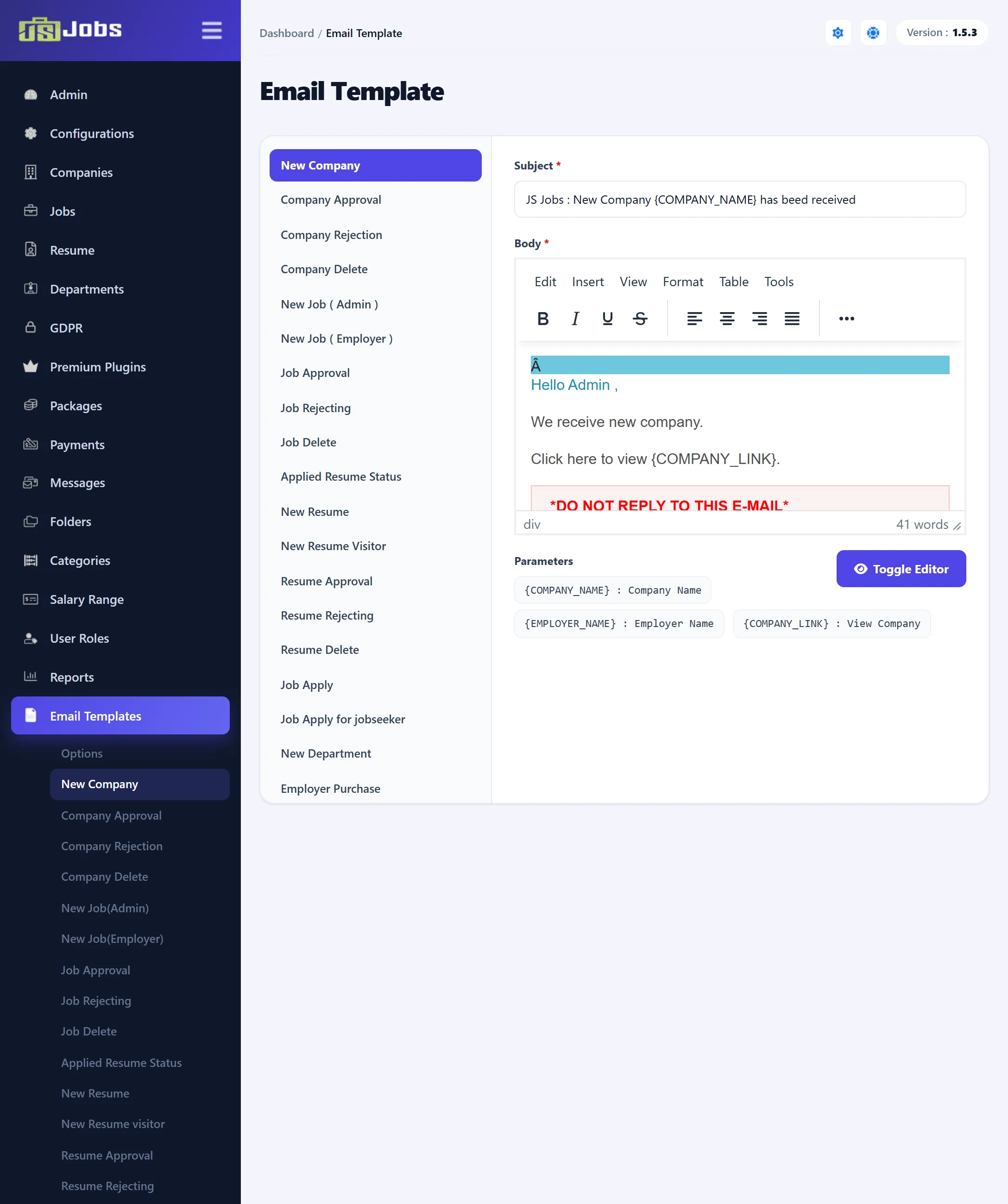
Click the template’s button in the list on the left. The selected one is highlighted, and the toolbar title shows its name.
-
Change the Subject and the Body. Both are required. The body is HTML, written in your Joomla editor.
-
Put in placeholders where you want details filled in. Parameters, under the editor, lists the ones offered for this template.
-
Click Save in the toolbar.
Placeholders are written in capitals inside braces, such as {JOB_TITLE}, and
are replaced when the e-mail is sent. A placeholder the template doesn’t
support is sent as it is, braces and all.
Templates marked “+ fields” below also accept the custom fields of the
company, job or resume form, written as { + the field’s name + }. The
Parameters list shows each one with its title. File-upload fields aren’t
offered.
{EMPLOYER_NAME} is always the company’s contact name, and e-mails “to the
employer” go to the company’s contact e-mail address.
The templates
Section titled “The templates”Button names are as the screen shows them. The placeholders are the ones the e-mail actually fills in, which in a few cases differ from the Parameters list; those are marked.
| Template | Sent to, and when | Placeholders |
|---|---|---|
| New Company | The employer and the administrator, when an employer adds a company on the front end. The employer’s link opens My Companies, the administrator’s opens the company in the administrator. | {COMPANY_NAME} {EMPLOYER_NAME} {COMPANY_LINK} + fields |
| Company Approval | The employer, when you approve a company. | {COMPANY_NAME} {EMPLOYER_NAME} {COMPANY_LINK} + fields |
| Company Rejection | The employer, when you reject a company. {COMPANY_LINK} is left empty. |
Same as Company Approval. |
| Company Delete | The employer, when a company is deleted, by the employer or by you. | {COMPANY_NAME} {COMPANY_OWNER_NAME} |
| New Job ( Admin ) | The administrator, when a job is posted on the front end. | {JOB_TITLE} {EMPLOYER_NAME} {JOB_LINK} + fields |
| New Job ( Employer ) | The employer, when they post a job. {JOB_STATUS} is approved or waiting for approval. |
{EMPLOYER_NAME} {JOB_TITLE} {COMPANY_NAME} {DEPARTMENT_NAME} {CATEGORY_TITLE}² {JOB_TYPE_TITLE} {JOB_STATUS} {JOB_LINK} + fields |
| Job Approval | The employer, when you approve a job. | {JOB_TITLE} {EMPLOYER_NAME} {JOB_LINK} + fields |
| Job Rejecting | The employer, when you reject a job. {JOB_LINK} opens My Jobs. |
Same as Job Approval. |
| Job Delete | The employer, when a job is deleted. | {JOB_TITLE} {EMPLOYER_NAME} {COMPANY_NAME} |
| Applied Resume Status (Pro) | The applicant, when the employer or you change an application’s status. Placeholders work in the body only. | {JOBSEEKER_NAME} {RESUME_STATUS} {JOB_TITLE} {STATUS} (a link to the applicant’s applied jobs) |
| New Resume | The job seeker and the administrator, when a logged-in job seeker adds a resume. The administrator also gets it for a visitor’s resume, with the name “Guest”. | {RESUME_TITLE} {JOBSEEKER_NAME} {RESUME_LINK} {RESUME_STATUS}¹ (job seeker’s copy) + fields |
| New Resume Visitor | The visitor, when they add a resume without logging in. {JOBSEEKER_NAME} is “Guest”. |
{JOBSEEKER_NAME} {RESUME_TITLE} {RESUME_STATUS} {RESUME_LINK}¹ + fields |
| Resume Approval | The job seeker, when you approve a resume. | {RESUME_TITLE} {JOBSEEKER_NAME} {RESUME_LINK} + fields |
| Resume Rejecting | The job seeker, when you reject a resume. {RESUME_LINK} opens My Resumes. |
Same as Resume Approval. |
| Resume Delete | The job seeker, when a resume is deleted. | {RESUME_TITLE} {JOBSEEKER_NAME} |
| Job Apply | The employer and the administrator, when a job seeker applies. See Resume data. | {EMPLOYER_NAME} {JOBSEEKER_NAME} {JOB_TITLE} {RESUME_LINK} {RESUME_DATA} + fields |
| Job Apply for jobseeker | The applicant, as a receipt. | {JOB_TITLE} {JOBSEEKER_NAME} {RESUME_TITLE} {COMPANY_NAME}³ {RESUME_APPLIED_STATUS} + fields |
| New Department | The administrator, when an employer adds a department. | {DEPARTMENT_NAME}² {COMPANY_NAME} {EMPLOYER_NAME} |
| Employer Purchase | The administrator, when an employer gets a package. | {PACKAGE_NAME} {EMPLOYER_NAME} {PACKAGE_PRICE} {CURRENCY}¹ {PACKAGE_LINK} {PAYMENT_STATUS} |
| Job Seeker Purchase | The administrator, when a job seeker gets a package. | Same, with {JOBSEEKER_NAME} instead of {EMPLOYER_NAME}. |
| Message (Pro) | The other side of the conversation, when an employer, a job seeker or you send a message. {NAME} is the recipient. |
{NAME} {SENDER_NAME} {JOB_TITLE} {COMPANY_NAME} {RESUME_TITLE} {SUBJECT}¹ {MESSAGE}¹ |
| Job Alert (Pro) | Each subscriber with new matching jobs, when the job alert task runs (see Cron job). Placeholders work in the body only. | {JOBSEEKER_NAME} {JOBS_INFO} (a table of the jobs) |
| Employer ( visitor ) Job (Pro) | The contact address of a job posted by a visitor, when it is posted and when you approve or reject it. | {JOB_TITLE} {COMPANY_NAME} {JOB_CATEGORY} {JOB_STATUS} {CONTACT_NAME} {JOB_LINK} + fields |
| Job To Friend (Pro) | Up to five addresses entered in the job’s tell-a-friend form. | {SENDER_NAME} {SITE_NAME} {JOB_TITLE} {JOB_CATEGORY} {COMPANY_NAME} {CLICK_HERE_TO_VISIT}² {SENDER_MESSAGE} + fields |
| Job Seeker Package Purchased (Pro) | The job seeker, when they get a package. {LINK} opens the package. |
{JOBSEEKER_NAME} {PACKAGE_TITLE} {LINK} {PAYMENT_STATUS} {PACKAGE_NAME}¹ {PACKAGE_PRICE}¹ {CURRENCY}¹ |
| Employer Package Purchased (Pro) | The employer, when they get a package. | Same, with {EMPLOYER_NAME}. |
| User Data Delete | The user, after you erase or delete their data under GDPR. | {USERNAME} {SITE_TITLE}¹ (subject only; your site Title) |
| Erase Data request | The administrator, when a user asks for their data to be erased. | {NAME} (body) {SUBJECT} (subject; the request’s subject) |
¹ Works, but isn’t in the screen’s Parameters list.
² The Parameters list shows {CATEGORGY_TITLE}, {DEPARTMENT_TITLE} and
{CLICK_HERE TO_VISIT}, which aren’t filled in. Use the spelling in the table.
³ Filled with the company’s contact name, not the company name.
{PAYMENT_STATUS} reads Verified or Not Verified. In Employer (
visitor ) Job, {JOB_LINK} is a “Click Here To Edit Job” link when
Edit Job Posting is on in the visitor settings, and empty otherwise; the
shipped template doesn’t use it, so add it if visitors should get the link.
Resume data in Job Apply
Section titled “Resume data in Job Apply”The employer’s copy of Job Apply depends on the e-mail choice in the job
itself. With Do not email me the employer gets nothing. With Email me
the resume of a new applicant, the resume files are attached and
{RESUME_DATA} is left empty. With Email me the resume and resume
attachments of the applicant, the files are attached and {RESUME_DATA}
becomes a table of the resume’s sections, as set by What Include In Email
in the Employer settings. The administrator’s
copy never includes resume data.
Options
Section titled “Options”Email Templates → Options turns each e-mail on or off for each kind of recipient. Click a tick or cross to switch it; the change is saved at once. A dash means the e-mail isn’t sent to that recipient.
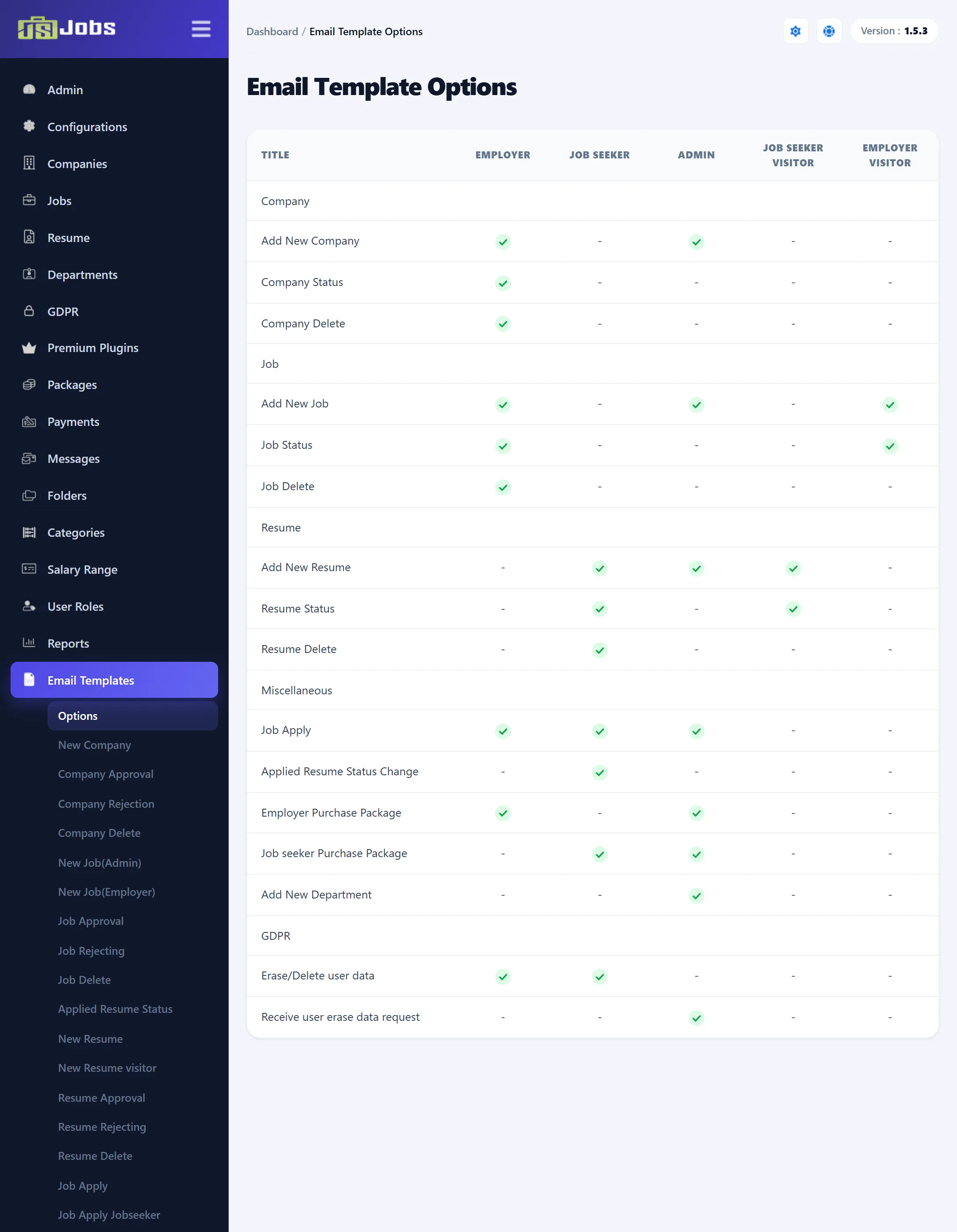
| Row | Can be switched for | Template used |
|---|---|---|
| Add New Company | Employer, Admin | New Company |
| Company Status | Employer | Company Approval / Company Rejection |
| Company Delete | Employer | Company Delete |
| Add New Job | Employer, Admin, Employer Visitor | New Job ( Employer ), New Job ( Admin ), Employer ( visitor ) Job |
| Job Status | Employer, Employer Visitor | Job Approval / Job Rejecting, Employer ( visitor ) Job |
| Job Delete | Employer | Job Delete |
| Add New Resume | Job Seeker, Admin, Job Seeker Visitor | New Resume, New Resume Visitor |
| Resume Status | Job Seeker, Job Seeker Visitor | Resume Approval / Resume Rejecting |
| Resume Delete | Job Seeker | Resume Delete |
| Job Apply | Employer, Job Seeker, Admin | Job Apply, Job Apply for jobseeker |
| Applied Resume Status Change | Job Seeker | Applied Resume Status |
| Employer Purchase Package | Employer, Admin | Employer Package Purchased, Employer Purchase |
| Job seeker Purchase Package | Job Seeker, Admin | Job Seeker Package Purchased, Job Seeker Purchase |
| Add New Department | Admin | New Department |
| Erase/Delete user data | Employer, Job Seeker | User Data Delete |
| Receive user erase data request | Admin | Erase Data request |
Every switch is on after installation. Message, Job Alert and Job To Friend have no switch; they are always sent.
In 1.5.3 the Job Seeker Visitor switch on Resume Status has no effect: approving or rejecting any resume follows the Job Seeker switch.