
Departments
A department is a team inside one of your companies, such as Engineering or Sales. When you post a job you can pick the department it belongs to, so job seekers see who they would work for. Departments are optional: you only need them if you want to show this.
Add a department
Section titled “Add a department”-
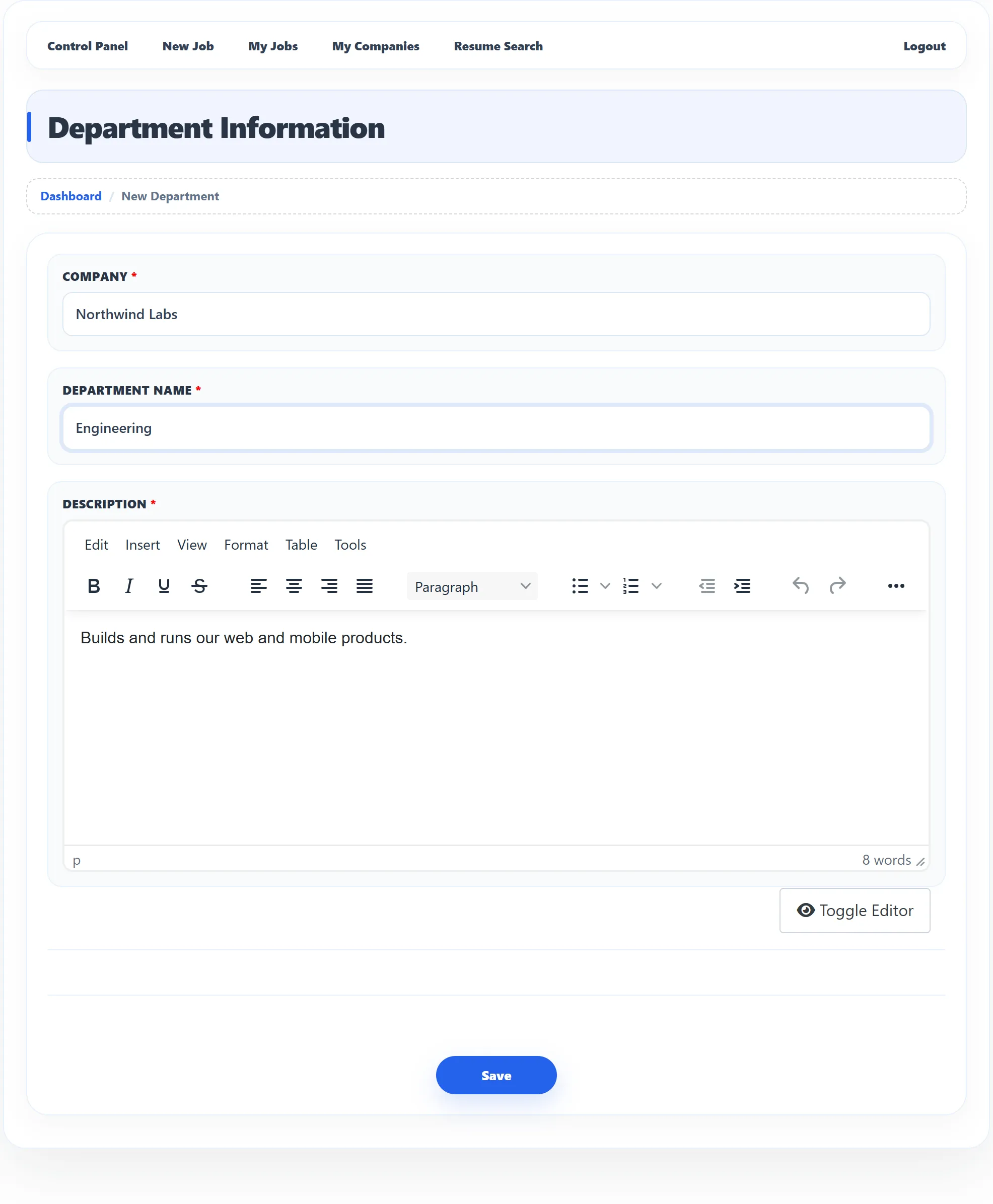
On the dashboard, click New Department, or click My Departments and then Add New Department.
-
Fill in the form:
- Company: the company the department belongs to. Only your approved companies are listed.
- Department Name: for example “Engineering”.
- Description: what the team does.
All three fields are required.
-
Click Save.
You return to My Departments with the message Department has been saved successfully.
My Departments
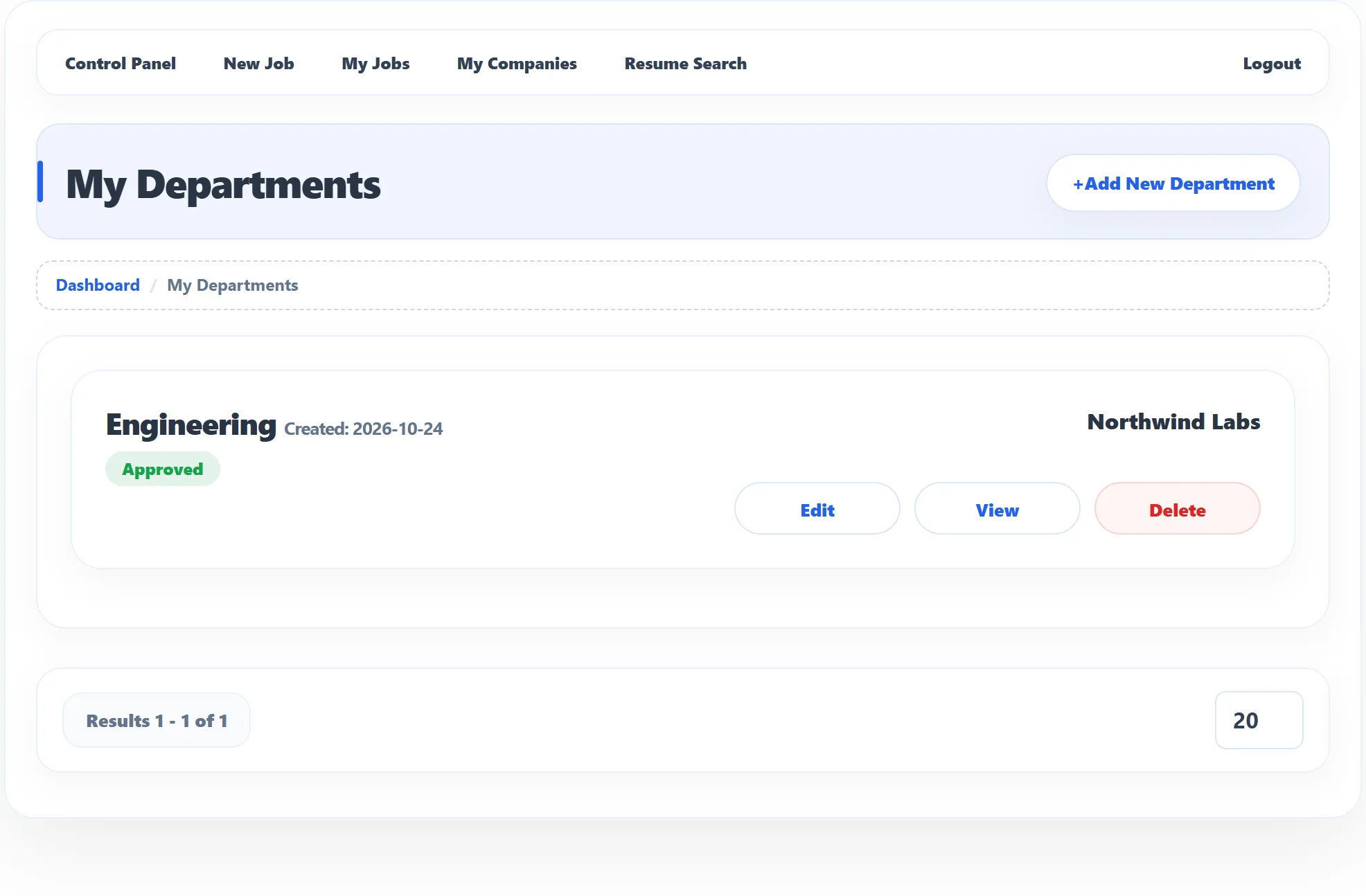
Section titled “My Departments”My Departments lists each department with its name, the date you created it and its status:
| Status | Meaning |
|---|---|
| Approved | The department can be chosen on the job form. |
| Pending (with Waiting for approval) | The site checks new departments first. You can’t edit or use it yet. |
| Rejected | The administrator rejected it. |
An approved department also shows its company (click it to open the company page) and three buttons:
| Button | What it does |
|---|---|
| Edit | Opens the form to change the company, name or description. |
| View | Shows the department’s details. |
| Delete | Deletes the department. |
A department that is used by any of your jobs can’t be deleted: you see Department could not be deleted. Change those jobs to another department, or delete them, first.
Using a department on a job
Section titled “Using a department on a job”On the job form, choose the company first: the Department list then shows that company’s approved departments. See Posting a job.