
Adding and editing a job
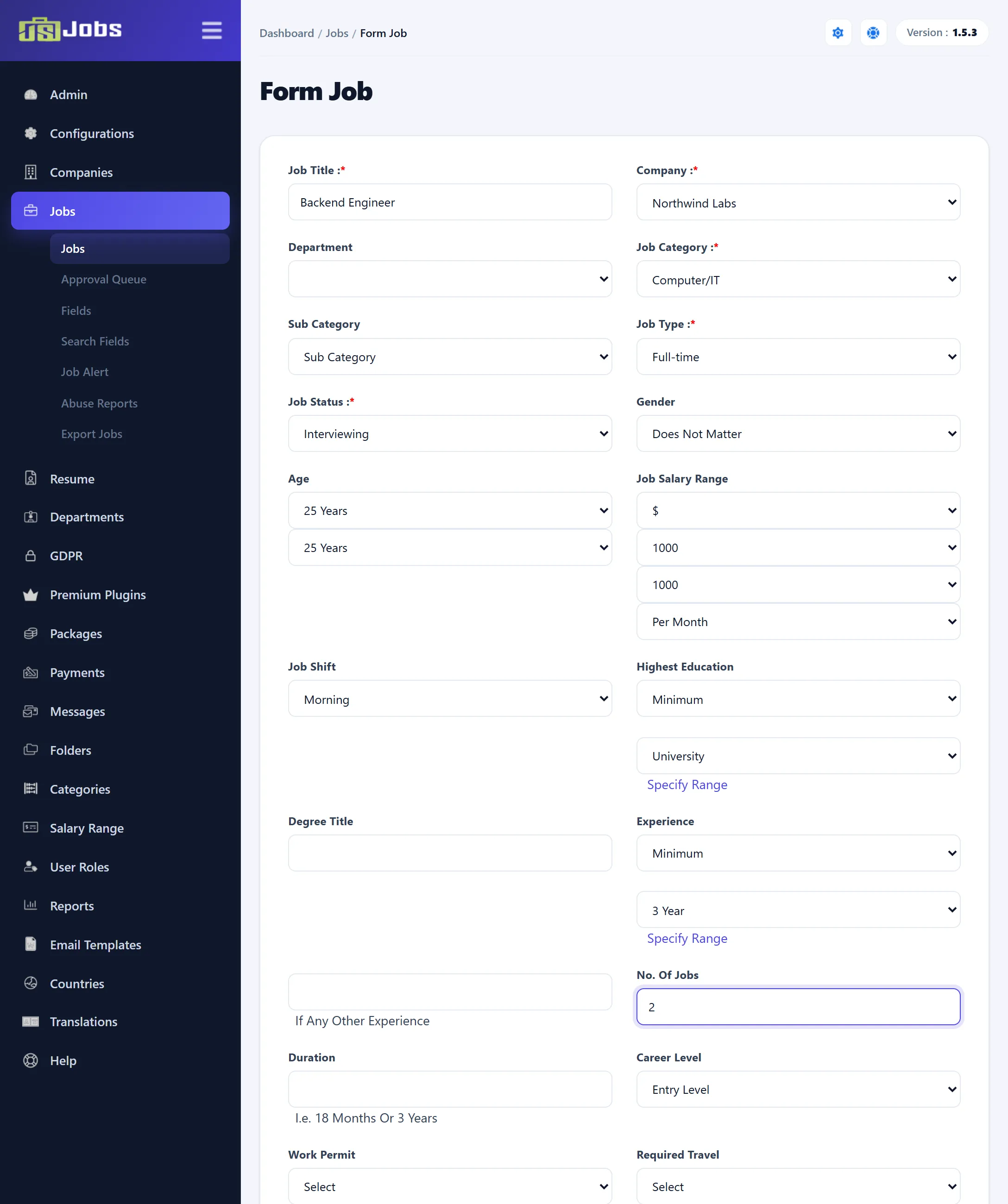
Click Add New Job on the jobs list to post a job yourself, or click a job’s title to edit it. The same form is used for both.
- Go to Components → JS Jobs → Jobs and click Add New Job.
- Fill in the fields. Fields marked with a red star are required.
- Set Status to Approve to publish the job at once, or Pending to leave it in the approval queue.
- Click Save Job, or Save & Close in Joomla’s toolbar.
Who the job belongs to
Section titled “Who the job belongs to”A job always belongs to the employer who owns the chosen Company. When you save, the job’s owner is set to that company’s employer, so the job shows in their My Jobs on the site. Saving here sends no e-mail.
Which fields appear, their order, their names and whether they are required are set under Jobs → Fields (see Job and company fields). Custom fields you add there appear on this form too.
The fields
Section titled “The fields”| Field | What it does |
|---|---|
| Job Title | The job’s title. Required. |
| Company | The company offering the job. The list holds every approved company. Changing it reloads Department. |
| Department | One of the company’s approved departments (see Departments). Empty when the company has none. |
| Job Category, Sub Category | The category, and a sub-category within it. Picking a category reloads the sub-category list. |
| Job Type | Full-time, part-time and so on, from Admin → Job Types. |
| Job Status | The hiring stage shown to visitors, such as Sourcing or Interviewing, from Admin → Job Status. This is not the approval status; that is Status at the bottom. |
| Gender | Does Not Matter, Male or Female. |
| Age | A range: From and To. |
| Job Salary Range | Currency, From, To and the period (per year, month, week or day). |
| Job Shift | The shift, from Admin → Shifts. |
| Highest Education | Minimum or Maximum and a level. Specify Range swaps to a minimum and maximum level; Cancel Range swaps back. Degree Title below it is free text. |
| Experience | Works like Highest Education. The box below it takes any other experience as free text. |
| No. Of Jobs | How many openings. |
| Duration | Free text, for example “18 Months” or “3 Years”. |
| Career Level | From Admin → Career Levels. |
| Work Permit | The country the applicant needs a work permit for. |
| Required Travel | Not Required, or a percentage. |
| Video | A video link. |
| Map | A Google map that marks the cities chosen under City, with Latitude and Longitude boxes below it. The map needs Google Map API key set in Configurations. |
| Start Publishing, Stop Publishing | The dates the job is shown on the site. Required. On a new job the start date can’t be before today, and the stop date must be after the start date. |
| City | The job’s location. See the note below. |
| Zip Code | The postal code. |
| Description | The job description. Required. |
| Qualifications, Preferred Skills, Agreement | More text about the job. |
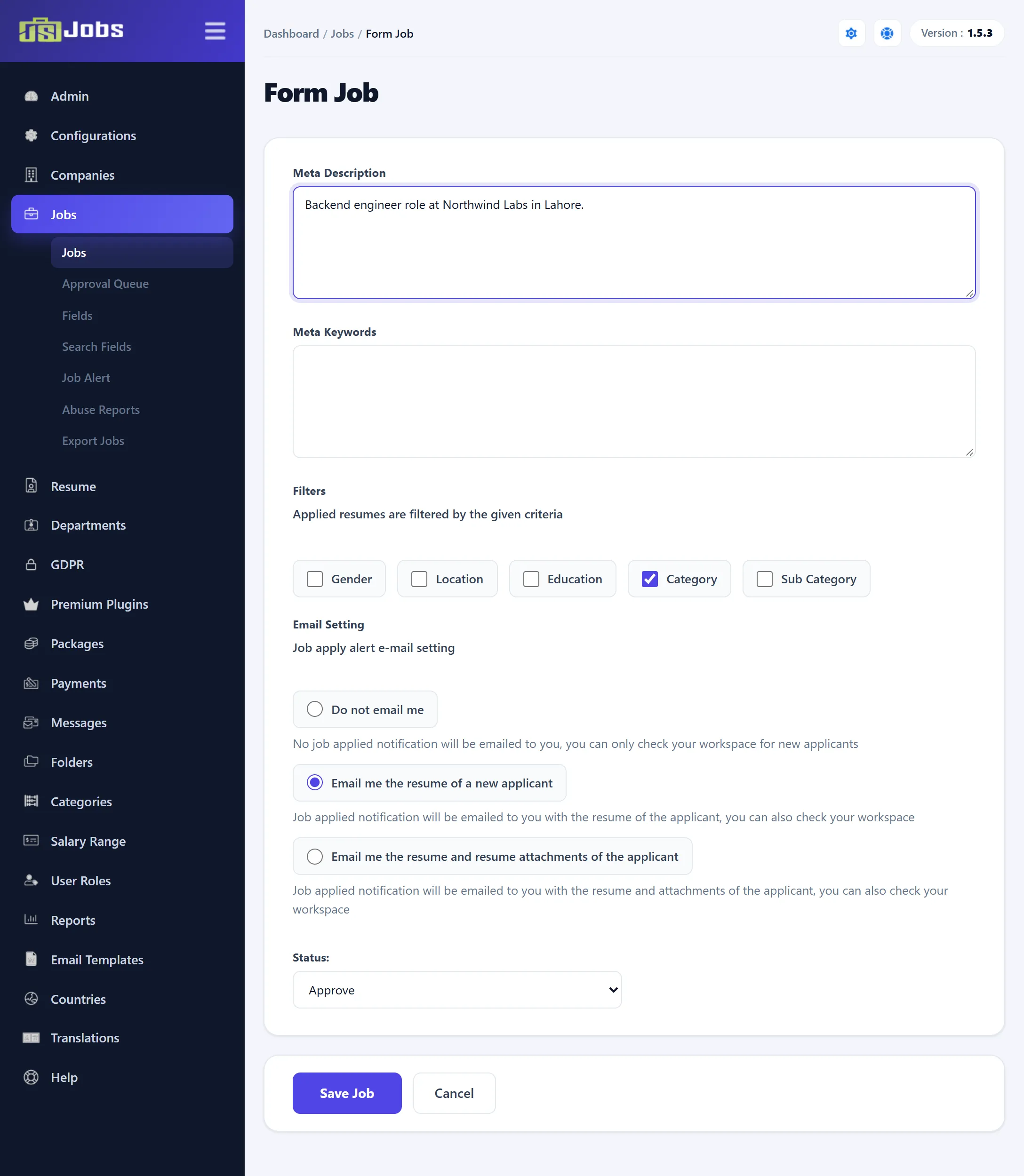
| Meta Description, Meta Keywords | Used in the page’s meta tags on the site. |
| Job Apply Link | Hidden until you publish it in Jobs → Fields. Tick Set Job Apply Redirect Link and enter a web address to send applicants to another site. |
The description, qualifications, preferred skills and agreement use Joomla’s editor.
Filters
Section titled “Filters”Filters reads “Applied resumes are filtered by the given criteria”. Tick Gender, Location, Education, Category or Sub Category. When a job seeker applies, their resume is compared with the job on each ticked item. An application from a resume that doesn’t match is filed under Spam in the job’s applications instead of New.
Email setting
Section titled “Email setting”Email Setting decides what the employer receives when someone applies:
| Choice | What the employer gets |
|---|---|
| Do not email me | No e-mail; they check their workspace for new applicants. |
| Email me the resume of a new applicant | An e-mail with the applicant’s resume. |
| Email me the resume and resume attachments of the applicant | An e-mail with the resume and its attached files. |
Status
Section titled “Status”| Status | Effect |
|---|---|
| Approve | The job is approved and shows on the site between its publishing dates. Selected on a new job. |
| Pending | The job waits in Jobs → Approval Queue. |
| Reject | The job is rejected and doesn’t show on the site. |
Changing the status here sends no e-mail. To send the employer the Job Approval or Job Rejecting e-mail, approve or reject the job from the approval queue instead.
Editing a job
Section titled “Editing a job”Click a job’s title on the jobs list or in the approval queue. The form opens with the job’s details. After saving you go back to the list you came from.
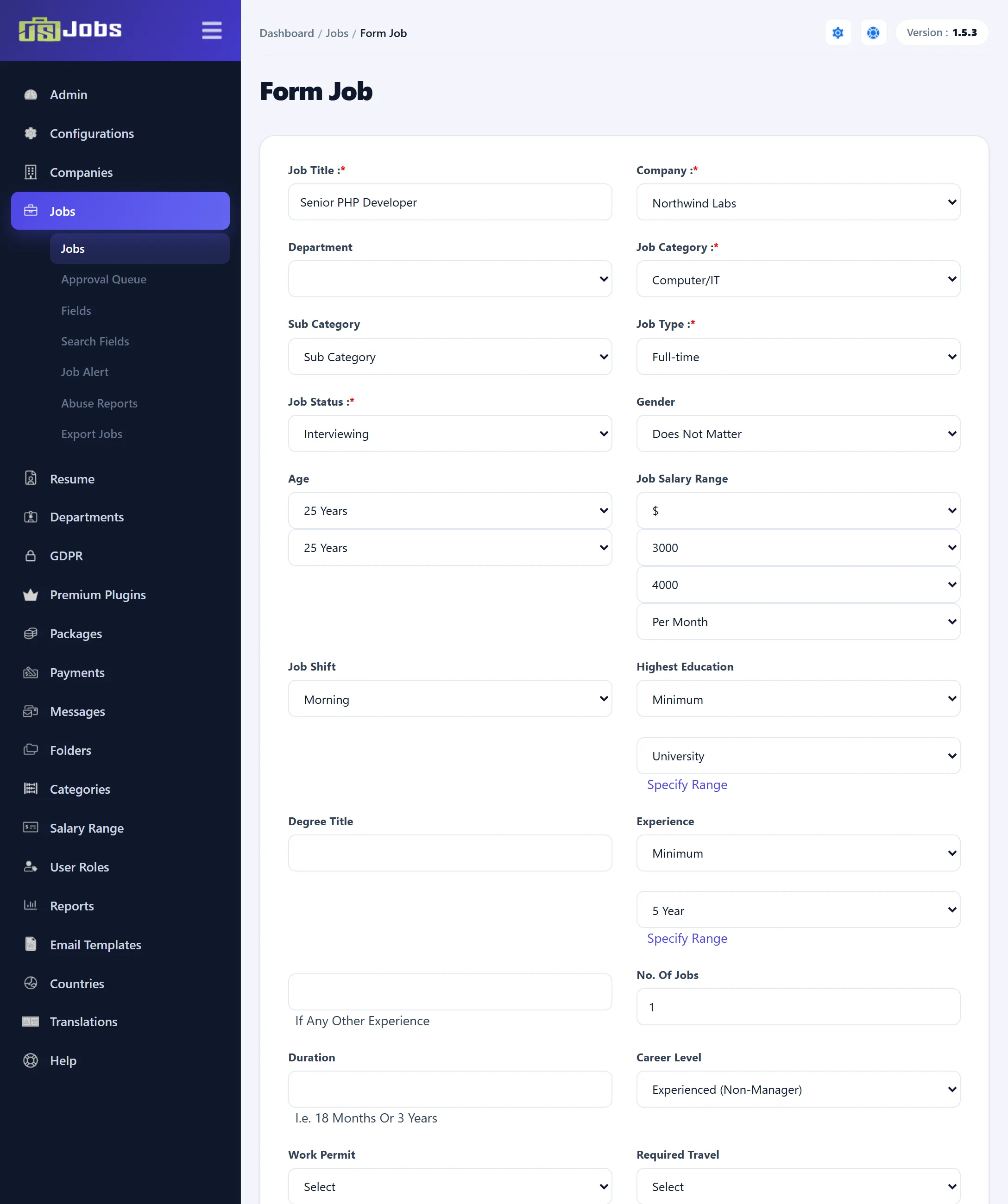
Saving a job you edit keeps its gold and featured state as it was; those are changed only from the jobs list or the queue (see Gold and featured).
When saving fails
Section titled “When saving fails”- If a required field is empty, the form shows the error and stays open.
- If the title or description is empty when the form reaches the server, you go back to the form with a message about required fields.
- A file in a custom upload field that is too large or of the wrong type is not stored; the job is saved and a warning says why.