
Resume search fields
Resume → Search Fields sets up the resume search form on the site, where employers look for candidates. It decides which fields appear as filters, for logged-in users and for visitors, and in which order.
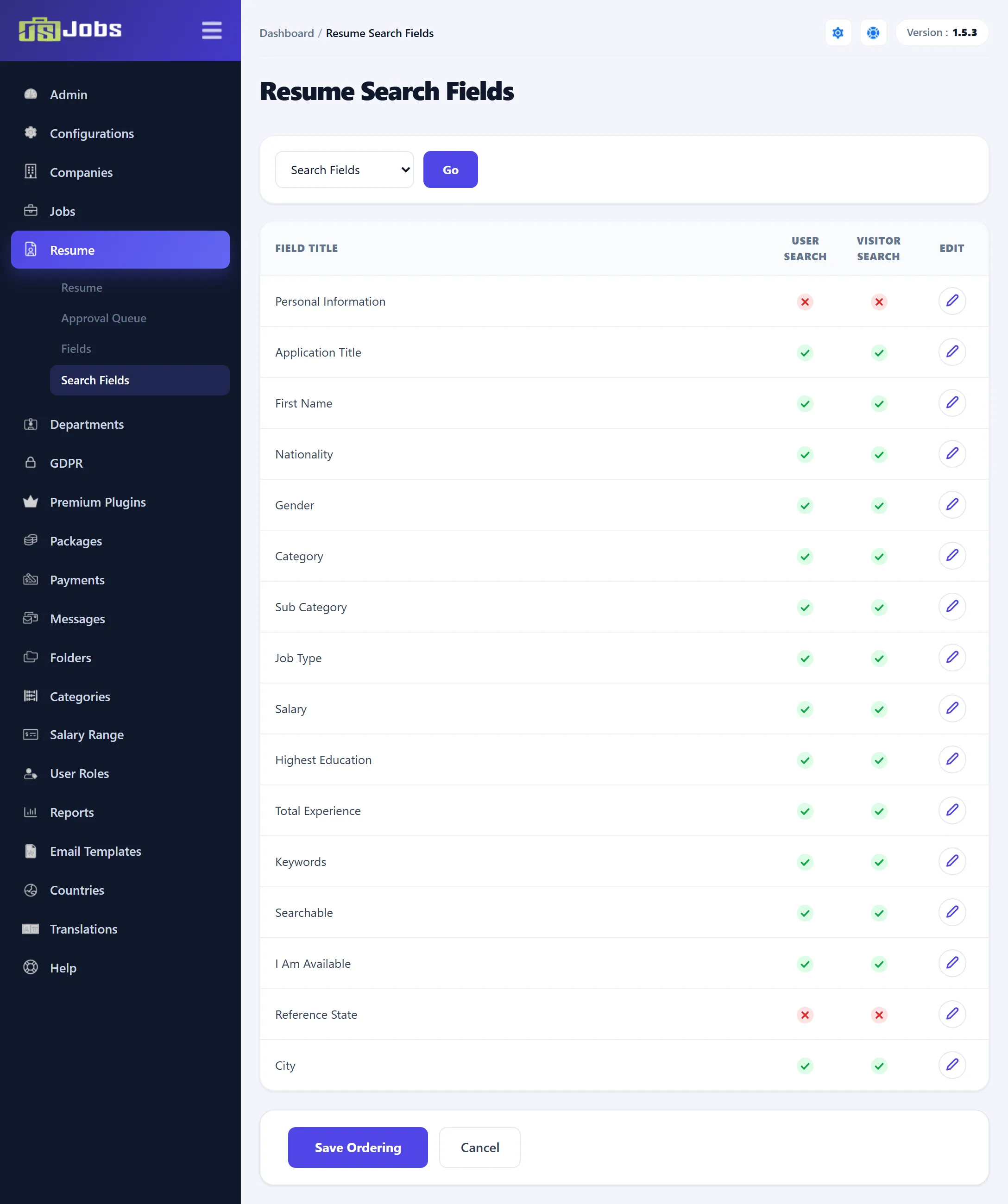
Which fields are listed
Section titled “Which fields are listed”The list at the top switches between:
- Search Fields: only the fields that are searchable for users, visitors or both. This is what the search form shows.
- All Fields: every field that can be used as a filter, including those switched off. Use it to find a field you want to add.
Choose one and click Go.
Only fields from the Personal Information section, plus the address City, can be filters. Rich-text fields cannot. Your own resume fields appear here when they are in the Personal Information section; see Resume fields.
Turning a filter on or off
Section titled “Turning a filter on or off”| Column | Meaning |
|---|---|
| User Search | Logged-in users see this filter in the resume search form. |
| Visitor Search | Visitors who are not logged in see it. |
Click Edit on a row. A small window shows User Search and Visitor Search, each Enabled or Disabled. Change them and click Save.
The same two settings are in the field’s settings on Resume fields; changing them in either place changes both.
Changing the order
Section titled “Changing the order”Drag the rows into the order you want the filters to appear, then click Save Ordering. Cancel reloads the screen and drops unsaved moves.
The order here is separate from the order of fields on the resume form.