
Employer packages
Packages → Employer Packages lists the packages employers can buy or be given. Each package sets how many companies and jobs an employer may add, how many can be gold or featured, whether they can search resumes, and how long the package lasts. How these numbers are checked and used up is explained in How packages work.
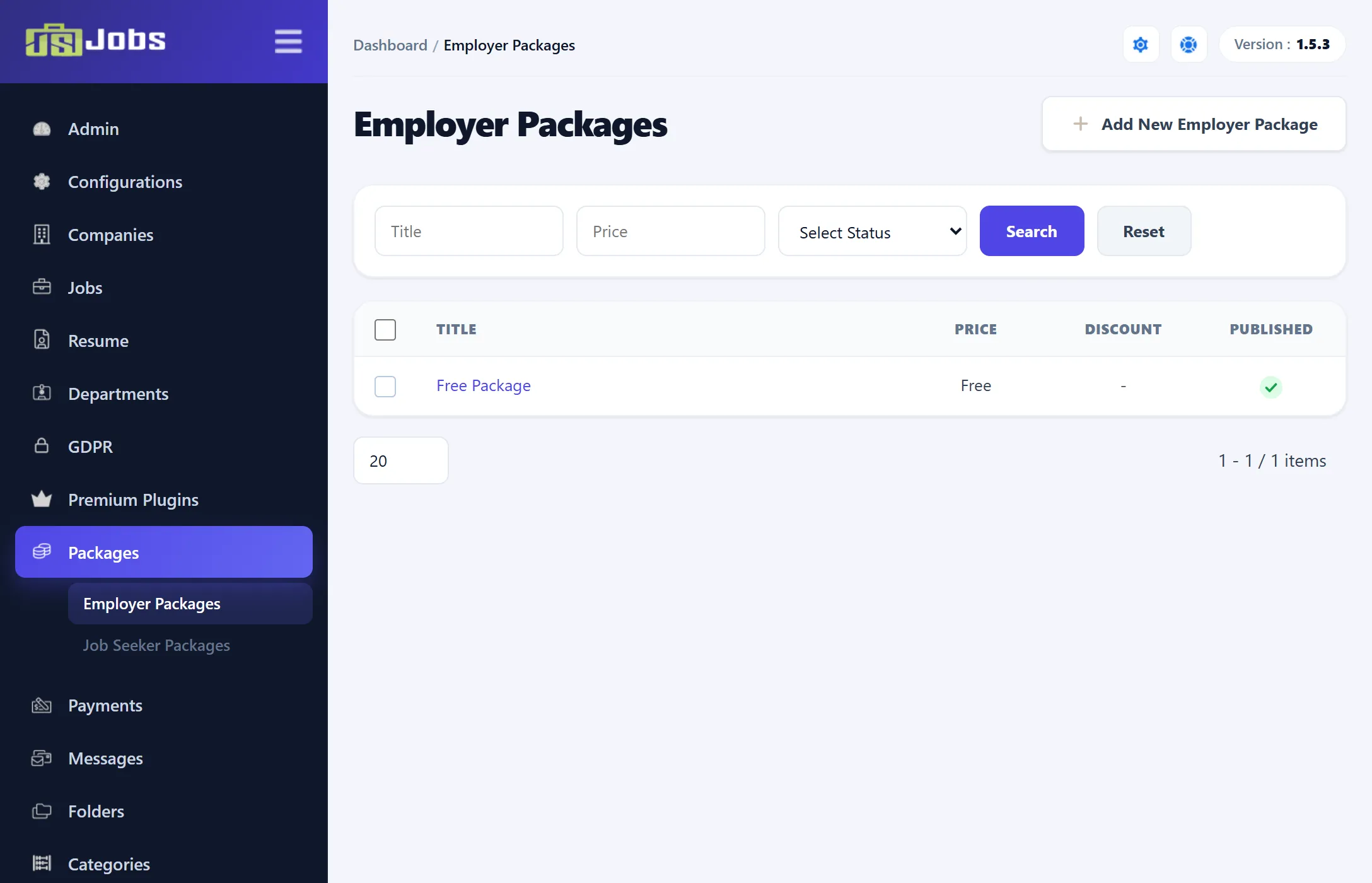
The list
Section titled “The list”The list shows each package’s Title, Price (Free when the price is 0), Discount (with the currency symbol for an amount, or %) and whether it is Published. Filter it by title, by exact price, or by status, then click Search. Reset clears the filters.
Click a title to edit the package. To delete packages, tick them and click Delete in the toolbar. A package that anyone has bought can’t be deleted: the list shows “Employer Package could not be deleted”. Unpublish it instead, so no one new can buy it.
Adding a package
Section titled “Adding a package”-
Click Add New Employer Package (or New in the toolbar).
-
Fill in the fields below. Title, Price, Expire In Days and Description are required.
-
Click Save Employer Package.
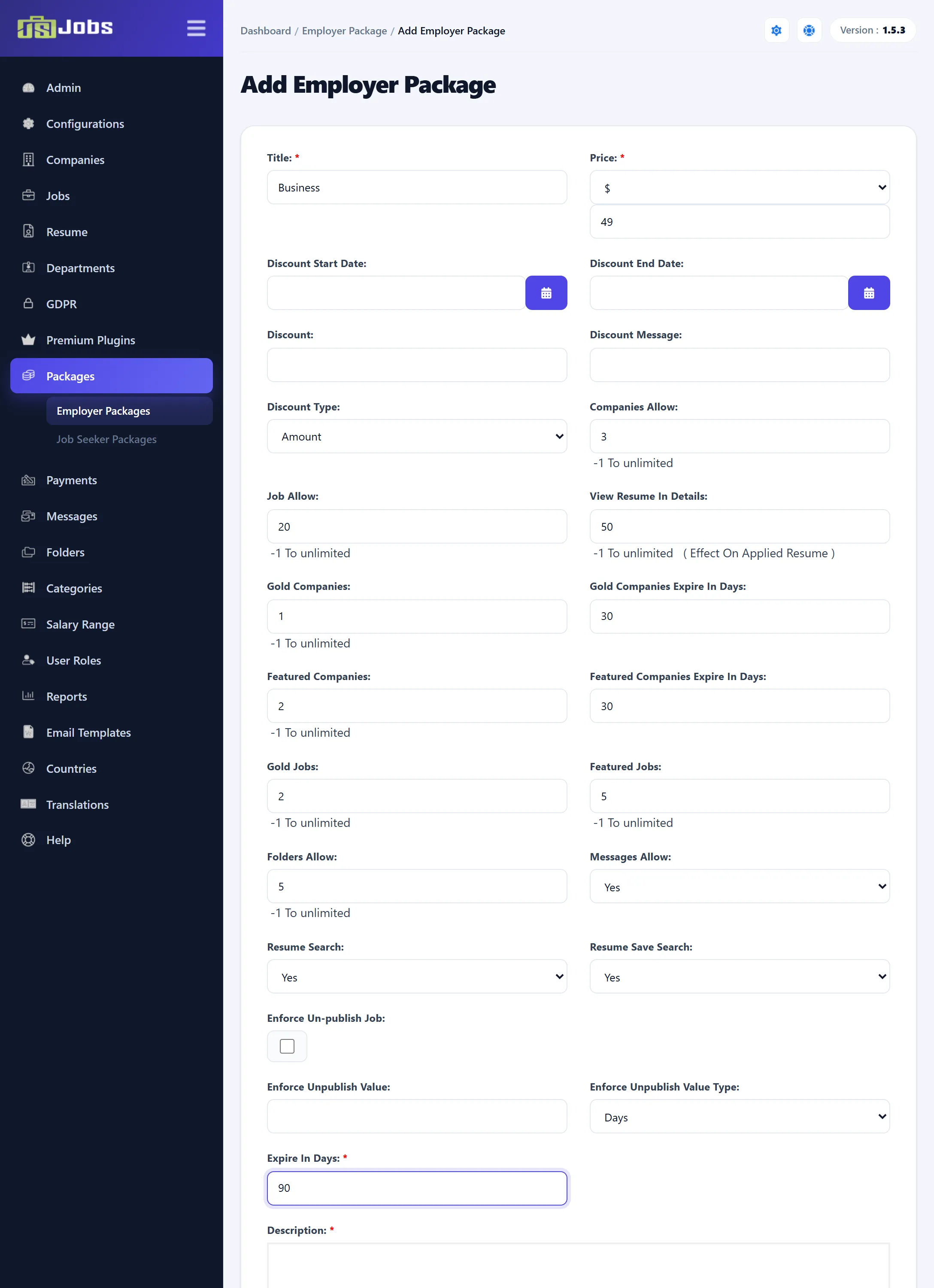
For every number marked “-1 To unlimited”, enter -1 for no limit or 0 for none. Fill in every allowance rather than leaving it empty.
| Field | What it does |
|---|---|
| Title | The package name employers see. |
| Price | The currency (from Admin → Currencies) and the amount. 0 makes it a free package. |
| Discount Start Date, Discount End Date | The period the discount applies. A buyer gets the discount only if they buy between these two dates, so set both. The start must be before the end. |
| Discount | The discount, as a whole number. With Amount it can’t be more than the price; with % it can’t be more than 100. |
| Discount Message | A short line about the offer, shown with the package on the site and saved with each purchase. |
| Discount Type | Amount takes the discount off the price in money; % takes off a percentage. |
| Companies Allow | How many companies the employer may add under this package. |
| Job Allow | How many jobs the employer may post under this package. |
| View Resume In Details | For each job, how many applicants’ resumes the employer may open in full. Marked “Effect On Applied Resume” on the form. |
| Gold Companies (Pro) | How many of the employer’s companies may be gold. |
| Gold Companies Expire In Days (Pro) | How long a company stays gold. |
| Featured Companies (Pro) | How many companies may be featured. |
| Featured Companies Expire In Days (Pro) | How long a company stays featured. |
| Gold Jobs (Pro) | How many of the employer’s jobs may be gold. |
| Featured Jobs (Pro) | How many jobs may be featured. |
| Folders Allow (Pro) | How many resume folders the employer may make. |
| Messages Allow (Pro) | Yes lets the employer send messages to job seekers. |
| Resume Search | Yes lets the employer use resume search and browse resumes by category. |
| Resume Save Search | Yes lets the employer save a resume search to run again later. |
| Enforce Un-publish Job | Tick to fix how long jobs posted under this package stay up. The employer can’t choose a stop publishing date. |
| Enforce Unpublish Value | How long, as a number. |
| Enforce Unpublish Value Type | Days, Weeks or Months. |
| Expire In Days | How many days the package lasts, counted from the day it is bought. |
| Description | The full description, with the editor. Shown on the package’s details page. |
| Status | Published packages can be bought; Un-published ones are hidden from employers. New packages start as Published. |
The fields marked (Pro) are on the form in both editions, but they belong to gold and featured listings, folders and messages, which only work in Pro.
Payment links
Section titled “Payment links”When you edit a saved package, the form also shows one field for each payment method that needs a link of its own, such as Fastspring Link, 2Checkout Link, Authorizenet Link and Other Link. Paste the product or checkout link you created for this package with that provider. These fields don’t appear on a new package, so save it first, then edit it to add the links. The payment methods themselves are set up under Payment Methods (Pro).
How the discount is applied
Section titled “How the discount is applied”When an employer buys a package between the discount dates, the purchase records the discount and the amount actually charged:
- Amount: price minus the discount.
- %: price minus that percentage of the price.
Outside the dates, or with no dates set, the full price is charged. A free package never has a discount.
Changing a package later
Section titled “Changing a package later”Editing a package changes it for everyone who holds it, straight away: the checks always read the package’s current numbers. The title, price, discount and description are copied into each purchase when it is made, so the payment history keeps what the buyer actually bought.