
The dashboard
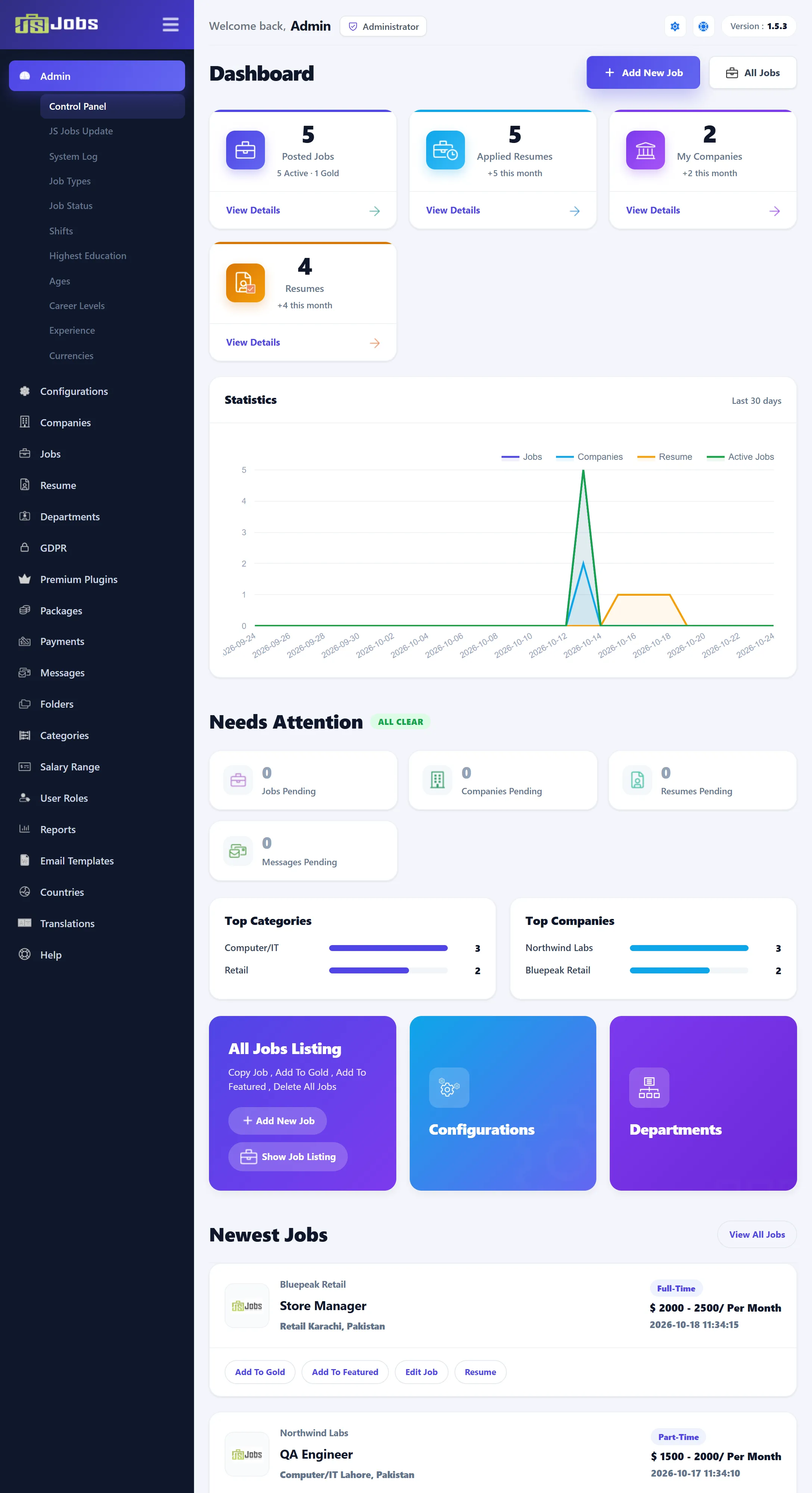
Components → JS Jobs opens the dashboard, headed Dashboard. It gives a quick view of the board, flags what is waiting for you, and lists the newest jobs, resumes and companies. The left menu on every JS Jobs screen leads to everything else.
The top of the page
Section titled “The top of the page”- Add New Job opens the job form; All Jobs opens Jobs.
- At the top right, the gear opens Configurations, the question mark opens Help, and Version shows the installed version.
- Notices about a new version or your subscription appear above the boxes (Pro). See Updating.
Counts
Section titled “Counts”| Box | Counts | View Details opens |
|---|---|---|
| Posted Jobs | All jobs, with how many are active (their publishing period includes today) and how many are gold. | Jobs |
| Applied Resumes | All applications, with how many came in during the last month. | Resume |
| My Companies | All companies, with the approved ones added in the last month. | Companies |
| Resumes | All resumes, with the approved ones added in the last month. | Resume |
Statistics charts the last 30 days, one point per day, for Jobs and Active Jobs (by the day their publishing starts; active ones are the approved jobs), Companies and Resume (by the day they were added).
Needs Attention
Section titled “Needs Attention”One card each for Jobs pending, Companies pending, Resumes pending and Messages pending (Pro), with the number waiting for approval. Click a card to open its approval queue. A System errors card joins them when Admin → System Log has errors. With nothing waiting, the heading shows All clear.
Top Categories and Top Companies show the five categories and five companies with the most jobs, as bars.
Shortcuts and newest items
Section titled “Shortcuts and newest items”- All Jobs Listing with Add New Job and Show Job Listing, and tiles for Configurations, Departments, Reports, Translations and Users (Users Listing, where you see and change users’ roles).
- Newest Jobs: the five latest jobs, each with its company, category, location, job type, salary and date, and Gold and Featured tags. Click the title or Edit Job to edit it. Resume lists the job’s applications. Add To Gold / Remove Gold and Add To Featured / Remove Featured change its promotion (Pro). View All Jobs opens Jobs.
- Latest Resume: the five latest resumes with title, name, category and total experience. View Profile opens the resume. In 1.5.3 the Location line repeats the category.
- Latest Companies: the five latest companies with an Approved or Rejected badge, category and address.
Database update notice
Section titled “Database update notice”A site updated from an older version can show “Database Update Needed: A critical update for JS Jobs is required…” on every JS Jobs screen. Click Update Now once: it prepares the existing jobs and resumes for the AI search and then hides the notice.
The left menu
Section titled “The left menu”Click a section to open it; the current section stays open. The icon at the top of the menu folds it down to icons, and JS Jobs remembers your choice.

| Section | Items |
|---|---|
| Admin | Control Panel (this dashboard), JS Jobs Update, System Log, Job Types, Job Status, Shifts, Highest Education, Ages, Career Levels, Experience, Currencies |
| Configurations | Configurations, Employer, Job Seeker, Themes, Cron Job (Pro), Payment Methods (Pro) |
| Companies | Companies, Approval Queue, Fields, Export (Pro) |
| Jobs | Jobs, Approval Queue, Fields, Search, Job Alert (Pro), Abuse Reports (Pro), Export (Pro) |
| Resume | Resume, Approval Queue, Fields, Search |
| Departments | Departments, Approval Queue |
| GDPR | GDPR Fields, Erase Data Requests |
| Premium Plugins | Premium Plugins |
| Packages | Employer Packages, Job Seeker Packages |
| Payments (Pro) | Employer History, Job Seeker History, Payment Report |
| Messages (Pro) | Messages, Approval Queue |
| Folders (Pro) | Folders, Approval Queue |
| Categories | Categories |
| Salary Range | Salary Range, Salary Range Type |
| User Roles | Users |
| Reports (Pro) | Reports |
| Email Templates | Options, then one item per e-mail (new company, job approval, new resume, job apply and so on) |
| Countries | Countries, Load Address Data |
| Translations | Translations |
| Help | Help |
In the Free edition most Pro items are shown with a Pro badge and open a page about the feature; Cron Job and Payment Methods are not shown.