
Exporting jobs and companies
Jobs → Export Jobs and Companies → Export Companies download a file you can open in a spreadsheet program such as Excel or LibreOffice Calc. Use them for reports, backups of your listings or to share figures with colleagues.
- Go to Components → JS Jobs → Jobs → Export Jobs (or Companies → Export Companies).
- Set the filters you want. Leave a filter on its first choice to include everything.
- Check Start Date and End Date.
- Click Export Data. Your browser downloads the file.
Export Jobs
Section titled “Export Jobs”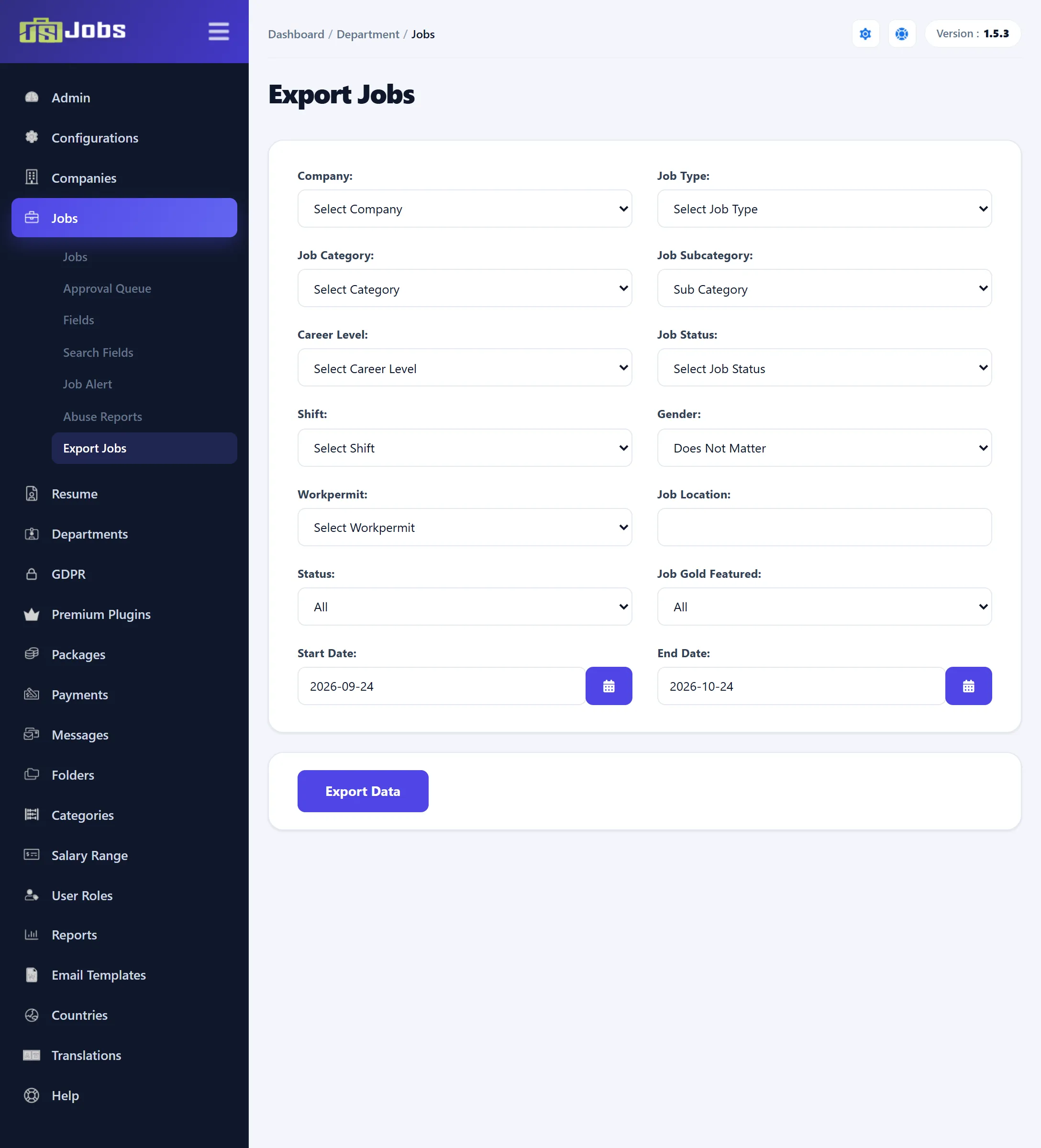
| Filter | What it includes |
|---|---|
| Company | Jobs of one company. |
| Job Type, Job Category, Job Subcategory, Career Level, Job Status, Shift | Jobs with that value. Picking a category reloads the sub-categories. |
| Gender | Jobs asking for that gender. Does Not Matter includes all. |
| Workpermit | Jobs asking for a work permit for that country. |
| Job Location | Jobs in the cities you choose. |
| Status | All, Approved, Pending or Rejected. |
| Job Gold Featured | All, Gold, Featured or Gold & Featured. |
| Start Date, End Date | Jobs created between these dates, both included. |
The file is named Export-Job-data.xls. It starts with a line saying “Export
Data of jobs From” the start date “To” the end date, then the filters you used
under Export criteria, then one row per job, newest first. The columns are
the published job fields in their order under Jobs → Fields (title,
company, department, category, type, salary, dates, city, description and so
on), followed by Gold Job, Featured Job (each Yes or No),
Status and Created.
If no job matches, the file says “No Jobs Full fill the provided criteria”.
Export Companies
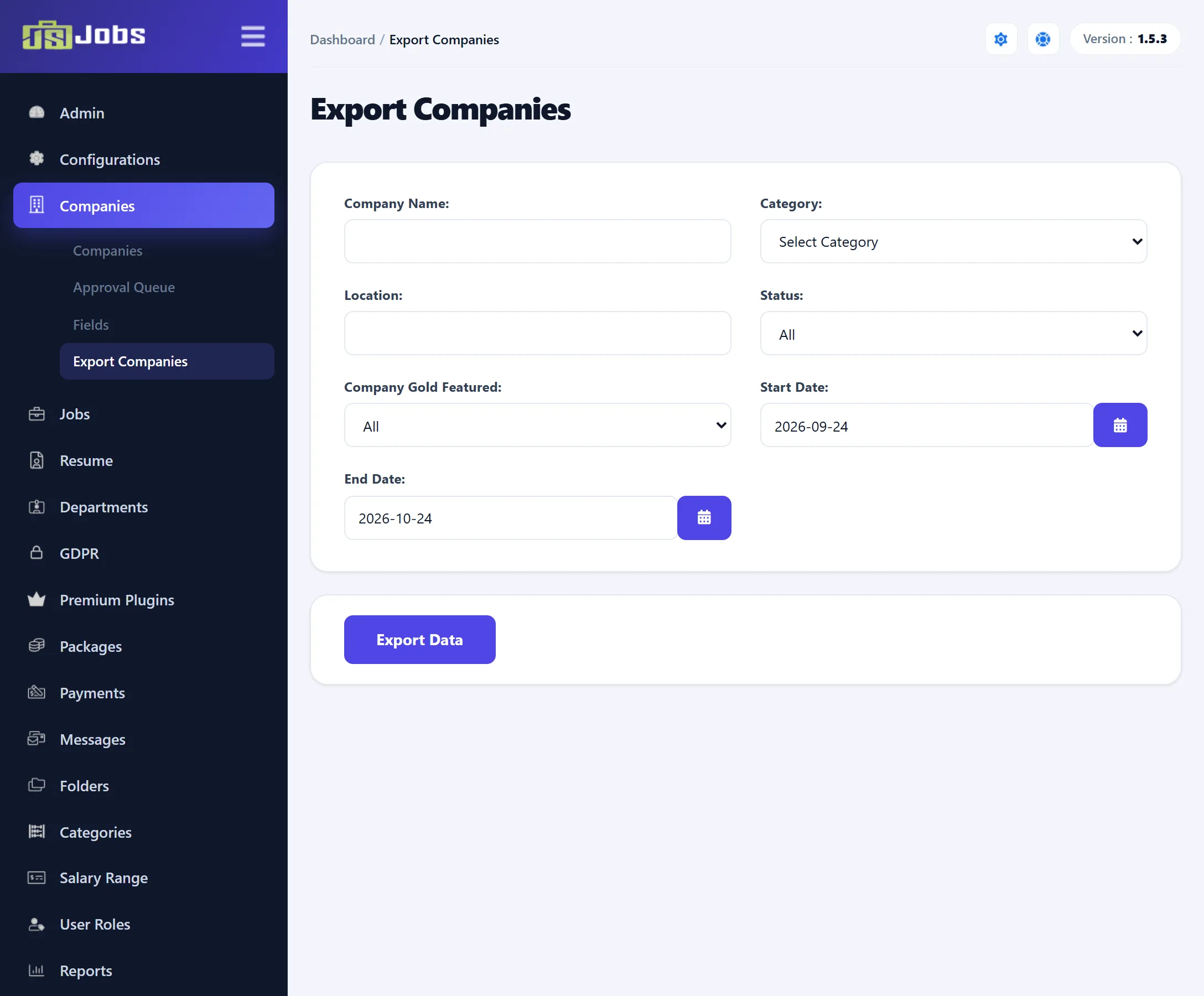
Section titled “Export Companies”| Filter | What it includes |
|---|---|
| Company Name | Companies whose name contains this text. |
| Category | Companies in that category. |
| Location | Companies in the cities you choose. |
| Status | All, Approved, Pending or Rejected. |
| Company Gold Featured | All, Gold, Featured or Gold & Featured. |
| Start Date, End Date | Companies added between these dates, both included. |
The file is named Export-Companies-data.xls and is laid out the same way: a
header line, the criteria, then one row per company with the published company
fields from Companies → Fields, followed by Gold Company, Featured
Company, Status and Created.
Both screens open with Start Date set to 30 days ago and End Date set to today. If you clear a date, the export uses those same defaults. If the start date is after the end date, the two are swapped. The dates match the day a job or company was created, not its publishing dates.
About the file
Section titled “About the file”The file is plain text with the columns separated by tabs, saved with the
.xls extension so that it opens in a spreadsheet program. Text from editor
fields, such as the description, is exported without its formatting, on a
single line. Values that start with =, +, - or @ get an apostrophe in
front so that spreadsheet programs don’t treat them as formulas.