
Adding and editing a company
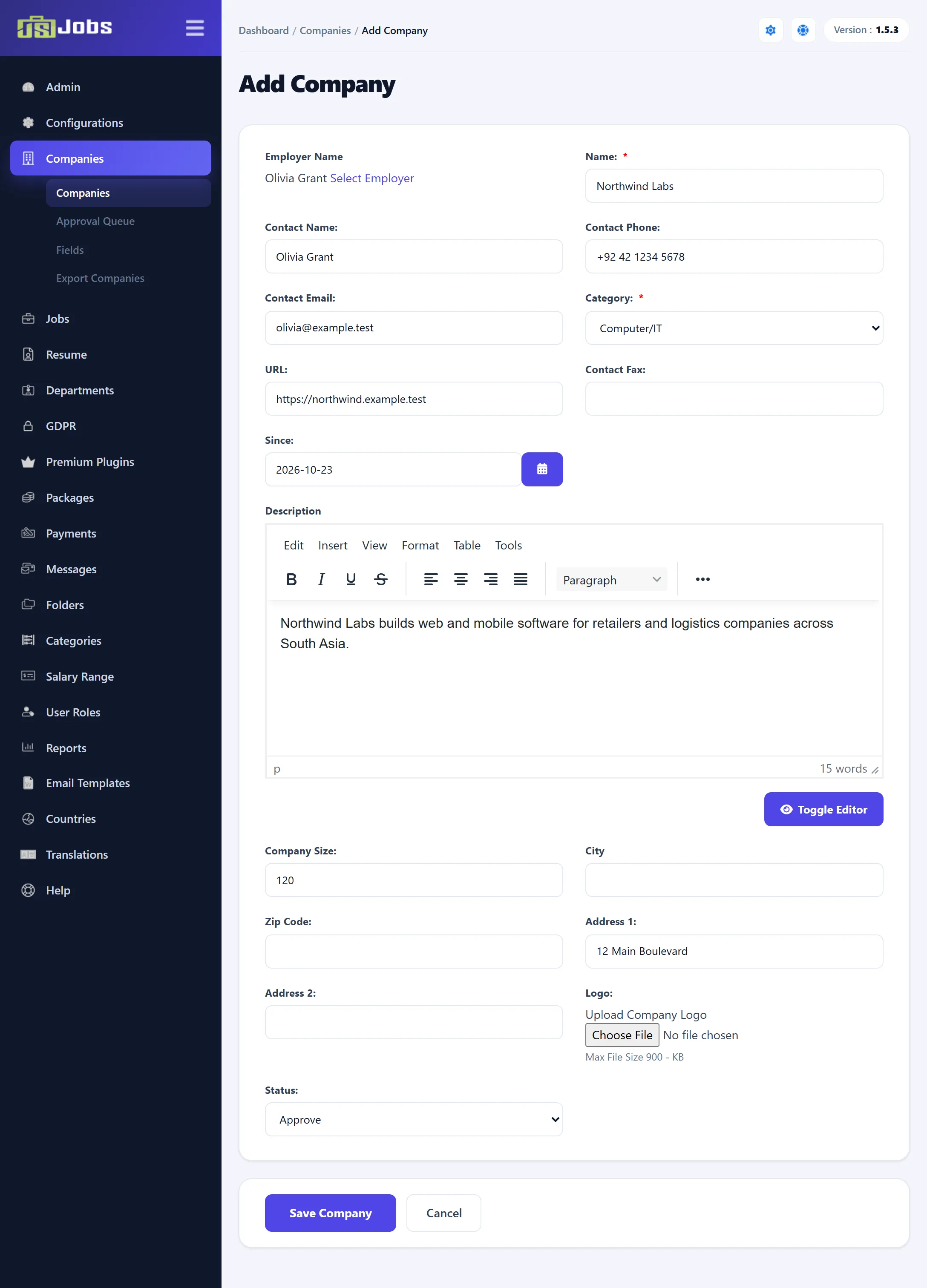
Click Add New Company on the companies list, or click a company’s name to edit it. The same form is used for both.
- Go to Components → JS Jobs → Companies and click Add New Company.
- Click Select Employer and pick the employer who owns the company.
- Fill in the fields. Fields marked with a red star are required.
- Choose a Status and click Save Company, or Save & Close in Joomla’s toolbar.
Choosing the employer
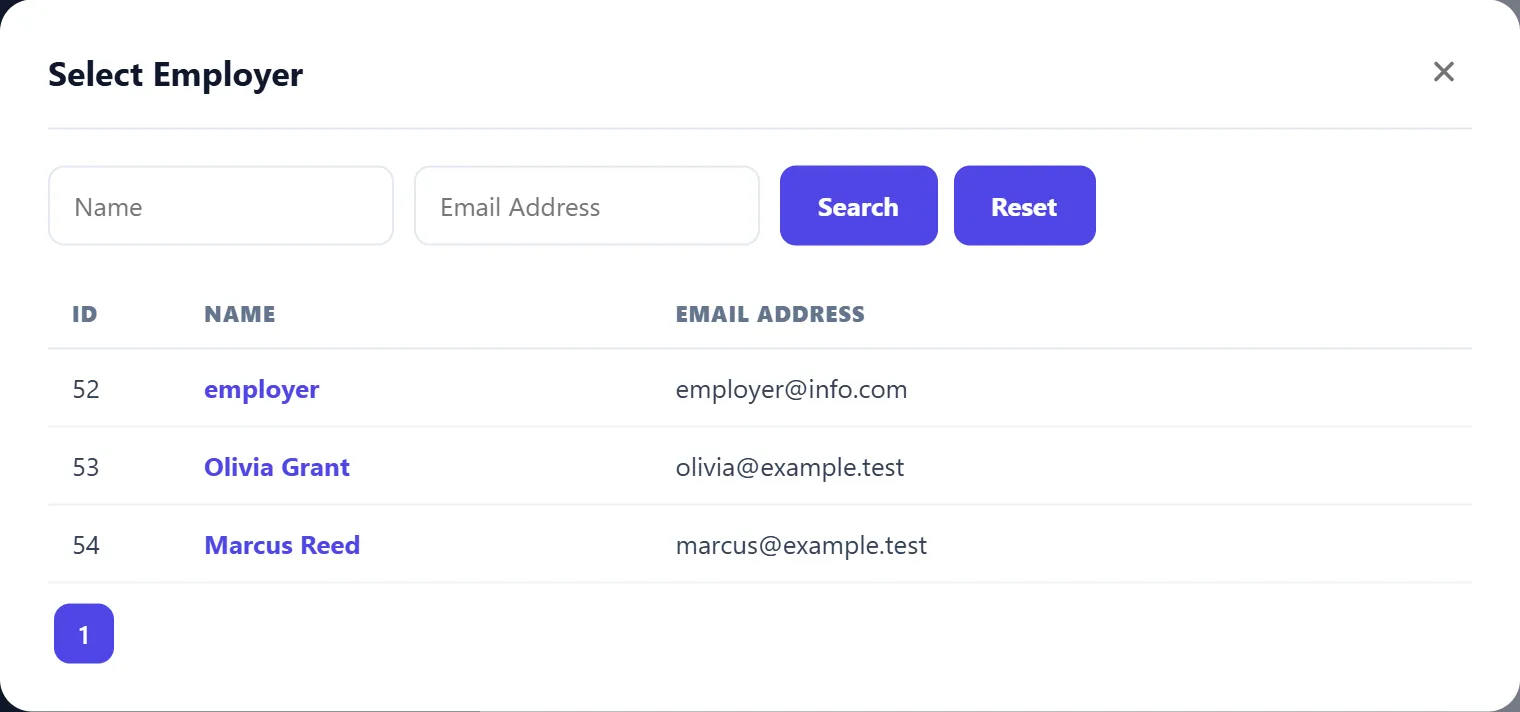
Section titled “Choosing the employer”Employer Name shows who owns the company. Select Employer opens a list of every Joomla user whose JS Jobs role is employer, with their ID, name and e-mail address. Type in Name or Email Address and click Search to narrow it, then click a name to choose it.
The owner matters: the company appears in that employer’s control panel on the site, and every job you post for the company belongs to them. A new company saved without an employer has no owner.
The fields
Section titled “The fields”Which fields appear, in what order and whether they are required is set under Companies → Fields (see Job and company fields). Custom fields you add there appear on this form too. With the fields as installed:
| Field | What it does |
|---|---|
| Name | The company’s name. Required. |
| Contact Name, Contact Phone, Contact Email, Contact Fax | The company’s contact details. |
| Category | The company’s category. Required. |
| URL | The company’s website. Must be a valid web address. |
| Since | The date the company was founded. Must be before today. |
| Description | About the company, in Joomla’s editor. |
| Income | Unpublished when installed; publish it in Companies → Fields to use it. |
| Company Size | The number of employees. |
| City | The company’s location. See the note below. |
| Zip Code, Address 1, Address 2 | The company’s address. |
| Logo | Upload Company Logo to choose an image. The size limit shown under it (“Max File Size … KB”) comes from Configurations. When the company has a logo, the form shows it with a Delete Logo File tick box. |
| Status | Approve, Pending or Reject. Approve is selected on a new company. |
Status
Section titled “Status”- Approve shows the company on the site.
- Pending sends it to Companies → Approval Queue.
- Reject keeps it off the site; it stays on the companies list marked Rejected.
Changing the status on this form sends no e-mail. To send the Company Approval or Company Rejection e-mail, approve or reject from the approval queue.
Saving
Section titled “Saving”After saving you return to the list you came from. Editing a company keeps its gold and featured state and dates.
- If a required field is empty, the form shows a message and stays open.
- If the logo is larger than the limit or not an allowed image type, the company is saved without it and a warning says why.