
Front-end menus and registration
Employers, job seekers and visitors reach JS Jobs through ordinary Joomla menu items. The setup wizard can add the two control panels to your Main Menu; add the rest yourself.
Adding a menu item
Section titled “Adding a menu item”-
Go to Menus and open the menu you want, for example Main Menu, then click New.
-
Next to Menu Item Type, click Select, open JS Jobs and pick a type from the table below.
-
Give the item a Menu Title and click Save & Close.
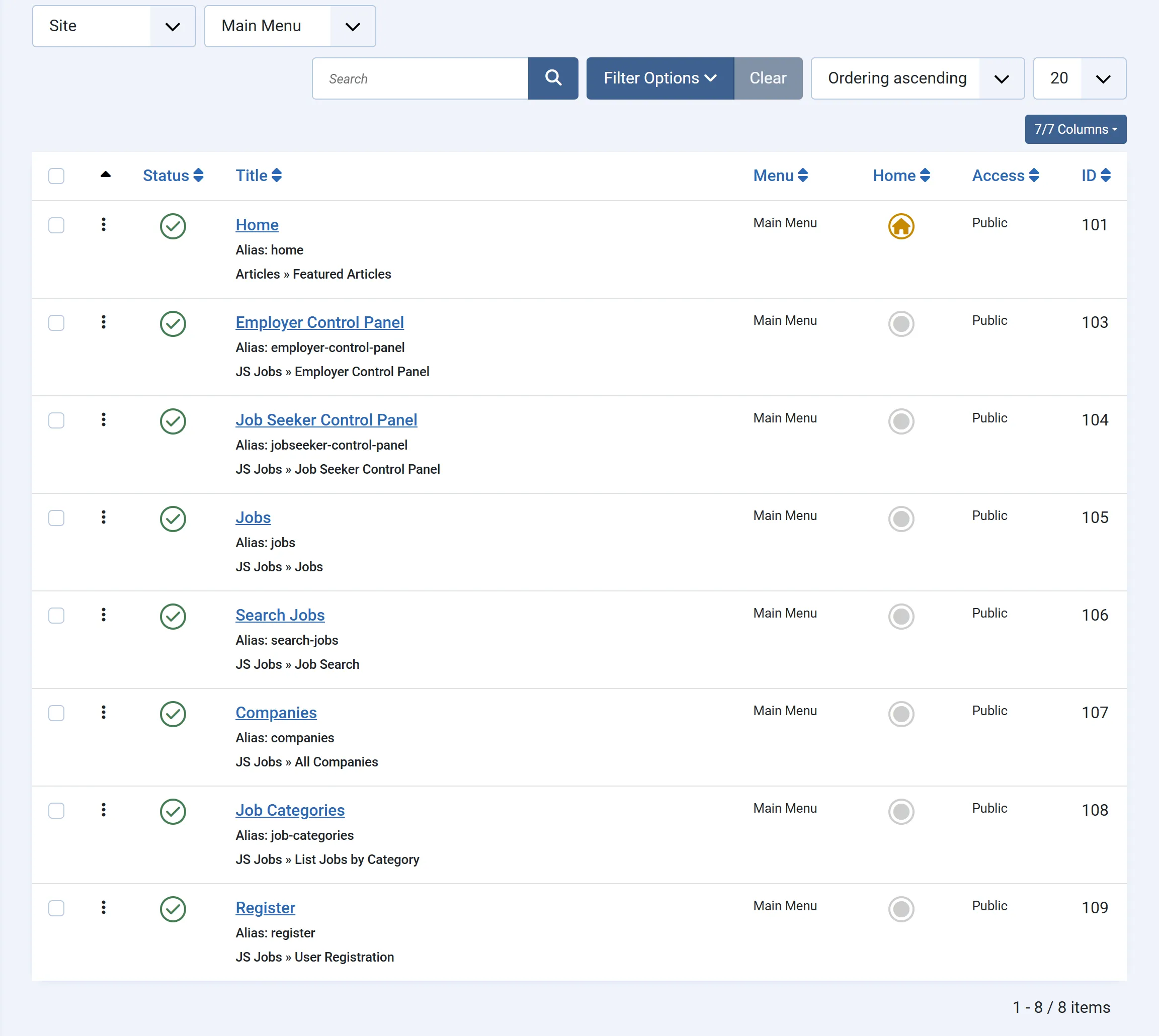
Menu item types
Section titled “Menu item types”For everyone
Section titled “For everyone”| Type | Shows |
|---|---|
| Jobs | The job list, with search and filters. |
| Job Search | The job search form. |
| List Jobs by Category | Categories with the number of jobs in each. |
| List Jobs by Type (Pro) | Job types with their jobs. |
| All Companies (Pro) | Every company. |
| User Registration | The JS Jobs registration form (see below). |
| RSS Control Panel (Pro) | The RSS feeds of jobs and resumes. |
For employers
Section titled “For employers”| Type | Shows |
|---|---|
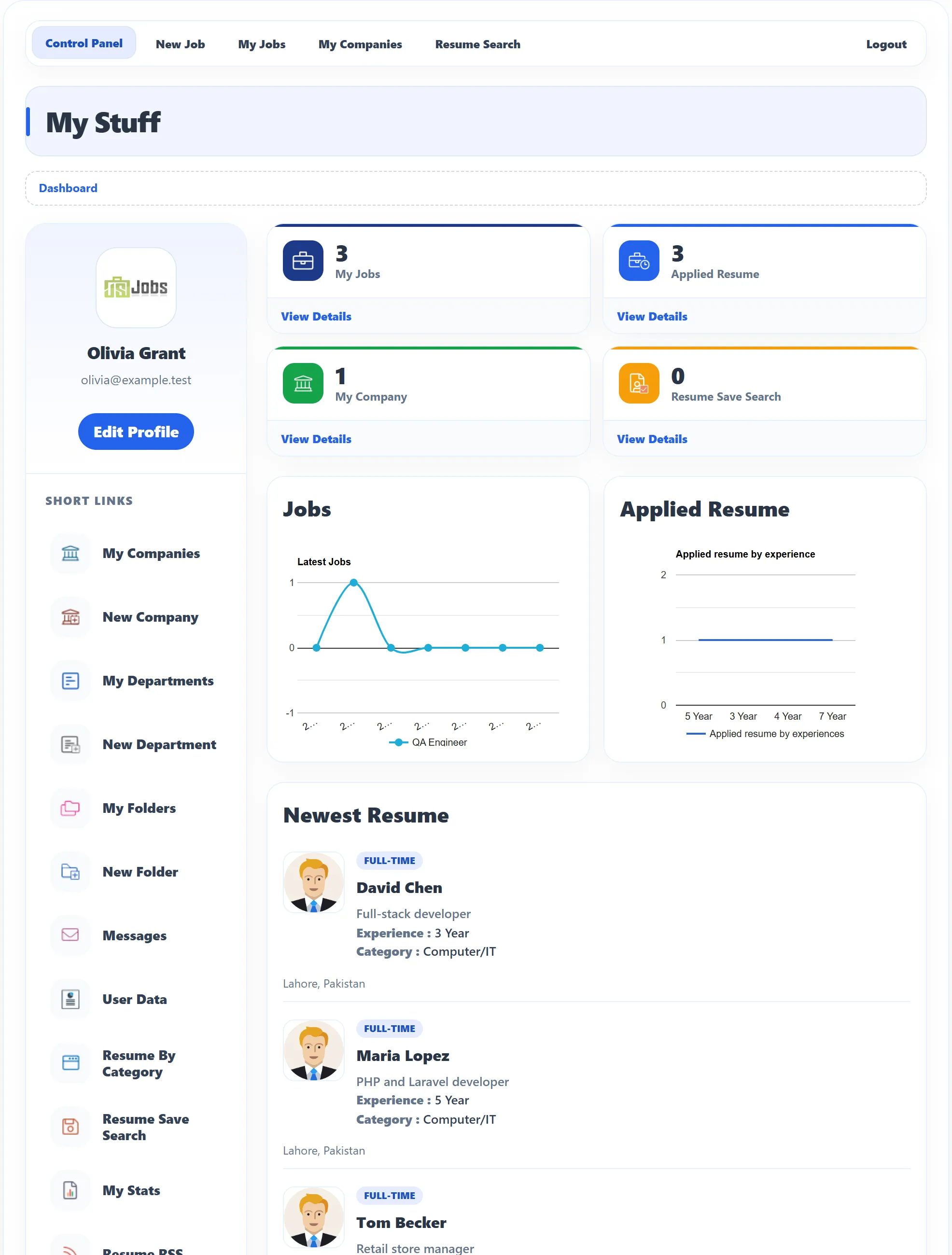
| Employer Control Panel | The employer’s home page: counts, charts, newest resumes, applications and short links to everything else. |
| New Company Form, My Companies | Add a company; the employer’s companies. |
| New Department Form, My Departments | Add a department; the employer’s departments. |
| New Job Posting Form, My Jobs | Post a job; the employer’s jobs with their applications. |
| Resume Search | The resume search form. |
| Erase User Data Request | The GDPR request form. |
For job seekers
Section titled “For job seekers”| Type | Shows |
|---|---|
| Job Seeker Control Panel | The job seeker’s home page: counts, suggested jobs, applications and short links. |
| New Resume Form, My Resume | Add a resume; the job seeker’s resumes. |
| New Cover Letter Form, My Cover Letters | Add a cover letter; the job seeker’s cover letters. |
| My Applied Jobs | The jobs the job seeker has applied to. |
| Erase User Data Request (Pro) | The GDPR request form, job seeker version. |
Pages for employers and job seekers need a logged-in user with that role. A visitor who opens one sees a message asking them to log in. Some can be opened to visitors in Configurations (for example the resume search, with Visitor can serch resume).
The control panels
Section titled “The control panels”Each control panel has a row of links along the top and a list of short links down the side. Which links appear is set under Configurations → Employer (Employer Top Menu Links and Employer Control Panel Links) and Configurations → Job Seeker (Job Seeker Top Menu Links and Job Seeker Control Panel Links), so you can hide pages you don’t use.
Registration and roles
Section titled “Registration and roles”Each user has one JS Jobs role, employer or job seeker. There are three ways to get it.
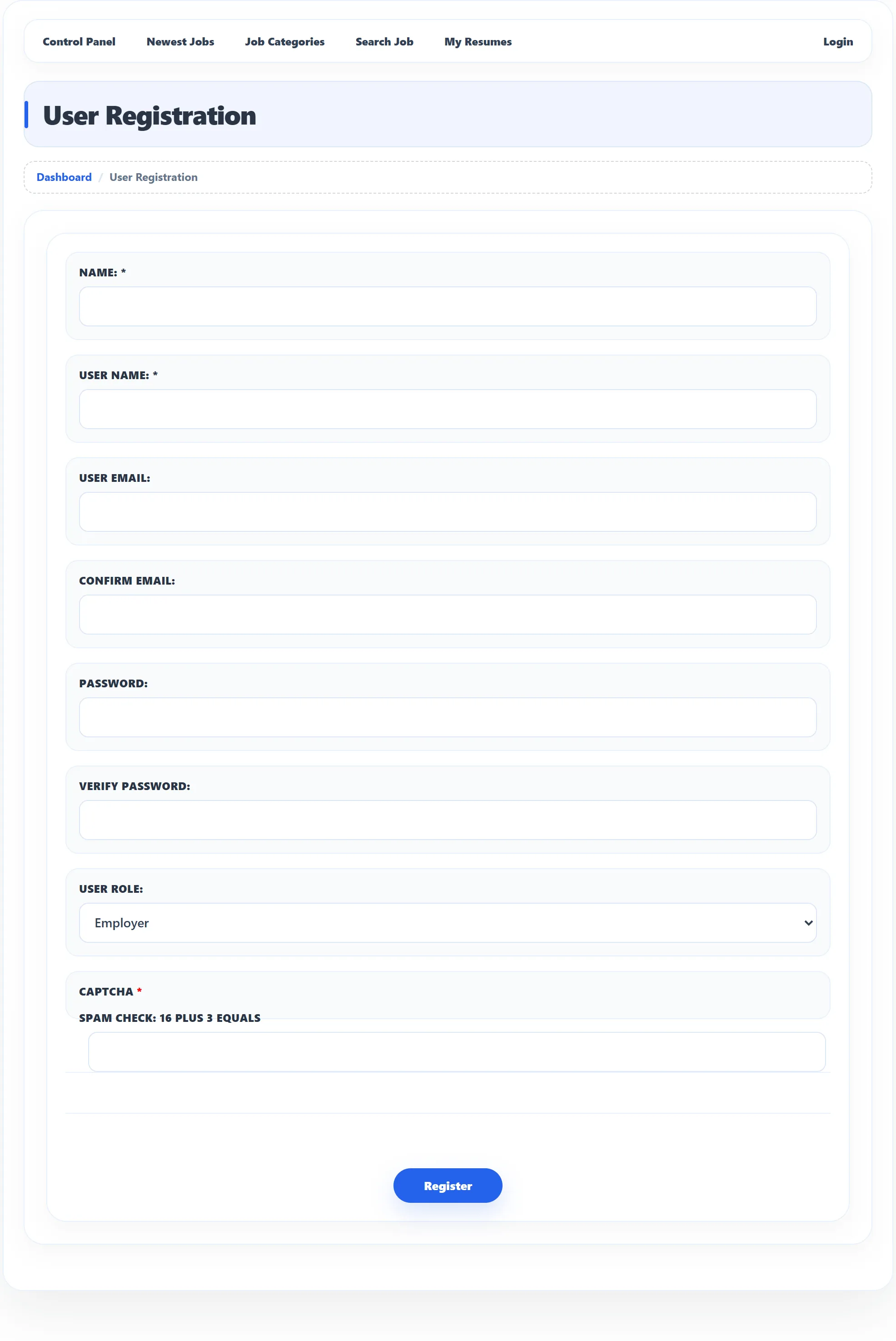
The JS Jobs registration page. Add a User Registration menu item. In the menu item you choose which role the form offers: both (the user picks Employer or Job Seeker), job seeker only, or employer only. In 1.5.3 the role list in the menu item shows untranslated labels; the first option is “both”. The form asks for Name, User Name, User Email, Confirm Email, Password, Verify Password and User Role, plus a captcha if Configurations asks for one, and ends with Register.
Joomla’s own registration form. The JSJobs Register plugin is meant to add a Role row to Joomla’s registration form, offering what its User Register in Role setting says: Any (a list of Employer and Job Seeker), Employer or Job Seeker. In 1.5.3 the row does not appear on Joomla 6’s form, so people who register there get their role the third way, below. The same plugin setting is also used by the JS Jobs registration page when a link carries no role.
Choosing later. A logged-in user without a role who opens a JS Jobs page sees “Welcome In” and your board’s title, with Please select your role and Submit. This covers users created in the administrator or before JS Jobs was installed.
Whichever way the role is set, JS Jobs then gives the user the default package and adds them to the default user group, if you set those in the setup wizard or Configurations. If Allow User Register As Employer is No, everyone becomes a job seeker.
What registration needs
Section titled “What registration needs”- Joomla must allow registration. Under Users → Manage → Options, Allow User Registration must be Yes. Otherwise the JS Jobs page says “User registration is not allowed”.
- The JSJobs Register plugin must be on (System → Manage → Plugins). Joomla installs it switched off. Until it is on, the JS Jobs page shows “Please install or enable the JS Jobs register plugin” in place of the role, and new users have no role until they choose one.
- Registration itself is Joomla’s: account activation, the activation e-mail and your user settings work as usual.
After a successful registration on the JS Jobs page, the user is sent to the page set in Employer Successfully Registration Redirect Page or Jobseeker Successfully Registration Redirect Page under Configurations.
A logged-in user who opens the registration page is sent to their Joomla profile instead.
The JS Jobs Login module
Section titled “The JS Jobs Login module”The package installs the JS Jobs Login module, unpublished and without a position. Publish it under Content → Site Modules and choose a position.
| Setting | What it does | Default |
|---|---|---|
| Login Redirection Page | JS Jobs Control Panel sends users back into JS Jobs after logging in: to the JS Jobs page they were trying to open, or else to the Job Seeker Control Panel. Joomla Home Page sends them to your home page. | JS Jobs Control Panel |
| Logout Redirection URL | A menu item to open after logging out. Empty keeps the user on the same page. | Empty |
| Greeting | Shows “Hi” and the user’s name when logged in. | Yes |
| Name/Username | Whether the greeting uses the Name or the Username. | Username |
| Encrypt Login Form | Sends the form over HTTPS. Only for sites that work on https://. |
No |
| Pre-text, Post-text | Text shown above and below the form. | Empty |
In 1.5.3 employers are also sent to the Job Seeker Control Panel after logging in through the module, unless they were on their way to another JS Jobs page. With Employer Can View Job Seeker Area set to No they then see an access message; point them to the Employer Control Panel menu item.
The form also links to Forgot your password? and Forgot your username?, and, when Joomla allows registration, to Create an account (Joomla’s registration form).