
Job search fields and job alerts
Two screens under Jobs look after how job seekers find jobs: Search Fields sets up the job search form on the site, and Job Alert lists the alerts job seekers have set up to get new jobs by e-mail.
Search fields
Section titled “Search fields”Jobs → Search Fields opens Job Search Fields. It lists the job fields that can be used in the site’s job search form, in the order they appear there.
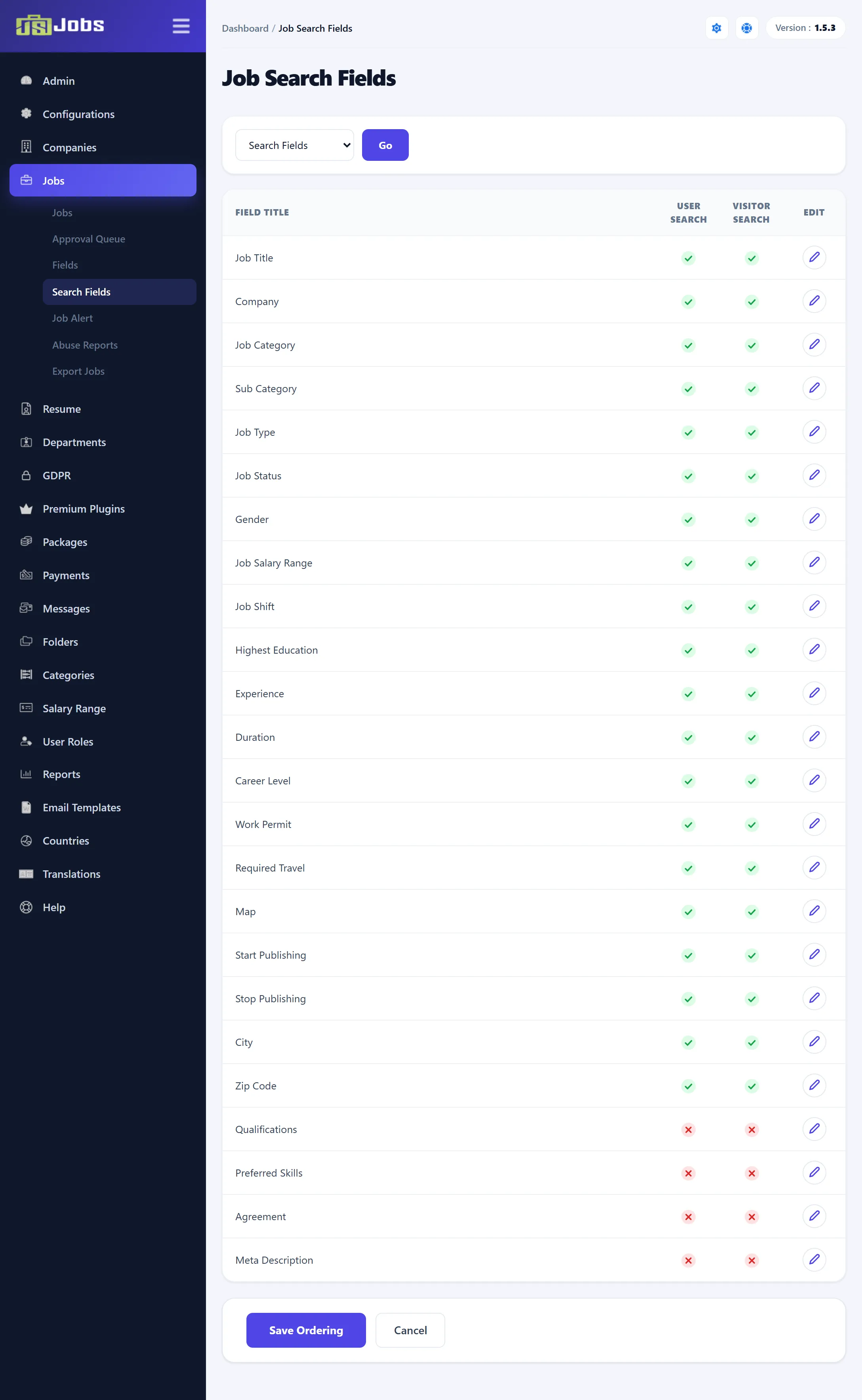
| Column | Meaning |
|---|---|
| Field Title | The field. |
| User Search | The field is in the search form for logged-in users. |
| Visitor Search | The field is in the search form for visitors who aren’t logged in. |
| Edit | Opens a small window to change both. |
The list at the top chooses which fields to show: Search Fields for those offered to users or visitors, or All Fields for every field that can be searched. Click Go to apply.
Turning a field on or off
Section titled “Turning a field on or off”Click the edit icon on a row. In the window, set User Search and Visitor Search to Enabled or Disabled and click Save.
You can also change both from the field’s edit window under Jobs → Fields (see Job and company fields).
Changing the order
Section titled “Changing the order”Drag a row by its title to a new place, then click Save Ordering. The message reads “Field Ordering has been successfully saved”. Cancel reloads the screen without saving.
Job alerts
Section titled “Job alerts”A job alert is a job seeker’s request to be e-mailed new jobs in a category, daily, weekly or monthly. Job seekers set up their alert on the site. Jobs → Job Alert lists every alert so you can check, correct or remove them.
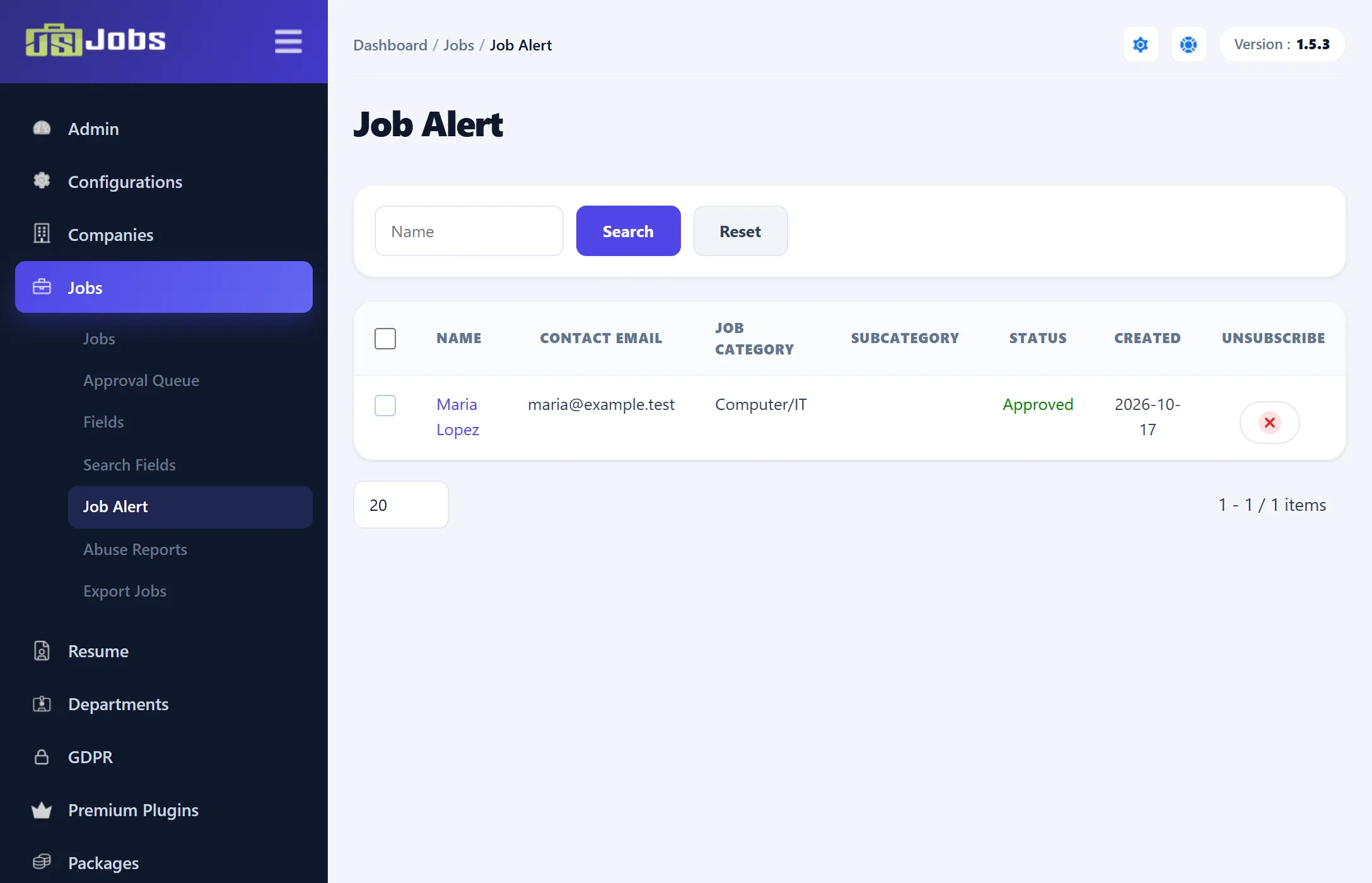
The list shows each alert’s Name, Contact Email, Job Category, Subcategory, Status and the date it was Created. Type part of a name and click Search to find an alert; Reset clears the search.
| Status | Meaning |
|---|---|
| Approved | The alert is active and sends e-mails. |
| Pending Approval | The alert waits for you; it sends nothing yet. |
| Rejected | The alert sends nothing. |
New alerts are approved straight away when Job Alert Auto Approve is set to Yes under Configurations → Job Seeker; otherwise they are Pending Approval until you change them here.
The e-mails themselves are sent by the component’s cron job (Configurations → Cron Job). Each approved alert gets the new matching jobs once a day, once a week or once a month, as its Alert Type says.
Editing an alert
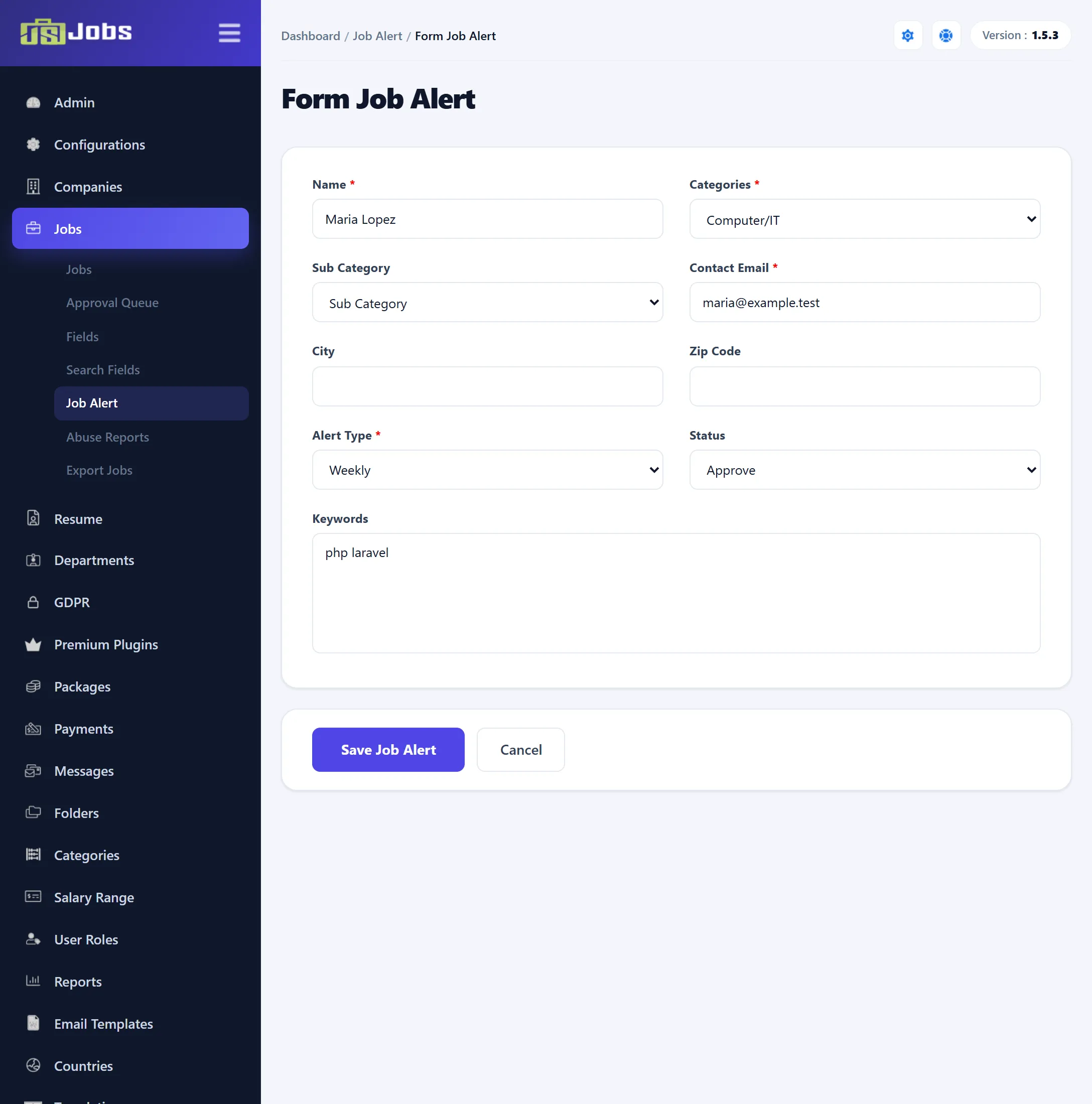
Section titled “Editing an alert”Click an alert’s name to open Form Job Alert.
| Field | What it does |
|---|---|
| Name | The alert’s name. Required. |
| Categories | The job category to watch. Required. Changing it reloads Sub Category. |
| Sub Category | Narrows the alert to one sub-category. |
| Contact Email | Where the alert is sent. Required. |
| City, Zip Code | Narrow the alert to a location. In 1.5.3 the City box here doesn’t offer the city search; leave it as it is. |
| Alert Type | Daily, Weekly or Monthly. Required. |
| Status | Approve, Reject or Pending Approval. Use it to approve an alert that is waiting. |
| Keywords | Words to match in jobs, up to 255 characters. |
Click Save Job Alert.
There is no button to add an alert here; job seekers create their own on the site.
Removing an alert
Section titled “Removing an alert”Click the icon in the Unsubscribe column and confirm. The alert is deleted with its cities, and the job seeker gets no more e-mails from it. The message reads “You unsubscribe job alert”.