
My Jobs
My Jobs lists every job you have posted, newest first. Open it from the menu bar or from the My Jobs box on the dashboard.
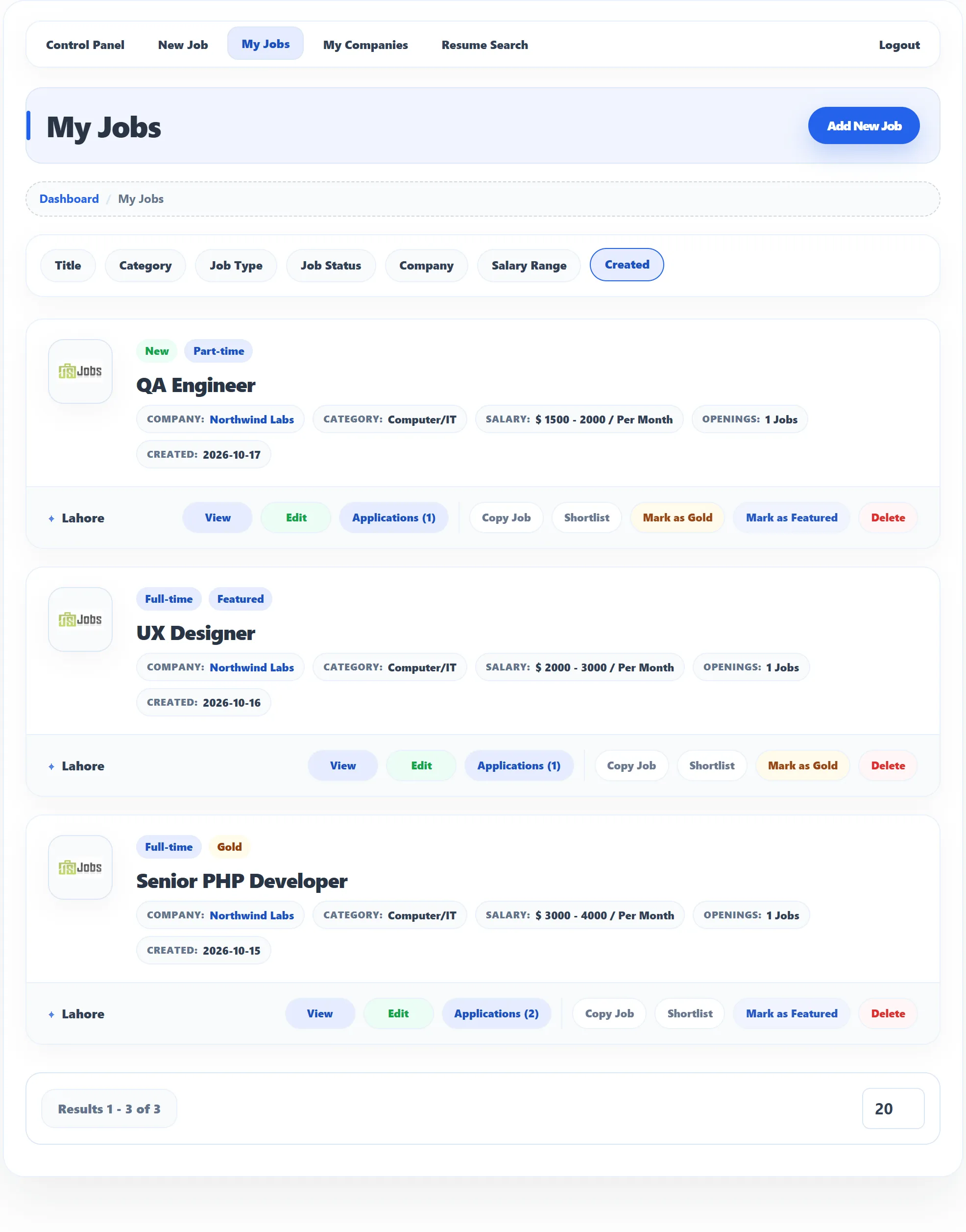
Each job shows its company logo, title, company, category, salary, number of openings, the date you created it and its city.
Sorting
Section titled “Sorting”The row above the list sorts the jobs by Title, Category, Job Type, Job Status, Company, Salary Range or Created. Click the same button again to reverse the order. The box at the bottom sets how many jobs a page shows.
Labels
Section titled “Labels”| Label | Meaning |
|---|---|
| New | The job was created recently (the site sets how many days count as new). |
| Job type, such as Full-time | The job’s type. |
| Pending approval | The administrator hasn’t approved the job yet. Job seekers can’t see it. |
| Rejected | The administrator rejected the job. |
| Unpublished | The job is approved but its start date hasn’t come yet. |
| Gold / Featured (Pro) | The job is promoted. |
| Gold pending / Featured pending (Pro) | You asked for the promotion and it waits for approval. |
A job that is pending or rejected shows Waiting for approval or Rejected in place of the buttons.
Buttons
Section titled “Buttons”| Button | What it does |
|---|---|
| View | Opens the job page as job seekers see it. |
| Edit | Opens the job form. Editing keeps the job’s gold and featured status. |
| Applications (n) | Opens the applications for this job; n is how many people applied. See Reviewing applications. |
| Copy Job (Pro) | Makes a copy of the job. See below. |
| Shortlist (Pro) | Opens the job’s applications on the Shortlisted tab. |
| Mark as Gold (Pro) | Promotes the job to gold. Shown while the job isn’t gold or waiting for gold. |
| Mark as Featured (Pro) | Promotes the job to featured, in the same way. |
| Delete | Deletes the job after you confirm. |
| Suggested Resumes (Pro) | Shown only when the site has AI suggestions turned on. Lists resumes that match the job. |
Copying a job (Pro)
Section titled “Copying a job (Pro)”Copy Job is handy for a similar opening. The copy:
- gets the same details, with “Copy” added to the title;
- starts publishing today;
- is not gold or featured;
- waits for the administrator’s approval, even on a site that approves new jobs automatically.
A message box says Job has been copied, or Cannot add new job if your package has no jobs left. Edit the copy to change the title and anything else.
Gold and featured jobs (Pro)
Section titled “Gold and featured jobs (Pro)”Gold and featured jobs stand out in the job lists. Click Mark as Gold or Mark as Featured on an approved job.
- If the site requires packages, each promotion uses a gold or featured job credit from your package. Without one you see You cannot add a new Gold Job (or Featured Job).
- If the site approves promotions by hand, you see Gold Job is waiting for approval and the label Gold pending.
You can also promote a job while posting it, with the Gold Job and Featured Job ticks. See Packages and credits.
Deleting a job
Section titled “Deleting a job”A job that has applications can’t be deleted: you see Job is in use and cannot be deleted. Let the job expire instead, by setting its Stop Publishing date.