
Registering and your dashboard
This guide is for people looking for work on a JS Jobs site. You can browse jobs and companies without an account, but to post a resume, apply and keep track of your applications you need to register as a job seeker.
Create an account
Section titled “Create an account”-
Click Register in the site’s menu.
-
Fill in the form. Every field is required.
-
Click Register.
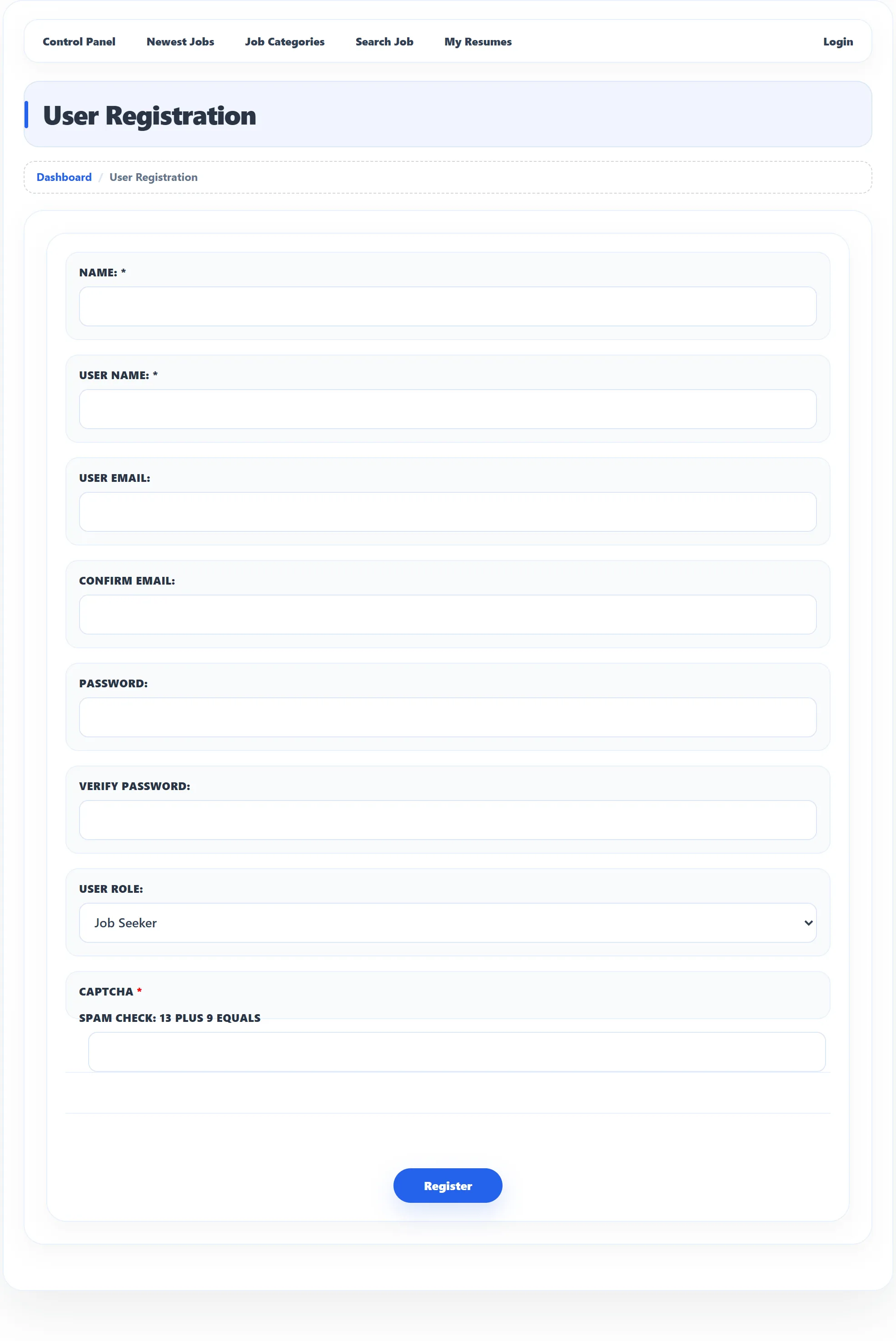
| Field | What to enter |
|---|---|
| Name | Your full name. Employers see it on your applications. |
| User Name | The name you log in with. If someone already has it, Username is already exist appears as soon as you leave the box. |
| User Email / Confirm Email | Your e-mail address, twice. The site sends job alerts and application news here. An address that is already registered shows Email is already exist. |
| Password / Verify Password | Your password, twice. |
| User Role | Choose Job Seeker. If the site only takes job seekers, the role is fixed and shown as text. |
| Captcha | Shown only if the site asks for one. |
The rest is Joomla’s own registration: depending on the site, you may need to click a link in an activation e-mail, or wait for the site owner to approve your account, before you can log in.
If the page says User registration is not allowed, the site does not take new accounts at the moment. Contact the site owner.
If you already have an account on the site
Section titled “If you already have an account on the site”If you registered on the site some other way, JS Jobs doesn’t yet know whether you are an employer or a job seeker. The first time you open a job seeker page you are asked to Please select your role. Choose Job Seeker and click Submit. Sites that don’t take employers skip this step and make you a job seeker straight away.
Log in
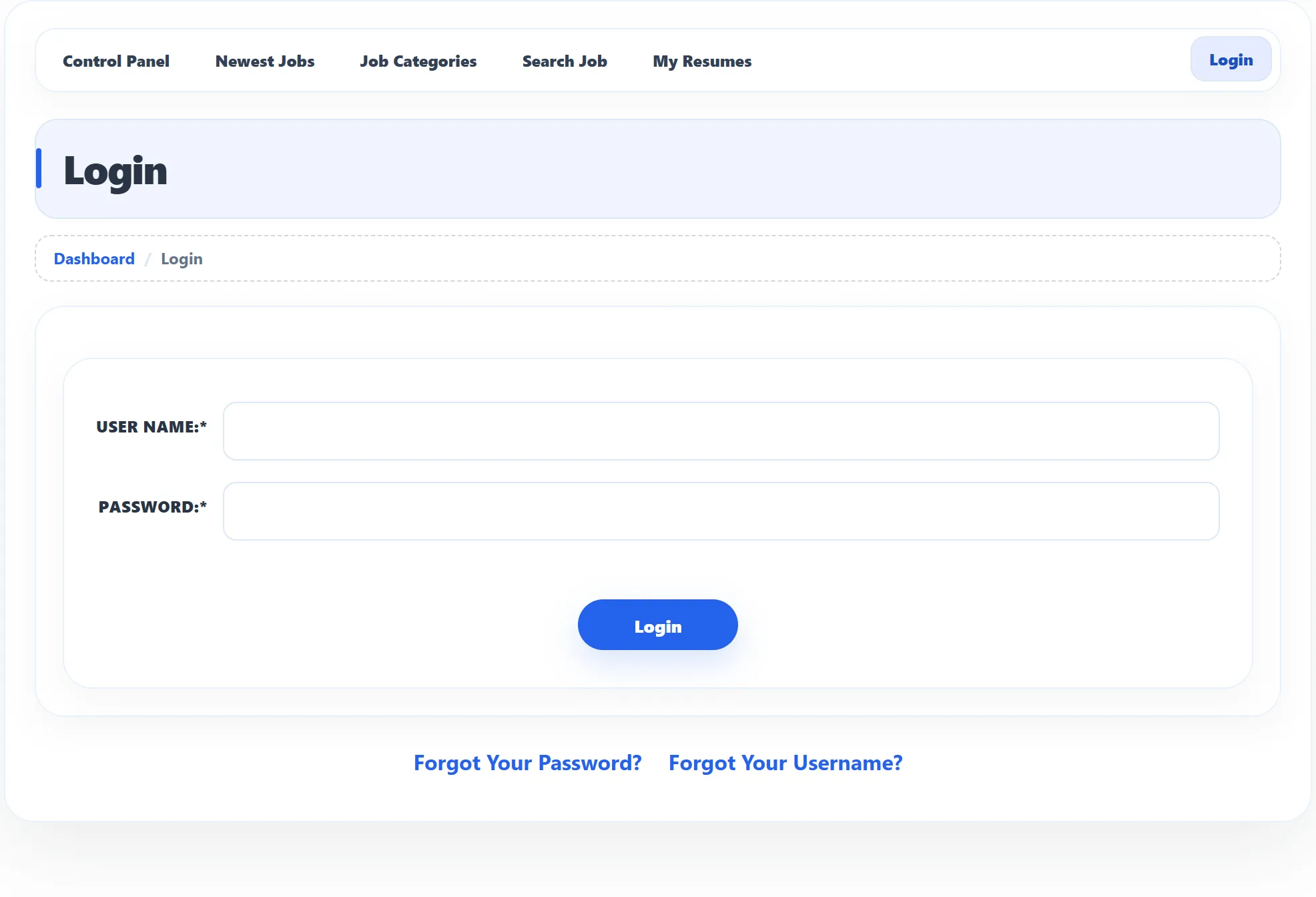
Section titled “Log in”Use the site’s login module, or the Login link at the right of the JS Jobs menu bar. The JS Jobs login page asks for your User Name and Password. Forgot Your Password? and Forgot Your Username? take you to Joomla’s reset pages.
The Job Seeker Control Panel
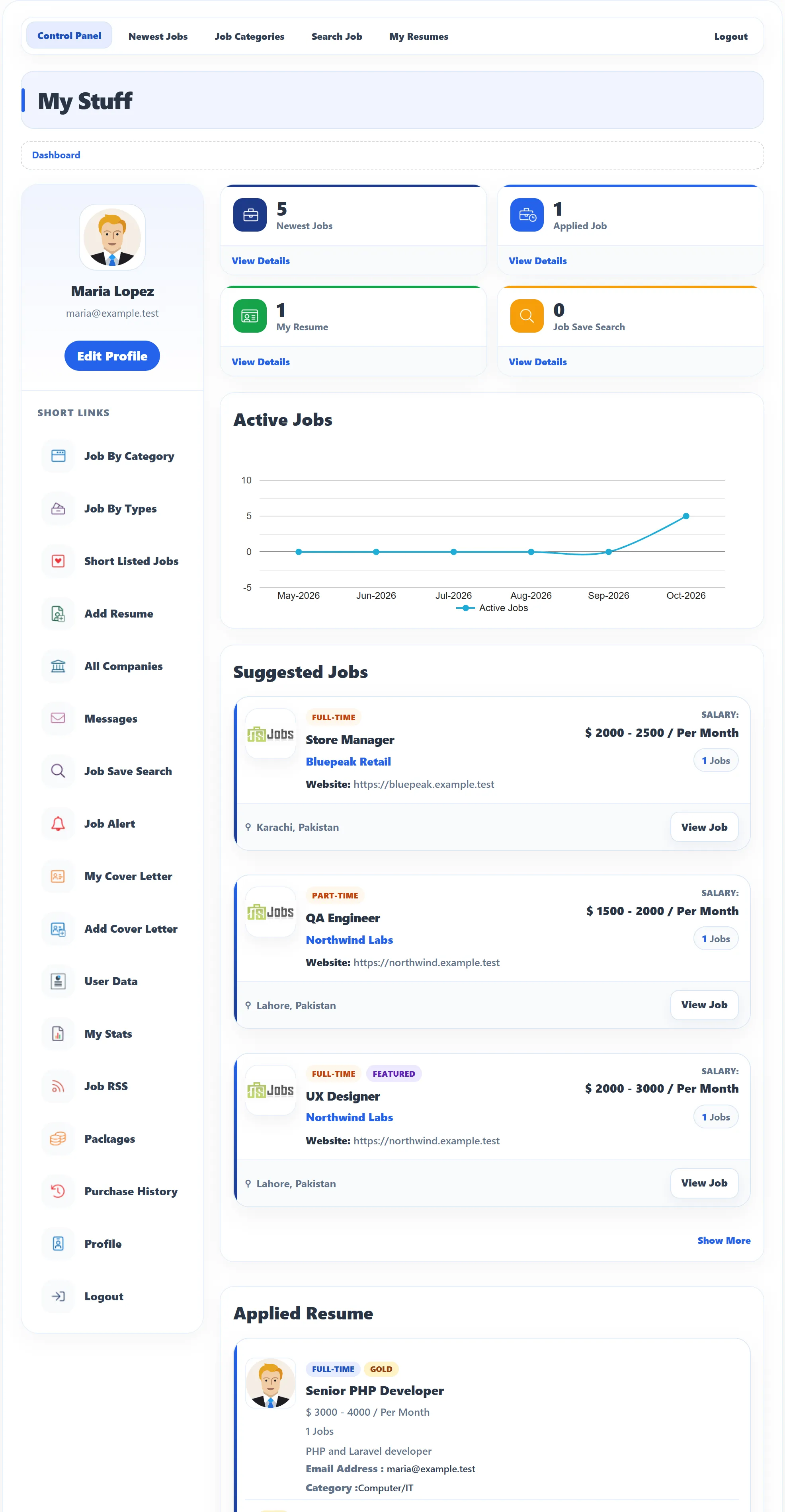
Section titled “The Job Seeker Control Panel”Once you are logged in, open Job Seeker Control Panel from the site’s menu. The page is headed My Stuff.
The menu bar
Section titled “The menu bar”Every JS Jobs page has a bar at the top with Control Panel, Newest Jobs, Job Categories, Search Job and My Resumes, and Login or Logout on the right. The site owner chooses which of these appear.
Your profile card
Section titled “Your profile card”The left column shows the photo from your newest resume, your name and your e-mail address. Edit Profile opens your Joomla profile, where you change your name, e-mail or password.
Short Links
Section titled “Short Links”| Link | Opens |
|---|---|
| Job By Category | Jobs grouped by category. See Browsing jobs and companies. |
| Job By Types (Pro) | Jobs grouped by type, such as Full-time. |
| Short Listed Jobs (Pro) | Jobs you saved for later. See Shortlisted jobs. |
| Add Resume | A new resume. See Creating a resume. |
| All Companies (Pro) | Every company on the site. |
| Messages (Pro) | Your conversations with employers. See Messages. |
| Job Save Search | Searches you saved. See Searching for jobs. |
| Job Alert (Pro) | Your job alert e-mail. See Job alerts. |
| My Cover Letter / Add Cover Letter | Your cover letters. See Cover letters. |
| User Data | Export your data or ask for it to be erased. See Your data. |
| My Stats | What your package allows. See Packages. |
| Job RSS (Pro) | A feed of new jobs for your feed reader. |
| Packages / Purchase History | Job seeker packages. See Packages. |
| Profile | Your Joomla profile, like Edit Profile. |
| Logout | Logs you out. |
The site owner decides which links appear, so your list may be shorter.
The boxes and lists
Section titled “The boxes and lists”| Part | Shows |
|---|---|
| Newest Jobs | How many jobs are open on the site. View Details opens the job list. |
| Applied Job | How many jobs you have applied for. View Details opens My Applied Jobs. |
| My Resume | How many resumes you have. View Details opens My Resumes. |
| Job Save Search | How many searches you have saved. |
| Active Jobs | A graph of how many jobs were open on the site, month by month. |
| Suggested Jobs | The three newest open jobs that match the category, sub category or job type of your newest resume. View Job opens one; Show More lists all the matches. Without a resume, this list is headed Newest Jobs and simply shows the newest jobs. |
| Applied Resume | Your latest applications, with the job, its salary, your resume’s e-mail and category, and the application’s status (for example New). Show More opens My Applied Jobs. |
If the site sells job seeker packages and yours has run out, a red line at the top says Your Package “…” Has Expired … Ago, with a link to the packages.