
Finding resumes
You don’t have to wait for applications: you can look for candidates in the resumes job seekers have posted. Only approved resumes that their owners made searchable appear.
Search resumes
Section titled “Search resumes”-
Click Resume Search in the menu bar.
-
Fill in any of the fields. Leave a field empty to ignore it.
-
Click Resume Search.
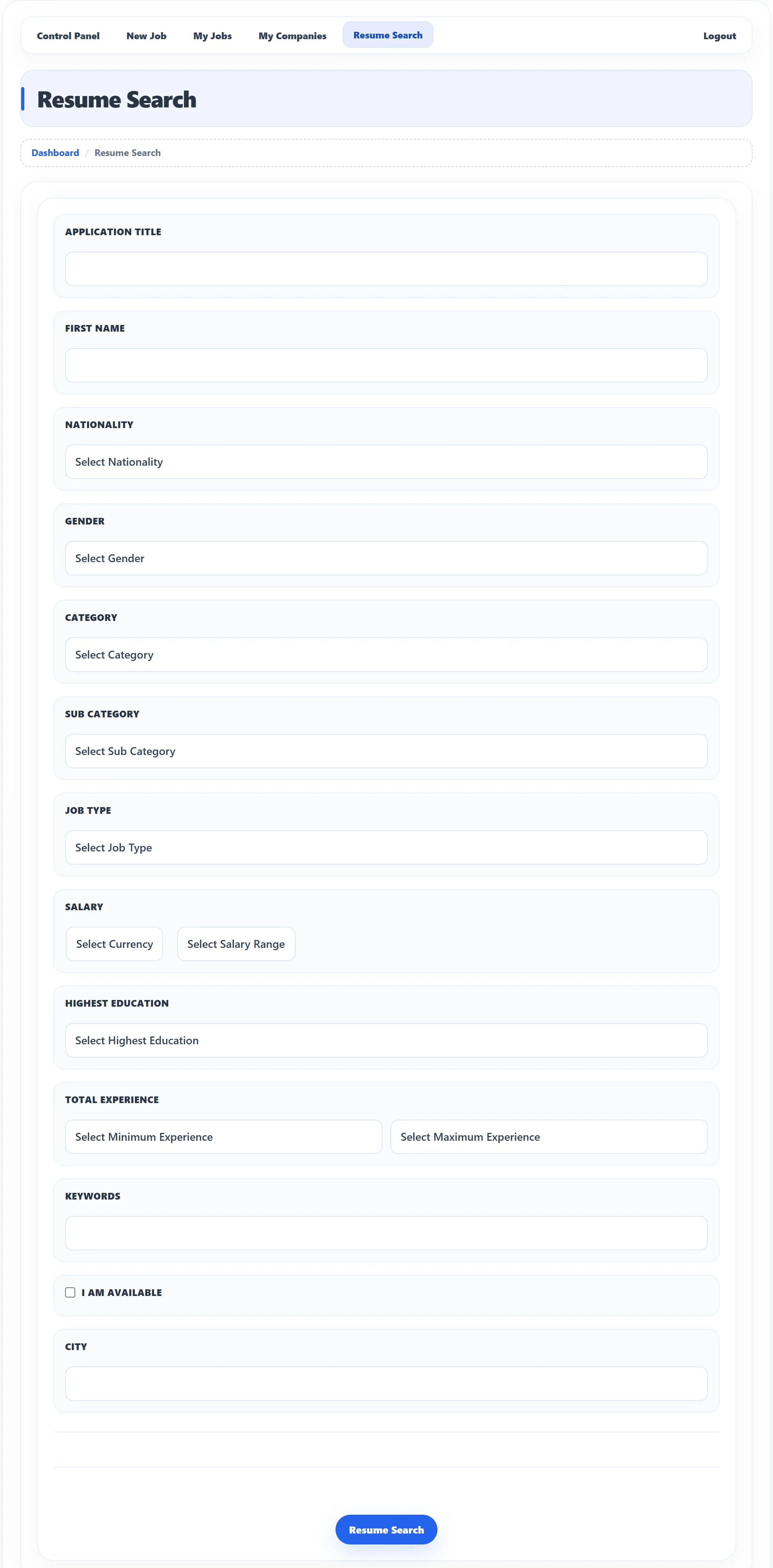
| Field | Finds resumes… |
|---|---|
| Application Title | whose title (for example “PHP and Laravel developer”) contains any of your words. |
| First Name | of candidates whose first, middle or last name contains what you type. |
| Nationality | of candidates from this country. |
| Gender | of male or female candidates. |
| Category / Sub Category | in this category. Pick the category first; the sub-categories follow. |
| Job Type | looking for this type of job, such as Full-time. |
| Salary | whose expected salary is this range, in this currency. |
| Highest Education | with this education level. |
| Total Experience | with experience between the minimum and maximum you pick. |
| Keywords | that contain any of these words. |
| I am available | of candidates who say they are available now. |
| City | of candidates in this city (type and pick). |
The site owner chooses which of these fields are shown.
The results
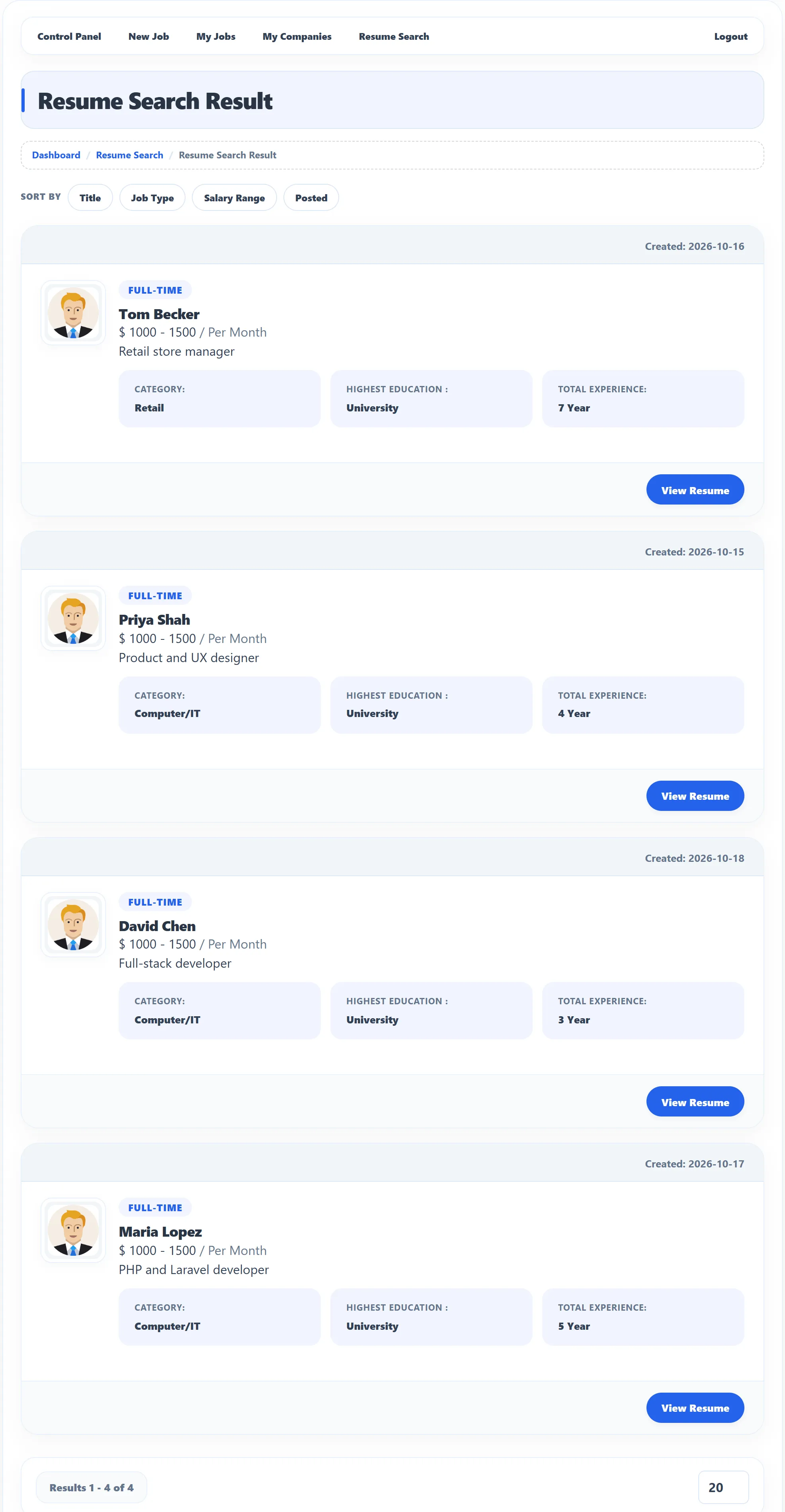
Section titled “The results”Resume Search Result lists the matching resumes: photo, job type, name, expected salary, title, category, highest education, total experience and the date the resume was created. Sort them with Title, Job Type, Salary Range or Posted (click again to reverse). View Resume opens a resume.
If the site has AI search turned on (Pro), a box above the results reads Find your next star employee with AI-driven search. Describe the person you need in your own words and click Search Resume.
Save a search
Section titled “Save a search”After a search from the form, a Search Name box and a Save button appear above the results (if the site allows saved searches). Give the search a name of up to 30 characters and click Save. You see Search has been saved successfully. Saving a search with the same criteria again updates the existing one: Saved search already existed and has been updated.
If the site requires packages and yours doesn’t include saved searches, you see Limit exceed or admin block this.
Your saved searches
Section titled “Your saved searches”Click Resume Save Search on the dashboard. Resume Save Searches lists each search with its name, its Criteria and the date you saved it.
| Button | What it does |
|---|---|
| View | Runs the search again and shows today’s results. |
| Delete | Deletes the saved search after you confirm. |
The dashboard’s Resume Save Search box counts your saved searches.
Browse by category
Section titled “Browse by category”Resume By Category on the dashboard opens Resume By Categories: every job category with two numbers in brackets. The first counts resumes filed under the category’s sub-categories, the second counts all resumes in the category. Hover over a category to see its sub-categories. Click a category to list its resumes, sorted as on the search results.
Viewing a resume
Section titled “Viewing a resume”The resume page shows the candidate’s personal information, addresses, education (Institutes), work history (Employers), Skills, Language and References, as far as the candidate filled them in. Depending on the page you came from you may also see:
- Previous Resume / Next Resume to step through the list;
- Download or Download All for files the candidate attached;
- Show Map for the candidate’s address;
- Print, Pdf and Export.
Package limits
Section titled “Package limits”If the site requires packages, searching resumes and browsing by category need a package that includes Resume Search. Otherwise you see You do not have the package, Your current package is expired or Resume search is not allowed in the package, with a link to the packages page. See Packages and credits.