
Searching for jobs
There are two ways to search: the full Job Search page, and the Refine Search panel on the job list. Both use the same filters. Logged-in job seekers can also save a search and run it again later.
The Job Search page
Section titled “The Job Search page”-
Click Search Jobs in the site’s menu, or Search Job in the JS Jobs menu bar.
-
Fill in only the filters you need. Empty filters are ignored.
-
Click Search Job.
The jobs that match are listed under the heading Search Result.
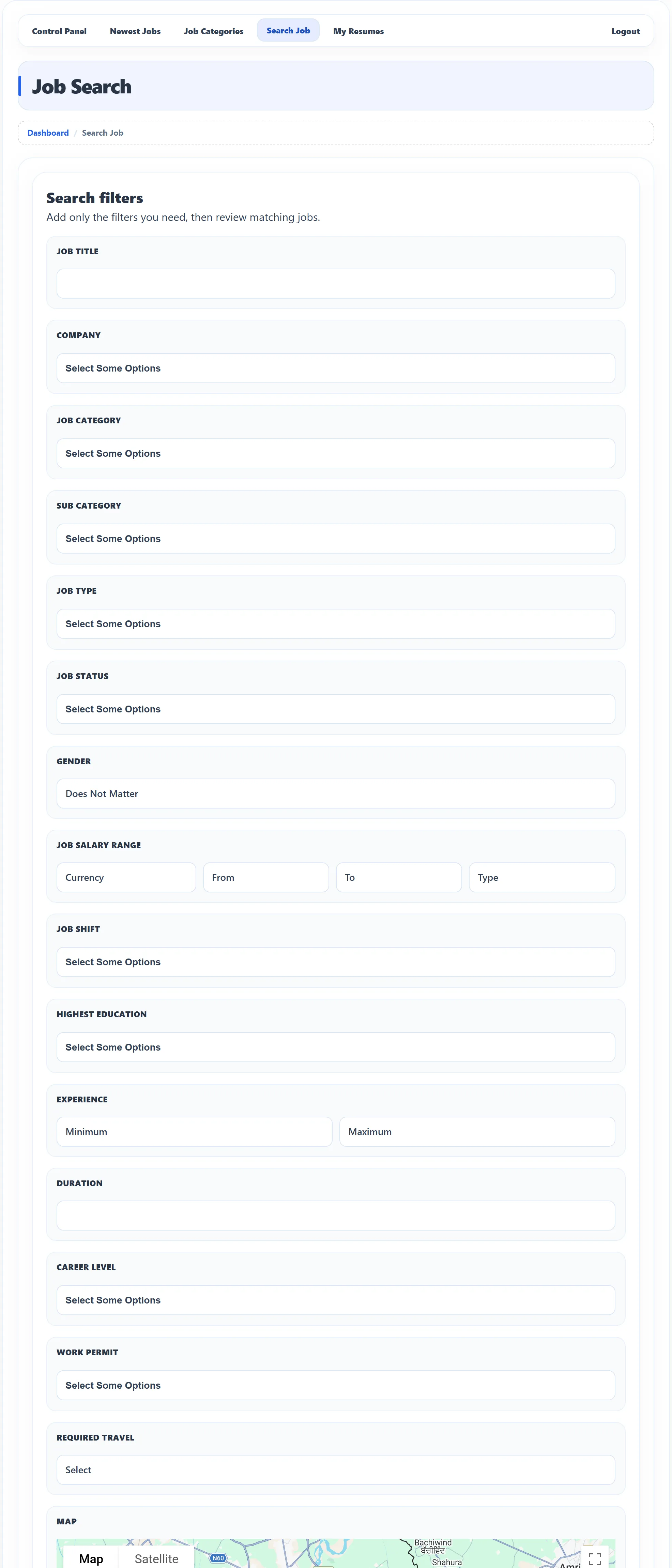
| Filter | What it matches |
|---|---|
| Job Title | Words in the job’s title. |
| Company | One or more companies. Click the box and pick from the list; click again to add more. |
| Job Category / Sub Category | One or more categories and sub categories. |
| Job Type | Full-time, part-time, internship and so on. |
| Job Status | The stage the employer has given the job, such as Interviewing. |
| Gender | The gender the job asks for. |
| Job Salary Range | Currency, a range from and to, and the salary period (for example per month). |
| Job Shift | Morning, evening and other shifts. |
| Highest Education | The education the job asks for. |
| Experience | A minimum and a maximum. |
| Duration | The length of the job, as the employer typed it. |
| Career Level | Such as Experienced (Non-Manager). |
| Work Permit | The country of the work permit the job requires. |
| Required Travel | How much the job involves travel. |
| Map, Coordinates Radius, Radius Length Type | Jobs near a point. Click the map to fill in Latitude and Longitude, enter a distance in Coordinates Radius and pick its unit, such as Meters. If you set a point you must also enter a radius. |
| Start Publishing / Stop Publishing | Dates the job went up or comes down. |
| City | Start typing a city and pick it from the list. |
| Zip Code | The job’s postcode. |
The site owner decides which filters appear and may show different filters to visitors and to logged-in users, so your form may be shorter.
Refine the list
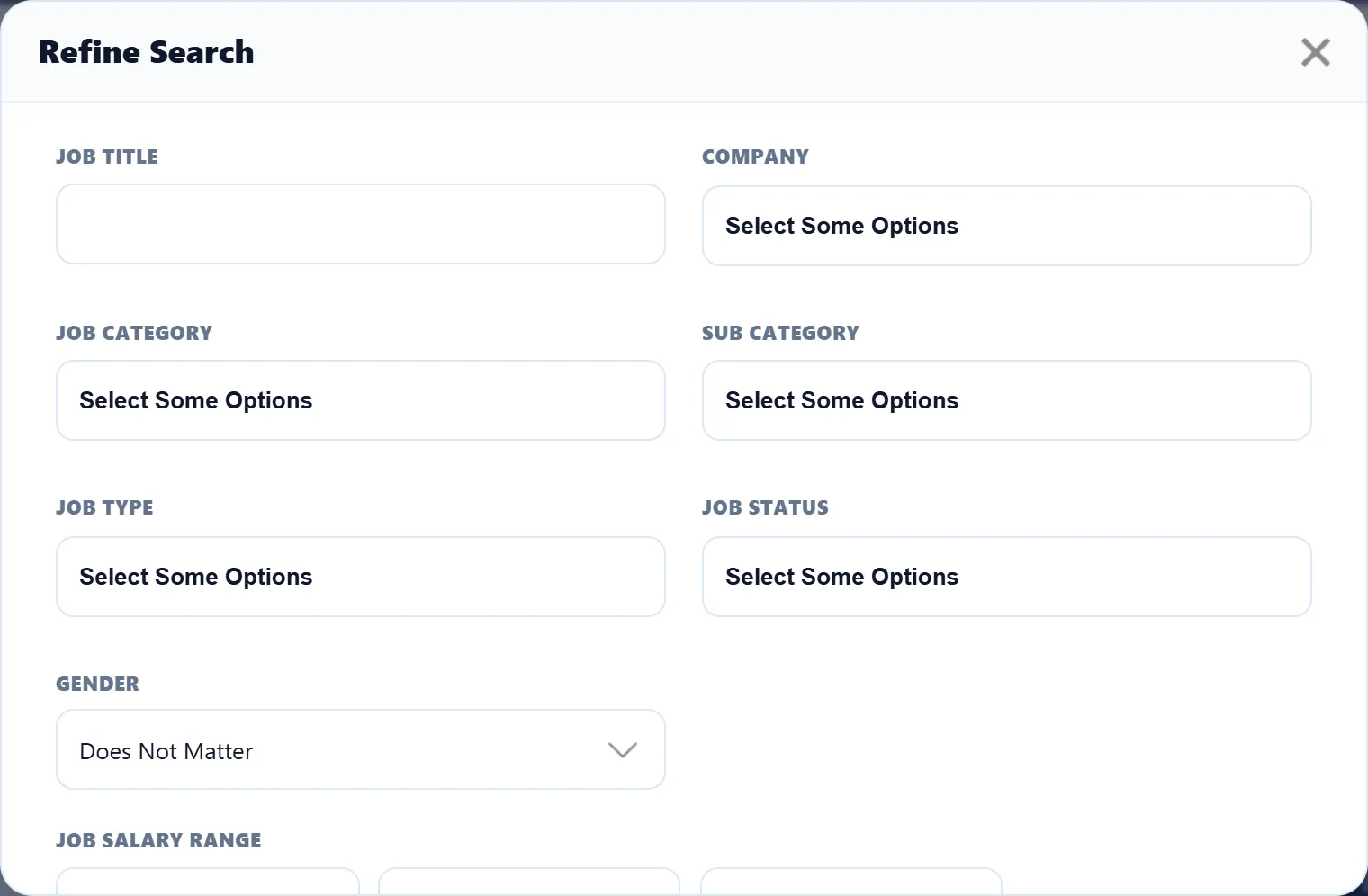
Section titled “Refine the list”On the job list, a Search tab sits at the right edge of the window. Click it to open Refine Search, which has the same filters as the Job Search page. Fill in what you need and click Search. Reset clears the filters. If there are many filters, the first eight are shown and Show More reveals the rest.
Save a search
Section titled “Save a search”When you are logged in as a job seeker, the search results have a box at the top for saving the search.
-
Run a search with the Job Search page.
-
Type a name in Search Name, for example “PHP jobs in Lahore”.
-
Click Save.
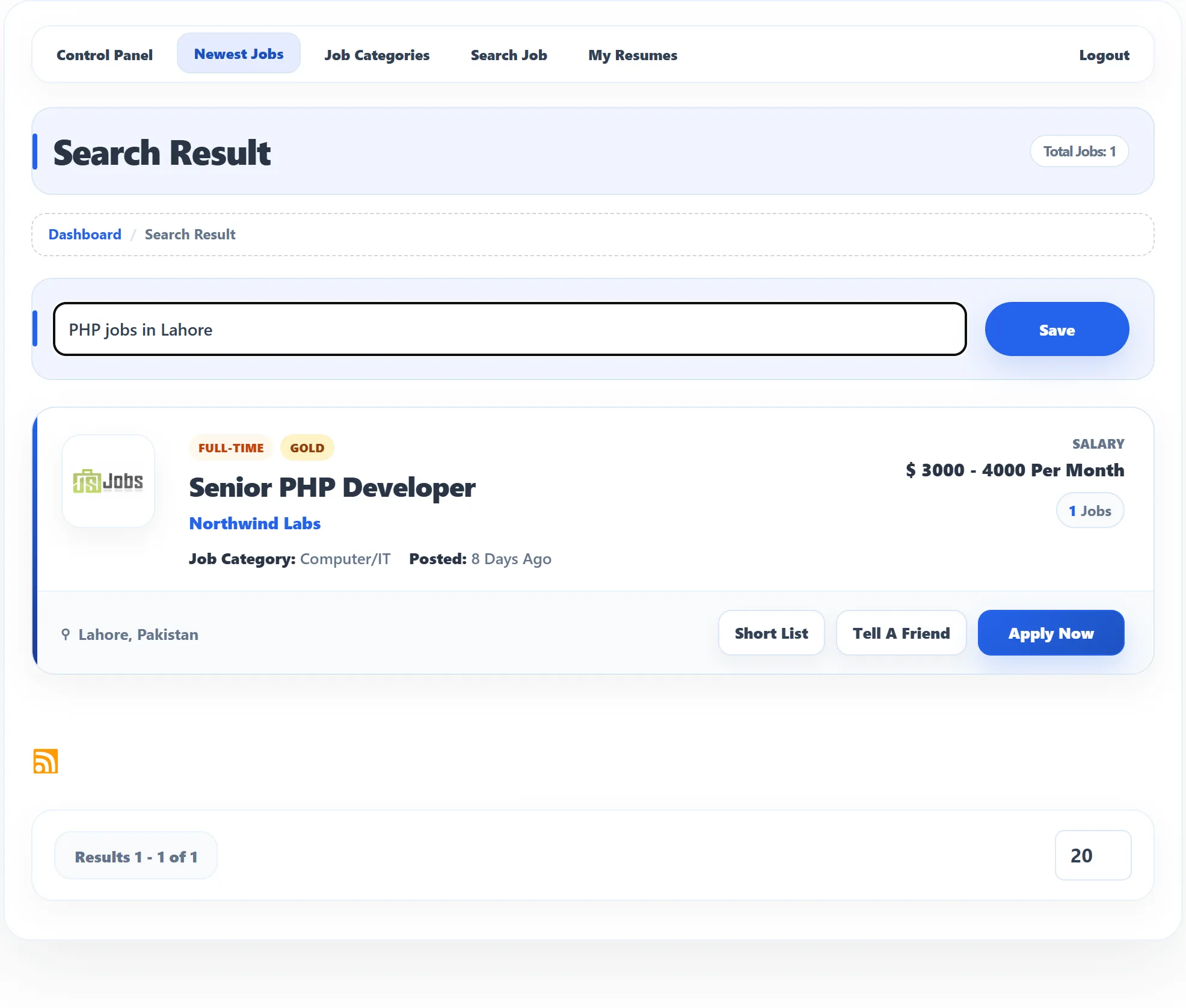
You see Search has been saved successfully. If you have already saved a search with exactly the same filters, it is updated instead, and the message says Saved search already existed and has been updated. On sites that sell job seeker packages, saving searches may need a package that includes Save Job Search; without one you see Limit exceed or admin block this.
Your saved searches
Section titled “Your saved searches”Open Job Save Search in the Job Seeker Control Panel. The page Job Save Searches lists each search with its name, a summary of its filters (Criteria) and the date you saved it.
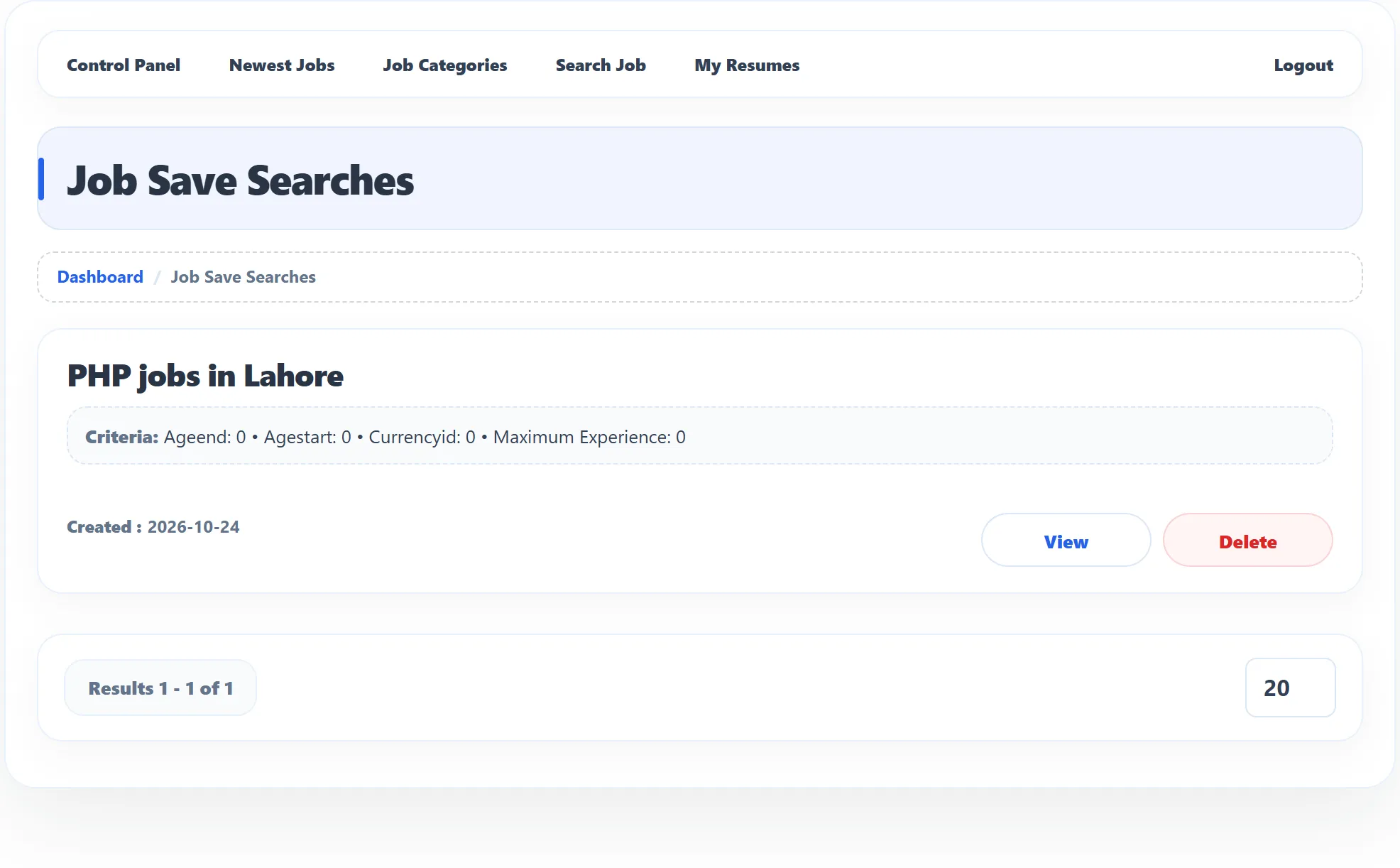
- View runs the search again and lists the jobs that match today.
- Delete removes the saved search, after you confirm.
The number of saved searches also shows in the Job Save Search box on your dashboard.