
Categories
Categories sort the job board into fields of work, such as Computer/IT or Retail. A company has a category, a job has a category and an optional sub-category, and so does a resume. Job seekers browse jobs by category, and the search forms filter by them. Open Components → JS Jobs → Categories.
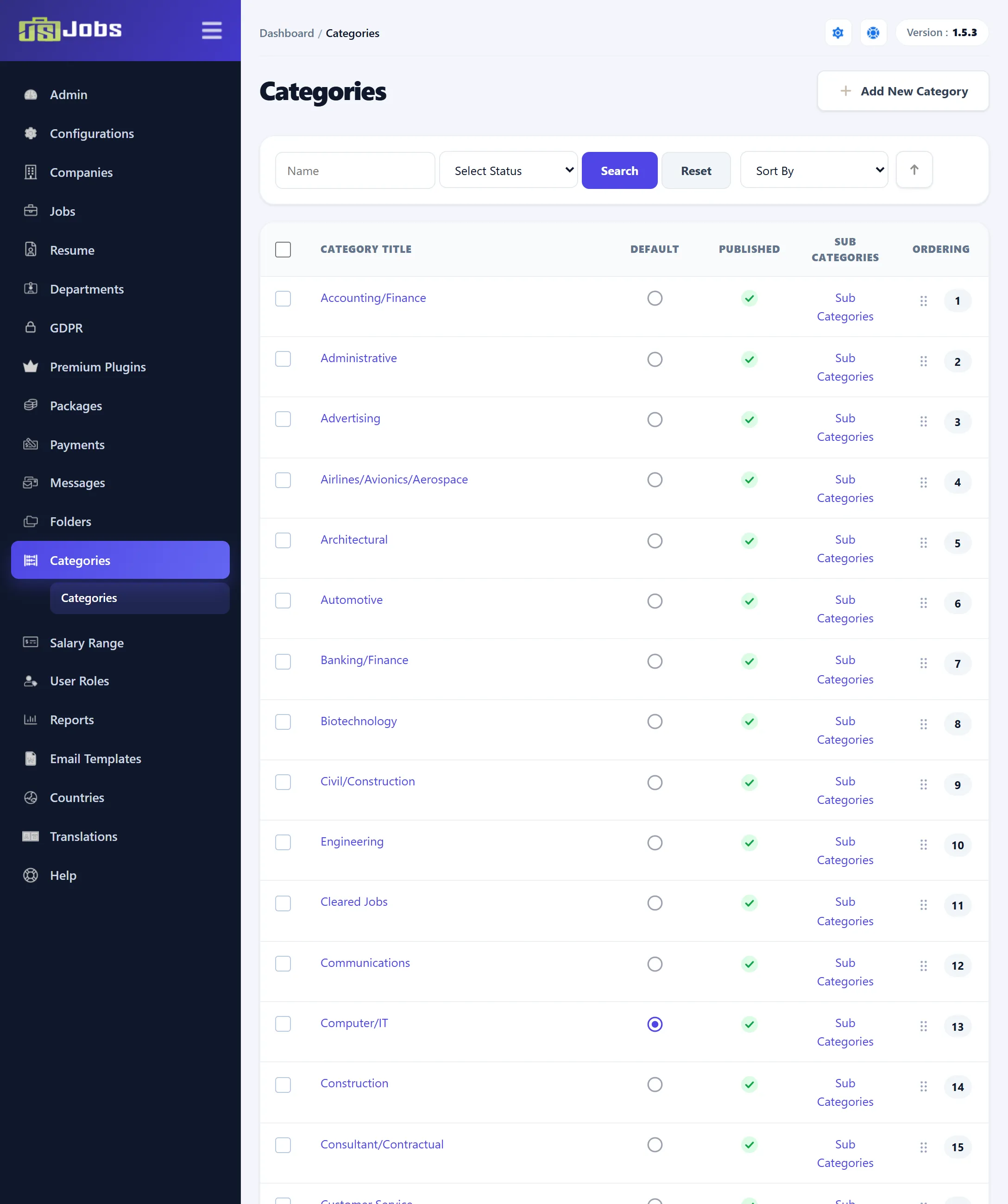
The categories list
Section titled “The categories list”| Column | What it does |
|---|---|
| Category Title | Click it to edit the category. |
| Default | The filled circle marks the default category, which new job and resume forms start on. Click an empty circle to make another published category the default. |
| Published | Click the tick or cross to unpublish or publish. Unpublished categories are no longer offered on the site’s forms and lists. The default category can’t be unpublished. |
| Sub Categories | Opens the category’s sub-categories. |
| Ordering | Drag a row by its grip to move it. The new order is saved as soon as you drop it. The site lists categories in this order. |
Above the list you can search by Name, filter by status, and sort by Ordering or Category Title; the arrow beside Sort By switches between ascending and descending.
A new install has 55 categories (Accounting/Finance to Web Site Development), each with up to five sub-categories. Computer/IT is the default.
Adding or editing a category
Section titled “Adding or editing a category”-
Click Add New Category, or click a category’s title.
-
Enter the Category Title and tick or untick Publish.
-
Click Save Category.
| Field | What it does |
|---|---|
| Category Title | The name shown on the site. Required. Two categories can’t have the same title. |
| Status | Tick Publish to use the category on the site. New categories start ticked. |
The category’s web address alias is made from the title when you save. A new category goes to the end of the list.
Sub-categories
Section titled “Sub-categories”Click Sub Categories on a category’s row to open its list. The list, titled with the category’s name, works like the categories list: Default, Published, and drag-and-drop Ordering within that category.
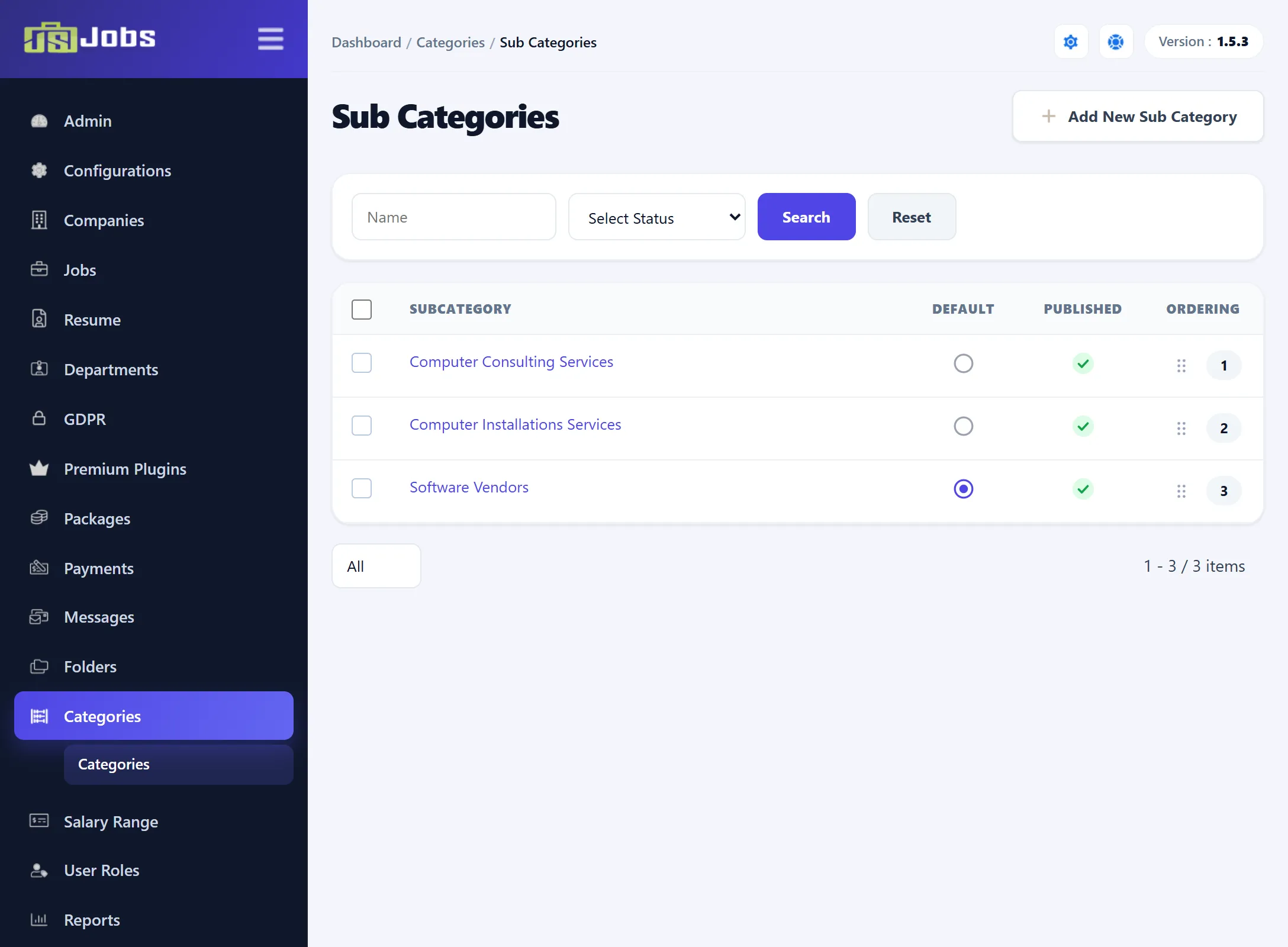
To add one, click Add New Sub Category. The form shows the parent Category and asks for a Category Title (the sub-category’s name) and Publish. Click Save Sub Category. Within one category, two sub-categories can’t share a name.
On the job and resume forms, the sub-category drop-down lists the published sub-categories of the chosen category. On the jobs-by-category page, the number of sub-categories shown under each category is set by Sub Categories Limit in Configurations.
Deleting
Section titled “Deleting”Tick the categories and click Delete Cat & Sub-Cat in the toolbar. For each ticked category:
- It is kept if it is the default, or if a company, job or resume uses it.
- Otherwise its sub-categories are deleted (except any a job or resume still uses), and then the category itself.
Categories that can’t be deleted are skipped and you see an error message.
To delete sub-categories only, open the category’s Sub Categories, tick them and click Delete. A sub-category is kept if it is the default or a job or resume uses it.
If you no longer want a category offered but jobs still use it, unpublish it instead.