
Gold and featured
Gold and featured are two ways to make a job or a company stand out. A gold or featured job carries a Gold or Featured label, and the site’s job list can show a number of gold and featured jobs at the top of each page: see Show Gold Jobs, Number Of Gold Jobs, Show Featured Jobs and Number Of Featured Jobs in Configurations. Companies get the same labels.
There are two ways a job or company becomes gold or featured:
- You grant it from the jobs or companies list. It takes effect at once.
- The employer asks for it on the site, usually with a package that includes gold or featured listings. The request is granted at once if the matching auto-approve setting is on (Gold Job Auto Approve, Featured job Auto Approve, Gold Company Auto Approve, Featured Company Auto Approve under Configurations → Employer). Otherwise it waits in the approval queue.
The states
Section titled “The states”Each job and company has a gold state and a featured state:
| State | Meaning | Where you see it |
|---|---|---|
| None | Never requested, or removed. | The list offers Add To Gold / Add To Featured. |
| Waiting | The employer asked and it waits for you. | The approval queue shows a Gold or Featured label and Waiting for approval. |
| Granted | Gold or featured. | A Gold or Featured label on the list. |
| Rejected | You refused the request. | Nothing; the list offers Add To Gold / Add To Featured again. |
On the jobs list, each job has Add To Gold and Add To Featured. Click one and the job is gold or featured at once, with the message that it was saved. Once it is, the link changes to Remove Gold or Remove Featured, which takes it away again.
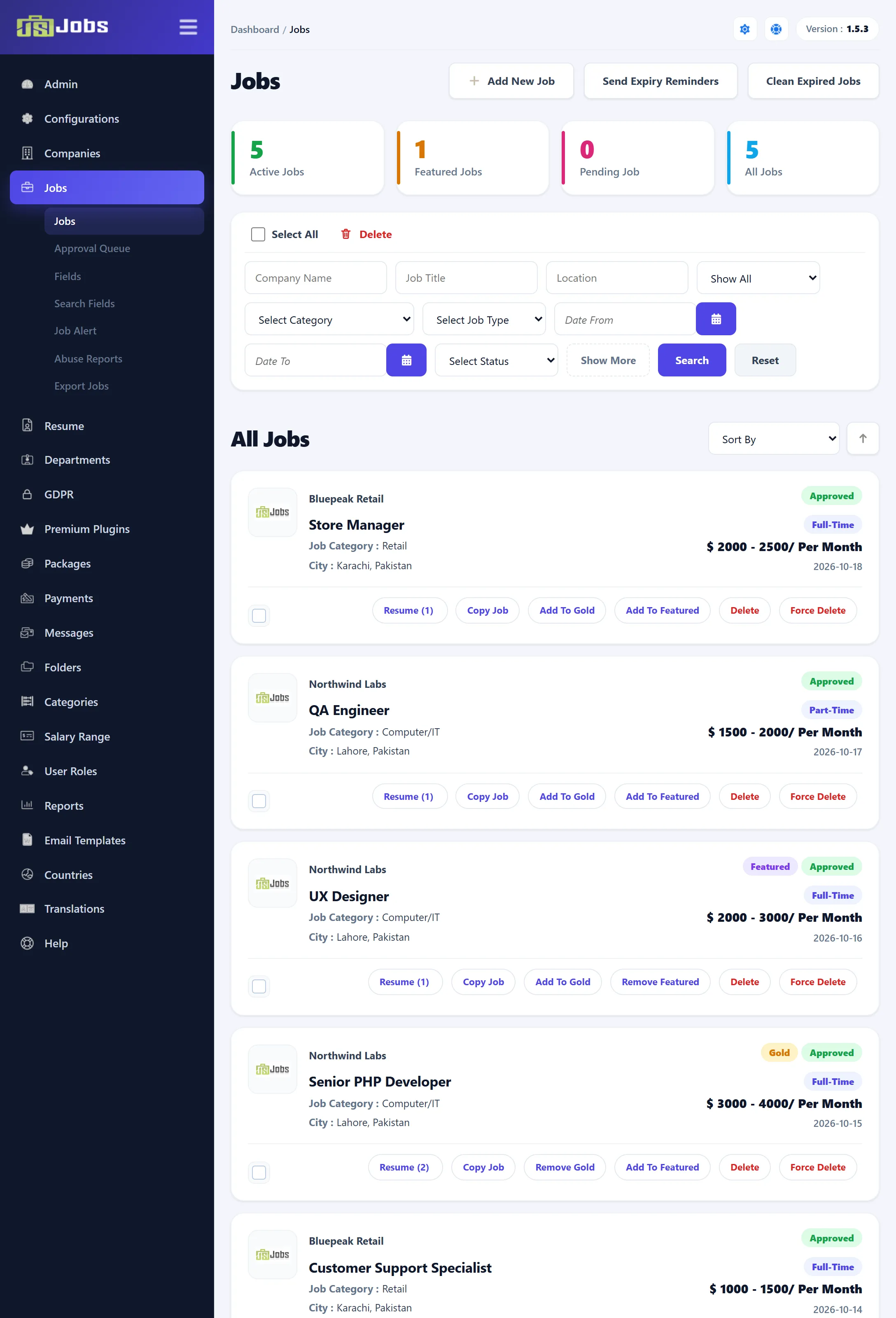
A gold or featured job has no separate end date. It stays gold or featured until you remove it, and it is shown as such on the site only while the job itself is approved and between its Start Publishing and Stop Publishing dates. When the job expires, so does its highlight.
To list the gold or featured jobs, use the gold and featured list in the jobs list’s filters, or click the Featured Jobs counter.
Companies
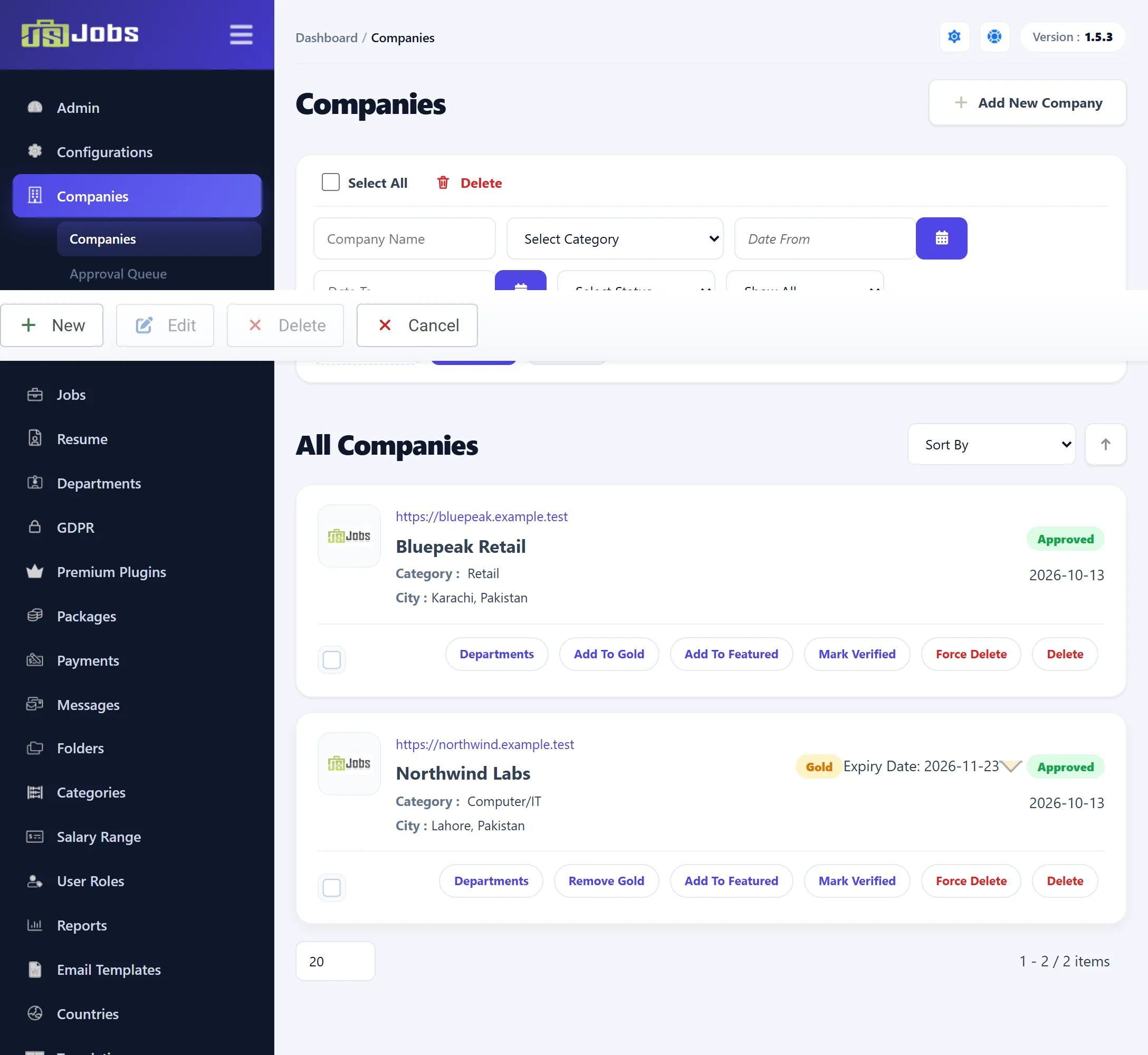
Section titled “Companies”On the companies list, each company has Add To Gold and Add To Featured too. Here the highlight lasts a set number of days:
- Add To Gold makes the company gold from now until Gold company Expire In Days days later.
- Add To Featured makes it featured from now until Featured company Expire In Days days later.
Both settings are under Configurations → Employer. Point at the Gold or Featured label on the companies list to see its Expiry Date.
When the end date passes, the label disappears and the list offers Add To Gold or Add To Featured again; clicking it starts a new period from that day. Remove Gold and Remove Featured end the period at once.
When an employer asks for a gold or featured company on the site, the end date is set at the moment they ask. It comes from the same Expire In Days settings, or from the employer’s package when Package Required For Employer is on in Configurations. Approving the request in the queue later doesn’t move these dates, so the time it waited counts towards the period.
Requests in the approval queue
Section titled “Requests in the approval queue”Requests from employers wait in Jobs → Approval Queue and Companies → Approval Queue. Use Gold Approve or Feature Approve to grant them, and Gold Reject or Feature Reject to refuse them. No e-mail is sent either way. See Approval queues.
In exports
Section titled “In exports”Export Jobs and Export Companies have a gold and featured filter, and each exported row says Yes or No for gold and featured. See Exporting jobs and companies.