
Posting a job
Before you post a job you need at least one company. See Your company profile.
Post a job
Section titled “Post a job”-
Click New Job in the menu bar, or Add New Job on My Jobs.
-
Fill in the form, section by section. Fields with a red star are required.
-
Click Save Job.
You go to My Jobs with the message Job has been saved successfully. If the site checks new jobs first, the job shows Pending approval and job seekers can’t see it until the administrator approves it.
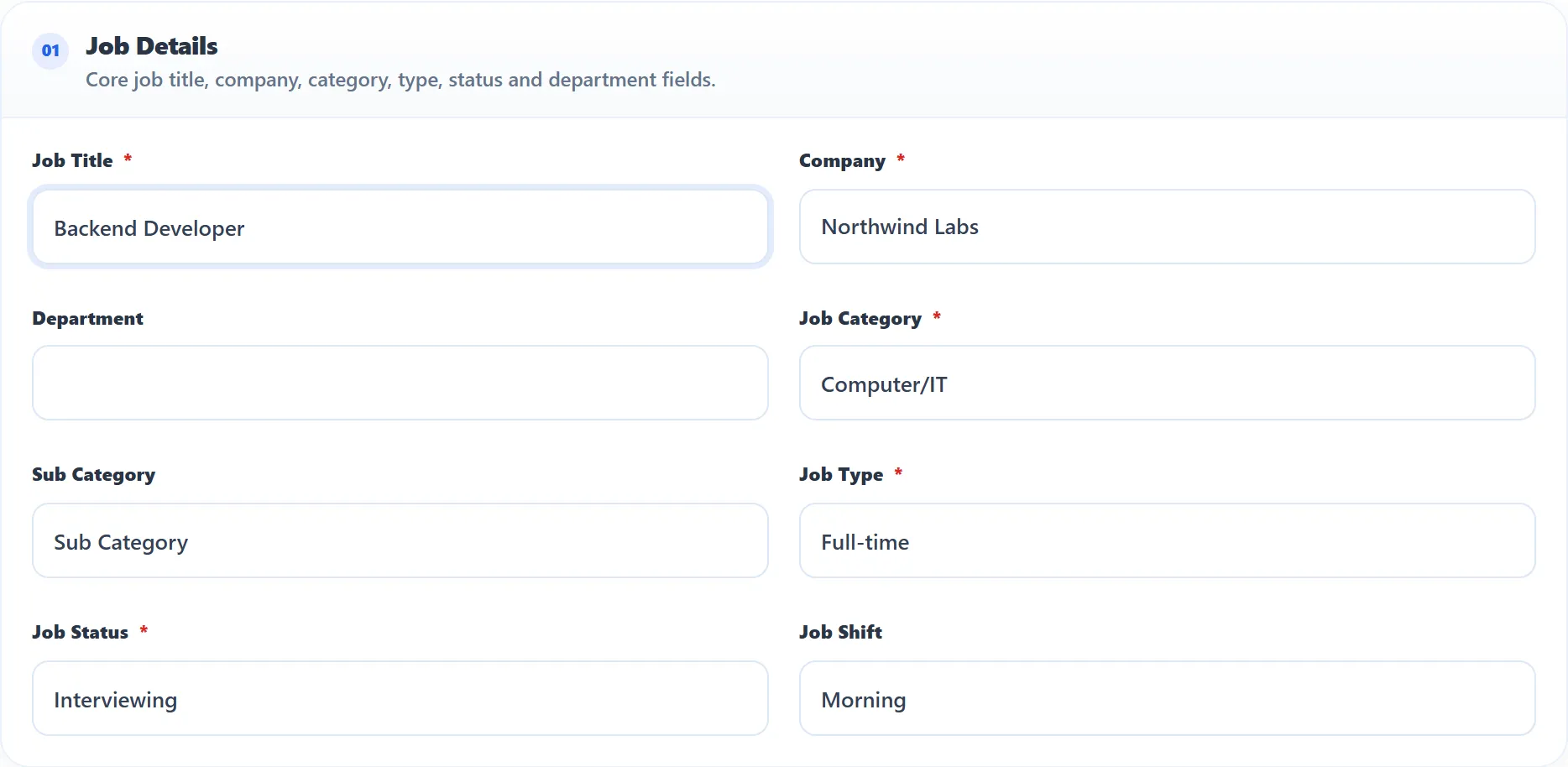
The site owner decides which fields appear and which are required, so your form may differ. The fields below are the ones a standard install shows.
Job Details
Section titled “Job Details”| Field | What to enter |
|---|---|
| Job Title | The position, for example “Senior PHP Developer”. |
| Company | Which of your approved companies is hiring. |
| Department | Optional. Lists the approved departments of the company you picked. See Departments. |
| Job Category / Sub Category | Where the job is listed. The sub-categories change with the category. |
| Job Type | Full-time, Part-time and so on. |
| Job Status | The stage of the vacancy, as the site defines it. |
| Job Shift | Working hours, such as Morning. |
If you have more than one valid package, a Select Package list also appears here. Pick the package the job should count against. Depending on what is left in that package, Gold Job and Featured Job ticks appear: tick them to promote the job as you post it. See Packages and credits.
Requirements and Compensation
Section titled “Requirements and Compensation”| Field | What to enter |
|---|---|
| Gender | Leave on Does Not Matter, or pick Male or Female. |
| Age | A range, from and to. “From” must be lower than “to”. |
| Job Salary Range | Currency, lowest and highest salary, and the period (for example Per Month). “From” must be lower than “to”. |
| Highest Education | Pick Minimum or Maximum and an education level. Specify Range switches to a from–to range; Cancel Range switches back. |
| Degree Title | The degree you want, in your own words. |
| Experience | Works like Highest Education. The box under it (If Any Other Experience) takes anything the lists don’t cover. |
| No. Of Jobs | How many people you are hiring. Shown as Openings on My Jobs. |
| Duration | How long the job lasts, in words, for example “18 Months”. |
| Career Level | Entry level, experienced and so on. |
| Work Permit | The country the candidate must be allowed to work in. |
| Required Travel | Not Required, 25 %, 50 %, 75 % or 100 %. |
Location and Publishing
Section titled “Location and Publishing”| Field | What to enter |
|---|---|
| Video | A YouTube video ID (the code after v= in the address), to show a video on the job page. |
| Map | A map of the job’s location, with Latitude and Longitude boxes. |
| Start Publishing | The first day the job is shown. For a new job it can’t be before today. |
| Stop Publishing | The last day. It must be after the start date. If your package fixes how long jobs stay up, this field shows that length instead of a date. |
| City | Type and pick one or more cities, as on the company form. |
| Zip Code | The postal code of the workplace. |
If the site shows Job Apply Link, tick Set Job Apply Redirect Link and enter an address to send applicants to your own application page.
Description and Application Settings
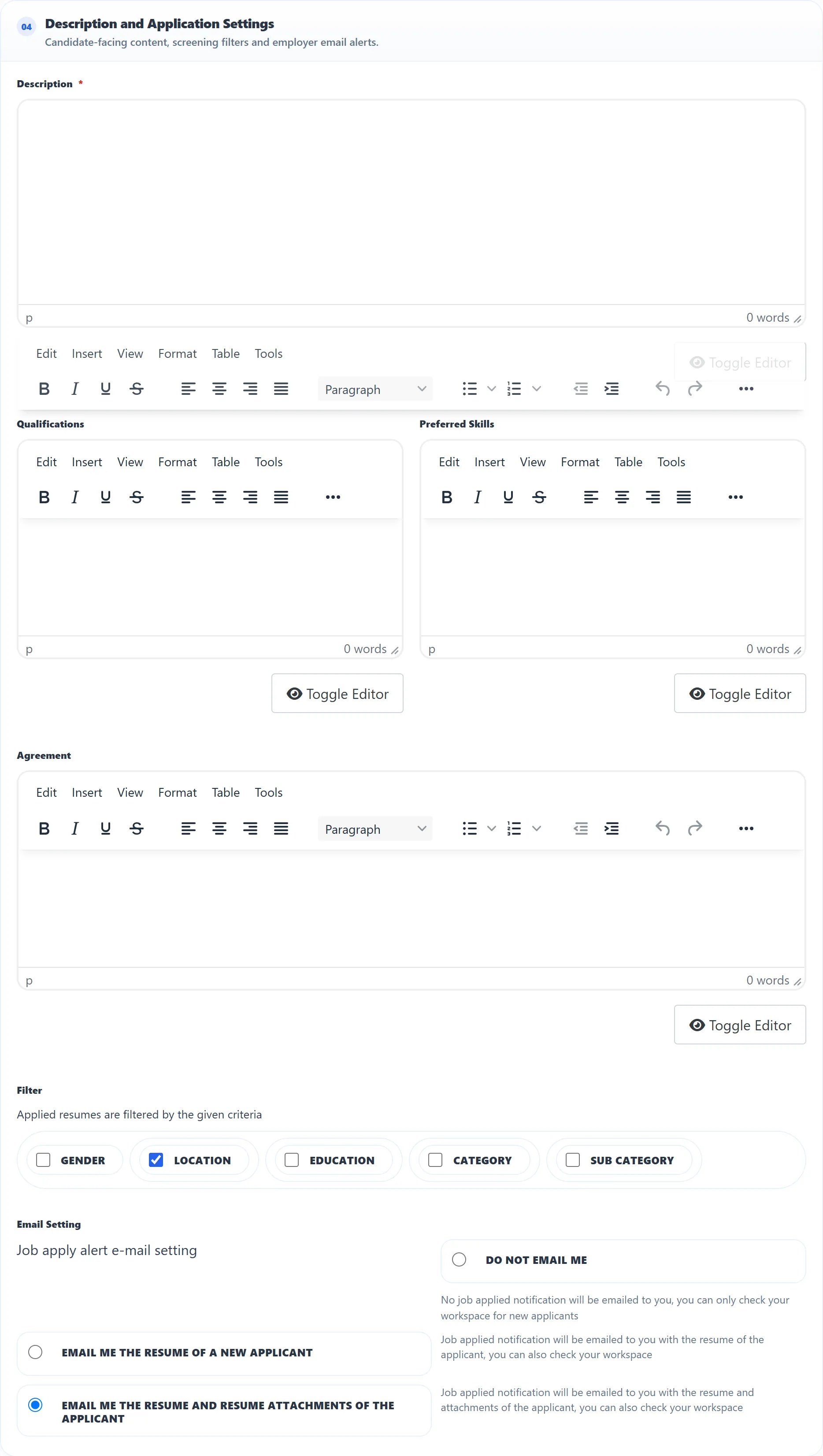
Section titled “Description and Application Settings”Description (required), Qualifications, Preferred Skills and Agreement are text editors. Write the job description, what the candidate must have, what would be a plus, and any terms of employment.
Filter
Section titled “Filter”Under Filter you can tick gender, location, education, category and sub category. When a job seeker applies, their resume is compared with the job on each ticked item. An application that doesn’t match goes straight to the Spam tab (Pro) of the job’s applications instead of New. You can still open it and move it. See Reviewing applications.
For example, tick location and a candidate whose address city isn’t one of the job’s cities lands in Spam.
Email Setting
Section titled “Email Setting”Choose what you get by e-mail when someone applies:
- do not e-mail me (you check new applicants on the site);
- e-mail me the resume of the new applicant;
- e-mail me the resume and its attachments.
Meta and Additional Fields
Section titled “Meta and Additional Fields”Meta Description and Meta Keywords are for search engines. Any fields the site owner added appear here too.
When the job isn’t saved
Section titled “When the job isn’t saved”Messages at the top of the form tell you why:
| Message | Why |
|---|---|
| Company is required for add a job | You haven’t added a company yet. Use the Add Company link. |
| You do not have the package | The site requires a package for posting jobs. |
| Your current package is expired | Your package has run out. |
| job limit exceeds | You have posted as many jobs as your packages allow. |
| Please fill in all required fields | A required field was empty. |
Messages about packages link to the packages page. See Packages and credits.
Posting without an account (Pro)
Section titled “Posting without an account (Pro)”If the site allows it, visitors can post a job without registering. The visitor form asks for the company details and the job in one go, and may ask for a captcha. If the site sends it, the visitor gets an e-mail about the new job; when visitors may edit their jobs, the e-mail contains a link for that.