
Reviewing applications
On My Jobs, click Applications (n) on a job. The page title names the job, for example Job [Senior PHP Developer] Applications, and a badge shows how often the job was viewed and how many people applied (Job View : 4 / Applied : 2).
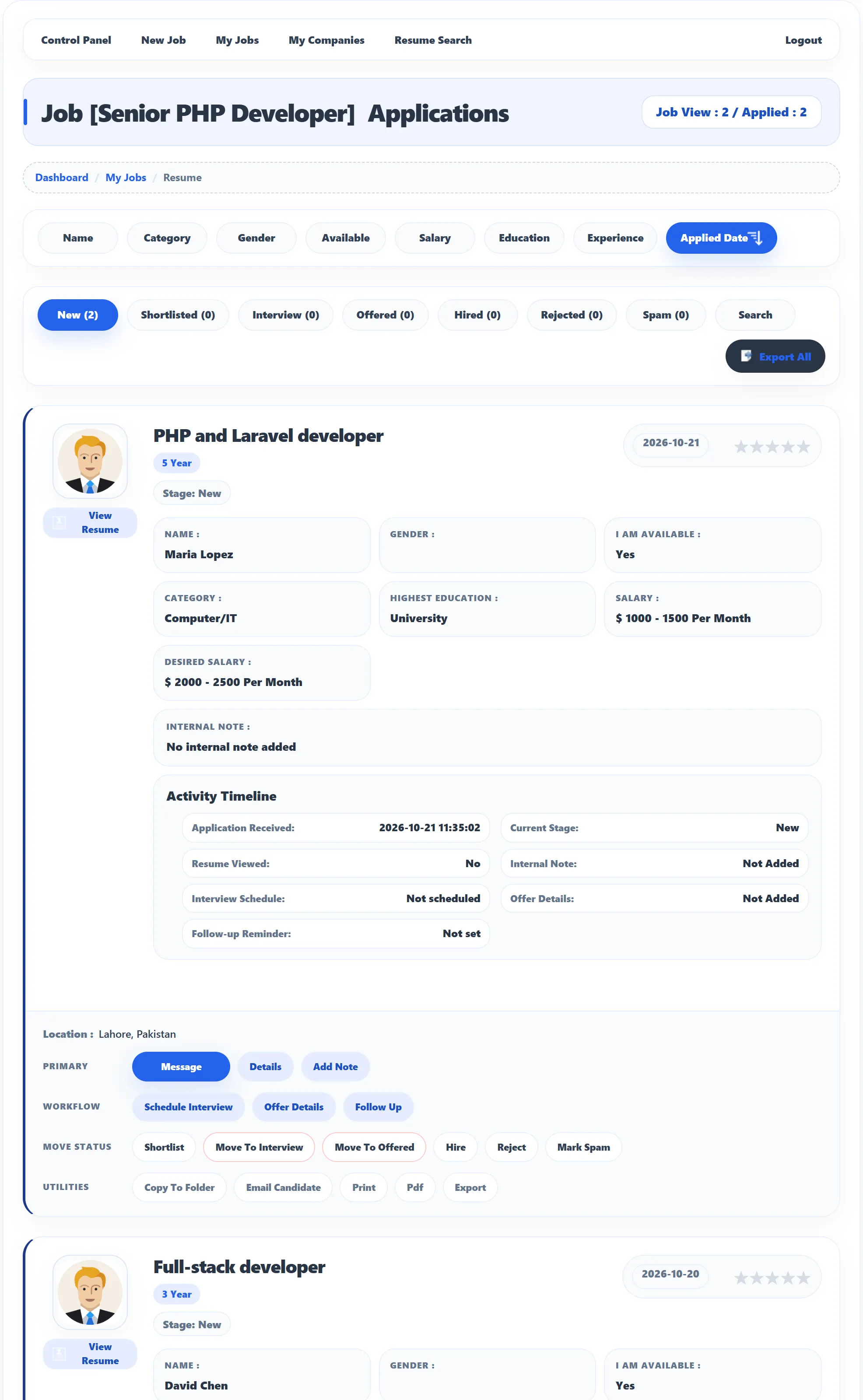
Each application shows the applicant’s photo, View Resume, their resume title and experience, the date they applied, and the resume details the site shows in lists: name, gender, I am available, category, highest education, current salary and desired salary. If the applicant sent a cover letter, Cover Letter opens it in a pop-up.
Sorting
Section titled “Sorting”The buttons at the top sort by Name, Category, Gender, Available, Salary, Education, Experience or Applied Date. Click the same button again to reverse the order.
Stages (Pro)
Section titled “Stages (Pro)”Every application is in one stage. The tabs show the applications in each stage and how many there are:
| Tab | Use it for |
|---|---|
| New | Applications you haven’t sorted yet. New applications start here. |
| Shortlisted | Candidates worth a closer look. |
| Interview | Candidates you are interviewing. |
| Offered | Candidates you made an offer to. |
| Hired | Candidates you hired. |
| Rejected | Candidates you turned down. |
| Spam | Applications you don’t want, and applications caught by the job’s Filter. See Posting a job. |
Each application card shows its stage as Stage: New, Stage: Shortlisted and so on.
Moving an application
Section titled “Moving an application”The Move Status row has a button for every other stage: Move To New, Shortlist, Move To Interview, Move To Offered, Hire, Reject and Mark Spam. Click one: a message confirms the move, for example Candidate shortlisted successfully, and after a few seconds the page opens the tab of the new stage.
If the site sends status e-mails, the job seeker gets one each time you move their application.
Searching the applications (Pro)
Section titled “Searching the applications (Pro)”Click Search in the tab row. You can search by Application Title, Total Experience, Name, Nationality, Category, Sub Category, Gender, Job Type, Salary, Highest Education and I am available. Click Resume Search to see the matches, Reset to clear the boxes, or Close to hide the panel.
Rating (Pro)
Section titled “Rating (Pro)”The five stars next to the apply date rate the applicant: Very Poor, Poor, Regular, Good or Very Good. Click a star to save the rating at once. Use it to compare candidates for the same job.
Actions on an application (Pro)
Section titled “Actions on an application (Pro)”The buttons under each application are grouped:
| Group | Button | What it does |
|---|---|---|
| Primary | Message | Opens a conversation with the applicant about this job. See Messages. |
| Details | Shows the applicant’s full resume details inside the card. | |
| Add Note | An internal note on the application. See below. | |
| Workflow | Schedule Interview, Offer Details, Follow Up | See Interviews, offers and follow-ups. |
| Move Status | Shortlist, Hire, Reject… | Moves the application, as described above. |
| Utilities | Copy To Folder | Puts the resume in one of your folders. See Resume folders. |
| Email Candidate | Sends the applicant an e-mail. See below. | |
| Opens the resume in a new tab, ready to print. | ||
| Opens the resume as a PDF. | ||
| Export | Downloads the application as an Excel (.xls) file. |
Export All, above the list, downloads all the job’s applications in one
.xls file.
Internal notes
Section titled “Internal notes”Click Add Note, write in Internal Note (up to 1000 characters) and click Save Note. The note is for you and the site’s administrators only: the candidate never sees it. It then shows on the card under Internal Note.
Activity Timeline
Section titled “Activity Timeline”The Activity Timeline on each card sums up the application: Application Received, Current Stage, Resume Viewed, Internal Note, Interview Schedule, Offer Details and Follow-up Reminder. Use it to see at a glance what has been done.
E-mailing a candidate
Section titled “E-mailing a candidate”Click Email Candidate. Jobseeker already holds the applicant’s address. Enter a Subject Line, your own address in Email Sender (the e-mail is sent from it), and your message, then click Send. You see An email has been sent, or Email has not been sent if the site couldn’t send it.
Viewing resumes and package credits
Section titled “Viewing resumes and package credits”View Resume opens the applicant’s full resume. If the site requires packages, opening a resume in full uses one of your package’s View Resume In Details credits. The credits are counted per job, and opening a resume you have already seen for the same job is free. See Packages and credits.