
Content plugins
The content plugins put the same lists and forms as the modules inside an article, wherever you type the plugin’s tag. Use them for a landing page such as “Working at Acme”, with text and pictures around a list of open jobs.
The tags
Section titled “The tags”| Tag | Plugin | Shows |
|---|---|---|
{jsnewestjobs} |
JS Newest Jobs | The newest live jobs |
{jshotjobs} |
JS Hot Jobs | Live jobs with the most applications |
{jstopjobs} |
JS Top Jobs | The most viewed live jobs |
{jsfeaturedjobs} |
JS Featured Jobs | Featured jobs |
{jsgoldjobs} |
JS Gold Jobs | Gold jobs |
{jsfeaturedcompanies} |
JS Featured Companies | Featured companies |
{jsgoldcompanies} |
JS Gold Companies | Gold companies |
{jsnewestresume} |
JS Newest Resumes | The newest listed resumes |
{jstopresume} |
JS Top Resumes | The most viewed resumes |
{jsfeaturedresumes} |
JS Featured Resumes | Featured resumes |
{jsgoldresumes} |
JS Gold Resumes | Gold resumes |
{jssearchjobs} |
JS Search Jobs | The job search form |
{jssearchresumes} |
JS Search Resumes | The resume search form |
{jsjobcategories} |
JS Job By Categories | Category tiles with job counts |
{jsjobscities} |
JS Jobs BY Cities | City tiles with job counts |
{jsjobsstates} |
JS Jobs By States | State tiles with job counts |
{jsjobscountries} |
JS Jobs By Countries | Country tiles with job counts |
Each picks its jobs, companies or resumes exactly as the module of the same name does: see Job listing modules, Company modules, Resume modules, Search modules and Browse-by modules.
Using a tag
Section titled “Using a tag”-
Go to System → Manage → Plugins, search for “js”, and make sure the plugin is enabled. Enable it by clicking the cross in the Status column.
-
Open the plugin to adjust its settings (below) and click Save & Close.
-
Edit an article and type the tag, for example
{jsnewestjobs}, on its own line where the list should go. -
Save the article and view it on the site.
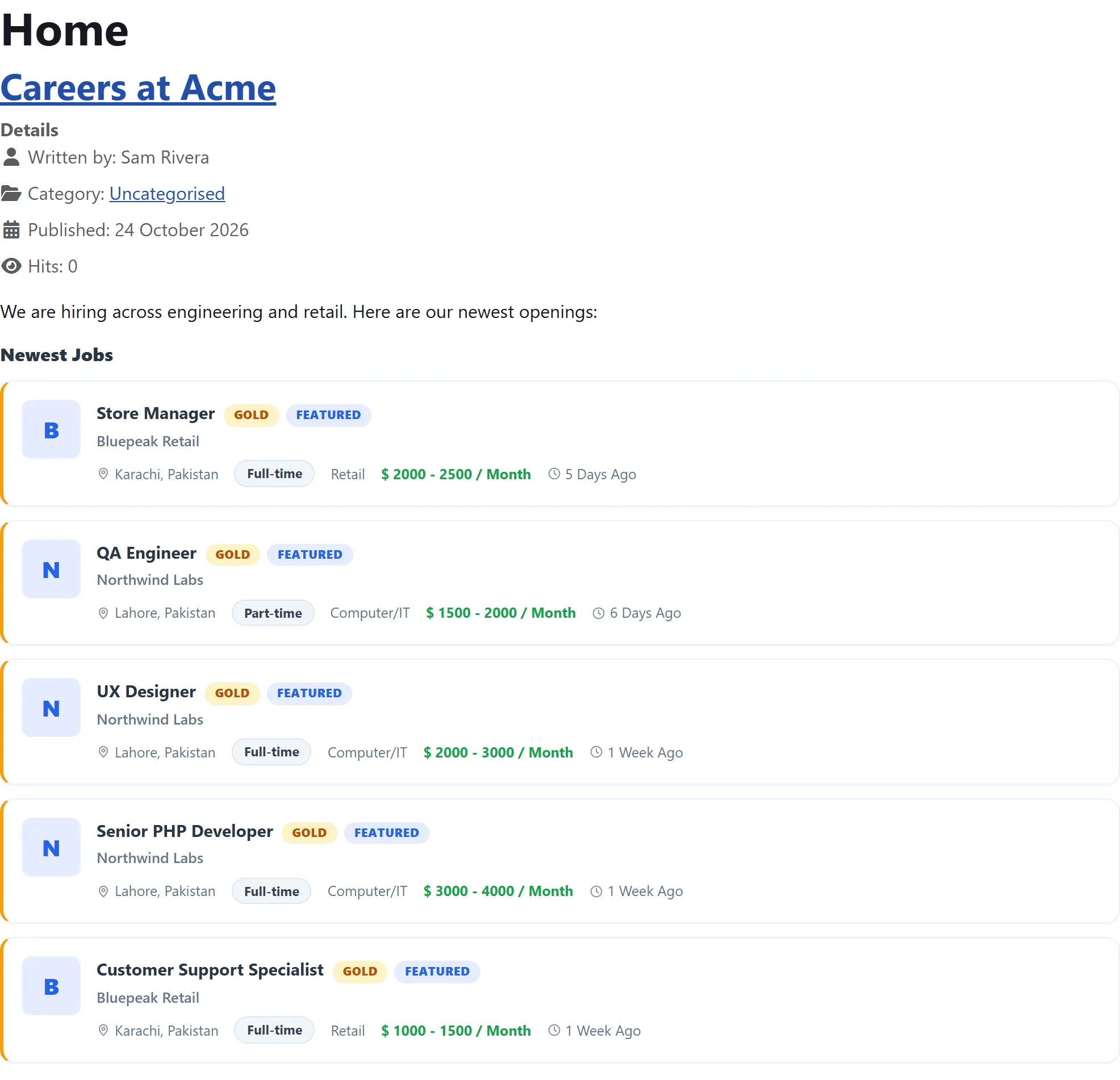
A plugin’s settings are shared by every article that uses its tag. You can’t give one article six jobs and another three: anything you type after the name inside the braces is ignored. For different lists on different pages, use modules instead.
If the plugin is disabled, the tag stays in the article as plain text.
Settings
Section titled “Settings”The plugins’ settings mirror the modules’, with a heading of their own, since
an article has no module title. Some labels show as raw language keys in 1.5.3
(for example JS_LISTTYPE, JS_COLUMN_PER_ROW, JS_SALARY, ITEMID); the
descriptions below follow the order of the fields.
Job, company and resume lists
Section titled “Job, company and resume lists”| Setting | Default | What it does |
|---|---|---|
| Title | the list’s name, such as “Newest Jobs” | The heading above the list. |
| Show title | Show | Shows or hides the heading. |
| Number to show | 6 | How many jobs, companies or resumes, from 1 to 30. |
| Layout | List | List, Grid or Compact. |
| Columns | 2 | With Grid, cards per row: 2, 3 or 4. |
| The Show/Hide fields | Show | One per detail on the card, as on the matching module: logo, company, category, job type, location, salary, posted date for jobs; logo, category, location, open jobs and member since for companies; photo, title, name, category, work preference, experience, availability, salary, location and posted date for resumes. |
| Item ID | The ID of the menu item the links open in (the ID column under Menus). Empty uses the current page. |
Search forms
Section titled “Search forms”JS Search Jobs and JS Search Resumes have a Title and a show title switch, then the same Hide/Show switch per field, Column Per Row and Item ID as the search modules.
Browse-by tiles
Section titled “Browse-by tiles”| Setting | Default | What it does |
|---|---|---|
| Title | e.g. “Jobs By Categories” | The heading above the tiles. |
| Show title | Show | Shows or hides the heading. |
| Number to show | 12 | How many tiles. |
| Only entries with jobs | see below | Leaves out entries with no jobs. |
| Job count | Show | Shows the count on each tile. |
| Column Per Row | 3 | Tiles per row, 1 to 6. |
| Separator | Show | Hide shows the entries as a plain list instead of tiles. |
| Item ID | The menu item the job list opens in. | |
| Title Color, Background color, Border color | empty | Colours for the heading, the tile background and the tile border. Leave empty to use your theme colours. |
For cities, states and countries the “only with jobs” setting is a Show/Hide choice that defaults to Show, meaning only entries with jobs are shown. For categories it is the other way round: the setting shows all categories when set to Show, and defaults to Hide, so again only categories with jobs appear.