
General settings
Site-wide settings live in Components → JS Jobs → Configurations.
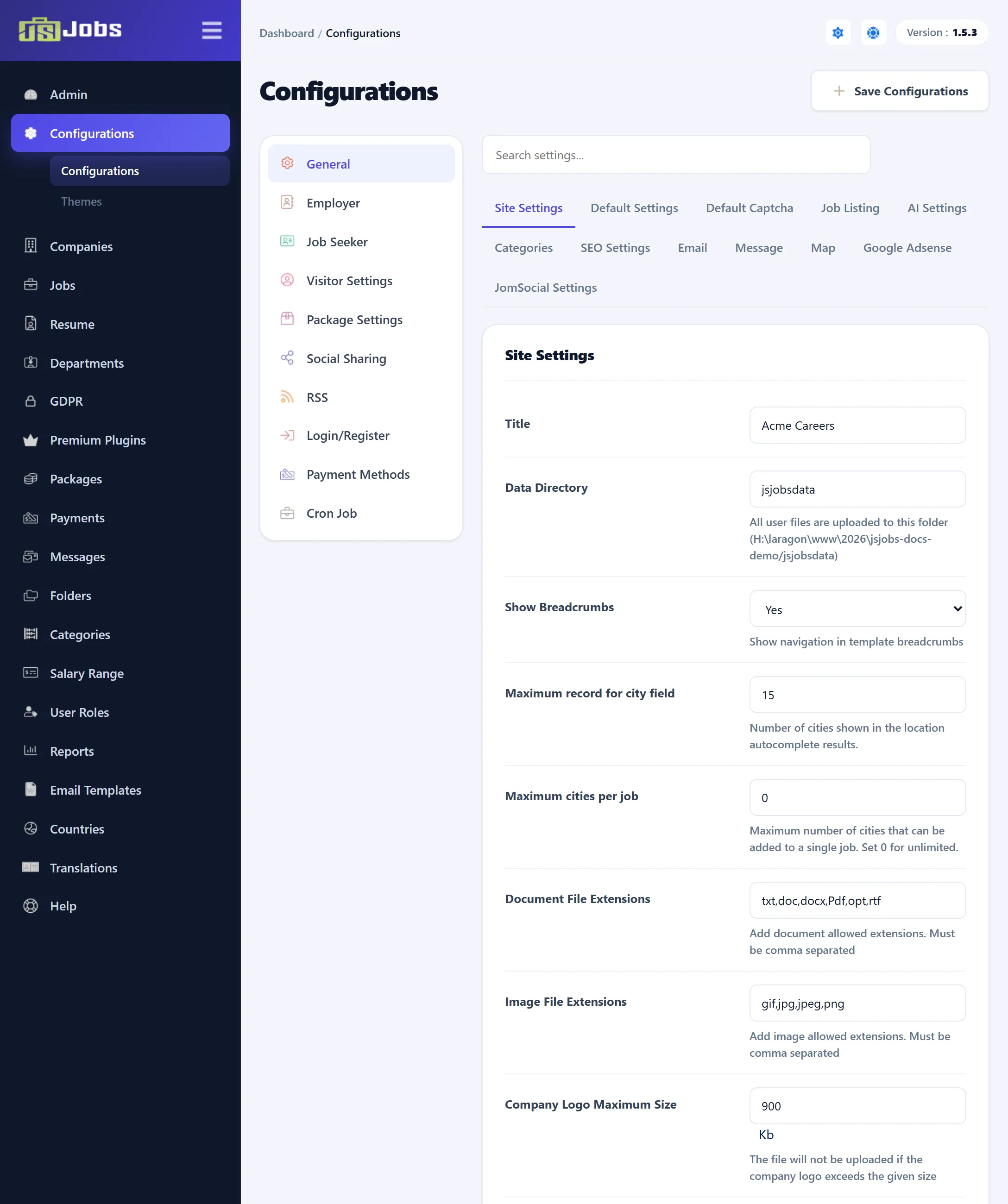
How the screen works
Section titled “How the screen works”The list on the left of the screen opens each group of settings:
| Section | Where it is documented |
|---|---|
| General | This page, and Listings, maps and integrations |
| Employer | Employer settings |
| Job Seeker | Job seeker settings |
| Visitor Settings | Visitor settings |
| Package Settings, Social Sharing, RSS | Packages, social sharing and RSS |
| Login/Register | Login and registration |
| Payment Methods (Pro) | Payment methods |
| Cron Job (Pro) | Cron job |
In the JS Jobs menu, Configurations has only two sub-items, Configurations and Themes. Reach the other sections from the list on this screen.
Each section has a row of tabs. The Search settings box above them looks through every tab of the page for settings whose name contains what you type, and shows only those. Clear the box to get the tabs back.
Click Save Configurations when you are done. It saves every tab on the page you are on. General, Visitor Settings, Package Settings, Social Sharing, RSS and Login/Register are one page, so one click saves all of them. Employer and Job Seeker are pages of their own, each with its own Save Configurations. If a number box holds something that isn’t a number, saving stops with “Some values are not acceptable please check all tabs”.
Settings marked (Pro) belong to features of JS Jobs Pro.
Site Settings
Section titled “Site Settings”| Setting | Default | What it does |
|---|---|---|
| Title | JS JOBS | Your job board’s name. It appears in the welcome page a new user sees before choosing to be an employer or a job seeker, in the offline message, and in some e-mails. The setup wizard asks for it. |
| Data Directory | jsjobsdata | The folder, inside your Joomla site’s root folder, where JS Jobs keeps uploaded files: company logos, resume photos, resume files and files sent through custom fields. The full path is shown under the box. |
| Show Breadcrumbs | Yes | Adds the JS Jobs page you are on to your template’s breadcrumb trail. |
| Maximum record for city field | 15 | How many matching cities the location box suggests while someone types a city name. |
| Maximum cities per job | 0 | The most cities an employer can add to one job. 0 means no limit. The job form stops accepting cities at the limit, and a job saved with more is refused. |
| Document File Extensions | txt,doc,docx,Pdf,opt,rtf | The file types accepted for resume files and for file-upload custom fields on the company, job and resume forms. Separate them with commas, without dots. |
| Image File Extensions | gif,jpg,jpeg,png | The file types accepted for company logos and resume photos. |
| Company Logo Maximum Size | 900 | The largest company logo, in KB. A larger file is not uploaded. |
| Mark Job New | 7 | For how many days after a job is created it carries the New tag in listings and on the job’s page. |
| Resume / Userfield : File Maximum Size | 900 | The largest resume file or custom-field file, in KB. |
| Number of Files For Resume | 5 | How many files a job seeker can attach to one resume. |
| Currency Symbol Position | Left Align | Shows the currency symbol before (Left Align) or after (Right Align) salary amounts. |
| Offline | No | Yes takes the JS Jobs front end offline: its pages show “Title Is Offline” and the text in the box beside it instead of their content. The default text is “JS Jobs is down for maintenance. Please check back again soon.” The administrator area keeps working. |
Default Settings
Section titled “Default Settings”| Setting | Default | What it does |
|---|---|---|
| Default Address Display Style | City, State, Country | How a location is written in lists, on detail pages and in e-mails: City, State, Country, City, State, City, Country or City. |
| Default Date Format | yyyy-mm-dd | How dates are shown across JS Jobs: dd-mm-yyyy, mm-dd-yyyy or yyyy-mm-dd. The mm-dd-yyyy choice actually shows slashes, as in 10/23/2026. |
| Employer Default Group | None | A Joomla user group added to each new employer, on top of the groups the account already has. Use it to give employers access to other parts of your site. |
| Job Seeker Default Group | None | The same for new job seekers. |
| Default Company Logo | None | The picture shown for companies that have no logo. Choose a file and save; the uploaded image is shown under the button. It must be one of the Image File Extensions. |
The default group is added when the user takes the employer or job seeker role, at registration or the first time they pick a role. Changing the setting later doesn’t touch existing users.
Default Captcha
Section titled “Default Captcha”| Setting | Default | What it does |
|---|---|---|
| Set Default Captcha | JS Jobs Captcha | Which captcha the JS Jobs forms use where a captcha is switched on. JS Jobs Captcha is the component’s own. Joomla Default Recaptcha uses the reCAPTCHA plugin chosen as Default Captcha in System → Global Configuration; it works with Joomla’s reCAPTCHA and invisible reCAPTCHA plugins. |
Where captchas appear is set elsewhere: on the visitor’s job, resume and job alert forms (Visitor settings) and on the registration form (Login and registration).
Categories
Section titled “Categories”| Setting | Default | What it does |
|---|---|---|
| Categories Columns Per Row | 3 | How many columns the Job Categories, jobs-by-type and resumes-by-category pages use. |
| Sub Categories Limit | 5 | How many sub-categories are listed under each category on the Job Categories page. When a category has more, Show More opens the full list in a pop-up. |
The categories themselves are managed in Categories.
SEO Settings
Section titled “SEO Settings”These settings decide which words go into the address of a job, resume or company page when Joomla’s search engine friendly URLs are on. The words are placed in front of the record’s number.
| Setting | Default | What it does |
|---|---|---|
| Job SEO | [title][company][location] | Words for a job’s address. Use any of [title], [company], [category], [location] and [jobtype], in the order you want. |
| Resume SEO | [title][location] | Words for a resume’s address: [title], [category], [location]. |
| Company SEO | [name][location] | Words for a company’s address: [name], [category], [location]. |
| Setting | Default | What it does |
|---|---|---|
| Sender email address | [email protected] | The address JS Jobs e-mails are sent from. |
| Admin E-mail Address | [email protected] | Where e-mails meant for the administrator go, such as new company, new job and new resume notices. |
| Sender Name | JS Jobs | The sender name on JS Jobs e-mails. |
The setup wizard asks for all three. Replace the shipped addresses if you skipped it. Which e-mails are sent, and to whom, is set in Email templates.