
Messages
Employers can write to you about a job you applied for. Each job you applied for has its own conversation, and only you and that employer take part in it.
Your conversations
Section titled “Your conversations”Click Messages in the Job Seeker Control Panel. Each conversation is headed Application conversation and shows the job title, the Company (click it to open the company page) and the date the job was Posted. Unread with a number shows how many of the employer’s messages you haven’t opened yet.
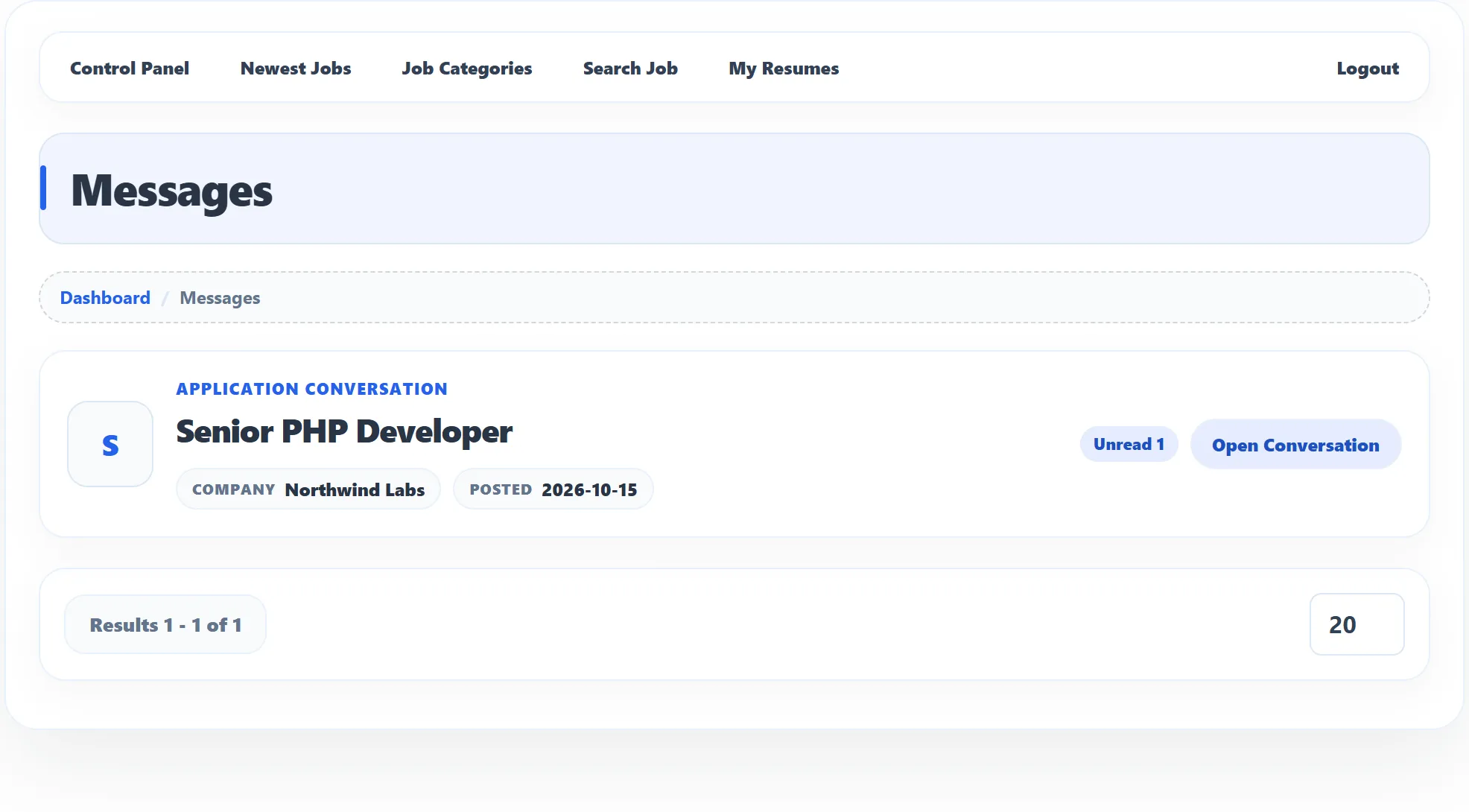
A conversation appears once the employer has written to you about an application. Until then the page says No messages yet.
Read and reply
Section titled “Read and reply”-
Click Open Conversation.
-
Read the Message History at the bottom of the page. Each message says who wrote it (You sent or Employer sent) and when.
-
Under Message Details, write your reply in Message. The subject of the conversation is kept for you and shown above it, with the Previous Message.
-
Click Send Message.
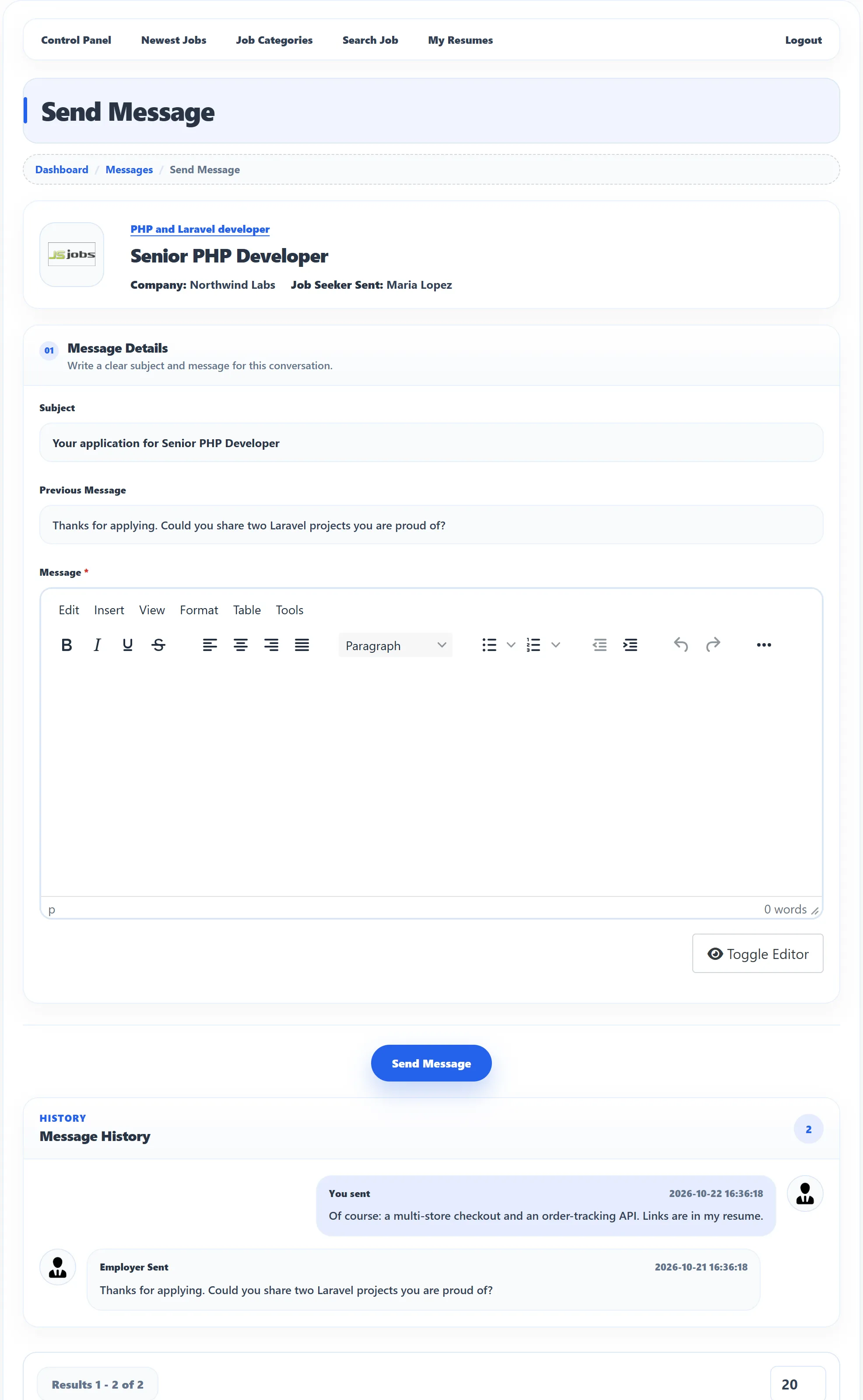
You see Message has been saved successfully, and the employer gets an e-mail about your reply.
Messages held for approval
Section titled “Messages held for approval”Some sites check messages before they are delivered. If yours is held, you see Message saved and waiting for approval, and the employer sees it once the site owner approves it. Messages that contain an e-mail address, a web address or a phone number are treated separately: the site owner can hold those for approval even when other messages go straight through.