
Users and roles
JS Jobs uses your site’s Joomla user accounts; it has no separate login. On top of the account, each user can have one JS Jobs role:
- Employer: can add companies and jobs, and see who applied.
- Job Seeker: can add resumes and apply for jobs.
The role is stored by JS Jobs and is separate from Joomla’s user groups. A user has one role at a time.
How users get a role
Section titled “How users get a role”- At registration. People who register through JS Jobs’ registration page pick Employer or Job Seeker on the form.
- On their first visit. A logged-in user who has no role yet, for example someone who registered through Joomla’s own form, is sent to a page reading Please select your role as soon as they open a JS Jobs page (other than a job’s detail page). They choose and click Submit. They cannot change it themselves afterwards.
When Allow User Register As Employer is set to No under Configurations, only Job Seeker is offered on the Please select your role page, and a user who chooses there becomes a job seeker.
When a user gets a role in either of these ways, JS Jobs also:
- adds them to the Joomla user group set in Employer Default Group or Job Seeker Default Group under Configurations, if one is set, and
- gives them the default package for their role, if there is one.
The Users screen
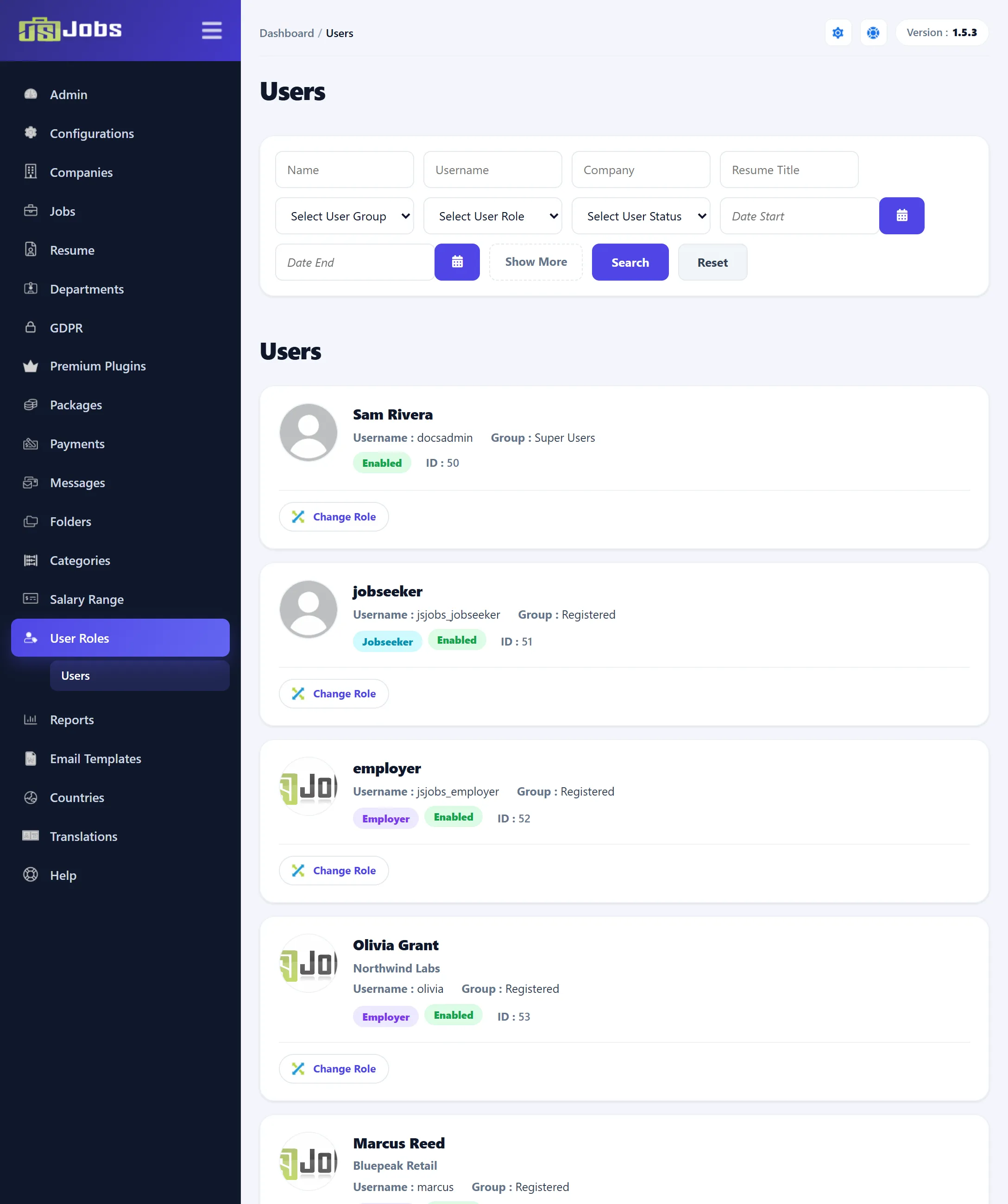
Section titled “The Users screen”Open User Roles → Users. It lists every Joomla user, with or without a role.
| Part | Shows |
|---|---|
| Picture | An employer’s company logo, or a job seeker’s resume photo. |
| Name | The Joomla user’s name. Below it, an employer’s company name or a job seeker’s name from their resume. |
| Username, Group | The Joomla username, and a Joomla user group the user belongs to. |
| Role | Employer or Jobseeker. Users without a role have no badge. |
| Status | Enabled, or Disabled if the account is blocked in Joomla. |
| Id | The Joomla user ID. |
Finding users
Section titled “Finding users”| Filter | What it matches |
|---|---|
| Name, Username | Part of the Joomla name or username. |
| Company | Part of the name of a company the user owns. |
| Resume Title | In 1.5.3 this matches the first, middle or last name on the user’s resumes, not the resume title. |
| Select User Group | One of Joomla’s standard groups, such as Registered or Super Users. |
| Select User Role | Employer, Job Seeker, or Other for users with no role. |
| Select User Status | Publish for enabled accounts, Unpublish for blocked ones. |
| Date Start, Date End | The date the user got their role. |
Show More shows or hides the second row of filters. Click Search, or Reset to clear them.
To block, delete or regroup a user, use Joomla’s Users → Manage. JS Jobs only manages the role.
Changing a user’s role
Section titled “Changing a user’s role”-
Click Change Role under the user.
-
Check the user: Name, Username, Enabled, Group and ID are shown read-only.
-
Choose the Role.
-
Click Save User Role.
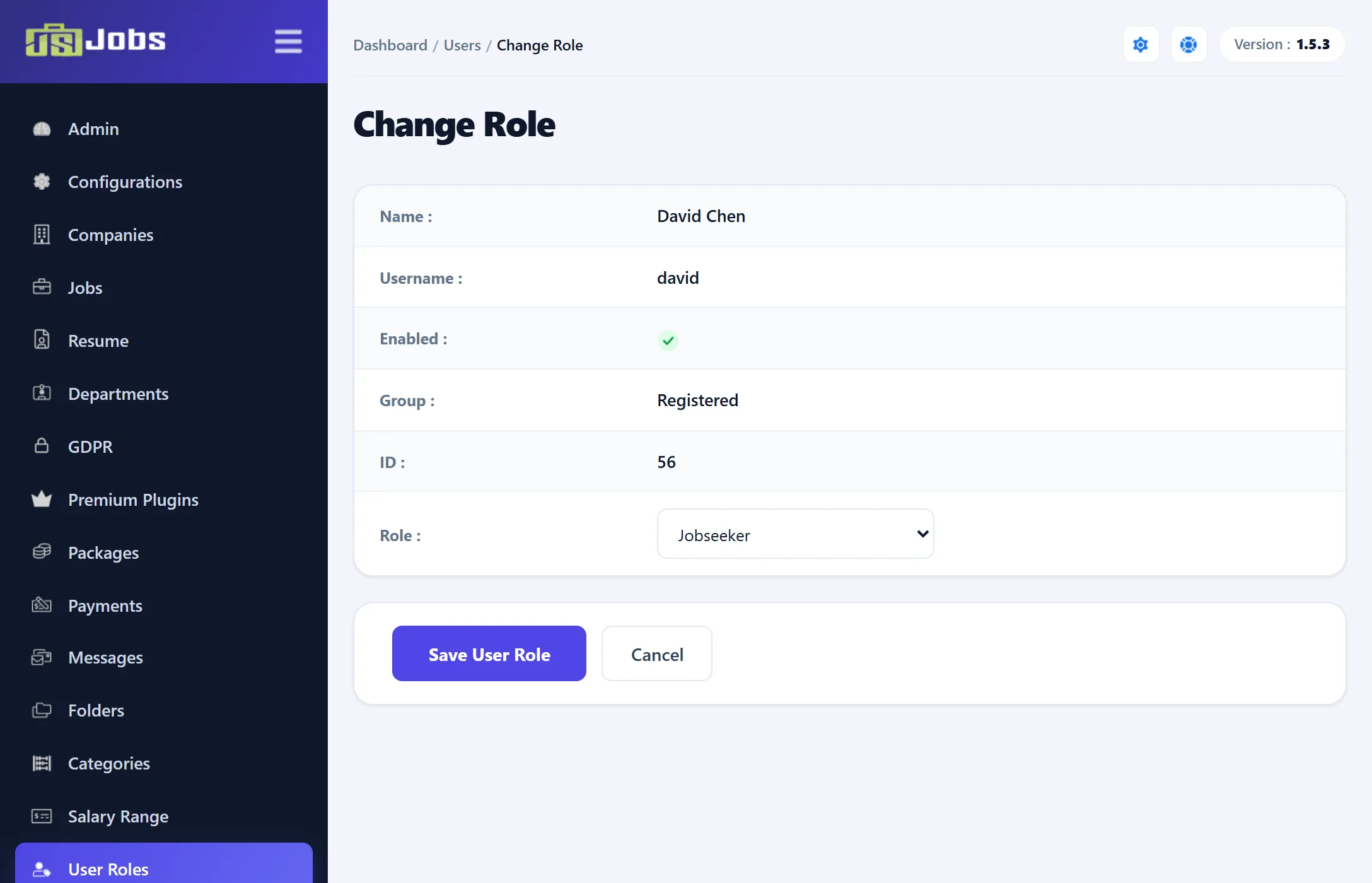
You can also give a role to a user who has none yet.
Changing the role here changes only the role. It does not move the user to the other role’s default Joomla group, does not give them a package, and leaves their companies, jobs, resumes and applications as they are; they simply see the other role’s pages on the site from now on.