
Tickets without an account
You don’t always need an account to get help. If the support team allows it, you can open a ticket as a visitor, and you can always look a ticket up with its ticket ID and the e-mail address it was opened with.
Opening a ticket as a visitor (Pro)
Section titled “Opening a ticket as a visitor (Pro)”Click Submit Ticket. If the help desk takes tickets from visitors, you get the same form as members (see Submitting a ticket), with two differences:
- You type your own Email address and Full Name. Use an address you can read: everything about the ticket is sent there.
- There may be a Captcha before the Submit Ticket button, to show you are not a robot. Depending on the site, it is either a small calculation or Google’s reCAPTCHA. A wrong answer gives Incorrect Captcha code and the ticket is not created.
After you submit, a thank-you page shows a message from the support team. You also get an e-mail with Your tracking ID, which is your ticket ID, and a link to the ticket. Keep that e-mail.
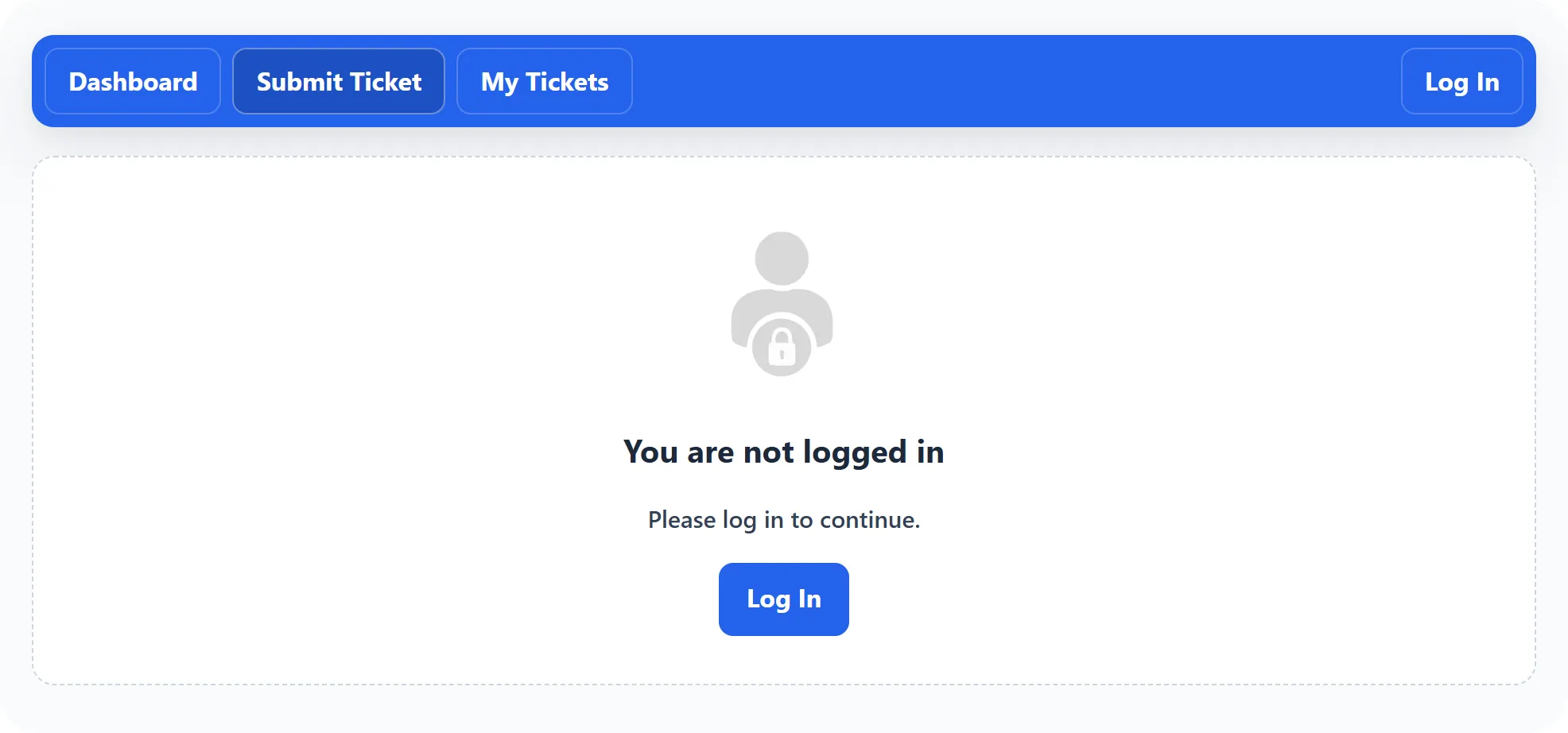
If the help desk doesn’t take tickets from visitors, Submit Ticket shows You are not logged in with a Log In button instead of the form.
Finding your ticket again
Section titled “Finding your ticket again”The quickest way is the link in the e-mail you got when the ticket was opened: it opens the ticket straight away.
Without the link:
-
On the help desk Dashboard, click Ticket Status.
-
Enter the Email address the ticket was opened with and its Ticket ID.
-
Click Check Status.
If the two match, the ticket opens. If not, you are sent back to the form with No records found. Check the ticket ID in your e-mail; it has to be typed exactly.
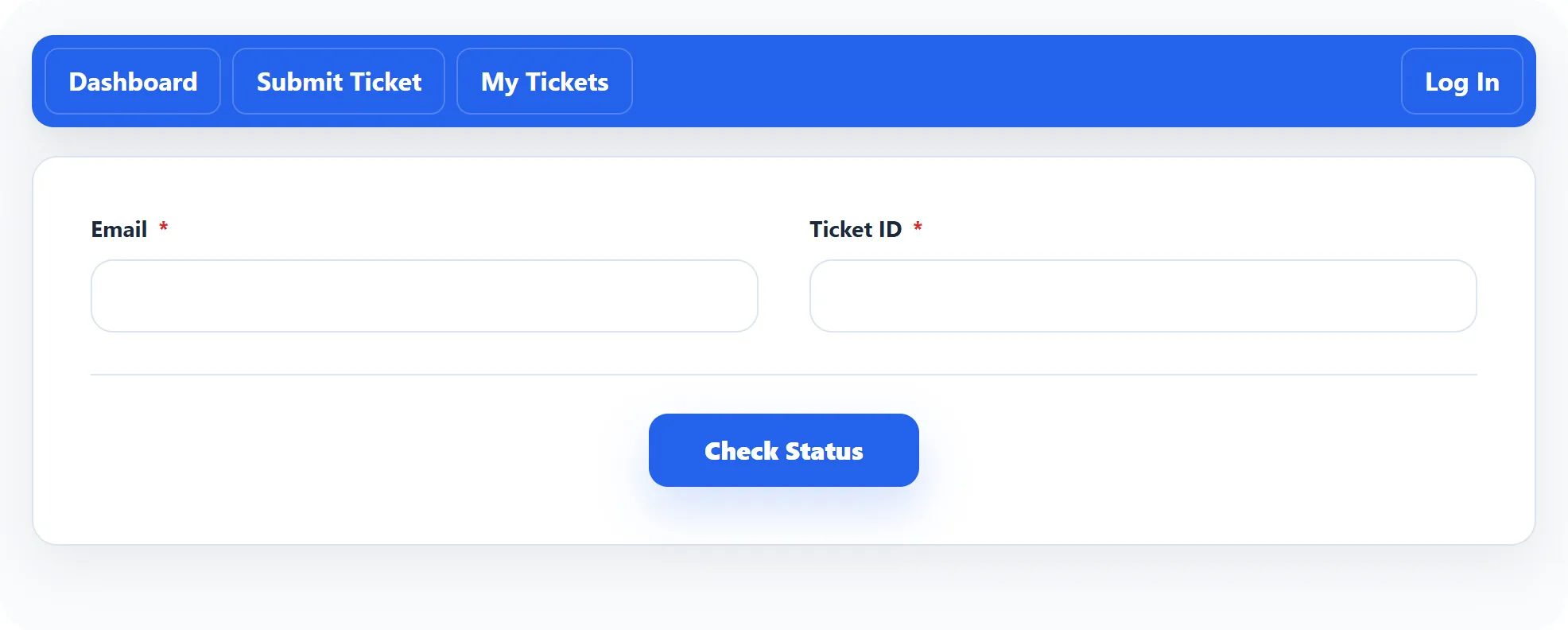
If you are logged in, Email is already filled in with your account’s address. Members don’t need this page for their own tickets, since My tickets lists them all.
What you can do on the ticket
Section titled “What you can do on the ticket”Once the ticket is open, you can do the same as a member: read the replies, add your own with Post Reply, close the ticket and reopen it. See Replying, closing and reopening. Whether you can attach files to replies depends on the support team’s settings for visitors.
The ticket stays open to you for the rest of your visit, in the same browser. When you come back later, use the e-mail link or Ticket Status again.