
Translations
JS Support Ticket follows your Joomla site’s language: when Joomla shows a page in French, the help desk does too, as long as a French language file for the component is installed. System → Translations downloads those files for you.
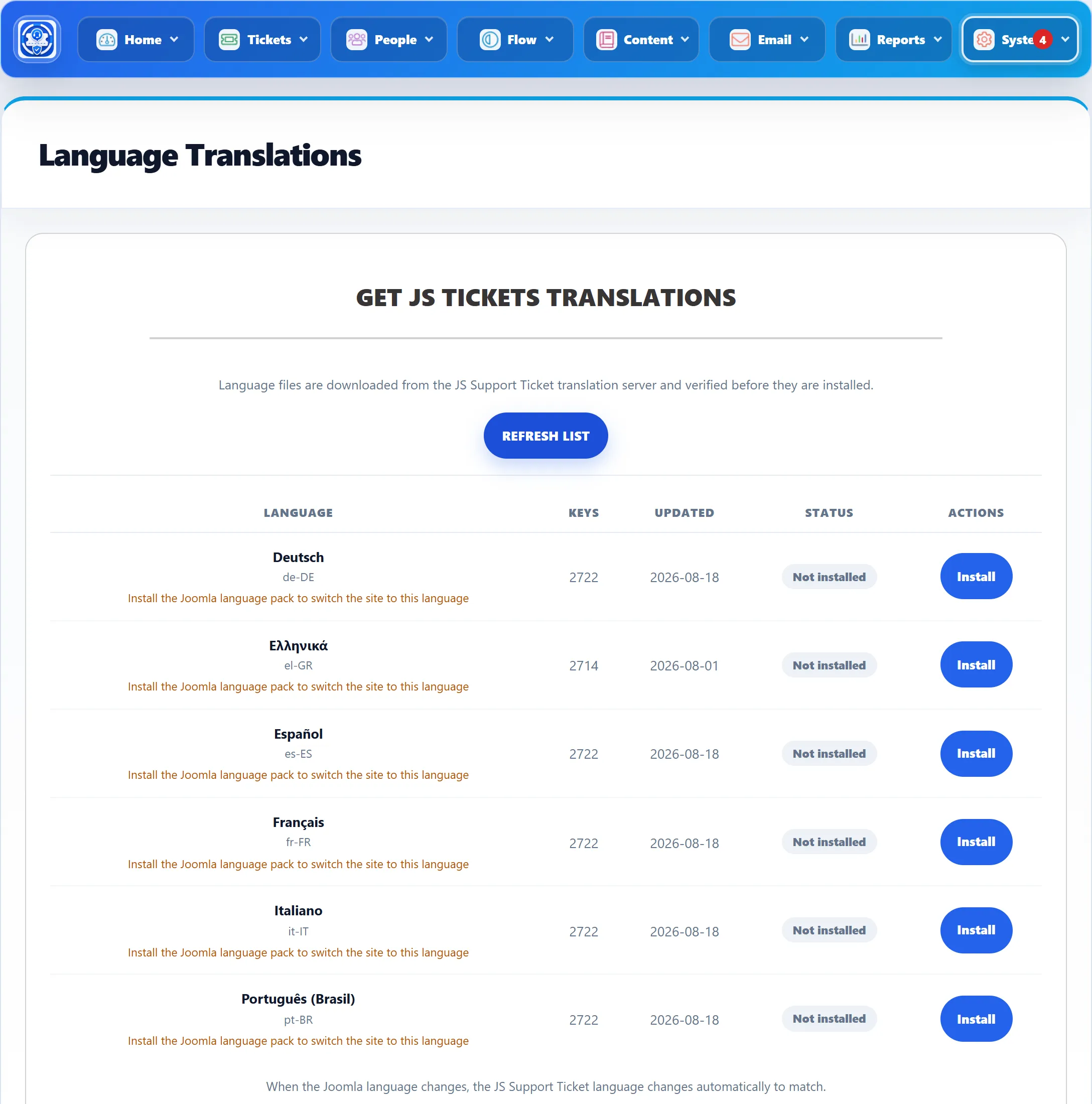
Installing a language
Section titled “Installing a language”- Go to System → Translations and click GET TRANSLATIONS. The list of available languages is fetched from the JS Support Ticket translation server.
- Find your language. Keys is how many texts it translates and Updated when it was last changed.
- Click Install. The file is downloaded, checked and installed, and you see that it has been saved.
The file is the component’s language file for that language. It covers both the administrator screens and the front end.
A language only shows on your site if Joomla itself uses it. If Joomla’s own language pack is missing, the row says “Install the Joomla language pack to switch the site to this language”. Install the pack from System → Install → Languages first.
Status and buttons
Section titled “Status and buttons”| Status | Meaning | Button |
|---|---|---|
| Not installed | No file for this language yet. | Install |
| Installed | You have the current published file. | Reinstall |
| Update available | A newer file has been published. | Update |
| Modified locally | The installed file has been edited on this site. | None |
A file that was changed on your site is never replaced, so your edits are not lost. Hover over Modified locally for the reason. To change wording, use Joomla’s System → Language Overrides rather than editing the file: overrides survive updates and new downloads.
The list is kept for 12 hours. REFRESH LIST fetches it again straight away, for example when you know a new file has just been published.
Safety checks
Section titled “Safety checks”Downloaded files are checked before anything is written:
- The list of languages is signed, and the signature is verified first.
- Each file must match the checksum in that signed list. A file that doesn’t is rejected.
- The file is checked as a valid language file and any markup in its texts is cleaned.
- Downloads use a secure connection, with certificate checking always on.
Only the component’s own language file for the chosen language is ever
written, in the administrator’s language folder. If that folder can’t be
written, you see an error naming it.
Your server needs to reach the internet (cdn.jsdelivr.net) for this screen to
work.