
Ticket actions
The buttons under the customer’s details on the ticket screen act on the whole ticket. Most of them change the ticket straight away, with no question first. A merged ticket shows none of them.

| Button | What it does |
|---|---|
| Merge Ticket (Pro) | Merges this ticket into another of the same customer’s tickets. See Merging. Not shown on a closed ticket. |
| Edit Ticket | Opens the ticket’s form. See Creating and editing tickets. |
| Close Ticket | Closes the ticket. See Closing and reopening. |
| Reopen Ticket | Shown instead of Close Ticket on a closed ticket. |
| Private Credentials (Pro) | Logins the customer shares for this ticket. See Private credentials. |
| Ticket History | Everything that has happened to the ticket. See History. |
| Print Ticket (Pro) | Opens a printable copy in a new tab and the browser’s print dialog. See Printing. |
| Lock Ticket / Unlock ticket (Pro) | Stops, or allows again, replies from the customer. |
| Ban email / Unban Email (Pro) | Adds the customer’s address to the banned list, or takes it off. |
| Mark overdue / Unmark overdue (Pro) | Sets or clears the ticket’s overdue flag. |
| Mark In Progress (Pro) | Sets the status to In Progress. |
| Ban email and close ticket (Pro) | Bans the address and closes the ticket in one step. |
Every action is written to the ticket’s history. Emails go to the administrator, the staff and the customer as switched on for that event under System → Settings → Mail Settings, in Ticket Operations Mail Setting.
| Action | Email row in Mail Settings |
|---|---|
| Close (all ways of closing) | Ticket close |
| Lock / Unlock | Ticket Lock / Ticket Unlock |
| Ban email | Ticket ban email |
| Mark overdue | Ticket mark overdue (unmarking sends nothing) |
| Mark In Progress | Ticket mark in progress |
| Reopen, Merge, Edit | No email |
Closing and reopening
Section titled “Closing and reopening”Close Ticket sets the status to Closed, records when it was closed, clears the overdue flag, records the resolution time for the SLA, and removes the ticket’s private credentials. It sends the Ticket close email and emails the ticket’s watchers.
Reopen Ticket sets the status back to New and treats the ticket as waiting for your team again, so it returns to the Open list. Any custom status is cleared, and the ticket’s last reply time is set to now. As the site administrator you can reopen at any time; staff members and customers can only reopen within Reopen ticket within days of the last reply (System → Settings → Ticket Settings). Reopening sends no email.
Locking
Section titled “Locking”A locked ticket shows Locked instead of its status, and a Locked badge in the ticket list. The customer can no longer reply, from the web or by email. You and your staff can still reply. Unlock ticket reverses it.
Banning an address
Section titled “Banning an address”Ban email adds the customer’s email address to Email → Banned Emails. Someone using a banned address cannot open new tickets. Banning leaves this ticket as it is; the button then reads Unban Email, which removes the address from the list.
Ban email and close ticket does both. It sends the Ticket ban email and Ticket close emails; the Ticket ban email and close ticket row in Mail Settings is not used.
Overdue and In Progress
Section titled “Overdue and In Progress”Mark overdue sets the overdue flag: the ticket gets an Overdue badge and shows under the Overdue card. The component also sets this flag by itself; see Statuses and flags. Unmark overdue clears it.
Mark In Progress sets the status to In Progress to show that someone is working on the ticket.
Merging a ticket
Section titled “Merging a ticket”Merging closes this ticket and points it at another ticket from the same customer, so the conversation carries on in one place.
-
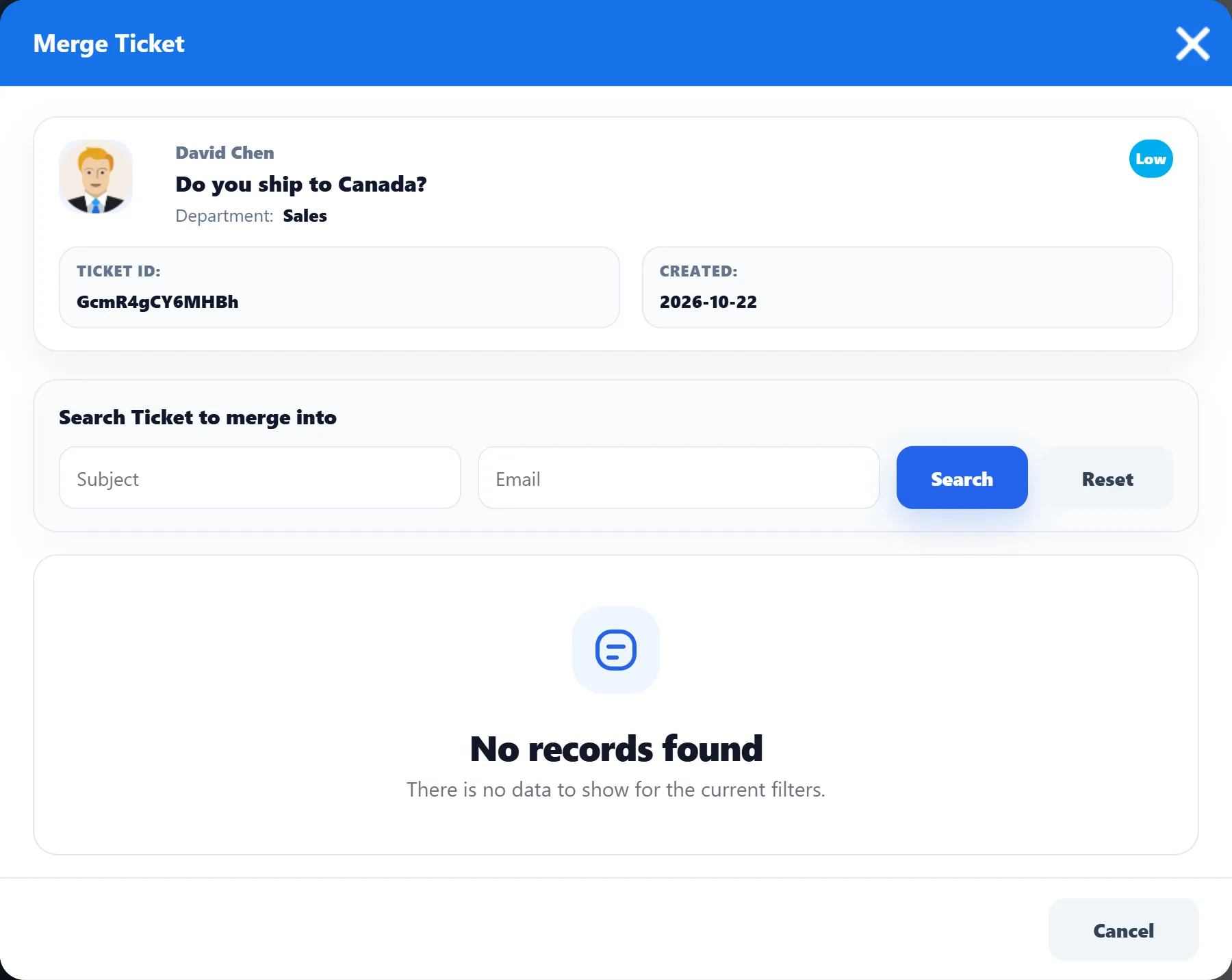
Click Merge Ticket. The window lists the customer’s other tickets that are not closed or merged, four at a time. Search Ticket to merge into narrows them by Subject or Email.
-
Click Merge into this ticket under the ticket you want to keep.
-
Check the two notes. The one for this ticket reads “This ticket has been closed because it was merged into” followed by the other ticket’s subject. The one for the ticket you keep says this ticket has been merged into it, followed by this ticket’s latest reply. Change either under Edit Last Reply.
-
Click Merge.
This ticket’s status becomes Merged and each note is added to its ticket’s thread, ending with the other ticket’s tracking ID. Merging sends no email.
Private credentials
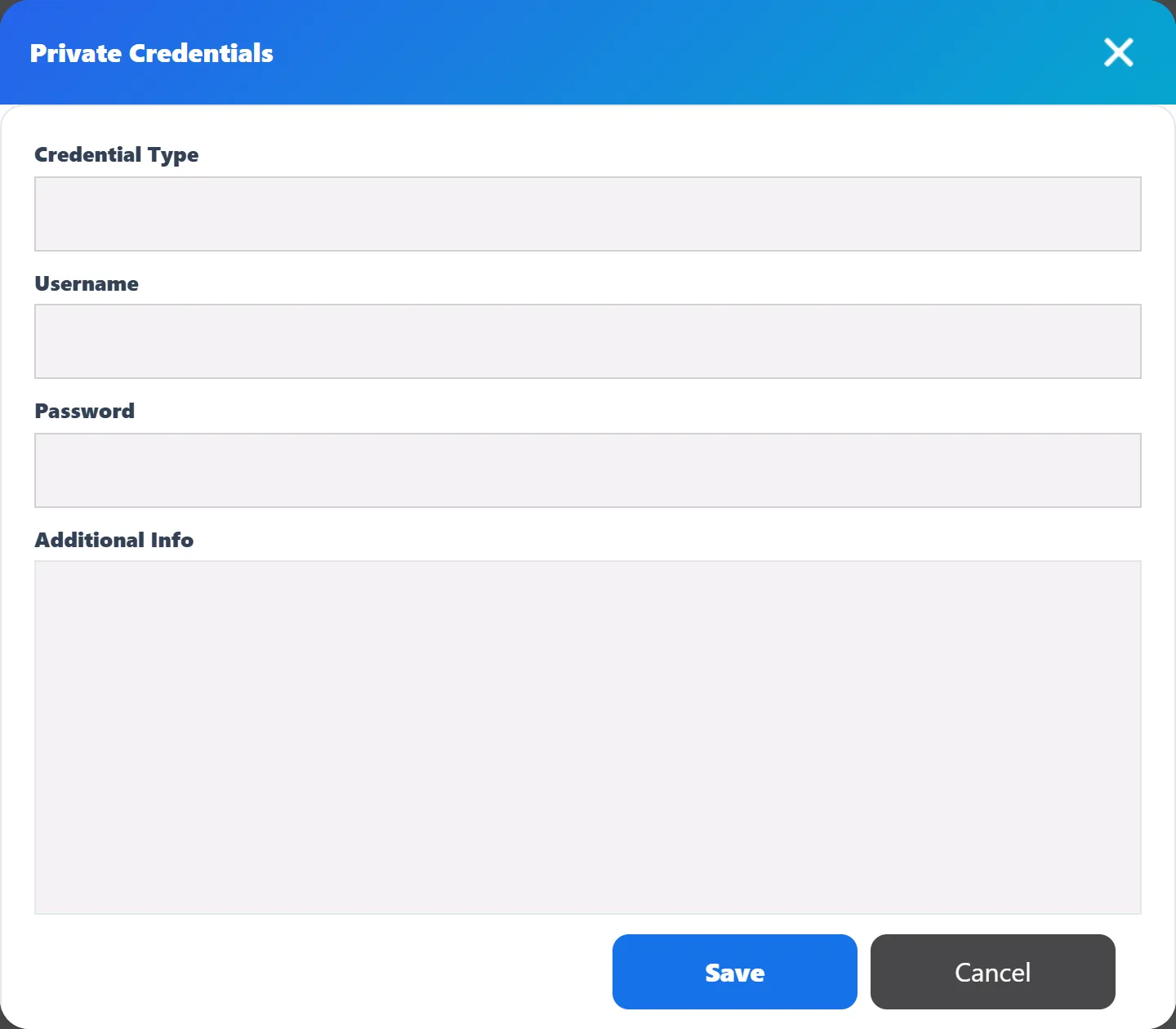
Section titled “Private credentials”Private Credentials opens a window listing the logins stored on this ticket. Add New Credential shows a form with Credential Type, Username, Password and Additional Info; click Save. Each entry has Edit and Delete.
Credentials are stored encrypted with the key under System → Settings → Private Credentials. When the ticket is closed, they are deleted and each entry reads “Credential removed on ticket close”. You cannot add new ones to a closed ticket.
Ticket history
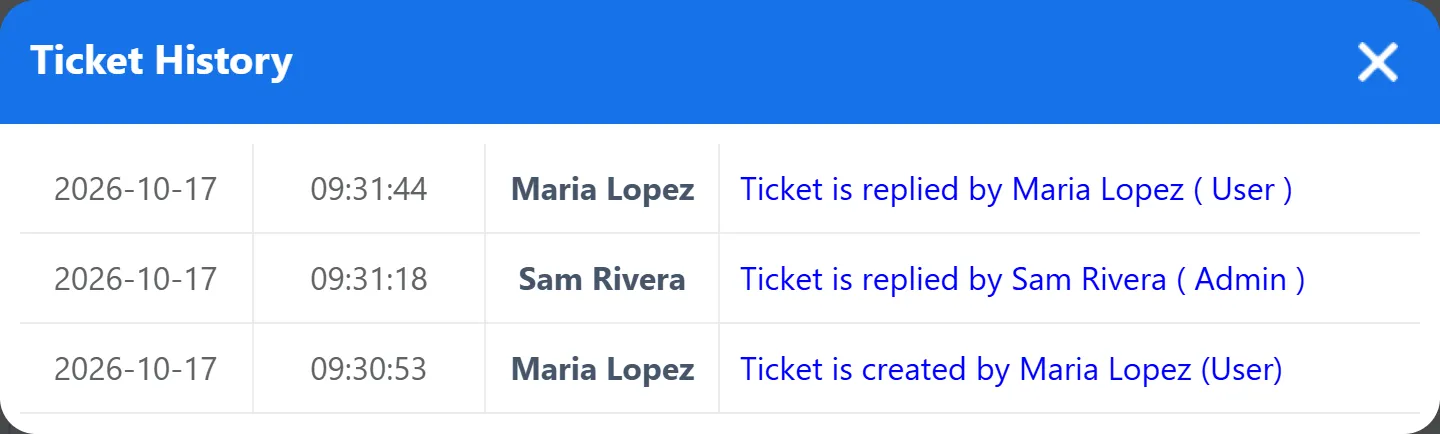
Section titled “Ticket history”Ticket History lists everything recorded on the ticket, newest first: when it was created, replies, notes, status, priority, department and assignment changes (with the old and new value), locks, bans, tags, watchers, links and deferrals. Each line has the date, the time and who did it; automatic changes show System.
Printing
Section titled “Printing”Print Ticket opens the ticket in a new tab and starts the browser’s print dialog. The printout has the customer’s details, the internal notes, the customer’s original message, the status, the ticket’s details, the priority and the assignment. Replies are not included.